


Determining what CPU is compatible with my motherboard is the most critical step when you are planning a PC upgrade or building a machine from scratch. Because the processor and the mainboard must communicate perfectly, even a tiny mismatch in socket architecture or power requirements can result in a system that refuses to boot.
You do not need to be a professional engineer to figure this out, but you do need to understand the physical and logical constraints of your hardware. By checking your specific chipset and socket type, you can avoid costly mistakes and ensure your system runs exactly as intended.
Identifying Your Current Motherboard and Chipset
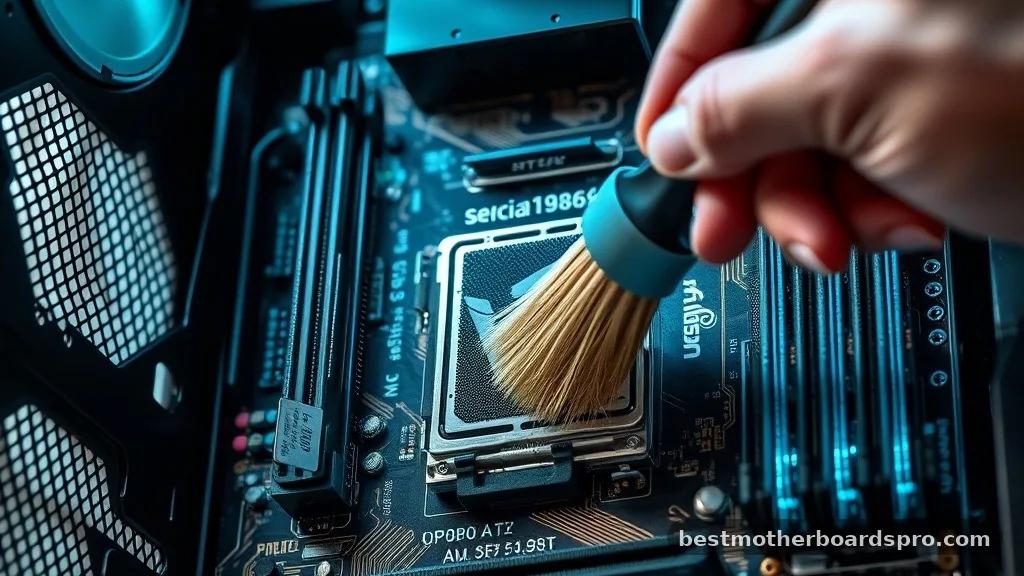
Before you can determine what CPU is compatible with my motherboard, you must identify exactly what hardware is currently inside your chassis. Most users assume they know their specs, but motherboard revisions and BIOS versions can significantly change support capabilities.
The easiest way to find this information is through system software. On Windows, you can open the System Information app or use third-party tools like CPU-Z. These utilities pull data directly from the BIOS, showing you the exact manufacturer, model name, and current revision of your board.
Once you have the model name, look it up on the manufacturer’s official support website. Every reputable brand, such as ASUS, MSI, Gigabyte, or ASRock, maintains a “CPU Support List” for every board they produce. This list is the definitive source of truth for your specific hardware.
Understanding Socket Types and Chipsets
The physical interface between your processor and the mainboard is called the socket. Even if a chip fits into the hole, it does not mean it will work. The socket must match the physical layout of the processor’s pins or pads, and the chipset must support the processor’s architecture.
For example, Intel and AMD use entirely different socket designs. An Intel processor requires a board with an LGA (Land Grid Array) socket, while many older or specific AMD processors utilize AM4 or AM5 sockets. You cannot force a chip into the wrong socket, and attempting to do so will permanently damage the pins.
The Role of the Chipset
The chipset acts as the traffic controller for your computer. It dictates how data moves between the processor, memory, and storage, such as your high-speed SSD. If you buy a cutting-edge processor but pair it with an aging chipset, you might find that certain features, like overclocking or full PCIe bandwidth, are disabled.
| Factor | Why It Matters |
|---|---|
| Socket Type | Determines physical fitment and electrical pin mapping. |
| Chipset | Controls communication speed and feature availability. |
| BIOS Version | Allows the board to recognize newer CPU architectures. |
| VRM Quality | Handles power delivery for high-performance chips. |
Why BIOS Updates Are Essential
Even if a motherboard has the correct socket for a new processor, the system might fail to recognize it if the BIOS firmware is outdated. Manufacturers release periodic updates that expand the list of supported CPUs. These updates often include microcode patches that tell the board how to handle the specific instructions of newer chip models.
Always check the release notes on the manufacturer’s website. If your board requires a BIOS update to support your chosen CPU, you must perform this update using your old processor before you swap in the new one. If you install the new chip first, the computer may not post, leaving you with no way to enter the BIOS to perform the update.
Evaluating Power Delivery and Thermal Limits
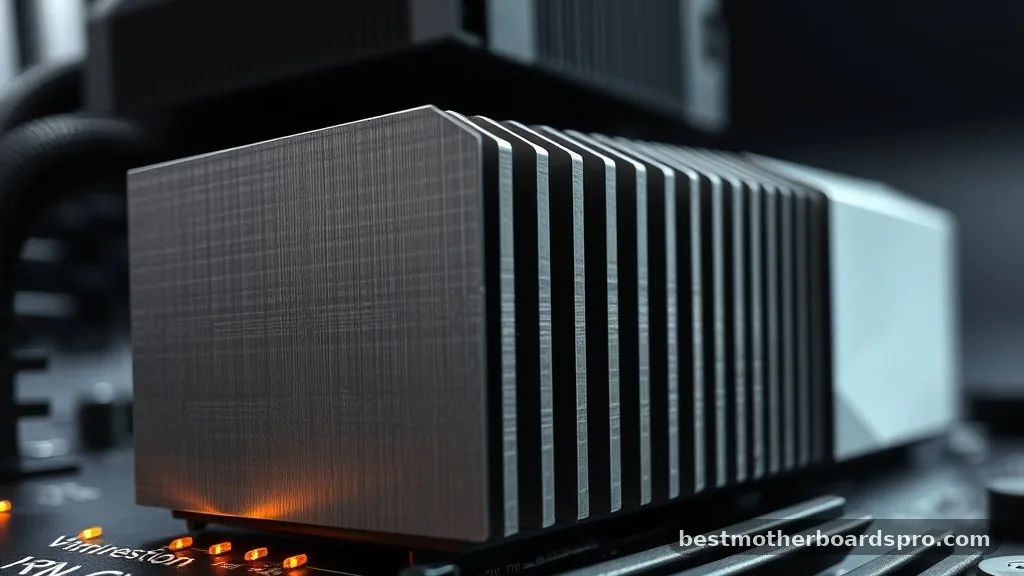
When you are narrowing down what CPU is compatible with my motherboard, don’t ignore power delivery. High-end processors pull significantly more current than entry-level models. Your motherboard uses Voltage Regulator Modules (VRMs) to step down power from the power supply to the CPU.
If your board has weak or uncooled VRMs, installing a power-hungry flagship processor can lead to thermal throttling or complete system instability. You might see the system crash under heavy loads, or it might run noticeably slower than it should.
- Check the TDP (Thermal Design Power) of the processor you intend to buy.
- Ensure your motherboard’s VRM heatsinks are sufficient for that TDP.
- Verify that your power supply unit (PSU) has the correct 8-pin or 4-pin CPU power connectors.
- Confirm that your cooling solution (air or liquid) fits the socket and can handle the heat output.
Addressing Common Compatibility Gaps
A frequent point of confusion involves “socket-compatible” chips that aren’t actually supported by the board. Just because a chip fits into an AM4 socket does not mean every AM4 board will boot with it. Some entry-level boards lack the power phases required for top-tier processors, so manufacturers intentionally restrict support in the BIOS.
Another gap is the “refresh” issue. Sometimes manufacturers release a “new” CPU that is actually just a slight tweak of an older architecture.
While it might look compatible, it often requires a specific chipset version. Always prioritize the manufacturer’s official support list over forum advice, as user experiences can vary based on individual board revisions.
Frequently Asked Questions
Can I use any CPU that fits into my motherboard’s socket?
No, physical fitment is only the first step. The motherboard’s chipset and BIOS firmware must also support the specific processor architecture. Always check the manufacturer’s official CPU support list to ensure your board can communicate with the specific model you intend to install.
How do I know if my BIOS needs an update for a new CPU?
Check the CPU support list on your motherboard’s website. It usually specifies the minimum BIOS version required for each processor. If your current version is older, you must update the BIOS before removing your old CPU to ensure the new one is recognized upon installation.
Does my motherboard influence the performance of my new CPU?
Yes, the motherboard affects performance through its chipset capabilities and power delivery. A budget board may limit a high-end CPU’s ability to boost to its maximum clock speed, or it might lack support for faster RAM and modern SSD speeds, effectively bottlenecking your new hardware.
Where can I find the model number of my motherboard?
You can find it by using system information tools like CPU-Z or Windows System Information. Alternatively, you can open your PC case and look for the model name printed directly on the PCB, usually located near the memory slots or the expansion card slots.
Choosing the Right Upgrade Path
When you are deciding what CPU is compatible with my motherboard, keep your long-term goals in mind. If you are aiming for a significant performance jump, it might be more cost-effective to replace the motherboard and CPU together. Staying on an “end-of-life” socket means you are limited to older technology, which might eventually restrict your ability to use faster memory or the latest high-speed storage standards.
Take the time to verify your BIOS version and power constraints before purchasing any new parts. If you do your research, the installation process will be straightforward and rewarding.
Should you find that your current board is too restrictive, consider that upgrading the motherboard allows for better scalability, giving you more options for future performance increases. If you have any remaining questions about your specific build, checking the manufacturer’s forums or technical support pages is a great way to confirm your findings before making a final commitment.
