

Picking a motherboard often feels like the most daunting part of a custom PC build because it serves as the central nervous system for every other piece of hardware. If you don’t get this foundational piece right, you might find yourself limited by missing features, incompatible parts, or a lack of room for future upgrades.
Whether you are aiming for a high-end workstation or a budget-friendly gaming rig, understanding how to pick a motherboard comes down to matching the board’s capabilities with your specific performance goals. By focusing on the right socket, chipset, and form factor, you can ensure your system runs smoothly from day one.
Understanding Socket Compatibility and Chipsets
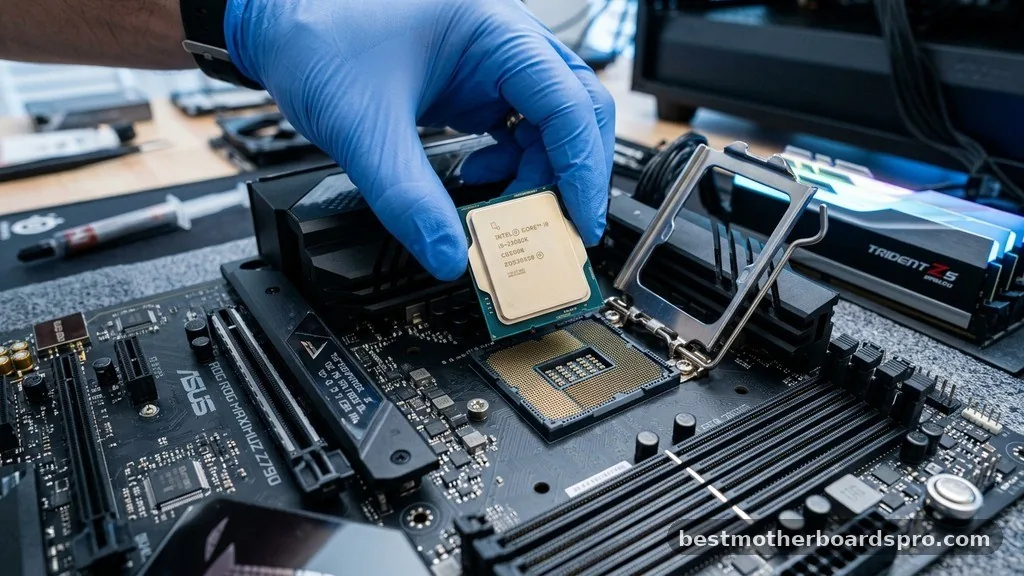
The most critical step in this process is ensuring your processor fits the board. Your CPU and motherboard must share the same socket type; otherwise, they physically won’t connect. Intel and AMD utilize distinct architectures, and even within the same brand, sockets change every few generations.
Always check the manufacturer’s website for CPU support lists to confirm your specific processor model will function with the board’s current BIOS version. Beyond the socket, the chipset determines what features are available to you. Higher-tier chipsets usually offer more overclocking potential, additional high-speed USB ports, and more PCIe lanes for fast storage or multiple graphics cards.
Selecting the Right Form Factor
Motherboards come in standardized sizes known as form factors. These dimensions dictate how the board fits into your PC case and how many components you can plug into it.
- ATX: The standard size for most desktop builds. It offers the most room for expansion, extra PCIe slots, and usually four RAM DIMM slots.
- Micro-ATX: A slightly smaller option that balances size and functionality. It is often cheaper than full ATX boards while still providing enough room for a single GPU and a decent amount of storage.
- Mini-ITX: The smallest common size. These boards are ideal for compact, portable builds but often come with fewer expansion slots and a higher price tag due to the space-saving engineering required.
If you are building a small-form-factor machine, you must verify that your chosen case specifically supports your motherboard’s size. Trying to force an ATX board into a case designed for Mini-ITX is physically impossible, so measure twice and buy once.
Evaluating PCIe Slots and Expansion
PCIe slots are the pathways that allow your graphics card, capture cards, and high-speed NVMe drives to communicate with the rest of your system. If you plan on using multiple high-performance components, you need to ensure your motherboard has enough physical space and electrical bandwidth to handle them.
Modern boards often prioritize M.2 slots for NVMe SSDs. If you want to run multiple fast drives, look for a board that provides at least two or three M.2 slots.
Be aware that some boards share bandwidth between these slots and other connections; if you plug a drive into a specific slot, another port might become disabled. Always check the manual to see how these connections interact.
| Feature | Budget Board | High-End Board |
|---|---|---|
| VRM Cooling | Basic/Minimal | Heavy Duty/Active |
| PCIe Lanes | Limited | Abundant |
| RAM Slots | 2 Slots | 4 Slots |
| Connectivity | Standard USB | USB-C/Thunderbolt |
Memory Support and RAM Speeds
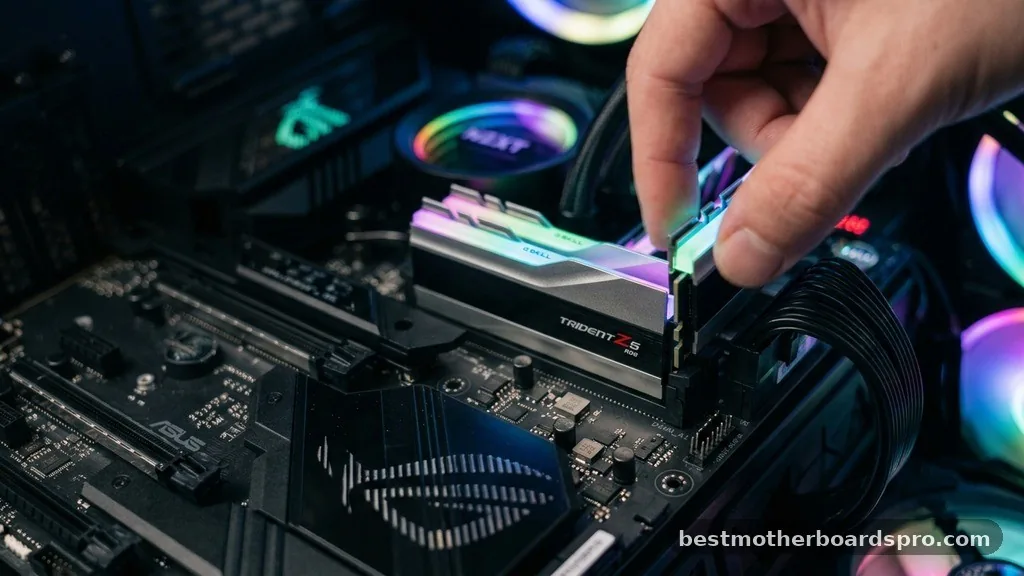
RAM compatibility is often overlooked until the system fails to boot. You need to check the motherboard’s maximum supported memory speed and capacity. While many boards advertise high-speed memory support, you often have to enable an XMP or EXPO profile in the BIOS settings to actually reach those advertised speeds.
If you are building a professional workstation, prioritize boards that support ECC (Error Correction Code) memory if your CPU also supports it. For general gaming builds, standard DDR4 or DDR5 sticks are perfectly fine. Just make sure the board has enough slots to accommodate the amount of RAM you want to run, especially if you plan to upgrade later.
Addressing Topical Gaps: VRM Quality and BIOS Features
Many buyers focus solely on the aesthetics or the number of USB ports, ignoring the Voltage Regulator Modules (VRMs). The VRMs are responsible for converting the power from your power supply into the clean, steady voltage your CPU needs.
If you are using a power-hungry processor, a motherboard with weak, uncooled VRMs can lead to thermal throttling. This forces the CPU to slow down to prevent damage, which defeats the purpose of buying high-end hardware.
Another gap in common advice is the importance of the BIOS interface. Some manufacturers provide much better software support than others.
Features like easy BIOS flashing—which allows you to update the board without a CPU installed—can save you a massive headache if you buy a newer chip for an older motherboard series. Look for boards that offer robust fan control software and clear, easy-to-navigate BIOS menus.
Connectivity and Integrated Features
Think about the peripherals you use daily. Do you need a massive amount of USB ports for streaming gear, a high-quality integrated audio chip for recording, or built-in Wi-Fi and Bluetooth?
Adding these through expansion cards is possible, but it takes up valuable space and PCIe lanes. Getting them integrated into the board is usually more efficient.
Networking is another key consideration. If you have a fast home internet connection, look for a board with a 2.5Gbps LAN port rather than the standard 1Gbps. It provides a bit of future-proofing and ensures you aren’t bottlenecking your connection when transferring large files across a local network or downloading massive game files.
FAQ
How do I know if a processor is compatible with a motherboard?
You must check the motherboard’s CPU support list on the manufacturer’s official website. This list confirms which specific processor models work with the board and whether you need to update the BIOS to a newer version to ensure full compatibility before the system will successfully power on.
Can I just swap my motherboard without reinstalling Windows?
While it is technically possible to move an existing drive to a new motherboard, it often leads to driver conflicts and activation issues. A clean installation of your operating system is highly recommended to ensure system stability and to prevent performance problems caused by leftover hardware drivers.
Do I need an expensive motherboard for gaming?
You generally do not need an expensive board for gaming unless you plan to overclock your CPU or require specific high-end features like extra PCIe lanes. A mid-range board typically provides all the necessary performance and connectivity for a great gaming experience without the unnecessary, higher-priced premium features.
Which is better, AMD or Intel motherboards?
Neither is inherently better; the choice depends on your CPU preference. AMD boards use AM4 or AM5 sockets, while Intel boards use their own specific LGA sockets. You should pick the motherboard that supports the specific CPU model you have already decided is best for your budget.
Conclusion
Selecting the right foundation for your PC is a balance of current needs and future expectations. By focusing on the socket, form factor, and power delivery, you avoid the most common pitfalls that lead to hardware incompatibility. Remember that the best board for your build is the one that supports your chosen components without forcing you to pay for features you will never actually use.
Whether you are building a high-speed gaming rig or a reliable workstation, taking the time to verify your component list will make the assembly process much smoother. Once you have your parts, take your time with the build, and you’ll have a machine that serves you well for years to come.
