

Updating the BIOS firmware on your MSI motherboard is one of the most effective ways to ensure your system remains stable, secure, and compatible with the latest hardware releases. Whether you are troubleshooting a persistent system error or preparing your machine for a new CPU upgrade, performing a firmware refresh helps your hardware communicate more efficiently.
While the process might seem intimidating at first, MSI has simplified the procedure through user-friendly tools that keep the risk of failure to a minimum. By following a structured approach, you can successfully perform an update on your MSI motherboard and unlock the full potential of your PC.
Understanding Why BIOS Updates Matter
The Basic Input/Output System, or BIOS, acts as the primary bridge between your computer’s hardware and its operating system. When you decide on updating bios on msi motherboard hardware, you are essentially replacing the low-level code that initializes your components during the boot sequence. Modern boards use UEFI, which provides a more graphical and interactive interface compared to the legacy systems of the past.
Keeping this firmware current is vital for several reasons. First, manufacturers frequently release patches to improve system stability, which can resolve random crashes or boot loops.
Second, a new BIOS version often includes microcode updates that expand CPU compatibility, allowing your board to support newer processor generations. Finally, security patches integrated into the latest versions protect your system against vulnerabilities that could otherwise be exploited at the hardware level.
Preparing for the Update Process
Before you touch any files, you must identify your exact hardware specifications. Using the wrong file can result in a bricked motherboard, so precision is mandatory. Start by checking your current BIOS version within the UEFI menu or by using system information tools in Windows.
Next, head to the official MSI support website to locate your specific motherboard model. It is essential to download the file that corresponds exactly to your board, as even a minor variation in the model name can lead to incompatibility.
Once you have the correct file, ensure you have a reliable USB flash drive formatted to FAT32. This format is the industry standard for BIOS flashing because it ensures the motherboard’s built-in utility can read the file without errors.
| Preparation Step | Why It Matters |
|---|---|
| Identify Model | Prevents loading incompatible firmware that bricks the board. |
| Format USB to FAT32 | Ensures the M-Flash utility can successfully read the file. |
| Check Power Supply | Prevents data corruption from unexpected power loss. |
| Verify Version | Avoids unnecessary updates if your system is already current. |
Using M-Flash for a Safe Update
M-Flash is the safest and most reliable method for updating your system. Unlike software-based tools that run inside Windows, M-Flash operates directly within the UEFI environment, meaning there is no interference from background applications or operating system glitches.
To use this tool, place the extracted BIOS file from the MSI support website onto the root directory of your FAT32 USB drive. Restart your computer and press the Delete key repeatedly to enter the BIOS interface. Once inside, navigate to the M-Flash button, usually located in the bottom corner of the screen.
The system will prompt you to reboot into flash mode. From there, select your USB drive, locate the BIOS file, and confirm the update. The progress bar will indicate when the process is complete, after which your computer will restart automatically.
Alternative Methods and Specialized Tools
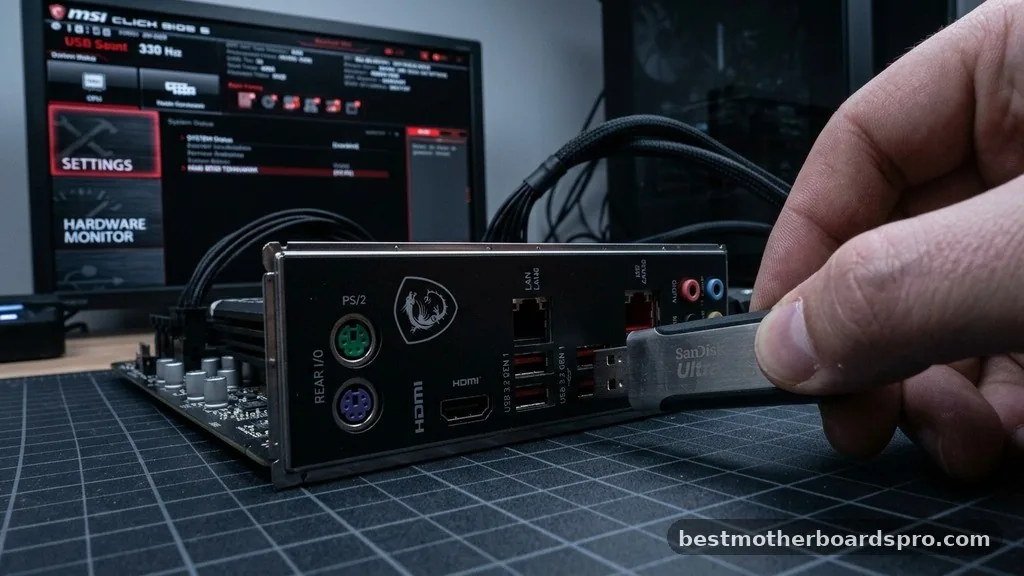
While M-Flash is the preferred choice for most users, MSI offers other ways to manage firmware. If you have a high-end board, you might find a dedicated BIOS flashback button on the rear I/O panel. This feature allows you to update the firmware without even installing a CPU or RAM, which is incredibly useful for building a new system from scratch.
- MSI Center: A Windows-based utility that can check for updates automatically, though it is generally recommended to use M-Flash for the actual flashing process.
- BIOS Flashback Button: Allows for recovery or updates even if the system fails to post, using only a power supply and a prepared USB drive.
- UEFI Interface: The primary environment for manual configuration, monitoring temperatures, and adjusting settings after the update finishes.
- System BIOS Recovery: A last-resort method for restoring functionality if an update was interrupted or corrupted.
Common Risks and How to Avoid Them
The most significant risk during any firmware update is power loss. If your PC loses electricity while it is writing the new code to the CMOS chip, the board may become unresponsive.
Always ensure your system is plugged into a stable power source. If you live in an area with frequent outages, consider using an Uninterruptible Power Supply (UPS) for the duration of the update.
Another common pitfall is using a corrupted file. Always verify the file size or checksum if provided on the support page before proceeding.
If the M-Flash tool refuses to recognize the file, reformat the USB drive to FAT32 and copy the file again. Patience is key; the process might appear to hang at certain percentages, but you should never force a restart until the system completes the task or notifies you that it is finished.
Addressing Topical Gaps
Many users wonder if they should update their BIOS if their system is already running perfectly. While the “if it isn’t broken, don’t fix it” rule applies to many software applications, it is less applicable to motherboard firmware. Manufacturers often release updates that improve memory compatibility, allowing you to run faster RAM kits at their rated XMP speeds.
Additionally, if you notice your system takes an unusually long time to post or has trouble detecting connected peripherals, a BIOS update often contains fixes for these specific hardware handshake issues. Understanding your motherboard chipset is also helpful; newer chipsets receive more frequent updates to optimize performance for specific CPU architectures. Always consult your motherboard manual if you are unsure about a specific setting or if the update process differs slightly for your particular series of board.
Frequently Asked Questions
Does MSI BIOS update automatically?
No, MSI does not push BIOS updates automatically in the way Windows handles driver updates. While MSI Center may notify you of an available update, you must initiate the download and the flashing process manually to ensure it is performed safely and correctly within the UEFI environment.
Should I update the BIOS on my MSI motherboard?
You should update your BIOS if you are experiencing system instability, planning to upgrade your CPU, or if the update notes explicitly address a bug you are encountering. If your system is running perfectly and you do not need new hardware support, an update is generally optional.
How do I know if my MSI BIOS is up to date?
You can check your current version by entering the BIOS (press Delete during boot) and looking at the system information tab. Compare this version number against the latest available download on the official MSI support website for your specific motherboard model to see if a newer version exists.
Can I update the BIOS without a USB flash drive?
While some MSI motherboards support updating via the MSI Center software within Windows, it is highly recommended to use the M-Flash utility with a USB flash drive. This method is significantly safer and minimizes the chance of OS-related errors corrupting the firmware during the delicate writing process.
Final Considerations
Successfully managing your system’s firmware ensures that your MSI motherboard remains a reliable foundation for your PC. By taking the time to prepare your USB drive correctly and utilizing the M-Flash utility, you minimize risks and ensure that your hardware functions at its peak. Remember to verify your exact model number and keep your system powered throughout the entire operation.
Once the update finishes, you can re-enter the UEFI to re-enable your preferred settings, such as XMP profiles or custom fan curves. Keeping your firmware current is a simple yet vital habit for any PC enthusiast, and by following these steps, you can confidently maintain your system for years to come.
