


Knowing how to pinpoint your hardware specifications is essential when you’re planning a component upgrade, troubleshooting driver conflicts, or simply curious about your system‘s foundation. If you’ve ever found yourself staring at a blank screen or digging through a cluttered desktop trying to figure out exactly which hardware you’re running, you aren’t alone. Learning where to find your motherboard model doesn’t require advanced technical training or a screwdriver.
Whether you prefer a quick software scan or a direct physical inspection, there are several reliable ways to extract this information quickly. By mastering these techniques, you’ll ensure that you always download the correct drivers and compatible parts for your specific machine.
Using Windows System Information
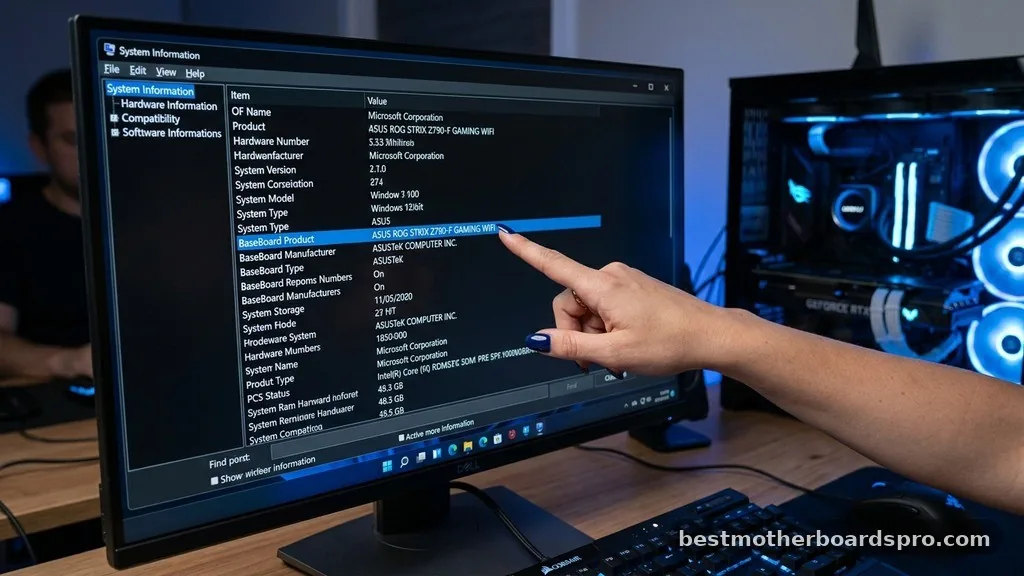
The fastest way to identify your hardware without opening the case is through the built-in Windows System Information tool. This utility provides a comprehensive overview of your computer’s components, including the mainboard details.
To access this, simply press the Windows key on your keyboard, type “msinfo32,” and hit Enter. Once the window pops up, look for the “System Summary” section in the left-hand pane. Scroll down until you see “BaseBoard Manufacturer” and “BaseBoard Product.”
These fields will display the brand and the specific model name of your board. This is often the most efficient method for users who need to verify their hardware status while remaining inside the operating system.
Command Line Techniques for Quick Checks
If you prefer a more direct approach or need to extract data for a script, the Command Prompt (CMD) is your best friend. It strips away the graphical interface and gives you the raw data directly from the system registry.
Open the Command Prompt by typing “cmd” into your search bar. Once the terminal window is active, type the following command and press Enter:
wmic baseboard get product,Manufacturer,version,serialnumber
This command instructs your system to query the WMI (Windows Management Instrumentation) database. It will immediately return the manufacturer, product name, and serial number of your motherboard. It’s a clean, text-based method that provides the exact information you need without any extra clutter.
Checking via UEFI BIOS
Sometimes, you might need to identify your hardware before the operating system even loads. The UEFI BIOS is the first place your computer looks when it initializes, making it a reliable source for hardware identification.
To enter the BIOS, restart your computer and repeatedly press the setup key—usually Delete, F2, F10, or F12, depending on your manufacturer—during the boot sequence. Once you are inside the interface, look for a “System Information” or “Main” tab.
Most modern boards, especially those from brands like Asus or MSI, clearly display the exact model name right on the front page. This method is especially useful if your Windows installation is corrupted or if you are working on a machine that lacks a storage drive.
Physical Inspection of the Board
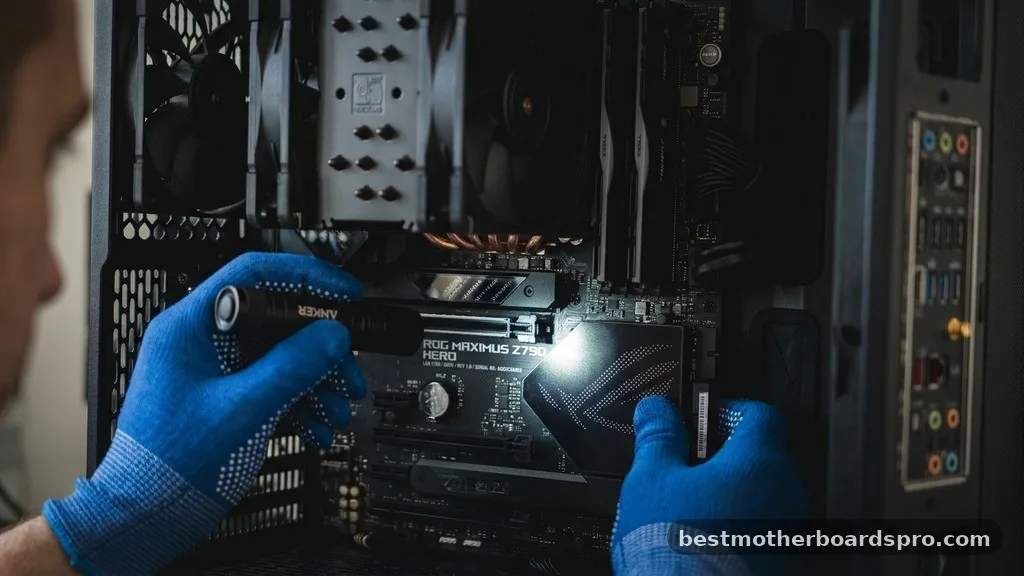
When software methods fail, or if the system is completely powered down, a physical inspection is necessary. This involves opening the side panel of your desktop case and looking directly at the circuit board.
Manufacturers almost always silk-screen the model name directly onto the PCB (Printed Circuit Board). You will typically find this text printed near the RAM slots, between the PCIe expansion slots, or near the CPU socket. If you have a large graphics card obscuring the view, you might need to use a flashlight or a small mirror to see the text clearly.
| Method | Best For | Ease of Use |
|---|---|---|
| System Information | Quick software check | Very Easy |
| Command Prompt | Advanced users/Scripting | Moderate |
| UEFI BIOS | Non-booting systems | Moderate |
| Physical Inspection | Last resort | Difficult |
Addressing Common Identification Gaps
Many users struggle when the software displays a generic name like “Base Board” or “To be filled by O.E.M.” This usually happens with pre-built systems from companies like Dell, HP, or Lenovo, where the manufacturer uses custom-branded boards rather than retail parts.
In these instances, software tools often fail to provide a specific model name that you can look up on the manufacturer’s website. If you encounter this, don’t panic.
Instead, use the serial number or the “System Model” name (often found on a sticker on the side or bottom of the computer chassis) to search the support portal of the pre-built manufacturer. They maintain databases where you can input your serial number to find the exact hardware specifications, including the board design.
- Check the original purchase receipt or digital invoice for component lists.
- Use third-party tools like CPU-Z if you need more granular details about chipsets.
- Look for a sticker on the back of the motherboard or the I/O shield.
- Consult your computer’s user manual, which often lists the specific board series.
- Search your system’s support page using the serial number or service tag.
Why Hardware Identification Matters
Understanding your hardware is more than just a technical exercise. It is a fundamental part of maintaining a healthy computer. Whether you are installing a new graphics card, upgrading your RAM, or updating your chipset drivers, knowing the exact name of your board prevents costly mistakes.
Installing the wrong drivers can lead to system instability, blue screens, or hardware failure. Furthermore, if you are looking to add an M.2 NVMe drive, you need to verify your board has the correct slot and support. By taking the time to confirm your motherboard details, you ensure that your system remains compatible and performs at its peak.
FAQ
Will BIOS tell me what motherboard I have?
Yes, the UEFI BIOS is an excellent place to find your hardware details. Upon entering the BIOS menu during startup, you will typically find the manufacturer and model name listed on the main information screen, which is helpful if your operating system isn’t loading correctly.
How do I check my motherboard model using CMD?
You can check your board model by opening the Command Prompt and typing “wmic baseboard get product,Manufacturer”. This command queries your system’s firmware and returns the exact manufacturer and model name directly into the terminal, providing a quick, text-based solution without needing third-party software.
Can I find my motherboard model without opening the case?
Absolutely. You can use Windows System Information (msinfo32), the Command Prompt, or even third-party diagnostic software like CPU-Z. These tools read the data directly from your system’s hardware sensors and firmware, allowing you to identify your components without ever needing to touch the physical hardware.
Why does my PC show “To be filled by O.E.M.”?
This message appears because your computer is a pre-built system from a major manufacturer. These companies often use custom, proprietary boards that don’t report a standard retail model name to Windows. In these cases, you should use the serial number on your computer case to check their website.
Conclusion
Identifying your system hardware is a straightforward process once you know which tools to use. Whether you rely on the simplicity of the Windows System Information utility, the precision of the Command Prompt, or a careful physical inspection, you have several reliable ways to track down this information. These methods ensure you have the data needed to keep your machine updated and compatible with the latest components.
By regularly checking your system specifications, you stay in control of your computing environment. If you ever find yourself struggling to identify a component, simply revisit these steps to find the motherboard model with confidence. Keeping track of your hardware is a small habit that goes a long way in preventing future headaches and ensuring your system continues to run smoothly for years to come.
