

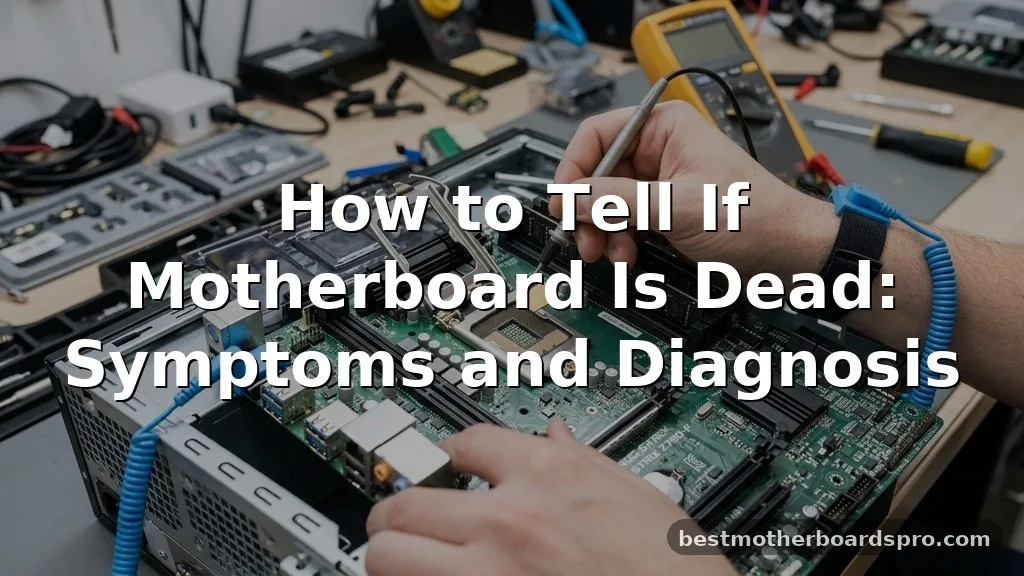
When your computer suddenly refuses to wake up, the panic is real. You press the power button, yet the screen remains black, and the silence from your cooling fans is deafening. While many users immediately assume the worst, determining how to tell if motherboard is dead requires a systematic approach to rule out other faulty hardware.
Often, what appears to be a total system failure is simply a loose cable or a depleted CMOS battery. By isolating the components and checking for specific physical indicators, you can save yourself a costly repair bill and identify exactly which part of your rig needs attention.
Initial Physical Inspection and Power Checks
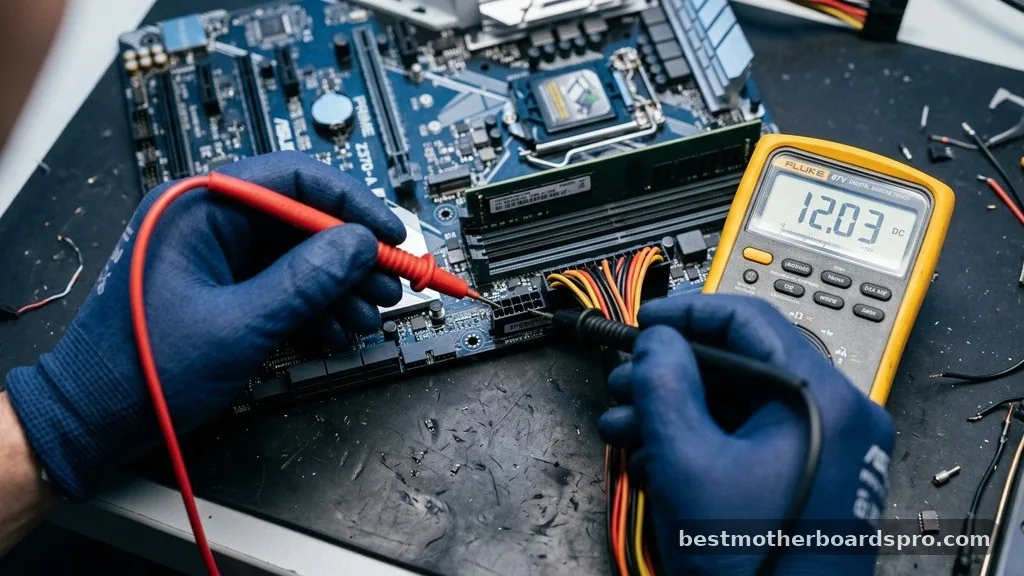
The first step in diagnosing a faulty system is verifying that the unit is actually receiving electricity. A motherboard that appears dead might just be suffering from a disconnected power supply unit (PSU). Check the back of your computer case to ensure the power cable is firmly seated and the switch on the PSU is toggled to the “I” position.
If the power supply is connected correctly, look for any signs of life when you trigger the power button. Even if the computer doesn’t boot, you might see small LEDs glowing on the board itself. If you see no lights, no fans spinning, and hear absolutely nothing, your power source or the board’s power delivery system is the primary suspect.
Identifying Common Power Failures
- Inspect the 24-pin ATX power connector to ensure it hasn’t wiggled loose over time.
- Check the 8-pin CPU power connector located near the top of the processor socket.
- Examine the wall outlet or power strip to confirm it provides consistent voltage to the computer.
- Smell the inside of the case for a distinct, acrid odor, which often signals a fried capacitor or short-circuited trace.
The POST Process and Beep Codes
The Power-On Self-Test (POST) is a built-in diagnostic sequence that occurs the moment you hit the power button. If your motherboard has a speaker or a small buzzer installed, it will communicate its status through a series of beeps. A single short beep usually indicates that the system is healthy and moving toward the operating system.
If you hear multiple beeps or a continuous tone, your board is actually working well enough to tell you what is wrong. These codes are specific to the BIOS manufacturer. A series of long beeps often points toward memory issues, while repeating short beeps might indicate a problem with the graphics card or the CPU.
| Symptom | Likely Culprit | Recommended Action |
|---|---|---|
| No lights or fans | PSU or Power Cable | Test with a known-working power supply unit. |
| Fans spin, but no video | RAM or GPU | Reseat memory sticks and check monitor cables. |
| Constant beeping | Hardware Conflict | Consult manual for BIOS beep code definitions. |
| Random restarts | Overheating/Voltage | Clean dust and check CPU temperatures. |
Isolating Components to Rule Out False Positives
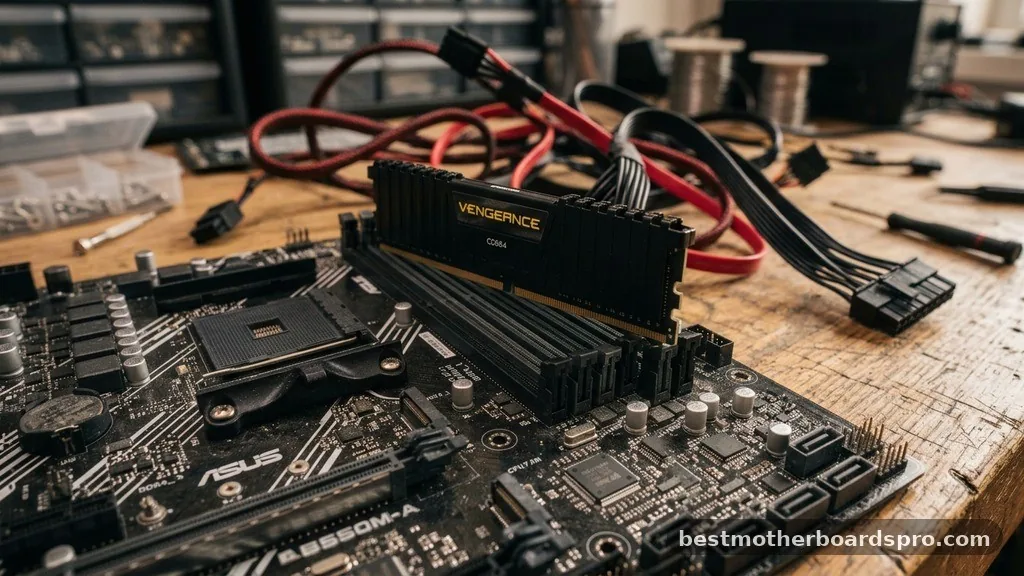
Many components can mimic the symptoms of a dead motherboard. To get a clear answer, you need to strip the system down to the bare essentials. Remove all non-essential hardware, including secondary hard drives, optical drives, and any PCIe expansion cards.
Try booting with only the CPU, one stick of RAM, and the power supply connected. If the system suddenly shows signs of life, one of the removed components was likely causing a short circuit. If the system remains unresponsive, you have successfully narrowed the scope of the problem to the core trio: the motherboard, the processor, or the power supply.
Testing the RAM and CPU
Memory modules are frequent culprits in boot failures. Try moving your single stick of RAM to a different slot; if that fails, swap it with another stick if you have one available. A faulty memory module can prevent the board from initializing the BIOS, making it seem like the entire system is dead when the board is actually perfectly fine.
The CPU is rarely the cause of a “dead” system, but it is not impossible. If the processor has bent pins or has suffered from extreme overheating, the motherboard will refuse to provide power as a safety measure. Always inspect the socket area for any physical damage before declaring the board itself as the final failure point.
Advanced Troubleshooting for Persistent Failures
If you have verified the power supply and tested the memory, it is time to look at the motherboard’s physical state. Look for bulging or leaking capacitors, which look like small, topped-off cylinders on the board. These components regulate voltage; if they fail, the board cannot maintain the stable currents required to boot.
You should also clear the CMOS to reset the BIOS settings to their factory defaults. Locate the small, coin-shaped battery on the board, remove it for about thirty seconds, and then replace it. Sometimes, a corrupted BIOS setting can lock the system in a state where it refuses to initiate the boot sequence.
Addressing Topical Gaps
A common misconception is that a motherboard must be “dead” if it doesn’t display an image. In reality, a motherboard can be fully operational while the graphics card or the cable connecting to the monitor is broken. If the fans are spinning and the LEDs are on, but you see nothing, do not assume the board is the issue.
Another gap in common knowledge involves static electricity. If you recently performed an upgrade and the system won’t start, you may have accidentally tripped a short circuit by touching the board with static discharge. Always ensure you are grounded before touching internal components to prevent this type of accidental damage.
Frequently Asked Questions
Can a dead motherboard still light up?
Yes, a motherboard can still show power via LEDs even if it is technically dead or non-functional. These lights are often powered by the standby voltage from the power supply, which can remain active even if the main circuitry on the board is damaged or unable to initiate the boot sequence.
How do I know if I fried my motherboard?
A fried motherboard often exhibits a burning smell or shows visible physical damage, such as blackened components or bulging capacitors. If the system was working fine and suddenly cut out during a power surge or a hardware installation, there is a high probability that a short circuit occurred.
Can a dead motherboard be revived?
If the motherboard is truly “dead” due to physical damage or a failed component like a capacitor, it is generally not worth repairing. Professional repair is expensive, often exceeding the cost of a modern replacement, and the long-term reliability of a repaired board is rarely as high as a new one.
Does the mouse or keyboard light up when the motherboard is dead?
Usually, no. If your motherboard is dead, it cannot provide the necessary signals to your USB ports to power your peripherals. If your mouse and keyboard remain dark when pressing the power button, it is a strong indicator that the board is not sending power through its onboard controllers.
Conclusion
Distinguishing between a truly failed piece of hardware and a minor connection issue is the key to managing computer repairs effectively. By methodically checking your power supply, testing your RAM, and inspecting the board for physical signs of damage, you can determine how to tell if motherboard is dead with confidence. Most of the time, the issue is solvable with simple troubleshooting or a minor component replacement.
When your system refuses to boot, keep your cool and follow these steps to isolate the fault. If you find that the board itself has failed, replacing it is often the most reliable path forward. Should you need further assistance or have a specific symptom that doesn’t match these scenarios, feel free to reach out for more detailed diagnostic advice.



