
You might need to track down your motherboard serial number when requesting technical support, verifying warranty status, or ensuring component compatibility for a hardware upgrade. While it might seem like a hidden piece of data, finding your motherboard serial number is usually straightforward if you know where to look.
Whether you are dealing with a custom-built desktop or a pre-assembled system, there are several reliable ways to extract this information without necessarily opening your computer case. This article explains the most effective methods to retrieve your hardware details quickly, saving you the hassle of digging through physical documentation or searching for original receipts.
Using Command Prompt to Retrieve Serial Numbers
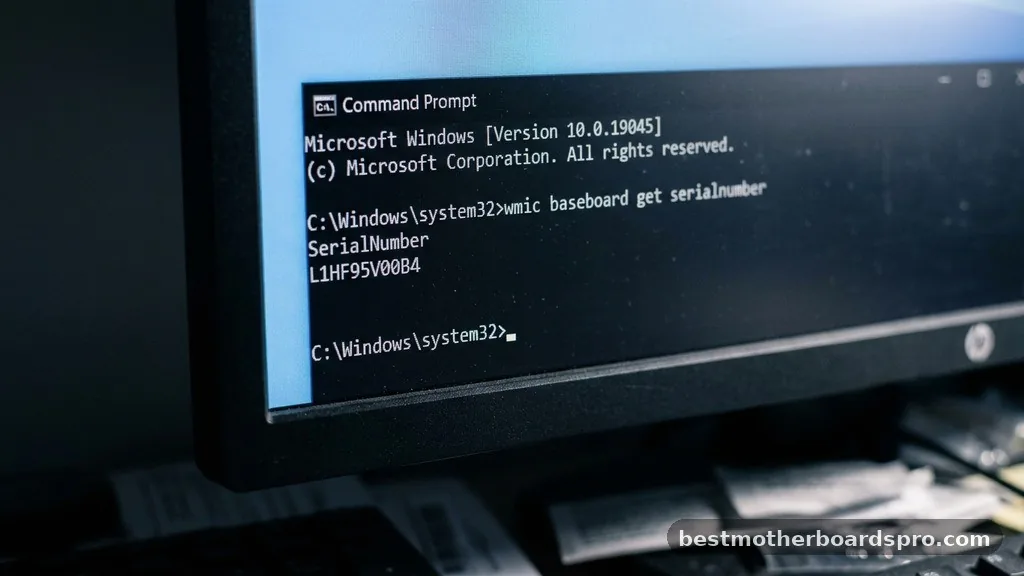
If you are running a Windows system, the Command Prompt is often the fastest way to pull hardware data directly from the system firmware. You do not need any third-party software to access this information, as the Windows Management Instrumentation Command-line (WMIC) tool is built into the operating system.
To get started, press the Windows key, type “cmd,” and open the Command Prompt as an administrator. Once the black window appears, you will need to enter a specific command to query the baseboard information. Type the following command and press Enter:
wmic baseboard get product,Manufacturer,version,serialnumber
After you press Enter, the system will display a table containing the manufacturer, product name, version, and the elusive serial number. If the output shows “To be filled by O.E.M.” or a similar placeholder, it means the manufacturer did not program the serial number into the BIOS during the assembly process. This is common with certain custom-built machines or older legacy hardware.
Checking Motherboard Information via PowerShell
PowerShell offers a more modern alternative to the traditional Command Prompt and is equally effective for identifying your motherboard serial number. Many power users prefer this method because it handles data formatting cleanly and integrates well with other administrative scripts.
Open PowerShell by right-clicking the Start button and selecting “Windows PowerShell (Admin)” or “Terminal (Admin).” Once the console is open, type the following command to retrieve the board details:
Get-WmiObject win32_baseboard | Select-Object Product, Manufacturer, SerialNumber, Version
This command filters the output to show only the relevant fields, making it easier to read. If you prefer a more detailed view that includes every available property, you can simply run Get-WmiObject win32_baseboard without the extra filters. This is particularly useful if you are trying to cross-reference the serial number with other system identifiers like the BIOS version or UUID.
Accessing Serial Numbers in the BIOS or UEFI
When software methods return empty results or you are troubleshooting a machine that won’t boot into Windows, the BIOS or UEFI interface is your most reliable source of truth. The BIOS contains the base-level hardware information that is stored directly on the motherboard’s non-volatile memory.
To access this menu, restart your computer and repeatedly press the designated key—usually Delete, F2, F10, or F12—during the initial startup sequence. Once inside the BIOS interface, look for a tab labeled “System Information,” “Main,” or “About.” The serial number is frequently listed here alongside the model name and current firmware version.
Keep in mind that every manufacturer uses a different layout. If you don’t see the serial number immediately, check the “Advanced” or “Support” menus within the BIOS.
Locating the Serial Number on the Hardware
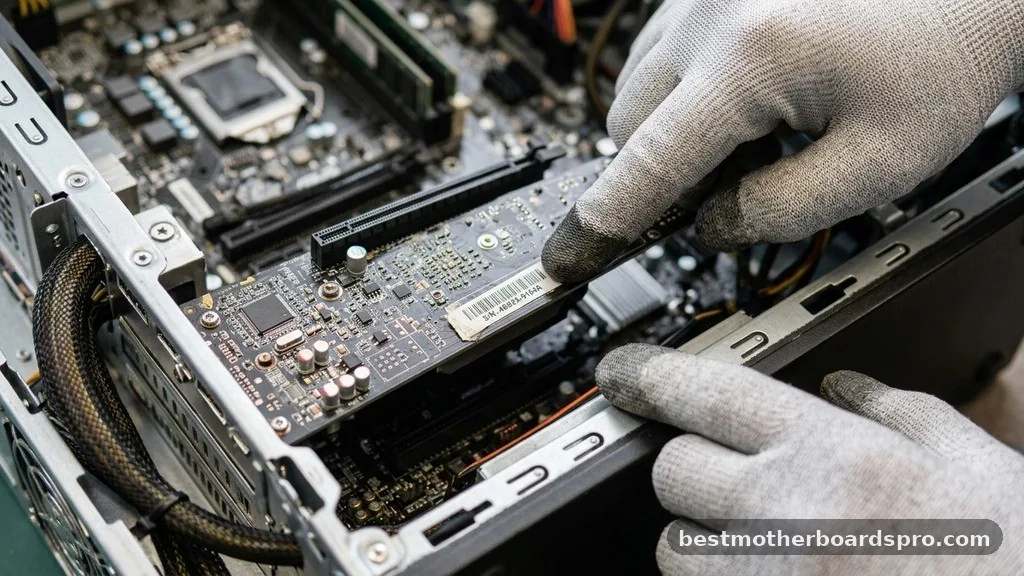
Sometimes, the digital records are missing or incomplete, leaving you with no choice but to inspect the physical board. This is the most accurate method, as the serial number is almost always printed on a physical sticker attached to the motherboard itself.
Before opening your computer case, ensure the system is completely powered down and the power cable is unplugged. Touch a metal part of the chassis to discharge any static electricity before touching internal components.
Once the side panel is removed, look for a barcode sticker on the board. Manufacturers typically place these near the RAM slots, the PCIe lanes, or the main 24-pin power connector.
Common Locations for Motherboard Stickers
- Near the RAM slots: Often tucked between the memory banks and the edge of the board.
- Beside the PCIe slots: Frequently found on a small white or silver sticker near the graphics card slot.
- Near the 24-pin power header: Often located on the right side of the board for easy visibility.
- On the back of the I/O shield area: Sometimes printed on the board surface near the rear ports.
Comparing Methods for Finding Hardware Data
Choosing the right approach depends on whether your system is currently functional and how much effort you want to put into the process. The following table compares the different methods available for identifying your motherboard information.
| Method | Ease of Use | Reliability | Requires Reboot |
|---|---|---|---|
| Command Prompt | High | Moderate | No |
| PowerShell | High | Moderate | No |
| BIOS/UEFI | Medium | High | Yes |
| Physical Inspection | Low | Very High | Yes |
Addressing Potential Data Gaps
A common frustration when searching for a motherboard serial number is encountering a blank field or a generic “O.E.M.” label. This often happens because the system integrator or the motherboard manufacturer failed to flash the unique identifier into the BIOS during the factory production line. If you are trying to register a warranty or verify a product, this digital gap can be problematic.
If your software results are empty, you should focus your efforts on the original packaging or the physical board itself. Check the box the motherboard came in, as the serial number is almost always printed on the external label, often grouped with the MAC address or the specific model revision.
If you have already discarded the box, the physical sticker on the motherboard remains the only definitive way to confirm the serial number. For laptop users, the motherboard serial is sometimes tied to the base system serial number, which can be found on a sticker on the bottom of the chassis.
Frequently Asked Questions
Can I find my motherboard serial number without opening the PC?
Yes, you can use the Command Prompt or PowerShell to retrieve this information from the system firmware. Simply run the WMIC command for baseboard data or use the Get-WmiObject command in PowerShell. These methods are quick and effective for most modern pre-built and custom systems.
What if the command line shows no serial number?
If the command line returns “To be filled by O.E.M.” or is blank, the manufacturer did not program the serial number into the BIOS. In this case, you must check the physical sticker on the motherboard, the original box, or the documentation provided with your computer.
Is the motherboard serial number the same as the Windows license key?
No, these are completely different identifiers. The motherboard serial number is a hardware-specific code assigned by the manufacturer for warranty and tracking purposes, while the Windows license key is a software-based activation code used to verify your copy of the operating system.
Does every motherboard have a unique serial number?
Yes, every individual motherboard unit is assigned a unique serial number at the point of manufacture. This allows companies to track production batches, verify warranty claims, and manage support requests. Even if the digital record is missing, the physical hardware will always have a unique identifier.
Final Thoughts on Hardware Identification
Successfully finding your motherboard serial number often depends on the tools at your disposal and the specific manufacturer of your board. While software-based queries through Windows are convenient for day-to-day tasks, physical inspection remains the ultimate backup when digital fields are empty. By understanding how to check both your OS environment and the physical hardware, you can efficiently manage your system components and resolve technical issues with confidence.
Whether you are prepping for a hardware upgrade or simply archiving your system specifications, these methods ensure you have the necessary details at your fingertips. If you continue to have trouble locating your specific board’s identifier, consulting the manufacturer’s official support website for your specific model name is a great next step.