

Getting into the system settings of your computer is often necessary when you need to change hardware configurations or troubleshoot performance issues. If you are learning how to enter bios on msi motherboard, you are likely looking to adjust boot orders, manage fan speeds, or tweak memory profiles.
Accessing this environment might feel intimidating if you aren’t familiar with the startup process, but the procedure is straightforward once you know which key to press. Whether you are building a new rig or just optimizing your current setup, understanding this interface is a fundamental skill for any PC user.
The Standard Method: Using the Keyboard Shortcut
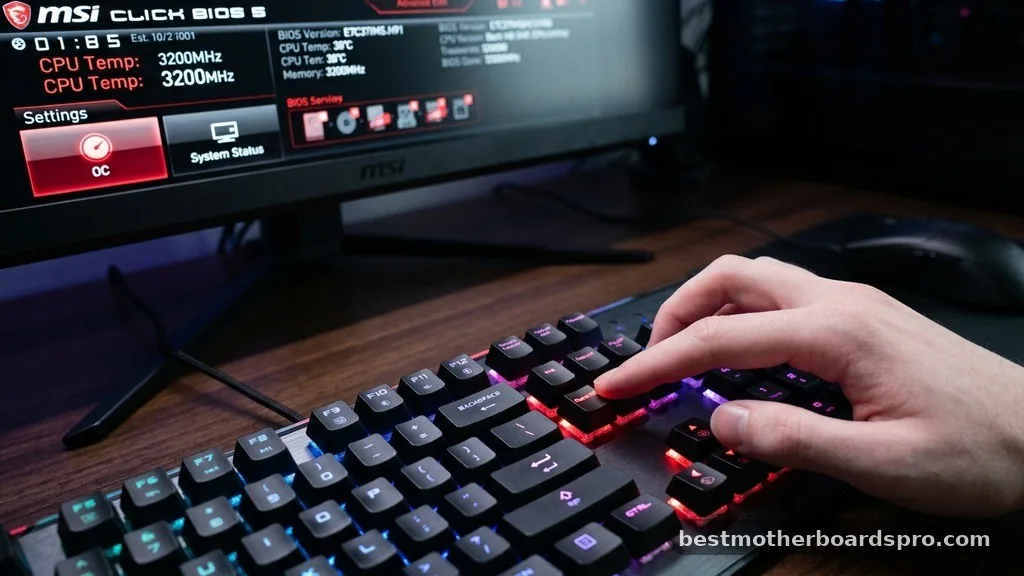
The most common way to access the firmware settings on an MSI machine is by using a dedicated keyboard shortcut during the initial startup phase. When you power on your computer, the motherboard goes through a rapid initialization sequence known as POST (Power-On Self-Test). You must act quickly during this window because the system moves toward loading the operating system almost immediately.
To successfully enter bios on msi motherboard, press the Delete key repeatedly as soon as you see the MSI logo or the brand splash screen on your monitor. If you wait until the Windows loading icon appears, you have likely missed the window of opportunity and will need to restart the machine to try again. Some users find that holding the key down works, but tapping it rhythmically is often more reliable for registering the input before the boot process clears the screen.
Accessing Firmware Through Windows Settings
Modern operating systems like Windows 10 and 11 often boot so quickly that the keyboard input is ignored by the system. If you find yourself struggling to catch that split-second window, you can force the computer to reboot directly into the UEFI interface. This is a much more reliable method for users with fast NVMe drives or those who have enabled “Fast Boot” features within their hardware profiles.
Follow these steps to navigate through the software interface:
- Open the Start menu and click on the Settings gear icon.
- Navigate to the Update & Security or System section, depending on your OS version.
- Select Recovery from the sidebar menu.
- Look for the Advanced Startup heading and click the Restart Now button.
- Once the computer reboots to a blue menu screen, select Troubleshoot.
- Choose Advanced Options from the list.
- Click on UEFI Firmware Settings and confirm by selecting Restart.
This automated process instructs the motherboard to bypass the standard boot sequence and load the settings page directly. It is a highly efficient way to manage system settings without worrying about timing the keyboard presses correctly.
Distinguishing Between BIOS and Boot Menu
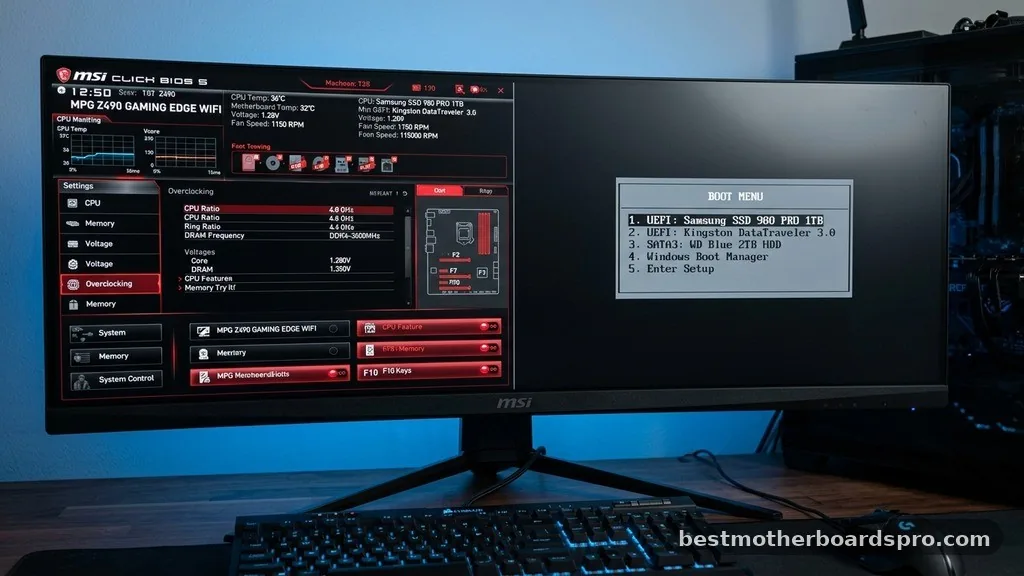
Many users often confuse the BIOS interface with the boot menu, but they serve two distinct purposes. While the BIOS allows for deep-level configuration of hardware, the boot menu is a temporary list that lets you select a single device for the current session. Knowing the difference helps you avoid digging through complex menus when you only need to run a quick diagnostic tool or install a new OS.
| Feature | BIOS/UEFI Settings | Boot Menu |
|---|---|---|
| Primary Purpose | Hardware configuration and management | Selecting boot priority for one session |
| Access Key | Delete key | F11 key |
| Scope | Persistent system changes | Temporary override |
| Interface | Advanced graphical dashboard | Simple text-based list |
If you simply need to boot from a USB drive to perform a fresh installation, pressing F11 during startup will bring up the boot menu directly. This is much faster than entering the full configuration suite just to change a single drive priority.
Common Reasons to Access MSI Settings
There are several legitimate reasons why you might need to enter the firmware interface. Often, users need to enable features that aren’t turned on by default, such as XMP profiles for RAM or specific virtualization settings required for software development.
Enabling XMP Profiles
If your system memory is running at a lower speed than the manufacturer specified, you likely need to enable the Extreme Memory Profile (XMP). Inside the MSI interface, this is usually found on the main dashboard or under the OC (Overclocking) tab. Enabling this ensures your hardware runs at its rated performance level rather than the base JEDEC standards.
Adjusting Secure Boot and Cybersecurity
For users who have upgraded to Windows 11, Secure Boot is a mandatory requirement. You can find this setting under the Security or Boot tabs. Ensuring this is enabled protects your system from unauthorized firmware-level threats. Always be cautious when changing security settings, as disabling them can sometimes prevent the operating system from loading if encryption keys are tied to the hardware state.
Troubleshooting Connection Issues
Sometimes, you might find that no matter how many times you press the keys, the system refuses to enter the interface. This usually happens because of high-speed boot settings or peripheral compatibility issues. If you are using a wireless keyboard, the signal might not be established early enough in the POST process to register the input.
If you are stuck, try these quick fixes:
- Switch to a wired USB keyboard temporarily.
- Move the keyboard to a different USB port, preferably one directly on the motherboard rear I/O.
- Disable Fast Boot inside the BIOS if you can eventually get in.
- Clear the CMOS by removing the coin-shaped battery on the motherboard for thirty seconds to reset all settings to factory defaults.
Frequently Asked Questions
What is the primary key for accessing the MSI BIOS?
The standard key used to enter bios on msi motherboard is the Delete key. You should begin tapping this key repeatedly as soon as you press the power button, continuing until the graphical interface appears on your monitor. Some models may also recognize F2, but Delete is the universal standard.
Why does my PC skip the BIOS and boot straight to Windows?
Modern Windows installations use a feature called Fast Startup, which makes the computer “hibernate” rather than fully shutting down. Because the system initializes so rapidly, it ignores keyboard input. Use the Windows Advanced Startup menu under Settings to force the system to reboot directly into the firmware environment.
Can I access the BIOS from a laptop?
Yes, the process for MSI laptops is identical to desktops. However, because laptops have integrated keyboards, sometimes you need to press the Fn key in combination with the Delete key. If that doesn’t work, the Windows Advanced Startup method is the most reliable way to gain access.
Is it safe to change settings in the BIOS?
It is generally safe to explore the menus, but you should be careful when modifying core voltage or frequency settings. If you are unsure what a setting does, leave it at the default. If you make a mistake, you can always reset the configuration by clearing the CMOS.
Final Thoughts on System Management
Mastering the process of entering the firmware environment is an essential part of maintaining your PC. Whether you are optimizing your memory speed, configuring storage drives, or ensuring your security settings meet current standards, knowing how to enter bios on msi motherboard gives you full control over your hardware. By utilizing both the traditional keyboard shortcut and the Windows Advanced Startup method, you can manage your system effectively regardless of how fast your computer boots.
Take your time when adjusting settings and always remember that a simple CMOS reset is your safety net if you ever run into a configuration wall. Feel free to explore your hardware’s capabilities and keep your system running at its peak performance.



