


Identifying the hardware inside your computer is a vital step for anyone looking to upgrade components or troubleshoot driver issues. When you need to find what motherboard I have, you don’t necessarily need to open your case or grab a screwdriver. Most modern operating systems provide built-in tools that extract this data directly from the system firmware.
Whether you are planning a memory upgrade, checking compatibility for a new graphics card, or simply curious about your internal configuration, knowing your specific hardware signature saves hours of guesswork. This guide walks you through the most efficient ways to retrieve those details using software or physical inspection.
Using Windows System Information
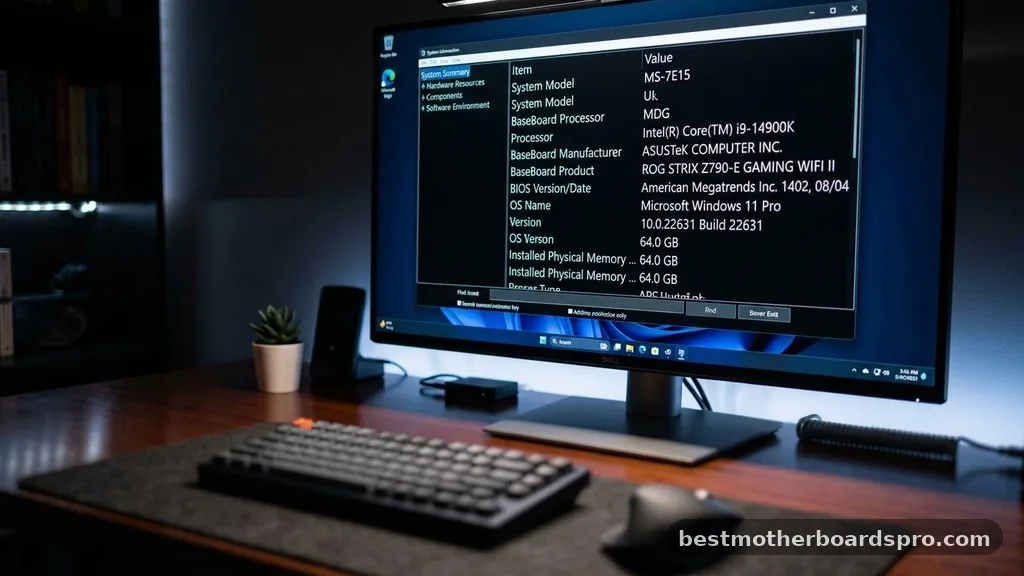
The easiest way to check your hardware details is through the built-in Windows utility. You do not need to install third-party software to see your motherboard model, as the operating system maintains a log of your primary components.
To access this, tap the Windows key on your keyboard and type “System Information.” Once the app appears in the search results, click it to open the window.
In the main “System Summary” tab, look for the fields labeled “BaseBoard Manufacturer,” “BaseBoard Product,” and “BaseBoard Version.” The “BaseBoard Product” field is what you need; it displays the specific model name of your hardware.
Command Prompt for Quick Identification
If you prefer a faster, text-based approach, the Command Prompt (CMD) is your best friend. This method is particularly useful if your system is running slowly and you want to avoid opening graphical menus that might lag.
1. Press the Windows key and type “cmd” into the search bar.
2. Select “Command Prompt” and open it.
3.
Type the following command exactly as shown: wmic baseboard get product,Manufacturer,version,serialnumber
4. Press Enter.
The terminal will return a clean list showing the manufacturer and the specific board model. If you just want to see the model name without the extra data, you can simply type “wmic baseboard get product” and press enter. This is a reliable way to get the exact string used by the manufacturer to identify your hardware.
Checking via BIOS or UEFI
Sometimes, software reports in Windows might return generic names like “To be filled by O.E.M.” If this happens, or if your computer fails to boot into the operating system, you should check the BIOS or UEFI menu directly.
Restart your computer and watch the screen closely during the initial boot sequence. You will usually see a prompt like “Press Del to enter Setup” or “Press F2 for BIOS.”
Once inside the menu, the motherboard model is typically displayed on the main “System Information” or “Main” tab. This environment is completely independent of your OS, making it the most accurate source of truth for your hardware.
Physical Inspection of the Board

When software tools fail, or if you are working with a motherboard that has been removed from a chassis, a physical inspection is necessary. Manufacturers almost always print the model name directly onto the PCB (printed circuit board).
Open your computer case and look for the model number printed in large, bold font near the CPU socket or the PCIe slots. You might need to shine a flashlight on the board, as the text is often printed in the same color as the board material. If you see a series of numbers and letters—such as “B550-A PRO” or “Z690 TOMAHAWK”—that is your specific model.
| Method | Ease of Use | Requirement |
|---|---|---|
| System Information | Very High | Windows OS |
| Command Prompt | High | Windows OS |
| BIOS/UEFI | Medium | System Restart |
| Physical Inspection | Low | Opening the Case |
Identifying Hardware on Apple Systems
If you are using an Apple computer, the process is slightly different. Apple does not use standard motherboard naming conventions in the same way PC manufacturers do. Instead, you should focus on the “Model Identifier.”
Click the Apple menu in the top-left corner of your screen and select “About This Mac.” In the window that appears, you will see your specific Mac model and year. If you need more granular details, click “System Report.”
This opens a window where you can see the “Model Identifier” under the Hardware overview. While you cannot “upgrade” the motherboard in a modern Mac, this identifier is essential for finding compatible parts or checking service history.
Common Reasons for Identifying Your Board
People often look for their hardware specifications for very specific technical reasons. Knowing exactly what you have prevents compatibility headaches later on.
- RAM Upgrades: Different boards support different speeds and capacities of memory.
- CPU Compatibility: You must know the socket type to ensure a new processor will fit.
- Driver Updates: Manufacturers release specific BIOS updates to fix stability issues.
- PCIe Expansion: Knowing the slot layout helps you determine if a new graphics card will physically fit.
- Troubleshooting: If you need to contact support, having the exact model name is the first thing they will ask for.
Addressing Common Identification Gaps
A frequent issue users encounter is seeing “BaseBoard Product: Not Available” or “To Be Filled by O.E.M.” in the System Information tool. This usually happens with pre-built computers from companies like Dell, HP, or Lenovo.
These companies often use proprietary boards that aren’t sold in retail stores. In these cases, the “Product” name in the software won’t match a public model number.
Instead, search for the serial number of your computer on the manufacturer’s support website. They will provide a list of the exact components installed in your specific unit, including the motherboard specifications.
FAQ
Will BIOS tell me what motherboard I have?
Yes, the BIOS or UEFI interface is one of the most reliable places to find your motherboard model. Because it is the firmware directly on the board, it always displays the correct manufacturer and model number without needing any drivers or operating system support to function.
Can I check my motherboard model without opening the PC?
Absolutely. Using the Windows System Information tool or the Command Prompt is the fastest way to retrieve this data without ever touching a screwdriver. These methods pull information directly from the hardware registers, ensuring you get the correct model name while your computer is running normally.
What if the software shows a generic name?
If your system displays generic text like “O.E.M.” or “Not Available,” it means you likely have a pre-built system. In this scenario, inputting your computer’s serial number into the manufacturer’s official support website is the best way to get the exact specifications for your specific build.
Is the motherboard version important?
Yes, the version number is crucial, especially for BIOS updates. Different revisions of the same motherboard model might require different firmware files. Always ensure you are looking at both the model name and the revision version before downloading any software or drivers from the manufacturer’s website.
Conclusion
Finding your hardware details doesn’t have to be a complicated technical chore. Whether you prefer the simplicity of the System Information app, the speed of the Command Prompt, or the direct approach of a physical inspection, you now have the tools to identify your motherboard model with confidence. Remember that for pre-built systems, the manufacturer’s support portal remains the best resource if software utilities return vague information.
By confirming these details before purchasing upgrades, you ensure that every new component you add is compatible with your current setup. Start by using the built-in Windows tools, and if you hit a wall, don’t hesitate to check the physical board or your manufacturer’s support page to get the exact information you need.



