


Identifying your computer‘s core hardware is a task that often feels more complicated than it actually is. Whether you are planning a RAM upgrade, troubleshooting driver issues, or simply curious about your machine‘s capabilities, knowing how to find out what motherboard I have provides the clarity needed to make informed technical decisions.
You don’t need to be a hardware engineer to get this information; in fact, there are several built-in methods that allow you to extract these details in seconds without ever touching a screwdriver. By using system tools or physical inspection, you can quickly uncover the exact specifications of your hardware setup.
Using Windows System Information
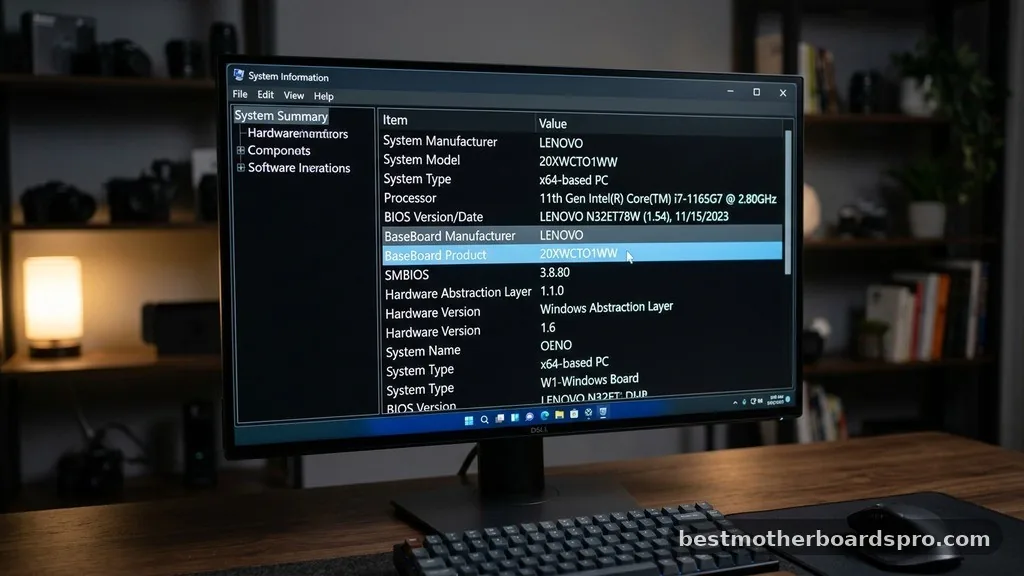
The most direct way to check your hardware details is through the built-in Windows System Information tool. This utility aggregates data directly from your hardware and firmware, providing a reliable snapshot of your computer’s configuration.
To get started, press the Windows key on your keyboard and type “System Information” into the search bar. Once the application opens, you will see a list of categories on the left. The “System Summary” page is your primary destination.
Look for the rows labeled “BaseBoard Manufacturer,” “BaseBoard Product,” and “BaseBoard Version.” These fields tell you exactly who made your board, the specific model name, and the revision level. If you see “Not Available” or generic text, it often means the manufacturer didn’t populate the DMI (Desktop Management Interface) information during assembly, which is common in some pre-built desktop systems.
Command Prompt Methods for Quick Checks
If you prefer a faster, text-based approach, the Windows Command Prompt (or PowerShell) is an excellent way to extract specific hardware strings. This method is particularly useful if you are managing multiple machines or want to copy the data into a text file for later reference.
Open the Command Prompt by typing “cmd” into your search menu. Once the window appears, type the following command and hit Enter:
wmic baseboard get product,Manufacturer,version,serialnumber
The system will instantly return the requested details. If you are looking for the product name specifically, this command filters out the extra noise and leaves you with the core identification data. It is a highly efficient way to confirm your hardware identity without navigating through multiple graphical menus.
Exploring the UEFI BIOS Interface
When Windows isn’t accessible or you need to verify hardware details at a low level, the UEFI BIOS is your best resource. This environment runs independently of your operating system, making it the most accurate place to view your motherboard information.
To enter the BIOS, restart your computer and repeatedly press the designated setup key, which is usually Del, F2, F10, or F12 depending on your manufacturer. Once inside, look for a “Main,” “System Info,” or “About” tab.
Most modern boards from companies like Asus, MSI, or Gigabyte display the model name prominently on the front screen. This is also where you can verify your current firmware version, which is helpful if you are considering a BIOS update to support a newer processor.
Physical Inspection of the Motherboard

Sometimes, software might report vague information, or you might find yourself with a computer that won’t boot into an operating system. In these cases, a physical inspection is the only way to find out what motherboard I have.
You will need to shut down the computer, unplug it from the power source, and remove the side panel of your case. Once the interior is exposed, look for the model name printed directly onto the PCB (printed circuit board). Manufacturers almost always silkscreen the model name near the CPU socket, between the PCIe slots, or near the RAM DIMM slots.
| Method | Ease of Use | Hardware Required |
|---|---|---|
| System Information | Very High | Operating System |
| Command Prompt | High | Operating System |
| BIOS/UEFI | Medium | None |
| Physical Inspection | Low | Screwdriver |
Third-Party Diagnostic Tools
If the built-in Windows tools feel a bit too basic, third-party software offers a more detailed look at your system. Applications like CPU-Z are industry standards for enthusiasts who need to know every technical detail about their internal components.
When you run a tool like CPU-Z, navigate to the “Mainboard” tab. It will show you the manufacturer, the chipset, and the current BIOS version in a clean, easy-to-read format. This is particularly useful if you are looking to overclock your system or if you need to know the specific chipset version for driver compatibility.
- CPU-Z: Excellent for detailed chipset and memory timing information.
- Speccy: Provides a user-friendly overview of all hardware components.
- HWInfo: Offers the most comprehensive data, including sensor readings and voltage details.
- Manufacturer Utilities: Many brands provide their own software for monitoring and updates.
Addressing Common Identification Gaps
One common frustration users face is when the system returns a generic string like “To be filled by O.E.M.” instead of a real model name. This typically happens with large-scale pre-built machines from companies that use custom-designed boards for their specific chassis.
If you encounter this, don’t panic. The serial number is your fallback. Locate the sticker on the back of your computer case or the original box your computer came in.
Manufacturers often have a support page where you can input that serial number to pull up the exact specifications, including the motherboard model. If you are still stuck, searching for the computer’s specific model number on the manufacturer’s support site will almost always lead you to a list of compatible parts.
FAQ
Will BIOS show me what motherboard I have?
Yes, the BIOS or UEFI interface is one of the most reliable ways to identify your hardware. By entering the BIOS setup screen during startup, you can find the motherboard model name and manufacturer listed on the main information page, often alongside the current processor and memory details.
Can I find my motherboard model without opening the PC?
Absolutely. You can use Windows tools like System Information or the Command Prompt to retrieve the model name without ever opening your case. These software-based methods pull data directly from the system registry and firmware, allowing for quick identification without any physical disassembly of the computer.
What should I do if the software says the model is unknown?
If software reports generic information, check the physical board inside your case for a printed model number. Alternatively, search the manufacturer’s support website using your computer’s serial number or model name to find the original technical specifications and component list provided by the factory.
Is it necessary to know the motherboard model for upgrades?
Knowing your motherboard model is critical for upgrades, especially for RAM, CPUs, or M.2 SSDs. Compatibility depends on the socket type, chipset, and physical slot configuration supported by your specific board. Installing parts without verifying compatibility can lead to system instability or hardware that simply won’t fit.
Conclusion
Identifying your system hardware is a straightforward process when you know where to look. Whether you rely on the built-in Windows System Information tool, the technical precision of the UEFI BIOS, or a physical inspection of the internal components, you now have the tools required to find out what motherboard I have. Taking a few minutes to verify these details ensures that any future upgrades or troubleshooting steps are based on accurate data.
Understanding your computer’s foundation allows you to maintain peak performance and avoid compatibility headaches. If you still have trouble identifying your specific board, feel free to check the manufacturer’s support documentation, as they often provide the most accurate technical records for your specific machine.



