

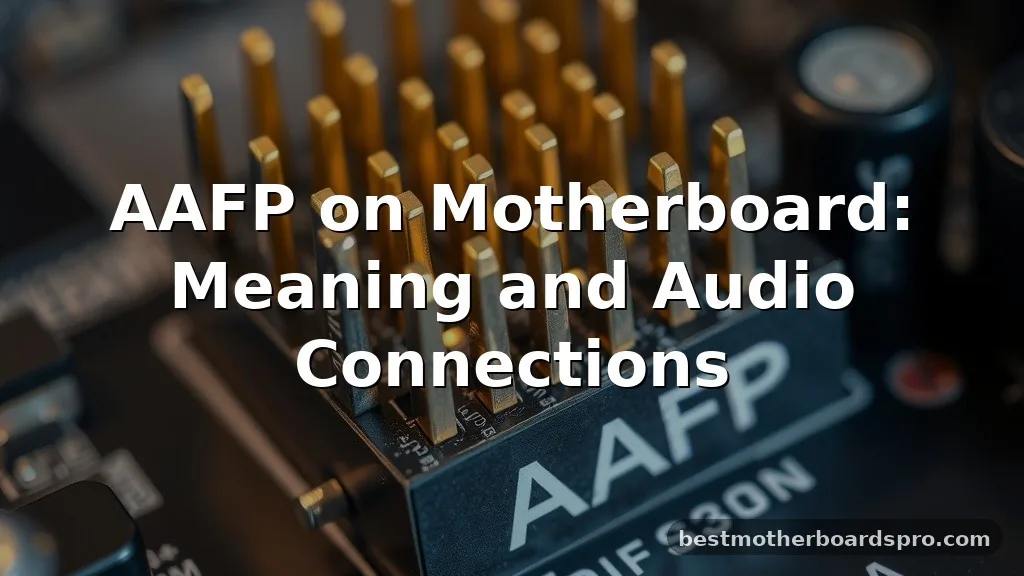
Finding an AAFP header on your motherboard can be confusing when you are trying to wire up your PC case. This acronym stands for Analog Audio Front Panel, and it serves as the dedicated interface for connecting your computer’s case audio jacks to the system board. If you have been staring at your motherboard manual or peering into your case wondering what that specific block of pins does, you are in the right place.
Understanding how the AAFP connector works ensures your front headphone and microphone ports actually function. Getting this right is the difference between seamless audio integration and a front panel that stays completely silent.
Defining the AAFP Header

At its core, the AAFP header is the physical point of contact for your PC case’s front audio suite. It is a cluster of pins on the motherboard designed to transmit electrical signals between the onboard sound chip and the external jacks located on your chassis. While modern systems often refer to this as the HD Audio header, the legacy term AAFP remains common on many circuit board diagrams.
When you plug your headphones into the front of your case, you are using this specific internal link. The header acts as a bridge, allowing the motherboard’s integrated audio circuitry to detect when a plug is inserted.
This detection mechanism is vital for Windows to automatically switch output from your speakers to your headset. Without a proper connection to this header, the software simply won’t know that a device is waiting to receive a signal.
AAFP Versus HD Audio
Many builders get hung up on whether AAFP and HD Audio are the same thing. In practical terms, they are functionally identical for your assembly process.
Both serve the purpose of routing sound from the motherboard to the front panel jacks. The industry moved toward the High Definition Audio standard years ago, which replaced older, lower-quality standards like AC’97.
Most modern motherboards include a 10-1 pin layout that supports HD Audio. You will find that your case cable is almost always labeled as HD Audio, fitting perfectly onto the AAFP pins. While some vintage boards might offer an AC’97 mode in the BIOS, you should prioritize the HD Audio setting to ensure clear sound and proper jack detection.
| Feature | AAFP / HD Audio | Legacy AC’97 |
|---|---|---|
| Audio Quality | High Fidelity | Standard/Basic |
| Jack Detection | Automated | Manual/None |
| Pin Configuration | 10-1 Pin | 10-1 Pin |
Connecting the Front Panel Audio
Connecting your front panel cable to the AAFP header is a straightforward task, provided you have good lighting and a steady hand. The cable coming from your case is usually keyed, meaning it has one pin hole blocked or a specific shape to prevent you from plugging it in backward. You should never force the connector if it feels like it is hitting resistance.
Follow these steps to ensure a secure connection:
- Locate the header on your motherboard, usually found along the bottom left edge near the rear audio ports.
- Align the blocked pin on your case cable with the missing pin on the motherboard header.
- Gently press the connector down until it is flush with the board.
- Check your motherboard manual to confirm the pinout matches your specific case cable layout.
If you find that your case cable is split into individual connectors, check the small labels on each one. They will typically be marked as Mic-In, Ground, and various Left/Right channel indicators. While this is less common with modern cases, older hardware often required you to place each pin onto the AAFP header manually.
Troubleshooting Common Audio Issues

Sometimes, even after you have connected the AAFP cable, you might not hear any sound. This usually stems from a software setting rather than a hardware failure. If your rear audio ports are working but the front ones are silent, start by checking your audio driver settings.
Many sound card software suites, such as Realtek, have a specific toggle for front panel detection. If the driver is set to ignore front panel input, your system will effectively treat those ports as if they do not exist. Additionally, ensure that your BIOS settings are configured to HD Audio mode rather than AC’97, as this is a common mismatch that causes the front jacks to fail.
Addressing Topical Gaps in Audio Header Knowledge
A frequent point of confusion involves the physical proximity of the AAFP header to other components. You might notice it sitting near USB headers or front panel power connectors.
It is important to avoid mixing these up; plugging an audio cable into a USB header can cause damage to the motherboard or the front panel device. Always verify the silkscreen labels on the motherboard, which are usually printed in tiny white text right next to the pins.
Another gap in common knowledge is the shielding of these cables. Some high-end cases use shielded wiring to prevent electromagnetic interference from other components like your GPU.
If you hear static or humming when your headphones are plugged into the front panel, it is usually due to poor internal cable management. Keeping your audio cables away from high-current power cables can drastically improve your signal quality.
The Importance of Pin Alignment
The AAFP header relies on a specific sequence of pins to maintain stereo separation and grounding. If you manage to bend a pin during installation, you might lose one channel of audio or experience a constant buzzing sound. If you suspect a bent pin, use a small pair of needle-nose pliers to gently straighten it, but be extremely careful not to snap the metal.
Proper alignment is also critical for the “presence” pin, which signals to the motherboard that a device is connected. If this pin fails to make contact, your PC will not trigger the pop-up window in Windows that asks you to define what device you just plugged in. This is why the keyed connector is so helpful; it eliminates the guesswork that leads to these common hardware errors.
Optimizing Audio Performance
Once the AAFP connection is established, you can further refine your experience through software. Many users forget that the front panel audio is routed through the motherboard’s internal traces, which can be susceptible to interference. If you are an audiophile, you might prefer using the dedicated rear audio ports for high-impedance headphones.
However, for daily tasks like video calls or casual gaming, the convenience of the front panel is hard to beat. You can enhance the output by updating your motherboard audio drivers directly from the manufacturer’s website rather than relying on generic Windows drivers. These manufacturer-specific drivers often include advanced features like virtual surround sound and equalizer settings that can make a noticeable difference in audio clarity.
Frequently Asked Questions
Is AAFP the same as HD Audio?
Yes, for all practical purposes, they are the same. AAFP is an older term for the Analog Audio Front Panel header, while HD Audio is the modern standard used by current motherboards. You will connect your case’s HD Audio cable to the header labeled AAFP without any compatibility issues.
Why does my front panel audio sound distorted?
Distortion often happens due to electromagnetic interference from internal components like your power supply or graphics card. Ensure your internal audio cable is routed away from high-voltage wires. Also, check that your audio drivers are up to date and that the connection to the header is fully seated.
What happens if I plug the audio cable into the wrong header?
Plugging an audio cable into a USB header or other pins can cause a short circuit or damage to your motherboard’s audio controller. Always double-check the labels printed on the motherboard surface. If the connector does not fit easily, stop immediately and re-verify the pin layout in your manual.
Do I need to change BIOS settings for front audio?
In most modern systems, the default BIOS setting is already configured for HD Audio. However, if your front ports are not working, entering the BIOS to ensure the audio mode is set to HD Audio rather than AC’97 is a necessary step to enable proper jack detection and functionality.
Final Thoughts on Audio Connectivity
Understanding the AAFP header is a fundamental skill for any PC builder. While it might seem like a minor detail among the complex components of a modern build, it is the essential link that brings your system’s sound to your desk. By ensuring a secure connection and verifying your BIOS settings, you can avoid the frustration of silent ports and enjoy a high-quality listening experience.
Always take your time during the assembly process and consult your motherboard manual if you feel unsure about a specific pin placement. If you have any remaining questions about your specific motherboard or case setup, feel free to reach out for more detailed troubleshooting advice. Building a PC is a learning process, and mastering these smaller connections is what turns a standard build into a reliable machine.



