


When your computer suddenly refuses to wake up, the panic is real. You sit down, hit the power button, and instead of the familiar hum of the system coming to life, you are met with absolutely nothing. No lights, no spinning fans, and no post-beep.
It is frustrating, but before you start shopping for expensive replacement parts, you need to figure out which component is actually the culprit. Distinguishing between a dead power supply and a faulty motherboard is a classic troubleshooting challenge, but with a bit of patience and the right diagnostic approach, you can pinpoint the failure without professional help.
Initial Signs of a Hardware Failure
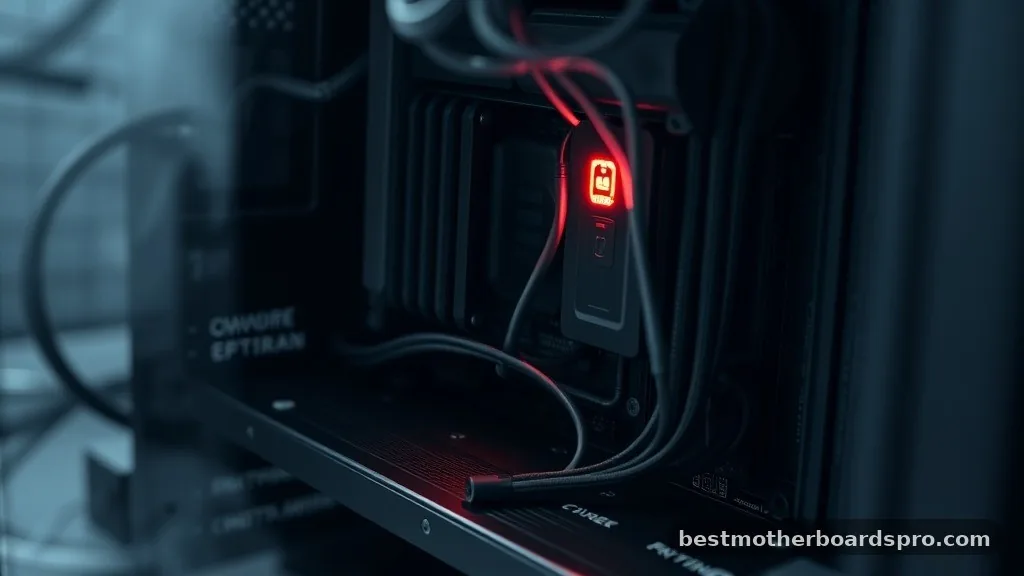
The first step in knowing how to tell if power supply is bad or motherboard failure is occurring involves observing the basic physical symptoms. When you press the power button, pay close attention to the behavior of the internal components. If the system is completely unresponsive—no fans spin, no LEDs glow, and no drive activity is heard—the issue is likely centered around the power delivery chain.
A failing power supply often gives off subtle warnings before it dies completely. You might have experienced random restarts, a burning smell, or the computer failing to boot on the first try. Conversely, motherboard issues often manifest after the system has been running for a while, such as sudden freezes or blue screens, though a dead board will behave just like a dead power supply by showing nothing when you attempt to turn it on.
Performing the Paperclip Test
The most common way to isolate the power supply unit from the rest of the system is the paperclip test. This manual bypass forces the PSU to turn on without needing a signal from the motherboard. If the PSU fan starts spinning when you bridge the pins, the unit is receiving power and is likely functional, shifting the suspicion toward the motherboard.
Follow these steps to perform the test safely:
- Shut down the system and unplug the power cable from the wall.
- Disconnect all cables leading from the power supply to the motherboard, GPU, and hard drives.
- Locate the 24-pin ATX connector; it is the largest cable in the bundle.
- Find the green wire (pin 16) and any black ground wire (pin 15 or 17).
- Insert a bent paperclip into the pins for the green and black wires.
- Reconnect the wall cable and flip the switch on the back of the PSU.
If the PSU fan spins, the unit is drawing current. If the fan remains stationary and there is no sound, the power supply is almost certainly dead.
Comparing Symptoms of PSU and Motherboard Failure
Sometimes the symptoms overlap, making it difficult to decide which part to replace. This comparison table highlights the key differences in how these components typically fail.
| Symptom | Likely Power Supply Issue | Likely Motherboard Issue |
|---|---|---|
| System dead, no lights | Very Common | Possible |
| Random shutdowns | Common | Rare |
| BIOS/UEFI errors | Rare | Very Common |
| Burning smell | Common | Rare |
| Fans spin, then stop | Very Common | Common |
Checking for Motherboard Short Circuits
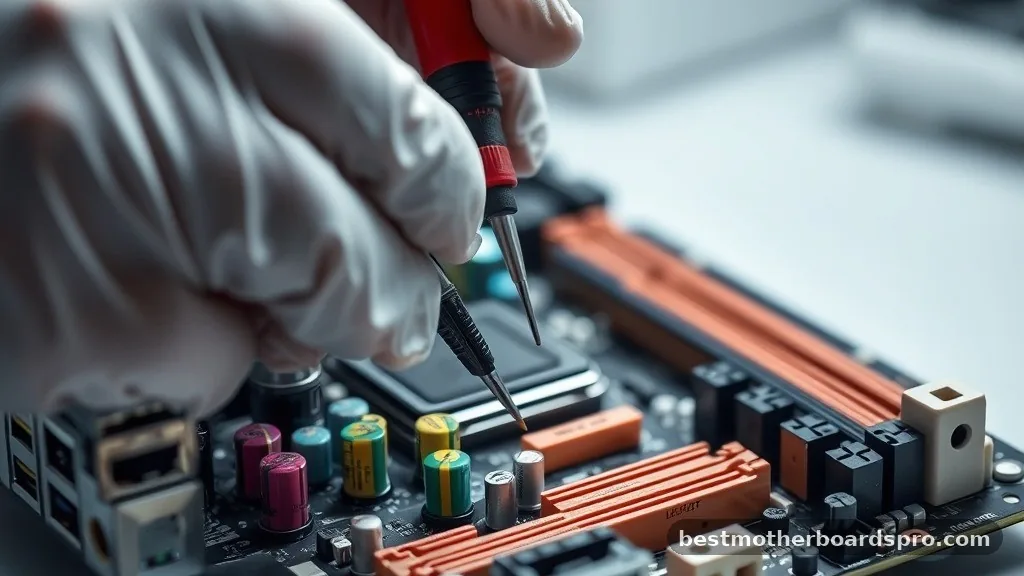
If your power supply passes the paperclip test but the computer still fails to boot, your motherboard might be suffering from a short circuit. This often happens if a metal object touches the board or if a standoff is improperly installed.
Inspect the motherboard for any visible signs of damage, such as bulging capacitors or burnt traces. Sometimes, a faulty USB port or a failing component like the CPU cooler or RAM can trigger a safety shutdown.
Try stripping the system down to the bare essentials: remove all memory sticks, expansion cards, and drives. If the motherboard still fails to show a “no memory” beep or error code, the board itself is likely the source of the problem.
The Role of the CMOS Battery
A simple but often overlooked component is the CMOS battery. If this small coin-sized battery fails, it can prevent the motherboard from completing the initial power-on self-test.
While it rarely causes a total “dead” state, a bad battery can lead to boot loops or settings that refuse to save. Replacing this is an inexpensive test that should be done before assuming the entire motherboard is fried.
Diagnosing Internal Power Distribution
Even if the power supply is healthy, it might not be delivering the correct voltage to the motherboard. A digital multimeter is the best tool for this.
You can measure the voltage on the 24-pin connector while the system is running to see if the 12V, 5V, and 3.3V rails are within the expected range. If the voltage is significantly lower or higher than nominal, the power supply is failing even if it manages to turn on.
Addressing Topical Gaps in Troubleshooting
Many guides focus only on the PSU, but the interaction between the CPU and motherboard is equally critical. If the CPU is not seated correctly or has bent pins, the motherboard will detect this as a critical failure and refuse to provide power to the rest of the system as a safety measure. Ensure that your processor is properly installed and that the cooler is providing enough pressure to make a solid contact.
Another gap is the case switch. Sometimes the actual power button on the front of your case is broken.
You can test this by carefully shorting the two power pins on the motherboard with a screwdriver for a split second. If the system starts, your case’s power button is the only thing that needed replacing.
FAQ
Can a bad power supply damage my motherboard?
Yes, a failing power supply can deliver unstable voltages or power surges to the motherboard. If the PSU’s internal protection circuits fail, it can fry sensitive components on the board, potentially leading to permanent hardware damage that requires replacing both the power supply and the motherboard.
How do I know if my CPU is the problem instead of the motherboard?
If the motherboard receives power but the CPU is faulty, the fans will usually spin, and the system might show an error code or beep. If you get absolutely nothing, the issue is almost always the PSU or the motherboard’s power circuitry, not the processor itself.
Is it worth repairing a motherboard?
In most modern systems, repairing a motherboard is not cost-effective. Unless it is a simple fix like a battery replacement or a loose cable, the labor costs for micro-soldering usually exceed the price of a new, compatible motherboard. It is generally better to upgrade to a newer model.
What if the fans spin for a second and then stop?
This is a classic sign of a short circuit or a power supply safety trigger. The PSU detects a fault, such as an over-current or short, and immediately shuts down to prevent damage. Check for loose metal parts, unplug all non-essential hardware, and re-seat your memory modules.
Conclusion
Determining whether you are dealing with a faulty power supply or a dead motherboard requires a systematic approach. By starting with the paperclip test, you can quickly verify the health of your power delivery system. If the PSU checks out, move on to inspecting the motherboard for shorts, checking the case switch, and ensuring that all connections are secure.
Most computer issues are caused by loose cables or simple component failures rather than a completely toasted motherboard. By isolating each part, you save time and money on unnecessary replacements. If you follow these steps carefully, you will eventually find the root of the problem and get your system back in working order soon.
