

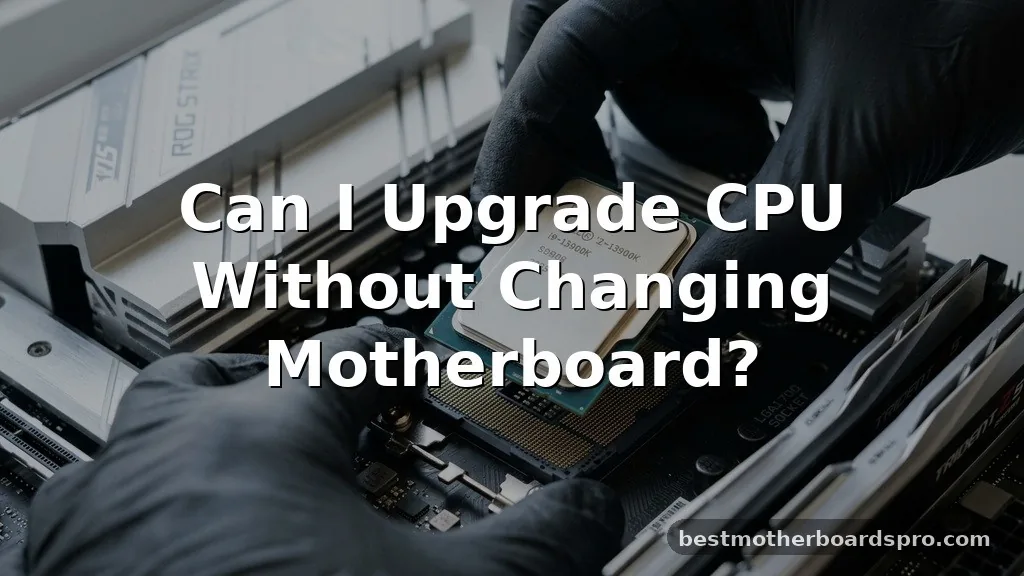
Deciding whether you can upgrade your CPU without changing your motherboard often feels like a gamble against hardware compatibility. Many enthusiasts find themselves staring at their PC case, wondering if a simple swap could unlock better gaming performance or faster multitasking. The short answer is that it depends entirely on your current socket and chipset generation.
While the dream is to simply pull out an old chip and drop in a new one, the reality involves strict adherence to manufacturer specifications and BIOS limitations. If you have ever asked yourself if you can upgrade your CPU without changing your motherboard, this breakdown will help you determine your path forward.
Understanding Socket Compatibility and Chipset Limits
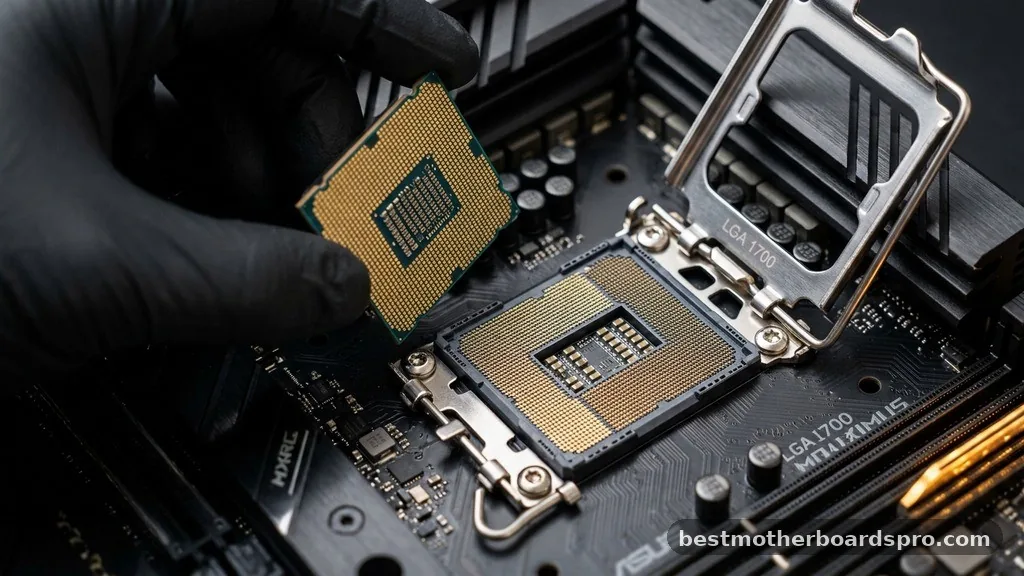
The most critical factor in determining if you can upgrade your CPU without changing your motherboard is the physical socket. A motherboard is designed to house a specific processor family, and it cannot accept a chip that uses a different physical interface.
If your current board uses an LGA 1200 socket, for example, it will never accept an LGA 1700 processor. Beyond the physical pins, the chipset acts as the gatekeeper for what hardware is supported.
Chipsets are the logic controllers on your board that manage data flow between the processor, memory, and peripherals. Even if a new chip physically fits into your socket, the motherboard’s chipset might not recognize it due to a lack of microcode support. This is why manufacturers release BIOS updates.
Always check your motherboard’s official support page to see a list of compatible CPUs. This list is the definitive source of truth for your specific hardware configuration.
Checking Your Current Hardware Configuration
Before you buy anything, you need to know exactly what you are working with. You can find this information easily within your operating system or by using free diagnostic software. Identifying your current motherboard model and BIOS version is the first step in the process.
- Open the System Information tool in Windows to find your BaseBoard Product.
- Download CPU-Z to view your current socket type and chipset details.
- Check the BIOS version currently installed on your machine.
- Visit the manufacturer’s website to cross-reference your motherboard with the CPU support list.
Once you have these details, you can compare them against the processors you want to install. If your motherboard supports a range of CPUs within the same generation, you have a clear path to an upgrade. If the board is already at the top of its supported list, you have reached the end of the line for that specific platform.
The Role of BIOS Updates in Hardware Compatibility
Many users assume that if they have the right socket, the new processor will work immediately upon installation. This is not always the case.
Your motherboard might require a BIOS update to recognize a newer processor, even if that processor belongs to the same general family as your current one. This is common when a manufacturer releases a “refresh” of a processor line that utilizes the same socket but requires updated instructions to function.
If you attempt to start your computer with an unsupported CPU, you will likely encounter a black screen or a POST error. Always perform the necessary BIOS update while your old CPU is still installed.
Once the firmware is flashed and verified, you can safely power down the machine, swap the processors, and restart the system. Skipping this step is the most common reason for failed upgrades.
| Component | Compatibility Requirement | Upgrade Path |
|---|---|---|
| CPU Socket | Must match exactly | Non-negotiable |
| Chipset | Must support CPU architecture | Check manufacturer list |
| BIOS/UEFI | Must contain microcode for new CPU | Update before installation |
| Power Supply | Must provide adequate wattage | Verify TDP of new chip |
Performance Gains vs. Cost Efficiency
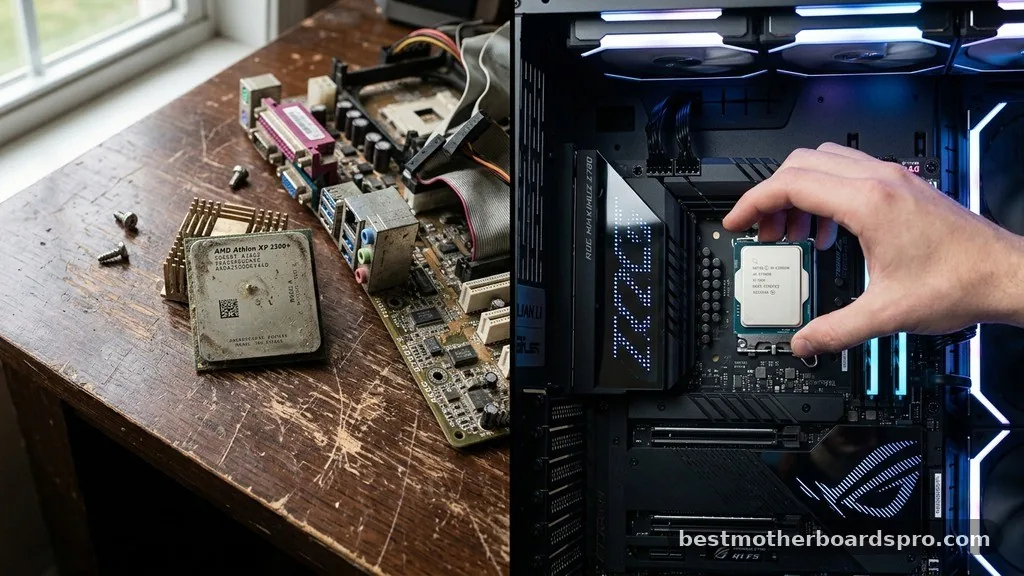
When you consider whether you can upgrade your CPU without changing your motherboard, you must weigh the performance gains against the cost of the new part. Sometimes, upgrading to the fastest processor supported by an older motherboard provides only a marginal increase in speed. If your current board is three or four generations old, the money spent on a top-tier CPU for that socket might be better saved for a modern platform.
Consider your primary use case. If you are mainly into gaming, look for benchmarks that show the difference between your current chip and the potential upgrade.
If the gains are less than 15-20%, the cost might not justify the effort. If your machine is struggling to keep up with daily tasks, a modest CPU upgrade can feel like a breath of fresh air without the hassle of rebuilding your entire system.
Addressing Potential Data and OS Issues
A common worry during any hardware change is whether you will need to reinstall your operating system or lose your data. Generally, swapping a CPU does not affect your data.
Your files are stored on your hard drive or SSD, and the CPU upgrade is merely a change in the processing engine. You will not need to reinstall Windows simply because you changed the processor.
However, if you end up having to replace your motherboard later, that is a different story. Replacing a motherboard often triggers a Windows reactivation requirement because the OS ties its license to the motherboard’s unique ID.
When just upgrading the CPU, your Windows license remains valid, and your data remains untouched. This makes the CPU-only swap a much cleaner process than a full platform migration.
Common Pitfalls During Installation
Even when you verify that you can upgrade your CPU without changing your motherboard, the physical installation can go wrong if you aren’t careful. The most frequent issue involves bent pins.
Whether you are using an Intel LGA system or an AMD AM4 system, the pins are fragile. Always handle the processor by its edges and ensure it drops into the socket without any force.
Thermal management is another critical area. A faster, more powerful processor will likely generate more heat than your old one. Ensure your current cooler is rated for the thermal design power (TDP) of the new chip.
If you are upgrading to a high-end model, you might need to invest in a better cooling solution or reapply high-quality thermal paste. Neglecting the cooling aspect can lead to thermal throttling, where your new, fast CPU slows down to prevent damage.
FAQ
Can I upgrade my CPU without changing my motherboard if the socket matches?
You can, provided the motherboard chipset and BIOS support the specific processor model. Even if the physical socket matches, the motherboard must contain the necessary microcode to recognize the new chip. Always check the manufacturer’s CPU support list on their official website before making any purchase decisions.
Do I need to reinstall Windows after a CPU upgrade?
No, you do not need to reinstall Windows when only upgrading your CPU. Your operating system and personal data are stored on your storage drives and remain unaffected by processor changes. Reinstallation is typically only required if you replace the motherboard, which serves as the primary identifier for your OS license.
How do I know if my current cooler will work with the new CPU?
Check the thermal design power (TDP) of both your old and new processors. If the new CPU has a higher TDP, your current cooler might struggle to keep it within safe temperatures. Ensure your cooler is compatible with your socket type and has enough cooling capacity for the new chip.
Is it worth upgrading a CPU on an older motherboard?
It depends on the performance gap. If you can find a high-end chip for your existing socket at a low price, it can be a cost-effective way to extend your PC’s life. However, if the gains are minimal, saving that money for a future platform upgrade is often wiser.
Final Thoughts
Determining if you can upgrade your CPU without changing your motherboard is a matter of technical verification rather than guesswork. By checking your socket type, confirming chipset support, and ensuring your BIOS is up to date, you can successfully improve your system’s performance. Keep a close eye on your cooling requirements and handle the hardware with care during the installation.
While this path isn’t always available for every user, it remains a fantastic way to breathe new life into a machine when the stars align. If you have confirmed your compatibility, take your time with the process, stay organized, and enjoy the boost in speed. If you run into trouble or have specific questions about your hardware, there are many community forums where you can find help or share your results.



