


Figuring out where the F panel goes on your motherboard is one of those rites of passage for every PC builder. You’ve spent hours picking out the right components, seating the CPU, and managing your cables, only to be stopped by a cluster of tiny, unlabeled wires.
It’s a common point of frustration, but once you understand the layout of your board, it becomes much easier to manage. This guide helps you identify the correct pins so you can power up your system with confidence and get straight into your gaming or work sessions without unnecessary stress.
Locating the Front Panel Headers
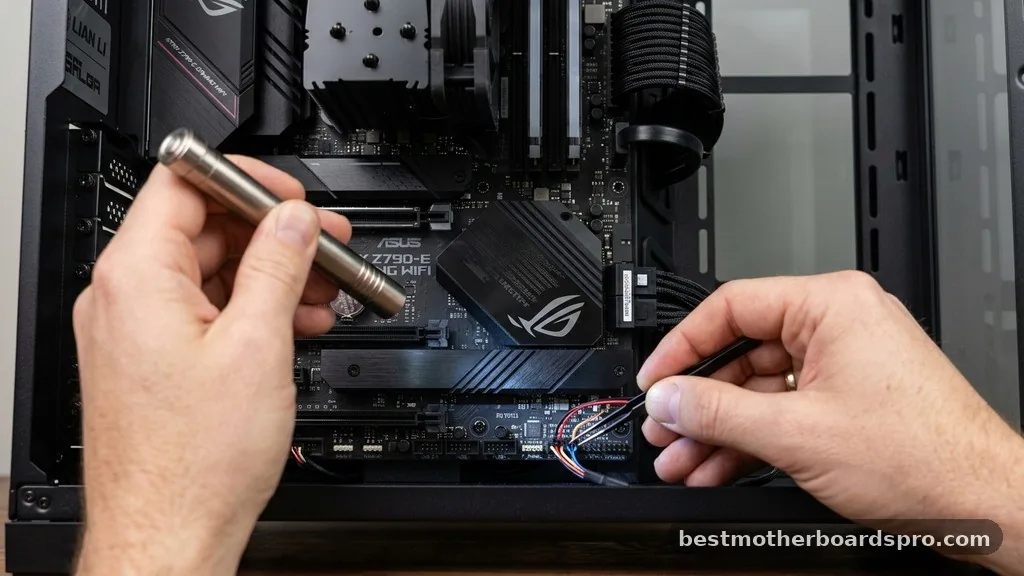
Most modern motherboards have a specific section dedicated to the front panel, usually tucked away in the bottom-right corner of the board. This area typically houses the pins for your power button, reset switch, hard drive activity LED, and power light. Manufacturers often color-code these pins or print a small diagram directly onto the PCB to help you identify which wire belongs where.
If your board doesn’t have clear labels, you will need to refer to your hardware manual. The manual contains a detailed pinout diagram that shows exactly which pin corresponds to each function. While the physical location might vary slightly between brands like ASUS, MSI, or Gigabyte, the fundamental layout remains consistent across the industry.
Understanding the Pin Configuration
The front panel header is almost always a block of pins arranged in two rows. You are looking for a grouping that usually contains between 9 and 11 pins. Most of these pins are reserved for the chassis interface, but some boards might include extra pins for PC speakers or other proprietary connectors.
Standard Pin Functions
- Power Switch (PWR_SW): This tells the motherboard to start the boot process.
- Reset Switch (RESET_SW): A simple toggle to restart the system without cutting power.
- Power LED (PLED): Indicates that the system is currently receiving power.
- HDD LED: Flashes to show when your storage drives are actively reading or writing data.
When connecting these, orientation matters for the LEDs. The positive and negative leads must be placed on the correct pins, or the lights simply won’t turn on. Switches, however, are non-polarized, meaning they will function regardless of which way you plug them in.
Comparing Connector Layouts Across Manufacturers
While the general purpose of these headers is universal, different brands use unique layouts that can be confusing for new builders. Some manufacturers include a plastic block or “Q-connector” that lets you plug all your wires into a single piece before attaching it to the motherboard. This is a massive help compared to the traditional method of plugging in individual, tiny wires.
| Manufacturer | Typical Header Location | Connector Style |
|---|---|---|
| ASUS | Bottom-Right Corner | Often includes Q-Connector |
| MSI | Bottom-Right Edge | Standard Individual Pins |
| Gigabyte | Bottom-Right Corner | Standard Individual Pins |
| ASRock | Bottom-Right Corner | Standard Individual Pins |
Steps for Connecting the Cables
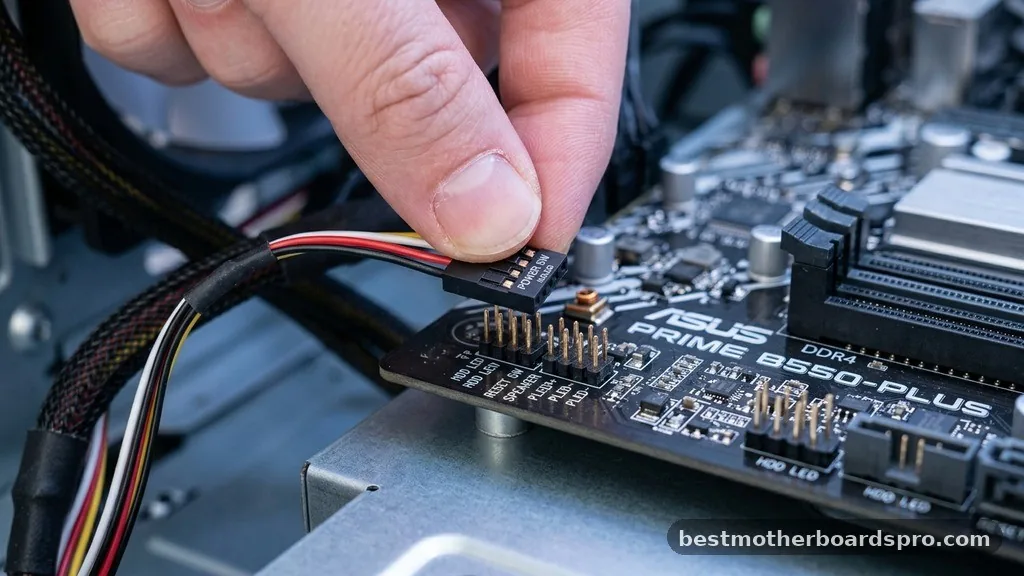
Start by identifying the cables coming from your PC case. They are usually labeled with small white text on the plastic housing.
If you find yourself struggling to read the tiny print, use a flashlight or a magnifying glass. Mistakes here are rarely fatal, but they can be a nuisance to fix once the graphics cards and other components are in place.
1. Locate the header pins on your motherboard.
2. Consult the manual to identify the pinout diagram.
3.
Align the labels on the cables with the corresponding pins on the board.
4. Gently press the connectors onto the pins.
5. Double-check your connections against the manual one last time.
If your system fails to start, don’t panic. The most common cause is a loose or misaligned power switch cable. Simply unplug the connectors and ensure they are seated firmly on the correct pins.
Addressing Common Installation Hurdles
A common issue builders face is the lack of space in the bottom-right corner of the case. If you have already installed a large graphics card, it might be physically blocking your access to the header. In this case, it is much easier to connect the front panel wires before you seat the GPU.
Another challenge involves cases that come with a single, consolidated block connector for the front panel. If your motherboard has individual pins but your case has a block, you may need to use a needle-nose plier or a specific adapter provided by the case manufacturer. Never force a connector onto the pins if it doesn’t fit naturally, as you risk bending the pins on the motherboard.
Visualizing the Connection
Think of the front panel header as the sensory nerves of your computer. The switches send signals to the motherboard to initiate the boot sequence, while the LEDs receive signals back to report the status of your machine. Because this interface is so essential, manufacturers have spent years refining the design to make it as effective as possible.
| Component | Function | Polarity Required |
|---|---|---|
| Power Switch | Starts the PC | No |
| Reset Switch | Restarts the PC | No |
| Power LED | Status indicator | Yes |
| HDD LED | Drive activity | Yes |
If you ever find yourself working on a new build and the case doesn’t have labels, rely on the colors. Usually, the colored wire is positive, and the black or white wire is the ground. However, always verify this against your motherboard manual to be absolutely certain.
FAQ
Do I have to plug in every single front panel cable?
You only need to plug in the Power Switch for your computer to function. The Reset Switch, Power LED, and HDD LED are optional. If you prefer a cleaner look or aren’t concerned with drive activity lights, you can leave those specific cables disconnected without harming your system.
What happens if I plug the LED cables in backward?
If you plug the LED cables in with the wrong polarity, your computer will still function perfectly fine, but the lights simply will not turn on. To fix this, just pull the connector off, flip it 180 degrees, and slide it back onto the pins. It’s an easy fix.
Can I use a screwdriver to start my motherboard instead?
Yes, you can bridge the two pins labeled “PWR_SW” with the tip of a screwdriver to start your PC. This is a common trick used by tech enthusiasts for testing components outside of a case, but be careful not to touch any other pins to avoid a short circuit.
Why is the front panel header so difficult to reach?
Motherboard designers prioritize space for memory slots, CPU cooling, and PCIe lanes, which often leaves the front panel header in a tight spot. This is why many experienced builders recommend attaching these small cables before installing larger components like bulky air coolers or long graphics cards.
Final Thoughts on Panel Connections
Connecting your front panel cables is a rite of passage that feels intimidating only the first time you do it. By taking a moment to consult your motherboard manual and identifying the specific pinout, you eliminate the guesswork that often leads to errors. Remember that the switches don’t have a specific orientation, and the LEDs are easily corrected if they don’t light up on the first try.
Taking your time with these connections ensures that your system stays reliable for years to come. Whether you are building a high-end rig or a basic home office machine, knowing exactly where the F panel goes on your motherboard is a fundamental skill.
If you run into any trouble during your build, don’t hesitate to check your board’s documentation or reach out to the community for help. Good luck with your setup, and enjoy the process of bringing your new machine to life.



