


Getting the internal wiring of your PC right is the most critical step in building a machine that actually turns on. While it might seem intimidating to handle a bundle of wires, the process of connecting the power supply to the motherboard is governed by standardized shapes and keyed connectors that prevent you from plugging things in incorrectly.
By following a methodical approach, you can ensure your components receive stable power without the risk of shorting out your hardware. Whether you are building from scratch or replacing an aging unit, understanding these connections is the foundation of a successful PC build.
Understanding the Main Power Connections
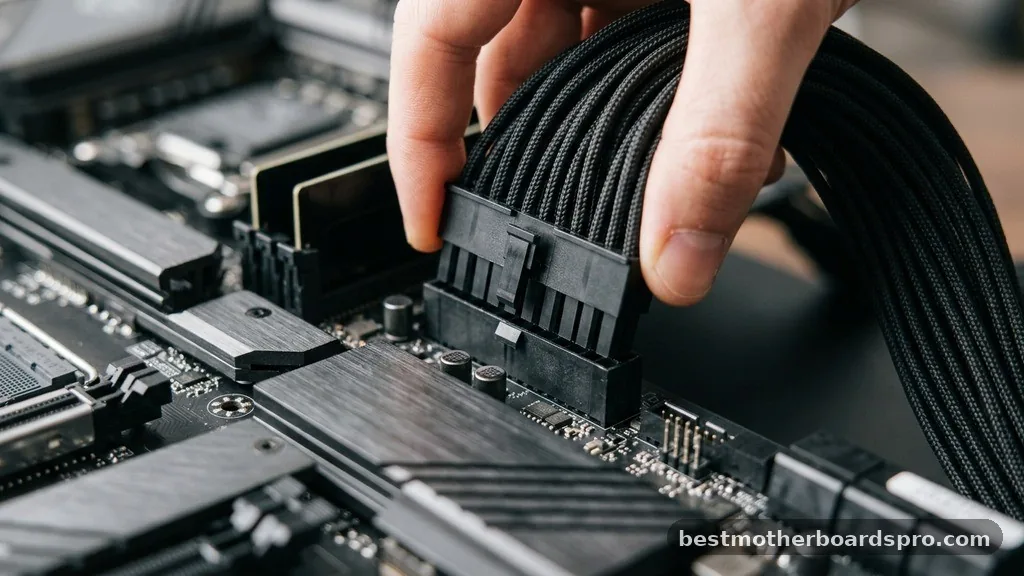
The heart of your electrical system is the 24-pin ATX connector. This is the largest cable coming from your PSU and provides the primary voltage required for the motherboard to function. You will notice that this connector is often split into a 20+4 configuration, which ensures backward compatibility with older board designs.
To install it, locate the large slot on the right edge of your motherboard, typically positioned near your RAM modules. Align the clip on the cable with the tab on the motherboard slot and press down firmly until you hear an audible click.
Beyond the main 24-pin cable, the CPU power delivery is the next priority. Modern motherboards generally require an 8-pin or 4+4 pin connector located near the top left of the CPU socket.
This provides dedicated power to the processor. Failing to plug this in is the most common reason a new build will power on with lights but fail to display anything on the monitor.
Managing Cables for Different Components
Once the motherboard is powered, you must address the auxiliary components that keep your system running. Modern builds often require additional power for storage drives and peripheral hardware.
You will likely work with SATA power cables, which are flat and wide, designed specifically to slide into the back of your SSD or HDD. Do not force these; if the connector does not slide in smoothly, check the orientation of the “L” shape on the plug.
Comparing Power Connector Types
The following table provides a quick reference for the standard cables you will encounter during your installation process.
| Connector Type | Common Usage | Pin Configuration |
|---|---|---|
| ATX Main Power | Motherboard Power | 24-pin (20+4) |
| EPS/CPU Power | Processor Power | 8-pin (4+4) |
| PCIe Power | Graphics Card | 6+2 pin |
| SATA Power | Hard Drives/SSDs | 15-pin |
Addressing Common Installation Challenges
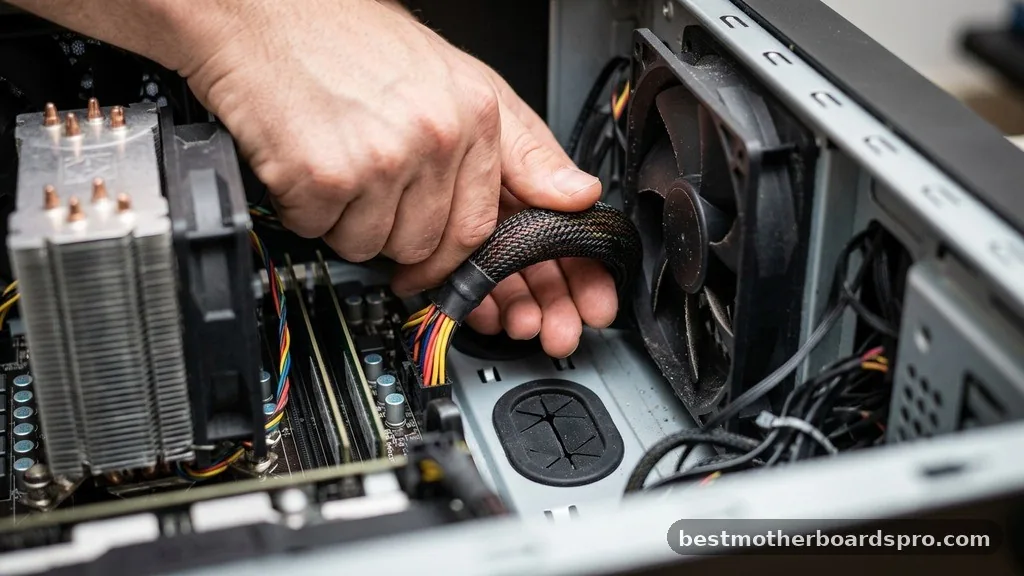
Many builders struggle with the physical layout of the cables. A common gap in knowledge involves the PCIe power cables, which look similar to CPU cables but are wired differently.
You should never attempt to force a CPU cable into a graphics card, as this can cause permanent damage to your hardware. If you are unsure which is which, check the labels printed on the plastic housing of the connector.
* Always use the cables provided with your specific power supply.
* Ensure your fingers are clear of the fans while testing the connection.
* Route cables behind the motherboard tray to improve airflow.
* Double-check that all modular plugs are fully seated in the PSU side.
If you find that your system is not posting, the culprit is often a loose connection. A cable might look plugged in from the outside while the pins are actually slightly offset. Pull each major cable out and re-seat it, ensuring the locking tabs are fully engaged.
Handling Modular vs. Non-Modular Units
The type of power supply you own changes how you approach the initial setup. A fully modular unit requires you to plug the cables into the PSU itself before installing it into the chassis.
This is a massive benefit for cable management, as you only add the specific cables you actually need. Non-modular units come with all cables permanently attached, meaning you will have to find a way to tuck away the unused wires in the bottom of your case or behind the drive cages.
When working with modular PSUs, please take a moment to verify that you are using the correct ports on the back of the unit. While most manufacturers use keyed shapes to prevent errors, it is still best practice to confirm the layout against the manufacturer’s manual. Connecting a cable to the wrong rail can cause the system to fail to boot or, in rare cases, trigger safety protection features that shut the unit down instantly.
Frequently Asked Questions
Do I need to plug in both the 8-pin and 4-pin CPU power connectors?
For most standard desktop builds, the primary 8-pin connector is sufficient to power the CPU. The secondary 4-pin connector is typically reserved for extreme overclocking or high-end workstation processors. Unless your motherboard manual explicitly states it is required for your specific build, the 8-pin is enough.
Can I use power cables from a different power supply brand?
No, you should never mix and match modular cables between different brands or even different models of the same brand. The pinout configuration on the PSU side is not standardized. Using a cable meant for a different unit can result in a short circuit and permanent hardware damage.
Why does my PC turn on but show no display after I connect the power?
This usually indicates that the CPU power cable is either missing or not fully seated. Check the top-left corner of your motherboard to ensure the 8-pin connector is locked into place. Also, verify that your graphics card is receiving power from the PCIe cables, as that is another common oversight.
What should I do if a connector feels too tight to plug in?
Stop immediately if you feel excessive resistance. Check the orientation of the connector and look for any bent pins inside the socket. Ensure the keying on the plug matches the slot. Forcing a connection can break the plastic housing or bend motherboard pins, leading to significant repair issues.
Concluding Thoughts
Successfully connecting your power supply to the motherboard is a satisfying milestone in any PC build. By taking your time to verify each pin connector and ensuring that every cable is firmly locked into its respective slot, you create a stable and reliable environment for your hardware. Remember that your power supply is the foundation of the entire system; treating these electrical connections with care prevents short circuits and ensures longevity for your components.
Once you have finished routing your cables and double-checked your work, you will be ready to move on to the final stages of your assembly. If you encounter any unexpected behavior during the first boot, simply retrace your steps, check your connections one last time, and ensure every component is properly seated.



