


Pinpointing the exact moment your computer hardware fails is often a stressful experience, but learning how to tell if your motherboard is fried can save you hours of unnecessary troubleshooting. When your system refuses to boot or exhibits erratic behavior, the central circuit board is often the primary suspect, acting as the nervous system that connects every component.
By understanding the common physical and functional indicators of a dying board, you can effectively rule out other culprits like power supplies or RAM. This knowledge empowers you to make informed decisions about whether to attempt a repair or prepare for a complete system upgrade.
Visual Inspection for Physical Damage

The most reliable way to identify a motherboard failure is to look for tangible evidence of electrical damage on the PCB. Modern motherboards are complex, but they often leave behind physical clues when they suffer a catastrophic short or power surge.
Scanning for Blown Capacitors
Capacitors are the small, barrel-shaped components scattered across the board. If you notice them bulging at the top, leaking brown fluid, or sitting at an odd angle, they have likely failed. When capacitors lose their ability to regulate voltage, the entire system becomes unstable, leading to sudden shutdowns or a complete refusal to turn on.
Checking for Burn Marks
Inspect the area around the CPU socket, the VRMs, and the PCIe slots for any signs of discoloration. A burnt smell, similar to acrid plastic or ozone, is a major red flag. If you see dark spots, charred traces, or melted plastic, the board has suffered a serious electrical event that likely renders it irreparable.
Common Symptoms of a Failing Motherboard
If the board looks clean upon inspection, the issue may be internal or related to the chipset. Recognizing these patterns helps distinguish a fried board from a simple software glitch.
- The computer turns on, but the monitor remains black with no signal.
- The system enters a boot loop where it restarts repeatedly before reaching the operating system.
- Peripherals like the mouse and keyboard fail to receive power or show activity lights.
- The computer experiences random crashes while under load, often accompanied by blue screens.
- BIOS or UEFI settings fail to save, even after replacing the CMOS battery.
- Hardware components like hard drives or optical drives are not detected by the system.
Comparing Motherboard Failure vs. Other Hardware
It is easy to misdiagnose a power supply unit (PSU) or RAM issue as a motherboard failure. This table highlights how to differentiate the symptoms of a fried board from other common hardware issues.
| Symptom | Likely Motherboard Issue | Likely Alternative Cause |
|---|---|---|
| No power at all | Fried VRMs or power phase | Dead PSU or unplugged cable |
| System freezes randomly | Corrupted chipset/traces | Overheating CPU or bad RAM |
| Boot loops | BIOS corruption/failed capacitor | Faulty RAM stick |
| USB ports inactive | Southbridge failure | Driver or software conflict |
The Minimal Hardware Test
If you suspect your motherboard is fried, the “breadboarding” method is the best way to isolate the issue. By stripping the system down to its most basic state, you remove variables that might be masking the true source of your problems.
Start by disconnecting all non-essential hardware. This includes your GPU, secondary storage drives, extra RAM sticks, and all front-panel USB headers. You should be left with only the motherboard, the CPU with its cooler, and a single stick of RAM.
If you have an integrated speaker or a “POST code” LED display, use it to listen for beeps or read error codes. If the system still refuses to output a signal or show any signs of life after stripping it down, the probability of a dead motherboard increases significantly.
Addressing Potential BIOS and Firmware Issues
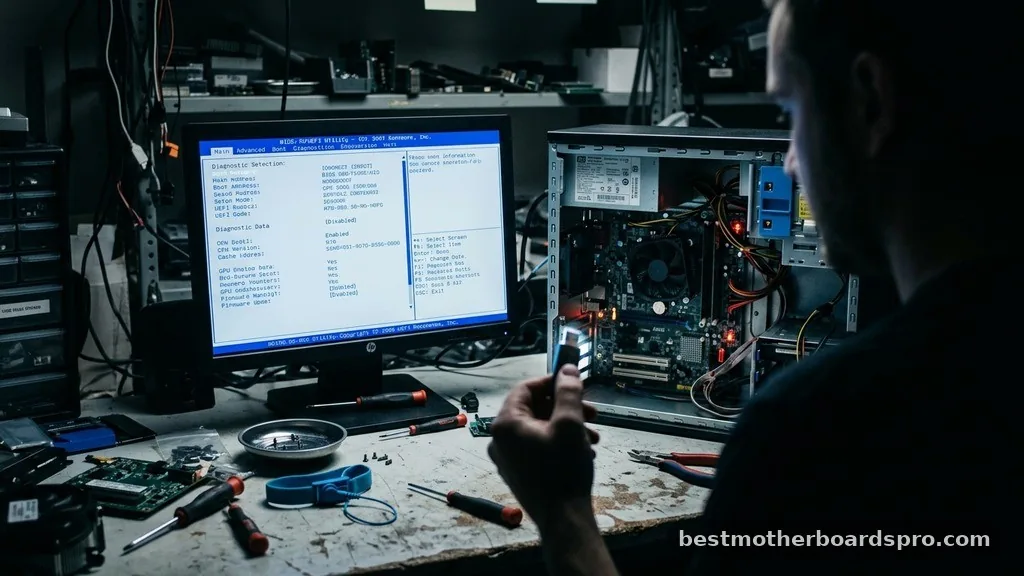
Sometimes, a motherboard isn’t physically destroyed but is effectively “fried” due to a corrupted BIOS. If you recently attempted a firmware update that was interrupted, the board may be stuck in a non-functional state.
Many modern boards feature a “BIOS Flashback” button that allows you to reinstall the firmware from a USB stick without needing a CPU or RAM installed. Before giving up on your hardware, check your manufacturer’s website to see if your specific model supports this recovery feature.
Understanding Electrical Overstress
Electronic components are sensitive to fluctuations in power. If your computer was running during a storm or a power outage, your board might have suffered from electrical overstress. Even if the PSU has surge protection, it isn’t always foolproof.
If you suspect an electrical surge caused the damage, check the PSU separately by jumping the pins on the 24-pin connector. If the PSU fan spins but the motherboard remains dead, the power delivery circuitry on the board has likely been compromised.
When to Replace vs. Repair
Deciding between a repair and a replacement is a matter of economics and technical feasibility. Professional board-level repair—such as replacing individual capacitors or resoldering traces—is often more expensive than buying a replacement board, especially for entry-level models.
If you are using an older platform, finding a compatible board might be difficult. In these cases, upgrading to a new CPU and motherboard combination is usually the most logical path. However, if you have a high-end, enthusiast-grade board, it might be worth consulting a professional repair shop to see if the damage is limited to a repairable component.
FAQ
Can a fried motherboard be fixed?
While some specialized shops can perform board-level repairs like replacing capacitors or resoldering traces, it is often not cost-effective. For most users, a fried motherboard is considered a terminal failure, and replacing the board is the most reliable way to restore system stability and performance.
What are the first signs of a dying motherboard?
Common early indicators include random system crashes, USB ports failing to recognize devices, the computer failing to wake from sleep mode, or persistent errors during the boot process. You might also notice the system clock losing time or BIOS settings resetting every time you reboot the machine.
Does a dead motherboard mean my data is lost?
Your data is stored on your storage drives, not the motherboard itself. If your board fails, your hard drive or SSD is typically safe. You can easily recover your files by connecting your drive to another computer or using a USB-to-SATA adapter to access the data externally.
How do I test if my motherboard is fried?
The most effective test is to perform a minimal boot with only the CPU, one RAM stick, and the power supply. If you have a motherboard speaker, listen for BIOS beep codes. If the board shows no signs of activity or error codes, the motherboard is likely dead.
Moving Forward After Hardware Failure
Determining if your hardware is beyond saving is the first step toward getting back to work or gaming. While the frustration of a sudden failure is real, the diagnostic steps outlined here should provide clarity on the state of your system. If you have confirmed that your board is indeed non-functional, focus on salvaging your storage drives and evaluating which components are worth carrying over to a new build.
Whether you decide to replace the board or upgrade your entire system, remember to verify your power supply unit’s health to prevent the same issue from happening again. If you have further questions about specific error codes or hardware compatibility, feel free to share your system’s symptoms for additional insight.



