

Getting your PC lighting synced up is a rewarding project, though figuring out exactly how to connect RGB fans to motherboard configurations often trips up first-time builders. You might feel overwhelmed by the sheer number of cables dangling from your case fans, but the process is actually quite logical once you distinguish between power and data headers. Whether you are dealing with standard 12V RGB or modern 5V ARGB, understanding your specific hardware interface is the first step toward a clean, synchronized lighting setup that brings your custom rig to life.
Identifying Your RGB Header Type
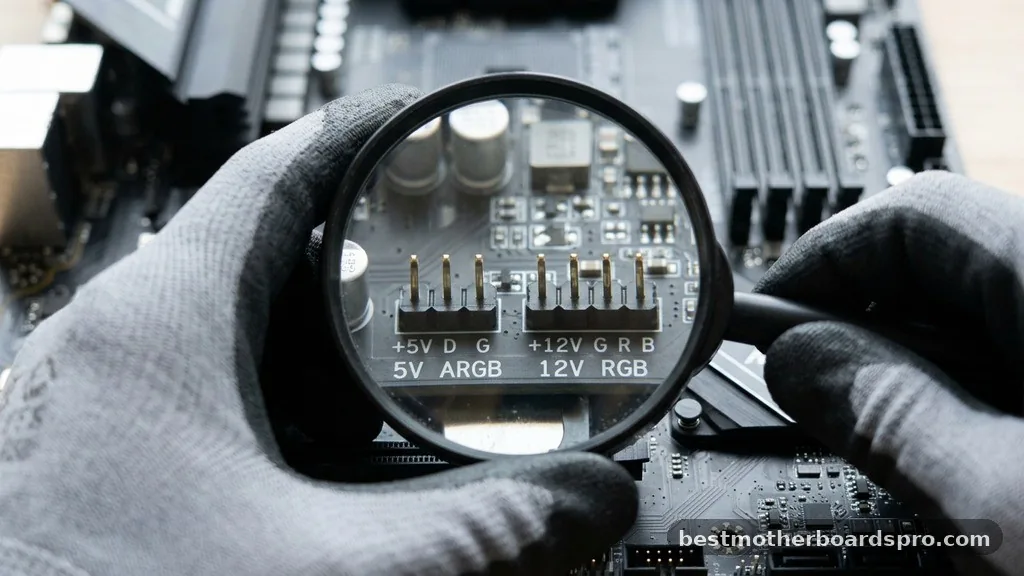
Before you plug anything in, you must identify the type of lighting technology your fans use. Motherboards typically feature two distinct types of headers, and they are not cross-compatible. Plugging a 5V device into a 12V header can cause permanent damage to your hardware, so check your motherboard manual carefully.
The standard 12V RGB header uses four pins. These devices are generally “dumb” RGB, meaning every LED on the fan must display the same color at the same time.
Conversely, the 5V ARGB header, often called a digital or addressable header, uses three pins with a missing fourth pin gap. This allows for individual control over every LED, creating the rainbow wave effects and complex patterns many builders desire.
| Header Type | Voltage | Pin Layout | Control Capability |
|---|---|---|---|
| RGB (Standard) | 12V | 4-Pin (12V, G, R, B) | Single color per fan |
| ARGB (Addressable) | 5V | 3-Pin (5V, Data, Ground) | Individual LED control |
Connecting Fans Directly to the Motherboard
If your motherboard has enough headers to accommodate your fans, you can connect them directly. This is the most straightforward method, as it allows your motherboard’s native software to manage the lighting profiles. Locate the headers, which are usually labeled “RGB_HEADER” or “ADD_HEADER” along the bottom or side edges of the board.
Ensure the arrow on the fan connector aligns with the 12V or 5V pin on the motherboard. If you force the connector on backward, you risk shorting the circuit.
Once connected, you will need to access your motherboard’s BIOS or dedicated lighting software to begin customizing the colors. Remember that the fan motor itself needs a separate connection to a “SYS_FAN” or “CHA_FAN” header to actually spin, as the RGB cable only carries lighting data and power for the LEDs.
Managing Multiple Fans with a Controller or Hub
Most modern cases come with more than three fans, which quickly exceeds the number of headers available on a typical motherboard. This is where an RGB controller or hub becomes essential. A hub acts as a central distribution point, taking a single signal from your motherboard and splitting it across multiple fans.
Using a hub simplifies cable management significantly. You only need to run one cable from the hub to the motherboard, keeping the internal space of your computer tidy.
Some advanced controllers are powered via a SATA or Molex connection from your power supply, which takes the electrical load off the motherboard’s headers. This is highly recommended if you are installing a large number of fans, as it prevents the motherboard from drawing too much current through a single header.
- Verify your motherboard header type (12V vs 5V) before purchasing fans.
- Use a powered hub if installing more than four fans to avoid overloading the header.
- Always align the arrows on the connectors to ensure correct polarity.
- Download the specific motherboard software (like Aura Sync, Mystic Light, or RGB Fusion) to control effects.
- Ensure the fan motor cable is connected to a separate chassis fan header for cooling performance.
Addressing Connectivity Gaps
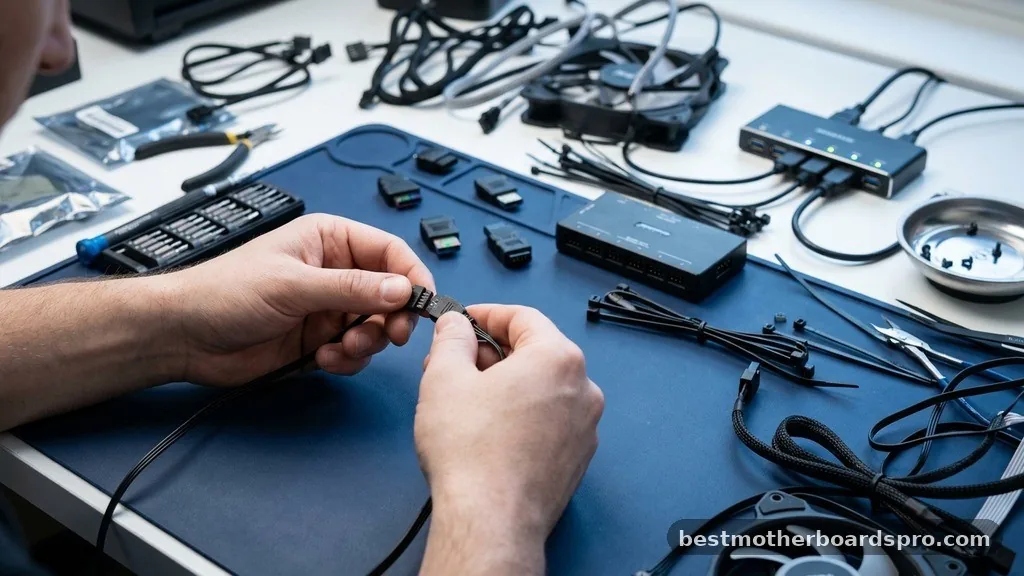
A common challenge arises when a builder has an older motherboard that lacks an RGB header entirely. If you find yourself in this position, you do not have to settle for static lighting.
You can purchase a standalone USB-based RGB controller. These devices connect to an internal USB 2.0 header on your motherboard and provide their own software environment for lighting control.
Another frequent issue involves proprietary fan connectors. Some manufacturers, such as Corsair, use unique plugs that do not fit into standard motherboard headers.
In these cases, you must use the proprietary hub or controller provided by the manufacturer. While this locks you into their ecosystem, it usually provides the most stable control and the best synchronization across all components.
Software Integration and Customization
Once the physical installation is complete, the software side is where the magic happens. Most major motherboard manufacturers provide their own proprietary utility for managing the lighting.
These applications allow you to map the fans, select colors, and set patterns. If you use a third-party controller, you might need to use the software that came with that specific controller instead of the motherboard’s built-in tool.
If you have components from different brands, you may encounter synchronization issues. Some enthusiasts turn to open-source software like SignalRGB or OpenRGB to unify their entire setup under one interface. These programs can often bridge the gap between different hardware vendors, allowing you to create a cohesive lighting theme across your RAM, motherboard, GPU, and fans.
Troubleshooting Common Connection Issues
If your fans spin but the lights do not turn on, start by checking the connections. Often, a loose cable at the hub or a misaligned pin is the culprit.
Verify that the SATA power cable for your hub is securely plugged into the power supply unit. If the lights are on but the colors look wrong, you might have the color order settings configured incorrectly in your software.
Sometimes, the software might not detect your fans at all. Ensure that you have installed the latest chipset drivers for your motherboard, as these are often required for the software to communicate with the onboard headers.
If you are using a 3-pin ARGB fan on a 4-pin header, double-check your adapter. You cannot simply use a standard cable; you need a voltage converter to prevent the 12V current from frying your 5V LEDs.
FAQ
Can I mix different brands of RGB fans in the same build?
Yes, you can mix brands, but it often complicates control. If they use different connectors, you will need separate controllers. If you want them synchronized, look for universal hubs or use open-source lighting software that supports multiple hardware protocols to bridge the different brands together effectively.
What happens if I plug a 5V ARGB fan into a 12V RGB header?
Plugging a 5V device into a 12V header will almost certainly destroy the LEDs on the fan instantly. The voltage difference is too high for the addressable chips to handle. Always double-check your motherboard manual and the fan specifications to ensure the voltages match before making any physical connections.
Do I need an RGB header to have lighting?
You do not strictly need a motherboard header if you use a standalone USB controller. These controllers bypass the motherboard’s built-in headers entirely, drawing power directly from your power supply and data from an internal USB 2.0 header. This is a great solution for older motherboards lacking modern lighting support.
Why are my fans spinning but the lights are off?
This usually indicates that the RGB cable is disconnected or the software is not configured. Check that the RGB cable is firmly seated in the header or hub. If the connection is secure, ensure the lighting software is installed and that the specific header has been enabled in the BIOS.
Finalizing Your Lighting Setup
Achieving a perfectly lit system comes down to patience during the assembly phase. By carefully verifying your header voltages and ensuring your hub or controller is correctly powered, you eliminate the most common points of failure. Remember that the process of connecting RGB fans to motherboard interfaces is meant to be a fun customization step, not a source of frustration.
Once you have everything correctly seated and your software installed, you gain total control over the aesthetic of your machine. If you run into issues, revisit your connections and ensure your drivers are up to date. You are now ready to enjoy a fully synchronized, vibrant PC setup that reflects your personal style.



