


Determining whether your hardware components will play nice together is the most critical hurdle when building or upgrading a computer. If you have ever wondered how to know if motherboard is compatible with cpu, you are certainly not alone, as the sheer variety of sockets and chipsets can easily overwhelm even seasoned builders.
Ensuring your processor physically fits the board is only the first step, as you also need to confirm that the underlying firmware and power delivery systems support the specific chip you have chosen. Getting this right prevents a non-booting system and saves you from the frustration of dealing with return shipments or damaged pins.
Understanding the CPU Socket Type
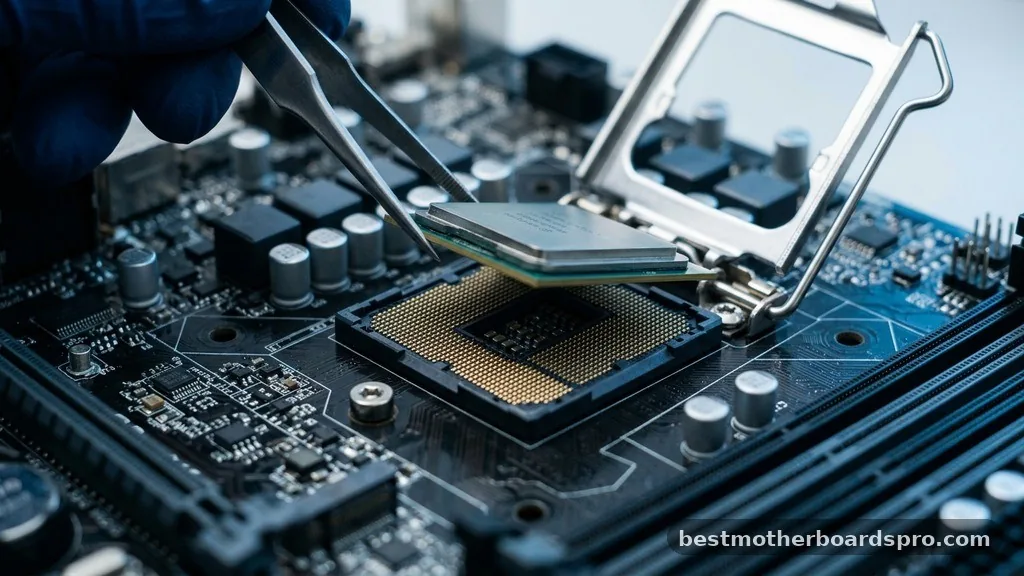
The most fundamental rule of hardware compatibility is the physical connection between your processor and the mainboard. Every processor is designed to fit into a specific CPU socket type, which acts as the physical interface for power and data transfer. If the socket on your motherboard does not match the socket required by your processor, the chip will literally not fit, and forcing it will result in catastrophic damage.
Intel and AMD have historically used different physical designs, though they both rely on arrays of pins or pads. For example, modern AMD systems often utilize the AM5 socket, which features a land grid array design.
Meanwhile, Intel typically uses an LGA socket, where the pins are located on the motherboard itself rather than on the processor. You must check the manufacturer’s specifications for both components to ensure these physical interfaces align perfectly.
The Role of the Motherboard Chipset
While the physical socket defines the mechanical fit, the motherboard chipset acts as the traffic controller for your data. Even if a CPU fits into a socket, it will not function unless the chipset recognizes and supports that specific processor architecture. Manufacturers often release new chipsets alongside new CPU generations to provide improved performance, better power management, or support for newer connectivity standards.
When evaluating compatibility, you should look for the specific chipset model—such as an Intel Z790 or an AMD B650—and verify it against the CPU’s supported list. A board might physically hold a newer CPU, but if the chipset doesn’t have the internal logic to communicate with it, the system will remain unresponsive. Always cross-reference the motherboard’s official support list to confirm your specific processor is validated for that chipset.
Checking the Motherboard QVL and BIOS
A motherboard QVL, or Qualified Vendor List, is your best friend when ensuring stability. This document is maintained by the manufacturer and lists every processor, memory kit, and peripheral that has been explicitly tested for compatibility with that specific board model. Relying on this list is significantly more reliable than guessing based on socket size alone.
Even with a correct socket and chipset, you may run into a situation where the board requires a BIOS update to recognize a newer processor. This often happens if you buy a motherboard that was manufactured before a specific CPU was released.
If the BIOS version is outdated, the motherboard simply won’t know how to initialize the new chip. Many modern boards allow you to flash the BIOS using a USB drive without needing a CPU installed, which is a life-saver for builders using the latest hardware on slightly older board revisions.
| Compatibility Factor | What to Check | Why It Matters |
|---|---|---|
| Physical Socket | LGA or AM5 pin layout | Ensures mechanical fit |
| Chipset Support | Supported generation list | Enables data communication |
| BIOS Version | Firmware release date | Recognizes newer silicon |
| Power Delivery | VRM capacity | Prevents overheating/instability |
Verifying Power Delivery and TDP
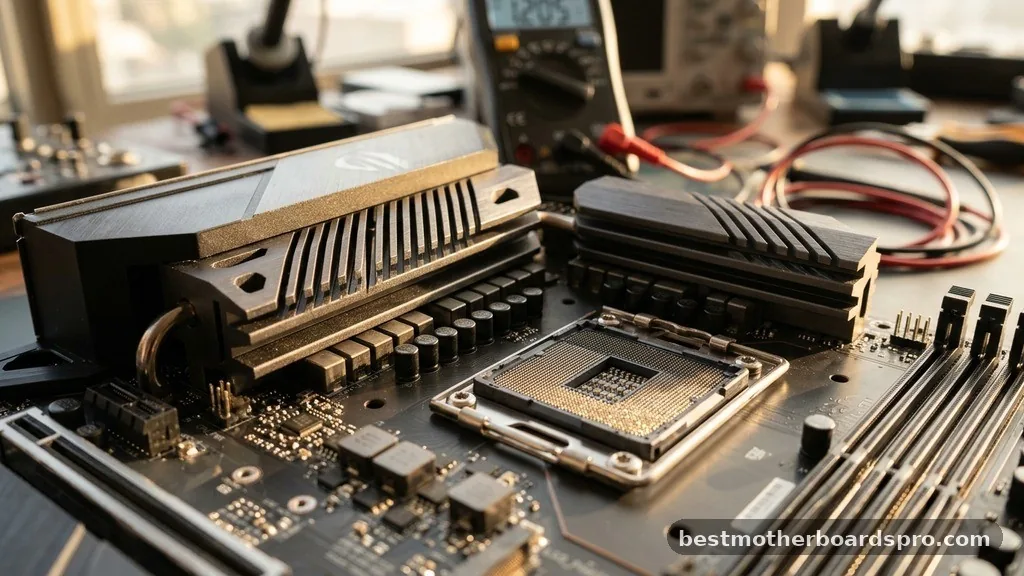
Your processor’s TDP, or Thermal Design Power, is a critical metric that dictates how much power the chip draws and how much heat it generates. If you pair a high-performance, power-hungry CPU with a budget-tier motherboard, you might encounter issues with the VRM, or Voltage Regulator Module. These components are responsible for converting power from your power supply into a stable voltage for the CPU.
If the VRMs are not robust enough to handle the current draw of your processor, they can overheat, leading to thermal throttling or complete system failure. When checking if your motherboard is compatible with your CPU, look for reviews that mention VRM thermals, especially if you plan on overclocking. A board that works fine for a low-power chip might struggle significantly when tasked with running a top-tier enthusiast processor under heavy load.
Tools to Simplify the Process
You do not have to perform all this research manually. Several digital tools make the process of verifying compatibility nearly foolproof. These resources aggregate data from manufacturers to tell you exactly which parts work together.
- PCPartPicker: This is the gold standard for builders. You simply select your CPU, and the site automatically filters out any motherboards that are not compatible with that specific processor.
- CPU-Z: If you already have the motherboard and are looking for an upgrade, this tool provides detailed information about your current socket and chipset, helping you narrow down your search for a compatible CPU.
- Motherboard Manufacturer Support Page: Every manufacturer maintains a dedicated portal for their products. This is the primary source of truth for BIOS updates and CPU support lists.
- PCIe Lanes and Memory Controllers: Advanced users should also consider these factors to ensure the board doesn’t bottleneck their CPU’s performance.
Addressing Common Compatibility Gaps
One common mistake users make is assuming that all boards with the same socket will work indefinitely. Manufacturers often have a limited support window for their chipsets. For instance, Intel frequently changes socket requirements every two generations, meaning even if you see a similar pin layout, the electrical communication might be entirely different.
Another gap involves the chipset driver. Even if the hardware is compatible, your operating system needs the correct drivers to bridge the gap between the CPU and the motherboard’s integrated features.
Without these drivers, you might experience poor performance, sluggish multitasking, or missing features like high-speed USB ports or integrated graphics support. Always download the latest drivers directly from the manufacturer’s website after the build is complete.
| Tool | Primary Function | Best Used For |
|---|---|---|
| PCPartPicker | Compatibility filtering | New system builds |
| CPU-Z | System identification | Upgrading existing PCs |
| Manufacturer Site | Official validation | BIOS and driver downloads |
FAQ Section
How do I know if my motherboard supports a specific CPU?
Visit the motherboard manufacturer’s official support page and search for your specific board model. Look for a “CPU Support List” or “Qualified Vendor List” (QVL). This document explicitly states every processor model tested and confirmed to work with that board, including the required BIOS version.
Do all motherboards with the same socket fit all CPUs?
No, they do not. While the physical socket must match, the motherboard chipset must also be designed to support the specific architecture of your CPU. Even if a processor fits into the physical slot, it will not function unless the chipset and BIOS firmware recognize the chip’s internal logic.
What happens if I try to use an incompatible CPU?
At best, your computer simply will not turn on or will display an error message during the startup process. At worst, if the socket pins are mismatched or the voltage requirements are drastically different, you could physically damage the delicate pins on the motherboard or burn out the processor.
Do I need to update my BIOS before installing a new CPU?
Often, yes. If you are installing a newer generation processor into an older motherboard, the factory-installed BIOS version may not recognize the new chip. You will likely need to perform a BIOS update using your old CPU or a flashback feature before the new processor will be detected.
Conclusion
Navigating the technical specifications of your hardware might seem daunting, but the process of knowing if motherboard is compatible with cpu becomes straightforward once you break it down into physical, electrical, and firmware requirements. Always prioritize the manufacturer’s official support documentation over general advice, as this is the only way to guarantee a stable and functional build. By verifying your socket type, confirming chipset support, and ensuring your BIOS is up to date, you can avoid the most common pitfalls of PC building.
Take your time during the research phase, use reliable tools like PCPartPicker to cross-reference your choices, and you will be well on your way to a successful system build. If you find yourself stuck, the community forums for your specific motherboard manufacturer are excellent places to find help.



