


Tackling a major hardware overhaul like upgrading motherboard and CPU components might feel intimidating at first, but it is a fundamental skill for any PC enthusiast. When your current system starts to lag during intensive tasks or fails to support modern gaming requirements, replacing these core parts is the most effective way to breathe new life into your machine.
By performing this swap correctly, you ensure better performance, improved thermal management, and compatibility with the latest interface standards. This process requires patience and attention to detail, but you will find that mastering the art of upgrading motherboard and CPU systems is well within reach for anyone comfortable with a screwdriver.
Preparing Your System for the Upgrade
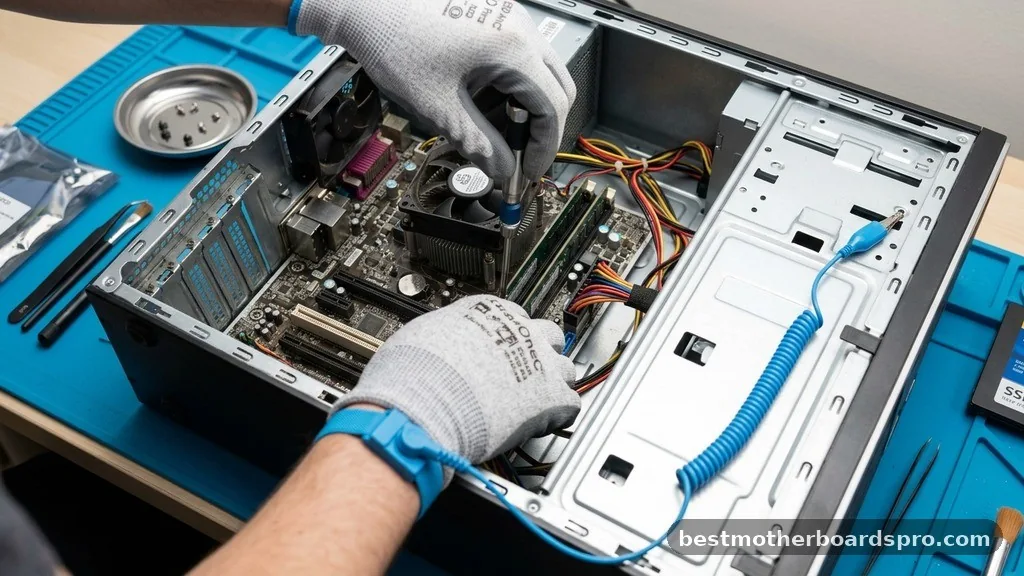
Before you even think about opening your computer case, you must prepare your existing software environment. Changing the primary logic board and processor often triggers a reaction from your operating system, especially regarding hardware-bound licenses. If you are using Windows, the activation is often linked to your motherboard’s unique ID.
You should link your Windows license to your Microsoft account before starting. This simple step makes re-activating your system significantly easier if the software detects a hardware change.
Next, back up your important files. While the process of upgrading motherboard and CPU does not inherently delete data from your storage drives, accidents happen. Ensure your documents, photos, and project files are stored on an external drive or cloud service.
Additionally, download the latest drivers for your new hardware components, such as chipset, audio, and network drivers, onto a USB flash drive. This prevents you from being stuck without internet access once you boot up your new setup.
Essential Tools and Safety Protocols
You do not need an extensive collection of specialized equipment to swap your components. A high-quality Phillips-head screwdriver is your primary tool for removing screws and securing the new board. Having a magnetic tip can save you from the headache of dropping a tiny screw into a hard-to-reach corner of the chassis.
Static electricity is a silent killer for modern microchips. Before touching any internal parts, ground yourself by touching an unpainted metal surface on your case. If you have the budget, an anti-static wrist strap provides extra peace of mind.
Keeping a clean, well-lit workspace is just as important as the tools themselves. Ensure you have plenty of room to lay out your components without bumping into them.
Removing the Old Hardware
Start by powering down your PC completely and unplugging the power supply cable. Press the power button once more after unplugging it to drain any residual electricity from the capacitors.
Once the case is open, start by disconnecting all cables attached to the motherboard, including the 24-pin power connector, the CPU power cable, and any front-panel headers. Labeling these cables with masking tape can save you significant time during the reassembly phase.
Remove your graphics card first, as it often blocks access to the motherboard mounting screws. After the GPU is out, carefully unscrew the motherboard from the standoffs.
Be gentle when lifting the board out of the case. If you intend to reuse your CPU cooler, remove it carefully from the old processor before pulling the board out.
| Component | Action Required | Precaution |
|---|---|---|
| Graphics Card | Release PCIe latch and unscrew | Do not force the latch |
| Motherboard | Remove mounting screws | Avoid touching gold pins |
| CPU Cooler | Unscrew or unclip mount | Clean old thermal paste |
Installing the New Components
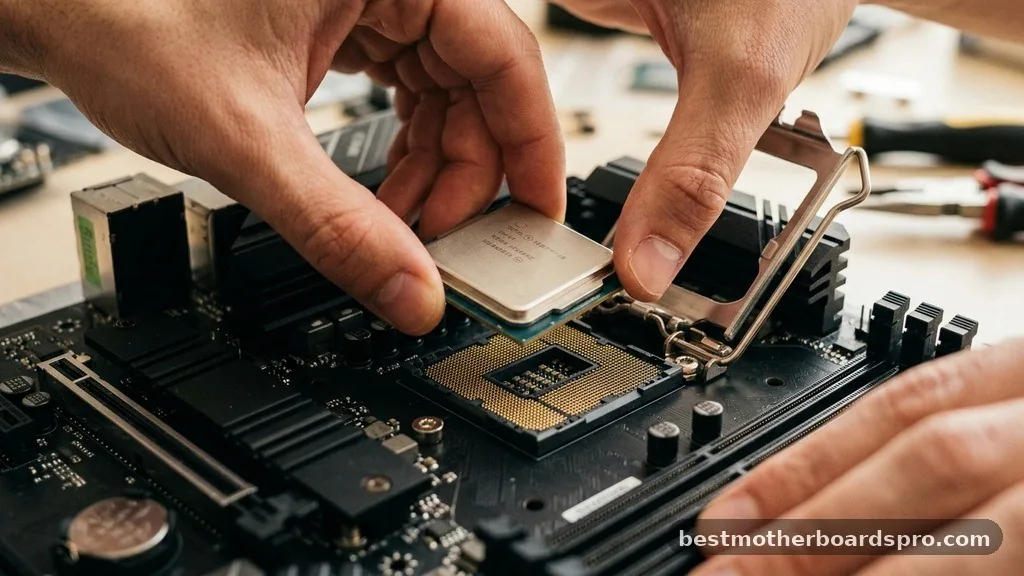
Installing the new processor is usually the most nerve-wracking part of the process. Modern CPUs use delicate pins or pads that can be damaged easily.
Open the CPU socket lever on your new motherboard, align the triangle indicator on the corner of the chip with the one on the socket, and drop it in place without using any force. Once it sits flush, lower the retention arm to lock it down.
Apply a pea-sized amount of thermal paste to the center of the CPU heat spreader. Mount your cooler according to the manufacturer’s instructions, ensuring even pressure. Before placing the motherboard into your case, check that the I/O shield is snapped into the rear of the chassis.
Many modern boards come with this pre-installed, which is a major convenience. Align the board with the standoffs, secure it with screws, and begin reconnecting your power cables and front-panel connectors.
Addressing Software Compatibility
When you boot your new build, you might notice that your OS behaves differently. Moving to a new chipset often requires a clean install of Windows to ensure optimal stability.
While it is sometimes possible to carry over an existing installation, leftover registry entries from the old motherboard can cause mysterious crashes or performance bottlenecks. If you decide to go the route of a clean install, be prepared to reinstall your applications and restore your data from your backups.
If you choose to keep your existing drive, ensure your BIOS settings are configured correctly for your storage mode, such as AHCI or NVMe. Some users report that Windows handles the transition well, automatically pulling down generic drivers that allow you to reach the desktop. However, you should always visit the motherboard manufacturer’s website to install the specific drivers designed for your new hardware.
- Update your BIOS to the latest version for better stability.
- Enable XMP or EXPO profiles in the BIOS for your RAM.
- Check that your fans are running at the correct speed curves.
- Ensure your storage controller is set to the correct mode for your SSD.
- Verify that your Windows license has transferred successfully.
Common Pitfalls and Troubleshooting
Even experienced builders run into issues. If your computer turns on but the screen remains black, the first thing to check is your RAM seating. RAM sticks often require more force to click into place than people expect.
Ensure both ends of the stick have clicked into the slot. Another common issue is forgetting the CPU power cable, which is usually located near the top left of the motherboard.
If you hear beeps or see LED diagnostic lights, consult your motherboard manual. These codes are specifically designed to tell you exactly what is wrong, whether it is a memory failure, a missing graphics card, or a CPU initialization error. Do not panic if the first boot takes a few minutes; the motherboard often performs a memory training sequence the first time it detects new hardware.
FAQ
Is it easy to upgrade motherboard and CPU?
Upgrading these components is manageable if you follow a methodical process. While it requires handling delicate hardware and managing cables, most users find the task straightforward once they understand the steps. Patience and careful handling of the CPU pins are the most critical aspects of the entire operation.
Can you upgrade CPU on the same motherboard?
You can upgrade your processor on the same motherboard only if the new chip uses the same socket and is supported by your current chipset. Always check your motherboard’s CPU support list on the manufacturer’s website before purchasing a new processor to confirm compatibility and BIOS requirements.
How much does a CPU upgrade cost?
The cost of a CPU upgrade varies widely depending on your performance goals. Entry-level processors often start around $100, while high-end enthusiast chips can cost $500 or more. Remember to factor in the potential cost of a new motherboard if your current one does not support the new CPU.
Do I need to reinstall Windows after changing these parts?
While you can sometimes boot into your old Windows installation, a clean install is highly recommended. Using the existing operating system with a new motherboard can lead to driver conflicts, stability issues, and performance degradation. A fresh install ensures your system runs as efficiently as possible with your new hardware.
Closing Thoughts
Taking the time to perform a proper upgrade pays off in terms of system longevity and performance. By following these steps, you minimize the risk of hardware damage and software instability. Once you have successfully finished the physical installation and updated your drivers, your PC should feel significantly more responsive.
If you encounter any unexpected behavior after the initial setup, check the official manufacturer support forums or community threads for specific solutions related to your board. Successfully upgrading motherboard and CPU hardware is a rewarding project that extends the life of your computer, so enjoy the improved speed and capability of your refreshed machine.



