


If you have been poking around your computer’s internal components, you might have noticed a small, multi-pin header labeled JTPM1 on your motherboard. It is a common source of curiosity for builders, especially when they are looking to upgrade their system or enable advanced security features.
Understanding what the JTPM1 connector actually does is essential for anyone interested in hardware security, particularly if you are trying to meet the requirements for modern operating systems like Windows 11. This header serves as a dedicated communication bridge for a Trusted Platform Module, a critical component for data encryption and system integrity.
Knowing how to handle these pins correctly can save you from a lot of frustration during an upgrade. Whether you are building a new rig or tweaking an existing setup, this connector plays a specific role that isn’t always obvious at first glance. By the end of this look at the JTPM1 header, you will have a clear grasp of how it functions and why you might—or might not—need to populate it with a physical module.
Defining the JTPM1 Header
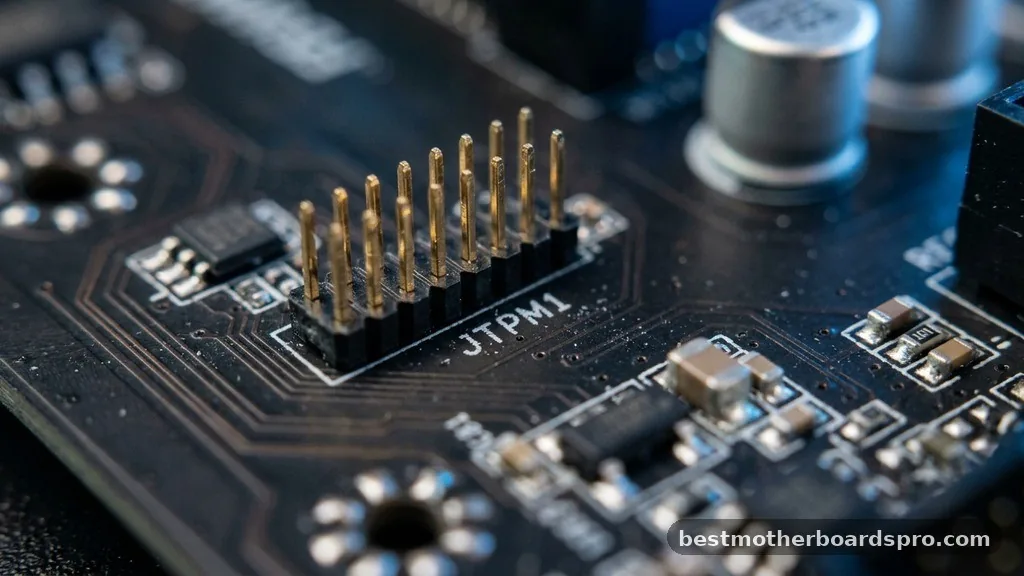
The JTPM1 header is a specialized connector found primarily on motherboards, most notably those manufactured by MSI. The acronym stands for “Joint Trusted Platform Module,” and it is designed to host a discrete TPM chip. This chip acts as a secure cryptoprocessor, a piece of hardware dedicated to storing cryptographic keys that protect your data, verify system integrity, and handle authentication tasks.
In many modern systems, the function of a TPM is handled by the CPU’s firmware, often referred to as fTPM or PTT (Platform Trust Technology). However, the JTPM1 header provides a physical interface for those who prefer or require a discrete, physical chip. This is particularly common in enterprise environments where hardware-level security standards are strictly enforced, or for users who want to ensure their encryption keys are stored on a separate, dedicated device rather than within the processor’s firmware.
The Role of TPM in Modern Computing
A Trusted Platform Module is the backbone of many security features you likely use every day without realizing it. It stores sensitive information like your BitLocker drive encryption keys, Windows Hello authentication data, and digital certificates. By offloading these tasks to a dedicated chip, the system ensures that even if the main OS or CPU is compromised, the encryption keys remain locked inside the isolated environment of the TPM.
The JTPM1 header facilitates a low-pin-count (LPC) or serial peripheral interface (SPI) connection between the motherboard and the module. When you plug a compatible TPM chip into this header, the motherboard initializes it during the boot process.
The system then uses this chip to measure the health of the boot environment. If a malicious actor tries to tamper with your firmware or bootloader, the TPM will detect the inconsistency and refuse to release the keys, preventing unauthorized access to your ssd or other storage drives.
Comparing Physical TPMs vs. Firmware Solutions
Many users wonder if they actually need to purchase a physical module if their CPU already supports fTPM. While both options provide the same basic security benefits, there are subtle differences in how they operate and who they are best suited for.
| Feature | Physical TPM (via JTPM1) | Firmware TPM (fTPM) |
|---|---|---|
| Implementation | Dedicated external chip | Integrated into CPU |
| Security Isolation | High (physically separate) | Moderate (shares CPU resources) |
| Cost | Additional purchase required | Included with CPU |
| Compatibility | Dependent on header/module | Dependent on CPU/BIOS |
As shown in the table, the physical module offers a higher degree of isolation. Because the keys are stored in a separate piece of silicon, they are theoretically more resistant to side-channel attacks that might target the main processor.
For most home users, fTPM is more than enough to satisfy security requirements. However, for professionals handling highly sensitive data, the physical module is often the preferred choice.
Checking Compatibility and Installation
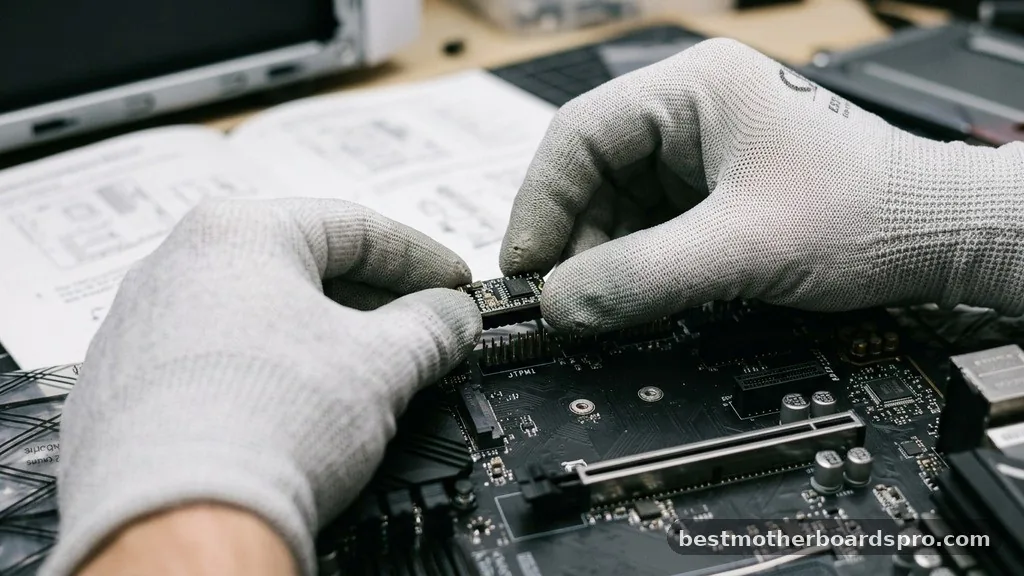
Before you rush out to buy a TPM module to fit that JTPM1 header, you need to verify compatibility. Not all TPM modules are universal; they are often tied to specific motherboard manufacturers and pin layouts. A module designed for an ASUS board might not work on an MSI board, even if they share the same physical pin count.
If you decide to proceed with an installation, follow these steps to ensure you don’t damage your gear:
- Confirm your motherboard manual lists a compatible TPM module version (usually 2.0).
- Ensure your system is powered down and the power supply is disconnected.
- Locate the JTPM1 header, which is typically found near the bottom edge of the board or near the chipset heatsink.
- Align the pins carefully, as these headers can be delicate and prone to bending.
- Once installed, you must enter the BIOS to enable the TPM functionality, as it is often disabled by default.
Once you have enabled the feature in the BIOS, you can verify it is working by opening the Device Security settings in Windows. If the module is detected, you will see “Security Processor” listed, confirming that your latest security protocols are active.
Addressing Common Myths and Misconceptions
There is a lot of misinformation regarding what the JTPM1 header does. Some users mistakenly believe that this header is required for graphics card functionality or that it improves system performance. It is important to clarify that this header is strictly for security and has zero impact on gaming frame rates, rendering speeds, or general system responsiveness.
Another common misconception is that the JTPM1 header is a universal slot. Because there is no single industry standard for the physical pinout of these headers, you cannot simply plug any TPM module into any motherboard.
Always check the manufacturer’s website or the product page for the module to ensure it is explicitly listed as compatible with your specific motherboard model. If you force a module into a header with a different pin configuration, you risk shorting out the motherboard or damaging the module.
Troubleshooting JTPM1 Issues
If you have installed a physical module but the system fails to recognize it, the first step is to check the physical connection. A loose module can lead to intermittent boot issues or a “TPM not detected” error. Ensure the module is pushed all the way down into the header.
Sometimes, the BIOS version you are running might be outdated. Manufacturers frequently release updates that improve compatibility with new hardware, including TPM modules.
Check your motherboard manufacturer’s support page for the new BIOS versions. Installing a BIOS update can often resolve detection issues and may even unlock additional security features that were previously unavailable.
If you are still having trouble after a BIOS update, look into the security settings menu. Some boards have a “Clear TPM” option.
While this can fix communication errors, be aware that clearing the TPM will delete all keys currently stored on it, including your BitLocker recovery keys. Always back up your data and your BitLocker recovery key before performing a factory reset on your security module.
Hardware Security in the Modern Era
The shift toward requiring TPM 2.0 for modern operating systems has brought the JTPM1 header into the spotlight. As cyber threats become more sophisticated, hardware-based security becomes a vital layer of defense. While the average user might never interact with the JTPM1 header directly, its presence on the motherboard is a sign that the system is designed with modern security standards in mind.
Whether you are building a black-themed workstation or a simple home office PC, having a TPM—either via the JTPM1 header or integrated firmware—provides peace of mind. It ensures that your drive encryption is robust and that your system boot process remains untampered. Understanding this component helps you make informed decisions about your hardware choices and security posture.
Frequently Asked Questions
Do I need a physical TPM module for Windows 11?
No, you do not necessarily need a physical module. Windows 11 requires a TPM 2.0, but this can be provided by your CPU’s firmware, known as fTPM or PTT. Most modern motherboards support this in the BIOS, so you rarely need to buy a separate physical chip.
Can I damage my motherboard by installing a TPM module incorrectly?
Yes, incorrect installation can cause issues. Because the JTPM1 header pins are fragile, forcing a module in the wrong direction can bend or break them, potentially shorting the board. Always ensure the pin alignment is perfect before applying pressure, and consult your manual for the correct orientation.
Does the JTPM1 header affect my gaming performance?
The JTPM1 header has no impact on gaming performance. Its sole purpose is to host a chip dedicated to cryptographic tasks and system security. It does not interface with your graphics card or processor’s performance-critical pathways, so it will not increase or decrease your frame rates.
What happens if I remove the TPM module after enabling encryption?
Removing a TPM module after you have enabled features like BitLocker will likely lock you out of your drive. The decryption keys are tied to the hardware; if the system cannot find the module that holds those keys, it will prompt you for a recovery key to boot.
Final Thoughts
Understanding the JTPM1 header is a great way to get more comfortable with your computer’s internal architecture. While it might look like just another set of pins on your motherboard, it acts as a gatekeeper for your most sensitive data. Whether you choose to utilize the header for a dedicated physical module or stick with the convenience of firmware-based security, you are taking an important step in protecting your system.
If you are planning an upgrade, take a moment to look at your motherboard’s documentation to see what support it offers for additional security hardware. Maintaining an updated system and staying aware of these small, yet significant, components will help keep your PC running smoothly and securely for years to come. If you have questions about your specific motherboard model, checking the manufacturer’s support forums is often the best next step to confirm compatibility.



