


Seeing a glowing amber or yellow hue on your computer’s mainboard is often the first sign that something is amiss during the startup process. When you press the power button and realize exactly what a yellow light on motherboard mean, you are essentially looking at a silent cry for help from your system’s onboard diagnostics.
This indicator is part of an integrated system designed to alert you to specific hardware hurdles before the operating system even begins to load. Identifying the root cause quickly can save you hours of unnecessary frustration, allowing you to get back to your work or gaming session with minimal downtime.
Understanding the POST Diagnostic LED System
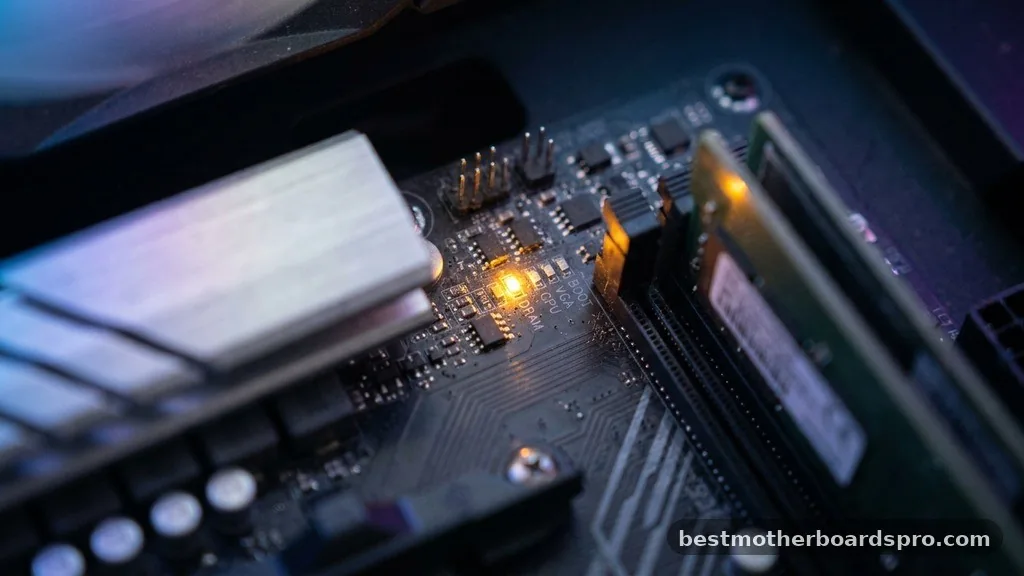
Modern motherboards are equipped with a POST diagnostic LED system, which acts as a shorthand communication method between your hardware and you. POST stands for Power-On Self-Test, a routine the system performs every time you trigger the power supply unit.
If the motherboard detects a discrepancy during this test, it halts the boot process and illuminates a specific motherboard debug light. These lights are typically color-coded, with yellow or amber frequently signaling issues related to memory or power stability.
The exact meaning of these colors can vary by manufacturer, so your first stop should always be the motherboard manual. While one brand might use yellow to represent a DRAM error, another might use it to indicate a failure in the voltage regulation module.
Because these LEDs are designed to be part of the Q-LED indicator suite, they provide a focused look at the status of your CPU, memory, graphics card, and boot device. By observing which light stays lit, you narrow down the potential failure points from the entire computer to just one specific subsystem.
Addressing DRAM and Memory Issues
A solid yellow light is most commonly linked to a DRAM error. This usually suggests that the system is unable to initialize the installed memory modules correctly.
Before assuming a component has suffered a permanent hardware failure, you should address the physical connection of your RAM sticks. Dust, debris, or a simple lack of firm seating in the DIMM slot can prevent the motherboard from detecting the memory correctly.
To troubleshoot this, power down your system and unplug the power cable. Carefully remove your RAM sticks and inspect the gold contacts for any visible oxidation or dirt.
Once cleaned, reinsert them firmly into the slots until you hear a distinct click. If you are using multiple sticks, try booting with just one module in the primary slot to see if a specific stick is faulty.
- Inspect the DIMM slots for bent pins or accumulated dust.
- Ensure the RAM is fully seated and the locking tabs are engaged.
- Test each RAM stick individually in different slots to isolate the issue.
- Check the manufacturer’s QVL (Qualified Vendor List) for memory compatibility.
- Disable or adjust your XMP profile in the BIOS if the system was previously overclocked.
The Role of BIOS and CMOS in Boot Failures

Sometimes, the motherboard isn’t physically broken, but its configuration settings are causing a boot loop. The BIOS update state can play a massive role here, especially if you have recently installed a newer CPU that requires a specific microcode version to function. If the BIOS is outdated, the motherboard may signal a yellow light because it cannot properly communicate with the processor or the memory.
Another frequent culprit is the CMOS battery. This small coin-shaped battery maintains your BIOS settings even when the PC is unplugged.
If it loses voltage, the motherboard may revert to default settings that are incompatible with your current hardware configuration. Performing a clear CMOS operation can reset the BIOS to its factory state, often resolving conflicts that prevent the system from passing the POST phase.
| Symptom | Potential Cause | Initial Action |
|---|---|---|
| Yellow light on boot | Memory seating | Reseat RAM sticks |
| Yellow light after BIOS change | Incompatible settings | Clear CMOS |
| Yellow light with new CPU | Outdated firmware | Perform BIOS update |
| Yellow light and no display | Peripheral hardware conflict | Disconnect non-essential devices |
Checking CPU and Peripheral Hardware
If you have ruled out memory issues, the yellow light might indicate a problem elsewhere. While yellow is usually memory-focused, some boards use it for CPU-related warnings if the CPU socket pins are damaged or bent.
When installing a processor, even a slight misalignment can cause the motherboard to fail the electrical continuity test. Carefully remove the CPU and inspect the socket for any pins that look out of place or flattened.
Furthermore, peripheral hardware can occasionally interfere with the startup process. Devices like external hard drives, USB hubs, or even faulty monitors can cause the system to hang during the initialization phase. Disconnect all non-essential hardware, leaving only the motherboard, CPU, one stick of RAM, and the power supply connected.
If the system boots, reconnect your peripherals one by one to identify the device causing the conflict. Always take precautions against static discharge while handling these components by touching a grounded metal object or wearing an anti-static wrist strap.
Common Diagnostic Questions
Why does my motherboard have a yellow light?
A yellow or amber light on your motherboard typically acts as a POST diagnostic indicator. It signals that the system encountered a bottleneck during startup, most frequently related to memory initialization, power delivery issues, or an incompatible BIOS configuration that prevents the computer from reaching the OS environment.
What are the signs of a dying motherboard?
Signs of a failing motherboard include random system restarts, frequent blue screen errors, components not being detected, or the inability to power on consistently. If you see a persistent yellow light that does not clear after troubleshooting RAM and BIOS, it may indicate a failure of the internal circuitry.
How do I fix an amber light on a motherboard?
Start by reseating your RAM sticks and checking that your power supply cables are firmly connected. If the issue persists, clear the CMOS to reset BIOS settings to default. If you still see the light, check the manufacturer’s manual to identify which specific component the color represents.
What does a yellow light mean on my PC during first boot?
During a first boot, a yellow light often indicates that the motherboard is performing memory training or that the BIOS version is incompatible with your CPU. It is common for the system to cycle through these lights, but if it stays yellow, you likely need a BIOS update.
Final Troubleshooting Steps
When you encounter the warning light, your primary goal is to systematically isolate variables. By checking the memory seating, clearing the CMOS, and ensuring your BIOS is current, you resolve the vast majority of cases where users ask what a yellow light on motherboard mean. If you have exhausted these steps and the light remains, it is time to consider that you might be dealing with a genuine hardware failure in the motherboard itself or the power supply unit.
At this stage, contacting the manufacturer’s support or seeking professional hardware diagnostics is the most logical path forward. Stay patient during the process, as clear communication from your hardware is designed to prevent long-term damage and help you keep your system running optimally for years to come.



