

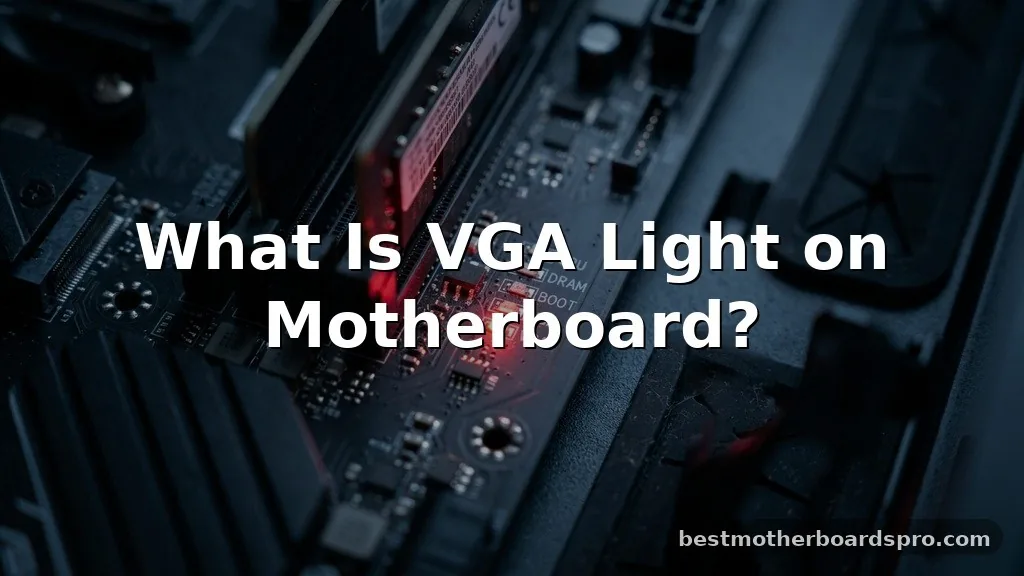
Finding a solid red or white light glowing on your system board can be alarming, especially when you are just trying to boot your computer. When you see a VGA light on motherboard hardware, it acts as a silent diagnostic tool signaling that the system failed to initialize your graphics component.
This indicator is part of a broader set of debug LEDs designed to help you pinpoint exactly where a startup error occurred during the Power-On Self-Test process. Understanding this specific signal saves you hours of guesswork by pointing you directly toward your video hardware and its connections.
Understanding the Role of Debug LEDs

Modern motherboards include a series of small indicator lights, typically located near the 24-pin power connector or the RAM slots. These debug LEDs cycle through components like the CPU, DRAM, VGA, and Boot drive while the computer performs its initial diagnostic check.
When the process finishes successfully, these lights turn off. If the sequence stops and remains stuck on one, you have found the culprit.
The VGA light specifically monitors the connection between the motherboard and your GPU. If the system cannot detect a valid graphics device during the POST phase, it halts the boot process to prevent hardware damage or configuration errors. It is a protective measure that forces you to address the missing or malfunctioning hardware before the operating system attempts to load.
Initial Steps When the VGA Light Stays On
Before you assume your graphics card is dead, you should verify the basics. Often, the issue is as simple as a loose cable or a slightly unseated component. Start by checking your monitor input settings to ensure you are on the correct source, as a “no signal” error on your screen might not actually mean the PC failed to boot.
Next, inspect the physical connection of your graphics card. Power down your system completely and flip the switch on your power supply unit to the off position. Remove the side panel of your case and ensure the GPU is pushed firmly into its PCIe slot.
If you have extra PCIe power cables, verify that they are clicked into the card securely. Sometimes, a sagging card can lose contact with the pins, triggering that persistent warning light.
Common Causes for Graphics Initialization Failure
Several factors can prevent your system from recognizing the graphics card. Pinpointing the exact cause requires a systematic approach to hardware verification.
- Loose power cables connected to the graphics card.
- The GPU is not fully seated in the PCIe slot.
- A faulty or incompatible HDMI cable or DisplayPort cable.
- Corrupted BIOS settings requiring a reset.
- The monitor is set to the wrong input source.
- Insufficient power from the power supply unit to handle the card.
Verifying Hardware and Connections
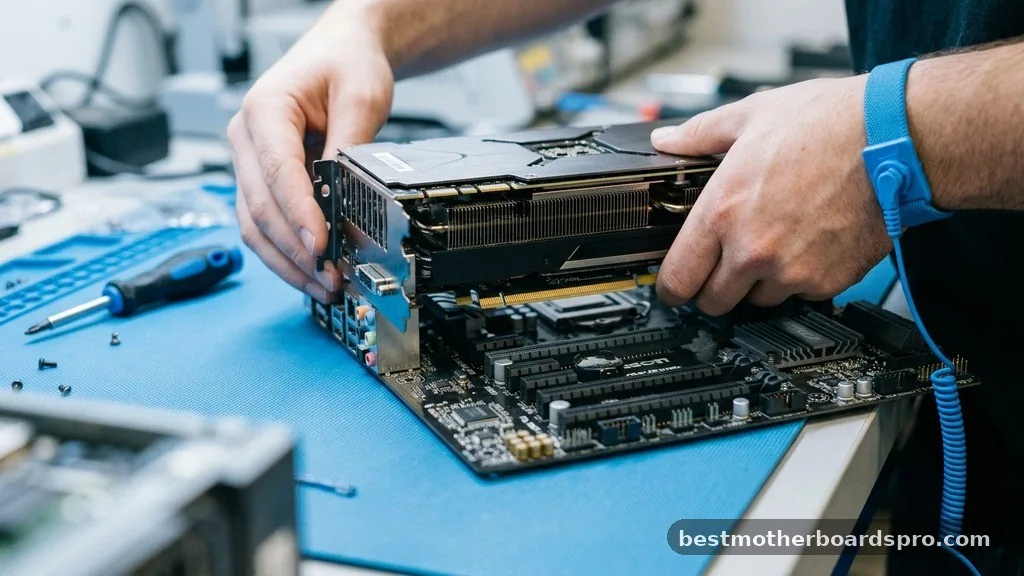
If reseating the card did not resolve the VGA light on motherboard issue, you need to test the individual components. Try moving your graphics card to a different PCIe slot if your motherboard has one available. This helps determine if the specific slot on the motherboard has failed or if the issue lies with the card itself.
Additionally, examine the power supply unit cables. If you are using a modular power supply, ensure the cables are plugged firmly into the unit as well as the GPU.
Sometimes, a cable can look connected but may have a loose pin that prevents the card from receiving enough voltage to initialize. If you have a spare set of cables, swap them out to rule out a damaged wire.
Clearing the CMOS and Updating BIOS
Sometimes the motherboard stores an incorrect configuration that prevents it from communicating with your graphics card. Resetting the BIOS via the CMOS battery is a standard troubleshooting step that forces the board to re-detect all hardware components.
To perform a CMOS reset, locate the coin-shaped battery on your motherboard. Carefully remove it for about 30 seconds while the PC is unplugged, then place it back in. This clears the non-volatile memory and resets your BIOS to factory defaults.
If the light persists, consider if you recently installed new hardware that might require a BIOS update. A newer BIOS version often contains improved compatibility patches for modern graphics cards.
| Troubleshooting Step | Difficulty Level | Primary Goal |
|---|---|---|
| Reseat GPU | Easy | Fix connection issues |
| Check Power Cables | Easy | Ensure adequate power delivery |
| Clear CMOS | Medium | Reset hardware detection |
| Update BIOS | Advanced | Fix compatibility bugs |
Addressing Topical Gaps: The Hidden Issues
Many users assume the VGA light always points to a broken GPU, but this is not always the case. One common gap in troubleshooting advice is the role of the CPU.
If your processor has integrated graphics, you can troubleshoot by removing the dedicated GPU entirely and plugging your monitor into the motherboard’s HDMI port. If the system boots, you have successfully isolated the problem to the graphics card or its power delivery system.
Another often overlooked factor is static discharge. If you were touching internal components without proper grounding, you might have induced a temporary fault in the PCIe controller. Always touch a metal part of the case before handling internal hardware.
Furthermore, if you are using a riser cable for a vertical GPU mount, these cables are notorious for failing or causing signal integrity issues. Try connecting the card directly to the motherboard to bypass the riser cable entirely.
FAQ: Common Questions About VGA Lights
What does it mean when the VGA light stays on?
The VGA light indicates that the motherboard failed to detect a functioning graphics card during the startup process. This prevents the system from displaying a picture because it cannot initialize the video output, effectively halting the boot sequence until the hardware issue is resolved or the connection is secured.
Can a faulty power supply unit cause the VGA light to turn on?
Yes, if the power supply unit fails to provide sufficient or stable voltage to the graphics card, the motherboard may trigger the VGA debug light. Even if the card receives some power, the PCIe lane communication might fail if the power rails are unstable or the cables are damaged.
Does a VGA light mean my GPU is broken?
Not necessarily. While a dead card is a possibility, the light more commonly points to seating issues, loose power cables, or BIOS configuration errors. Always perform basic steps like reseating the card and clearing the CMOS before assuming the graphics card requires a replacement or professional repair.
Can RAM seating trigger a VGA light?
While RAM issues usually trigger the DRAM debug LED, some motherboard architectures are interconnected. If memory training fails during the boot sequence, it can occasionally cause the system to hang at other stages, including the VGA check. It is always worth reseating your RAM sticks if other methods fail.
Resolving Your System Boot Issues
Fixing a VGA light on motherboard hardware is usually a matter of patience and methodical testing. By isolating the graphics card, checking your power connections, and resetting the BIOS, you can identify whether you are dealing with a simple configuration error or a genuine hardware failure. Most of the time, the solution is found in the physical connections rather than the components themselves.
If you have exhausted these steps and the light remains, it may be time to test your graphics card in another computer. If the card works elsewhere, the issue likely resides with your motherboard or power supply. If you continue to struggle, reach out to the manufacturer support for your specific board model, as they may have unique diagnostic codes or firmware fixes for your exact configuration.



