

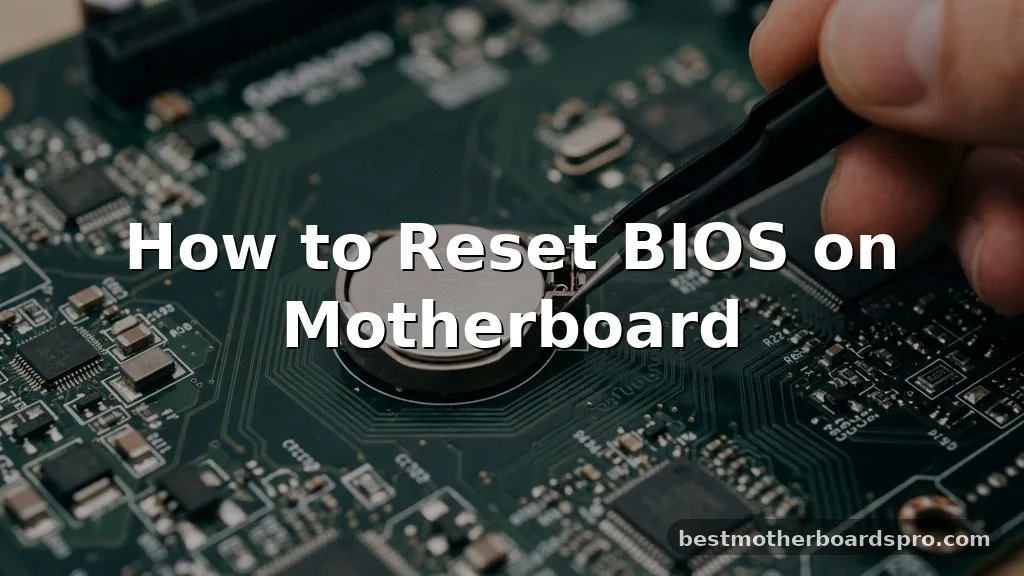
When your computer refuses to boot or behaves erratically after a configuration change, knowing how to reset BIOS on motherboard hardware is often the most effective way to restore stability. By clearing the stored configuration data, you force the system to revert to its factory-default state, which frequently resolves conflicts caused by unstable overclocking or incorrect peripheral settings.
Whether you are dealing with a black screen during startup or simply need a clean slate for new hardware, this process is generally straightforward. You don’t need to be an expert to perform these steps, as most modern systems are designed with user-accessible recovery options that take only a few minutes to execute.
Understanding the Role of the CMOS

The Basic Input/Output System, or BIOS, acts as the foundational software that initializes your hardware during the startup sequence. It stores your customized preferences—such as boot order, fan curves, and CPU voltage—in a small, volatile memory chip known as the CMOS (Complementary Metal-Oxide-Semiconductor).
This chip requires a tiny amount of electricity to retain its data, which is provided by the coin-shaped battery located directly on your motherboard. When you remove this power source, the chip loses its charge, effectively erasing any custom settings and forcing the board to reload the default profile stored in permanent ROM.
Preparation Before You Start
Before you touch any internal components, safety must be your primary concern. Always shut down your computer completely and disconnect the power cord from the back of the power supply unit. Static electricity can damage sensitive electronic components, so it is wise to ground yourself by touching a metal part of the PC case or wearing an anti-static wrist strap.
Ensure your workspace is well-lit and clear of clutter, as you will be dealing with small parts like screws and jumpers that can easily disappear if dropped. Having a flashlight handy is also helpful for identifying small labels on the motherboard.
Clearing CMOS via the Battery Method
The most universal way to reset BIOS on motherboard systems is by removing the CMOS battery. This method is effective for almost every desktop computer, regardless of the manufacturer.
Locate the circular, silver CR2032 battery held in place by a small metal clip. Gently push the clip to the side, and the battery will pop up, allowing you to remove it easily.
Leave the battery out for at least five to ten minutes. Some technicians recommend holding the power button on the case while the battery is removed to drain any remaining charge from the capacitors. Once the time has passed, reinsert the battery, plug the power cord back in, and attempt to boot your machine.
Using the Jumper Pins
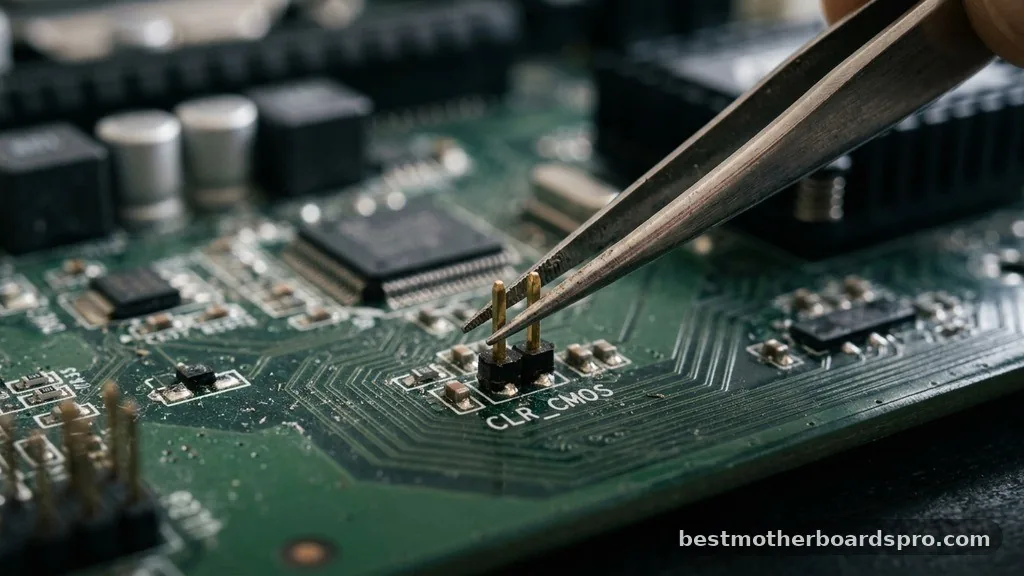
Many motherboards feature a dedicated set of pins designed specifically for clearing the CMOS. This is often faster than the battery method, especially in cases where the battery is tucked behind a large graphics card. Look for two metal pins labeled “JBAT1,” “CLR_CMOS,” or simply “Reset.”
If you find these pins, the process is simple:
- Ensure the computer is turned off and unplugged.
- Locate the two pins on the motherboard.
- Use a metal screwdriver or a dedicated jumper cap to bridge the two pins together.
- Hold the connection for roughly 10 to 15 seconds.
- Remove the bridge and reconnect the power.
Utilizing a Dedicated Reset Button
High-end and enthusiast-grade motherboards often include a physical button on the rear I/O panel or the board itself to simplify the process. This button is specifically designed to reset BIOS settings without requiring you to open the case or manipulate jumpers. If your motherboard has a button labeled “Clear CMOS,” you simply need to press it while the system is powered off.
This is by far the most convenient method available. If you are unsure whether your board has this feature, consult your motherboard manual, as it will explicitly state the location and function of all onboard switches.
| Method | Ease of Use | Best For |
|---|---|---|
| Battery Removal | Moderate | Older systems or when no jumper is available |
| Jumper Pins | High | Standard troubleshooting and quick resets |
| Reset Button | Very High | Enthusiast boards with premium features |
| Software/BIOS Menu | Highest | When the system still boots to the BIOS screen |
Resetting Through the BIOS Setup Menu
If your computer is still functional enough to enter the BIOS setup utility, you do not need to open the case at all. Upon turning on your computer, repeatedly press the designated key—usually Delete, F2, or F10—to enter the BIOS interface. Once inside, navigate through the menus until you find an option labeled “Load Optimized Defaults,” “Reset to Default,” or “Restore Factory Settings.”
After selecting this, ensure you save your changes before exiting. The system will reboot, and your settings will be back to their original factory state. This is the safest and cleanest method if the system is stable enough to display an image.
Addressing Common Hurdles
Sometimes, a simple reset does not immediately fix the issue. If the system still fails to boot, you might be dealing with a hardware failure rather than a settings conflict. Check that all memory sticks are seated firmly in their slots, as a loose RAM module is a frequent cause of “no-POST” situations.
Ensure your graphics card is pushed all the way into the PCIe slot and that all power cables are securely connected. If you have recently added new hardware, remove it and try booting with only the bare essentials to isolate the problem component.
FAQ
Why does my computer still not boot after a BIOS reset?
If the system fails to boot after you reset BIOS on motherboard hardware, the issue likely resides with your physical components rather than the settings. Verify that your RAM is seated correctly and that your power supply cables are firmly connected to the motherboard and peripheral devices.
Is it safe to reset the BIOS if I am not an expert?
Yes, it is generally safe provided you follow the correct procedures, such as unplugging the computer first. Resetting the BIOS simply returns your configuration to factory defaults and will not damage your hardware, although you will need to reconfigure custom settings like boot order or XMP profiles afterward.
How long should I leave the CMOS battery out?
While a few seconds might work, it is best to leave the battery out for at least five minutes. This ensures that the capacitors on the motherboard have fully discharged, which is necessary to clear the stored information from the volatile memory chip effectively.
Will I lose my files if I reset the BIOS?
No, resetting the BIOS does not affect your data or files stored on your hard drive or SSD. It only reverts the settings of the motherboard’s firmware to their original, out-of-the-box state, meaning your operating system and personal documents remain completely untouched and safe.
Final Thoughts
Learning how to reset BIOS on motherboard configurations is a valuable skill for any computer owner. Whether you are troubleshooting a failed overclock or fixing a stubborn boot error, the methods outlined—ranging from removing the battery to using a dedicated reset button—provide reliable ways to restore your system to a known, stable state. Always remember to work carefully when handling internal components and ensure your power source is completely disconnected before making any adjustments.
By following these steps, you can save yourself time and potentially expensive repair fees. If you find that your system still struggles after a full reset, consider checking individual hardware components, as the issue may be physical rather than configuration-based. With a systematic approach, you will be back up and running in no time.



