If you’re currently working through a PC assembly, you might find yourself staring at a handful of cables, wondering exactly which ones are essential for your storage drives. Figuring out whether you need to connect a SATA cable to your motherboard is a common hurdle for many builders, especially when modern systems offer multiple ways to handle data storage.
The short answer depends entirely on the type of drive you are installing, as not every storage medium requires this specific interface. By understanding how your hardware communicates with the system, you can avoid unnecessary clutter and ensure your machine boots up without a hitch.
Understanding SATA Connectivity in Modern PCs
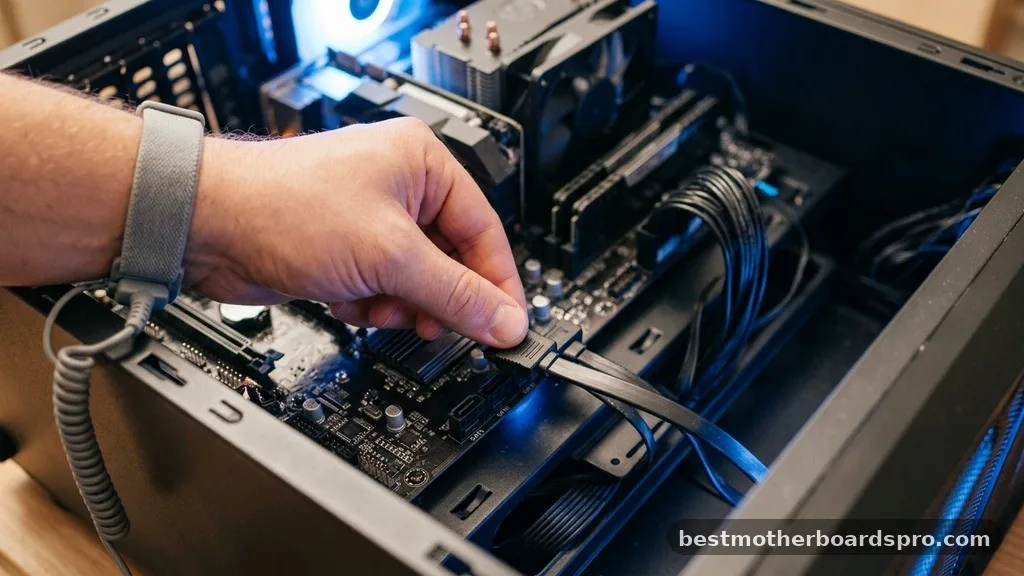
Whether you need to connect a SATA cable to your motherboard depends on the specific storage hardware you have selected for your build. In the world of desktop computing, the SATA III interface remains a staple for traditional drives, even as newer, faster standards emerge.
The primary role of the SATA data cable is to create a dedicated communication bridge between your storage device and the system’s chipset. Without this connection, your computer cannot see the files or the operating system residing on that drive.
However, this rule only applies to legacy-style storage. If you are using an M.2 NVMe drive, you won’t need these cables at all, as those modules plug directly into specialized slots on the board.
Distinguishing Between Data and Power
A common point of confusion for beginners is the difference between data and power delivery. When you install a standard 2.5-inch SSD or a 3.5-inch HDD, you actually need two separate connections to get the drive running.
The SATA data cable connects the drive to a motherboard SATA port, allowing for data transfer between the storage and the CPU. Conversely, the SATA power cable connects the drive directly to your power supply unit. You cannot power a drive through the motherboard alone; the board simply lacks the wattage required to spin a mechanical disk or power an SSD’s controller.
| Component Type | Data Connection Required | Power Connection Required |
|---|---|---|
| 2.5-inch SSD | Yes (SATA) | Yes (SATA Power) |
| 3.5-inch HDD | Yes (SATA) | Yes (SATA Power) |
| M.2 NVMe SSD | No (Direct Slot) | No (Direct Slot) |
| Optical Drive | Yes (SATA) | Yes (SATA Power) |
Identifying the Correct Ports
Once you have determined that your drive requires a cable, finding the correct location on your hardware is the next step. Every motherboard SATA port is typically located along the right-hand edge of the board, often grouped together for easier cable management.
These ports are designed with an L-shaped connector key, which prevents you from plugging them in upside down. If you force the connector, you risk bending the pins, which can permanently damage the port. Always consult your motherboard manual if you are unsure which port is the primary one, as some boards disable specific SATA ports if an M.2 drive is detected.
Why Your Drive Might Not Be Recognized
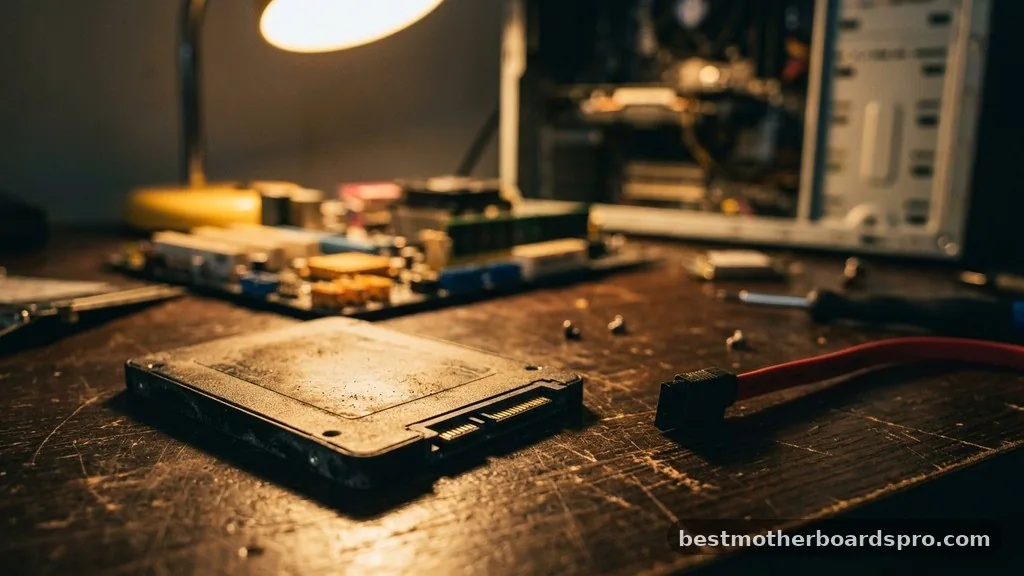
If you have connected your hardware but the system refuses to see it, the issue often lies in a loose connection or a BIOS setting. A drive that hasn’t been initialized in your operating system’s disk management utility will also appear invisible to the user.
- Ensure the SATA data cable is clicked firmly into both the drive and the motherboard.
- Verify that the power supply unit is providing electricity to the drive.
- Check the BIOS to see if the SATA controller is enabled.
- Test a different port on the motherboard to rule out a hardware fault.
- Confirm that the drive is correctly partitioned in your OS.
Addressing Common Configuration Gaps
Many builders struggle with the “boot drive” versus “secondary storage” distinction. If you are installing your Windows or Linux installation on a SATA drive, it is crucial that it is plugged into the first available port (usually labeled SATA0 or SATA1). While modern BIOS versions are smart enough to find the drive regardless of the port, keeping your boot drive on the primary port makes troubleshooting much easier.
Another gap in knowledge involves the optical drive. While these are becoming rare, they still require the same SATA interface as a standard hard drive. If you are building a legacy media rig, treat your optical drive exactly like a standard HDD, ensuring both the data and power lines are fully seated.
Managing Cables for Better Airflow
Effective cable management is more than just an aesthetic choice; it ensures your internal hardware components receive adequate airflow. SATA cables are often long and can create a tangled mess if not managed properly.
Use zip ties or velcro straps to bundle your data cables away from high-heat areas like the GPU or CPU cooler. If your case has a dedicated chamber for the power supply unit, try to route your power lines behind the motherboard tray to keep the main chamber clean. This practice not only looks professional but also prevents cables from interfering with case fans, which could lead to vibration or noise issues.
FAQ
Do I need to connect a SATA cable to my motherboard for an M.2 drive?
No, you do not need a SATA cable for an M.2 NVMe drive. These drives plug directly into a dedicated M.2 slot on the motherboard, which handles both data and power delivery automatically. Using an M.2 drive is the most efficient way to reduce clutter in your PC.
What happens if I forget to connect the power cable?
If you connect the data cable but forget the power cable, your computer will not detect the storage device at all. The drive requires electricity from the power supply to function; the data cable only facilitates the transfer of information between the drive and the motherboard.
Can I use any SATA port on my motherboard?
Generally, yes, but it is best practice to use the ports labeled with the lowest numbers first, such as SATA0 or SATA1. Some motherboards share bandwidth between M.2 slots and specific SATA ports, meaning that using certain ports might disable your high-speed M.2 storage.
Do SATA cables come included with my motherboard purchase?
Yes, most motherboard manufacturers include two to four SATA data cables in the box. However, SATA power cables are attached to your power supply unit, not the motherboard. If you find yourself short on cables, they are inexpensive and widely available at most electronics retailers.
Final Thoughts on Storage Connectivity
Determining whether you need to connect a SATA cable to your motherboard comes down to identifying your drive type. While M.2 technology has simplified many builds, the classic SATA interface remains essential for high-capacity mechanical drives and standard SSDs. By correctly pairing your data and power lines, and ensuring they are firmly seated in the appropriate ports, you set the foundation for a stable and reliable system.
Don’t let the technical terminology intimidate you during the build process. Most components are keyed to fit in only one orientation, and manuals provide the specific mapping you need to get everything communicating correctly. Once your drives are recognized in the BIOS, you’re ready to install your OS and start using your machine.
If you run into any persistent issues, double-check your connections and verify that your power supply is delivering consistent voltage to the drives. Happy building!