

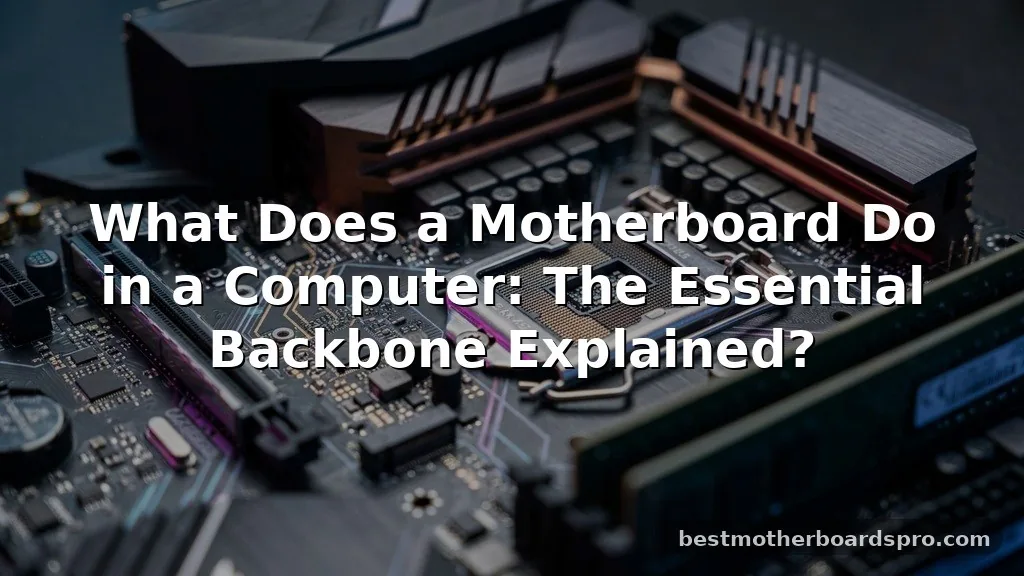
When you look inside a computer case, the largest circuit board you see is the heartbeat of the entire machine. Understanding what a motherboard does in a computer is fundamental to grasping how your hardware actually talks to itself. It acts as the central hub, providing the physical and electrical pathways that connect every single part of your system.
Without this intricate web of circuitry, your processor would be isolated, your memory would have nowhere to sit, and your peripherals would remain useless. By learning how this board manages data flow and power distribution, you gain a clearer picture of how your digital life comes together every time you press the power button.
The Central Nervous System of Your PC
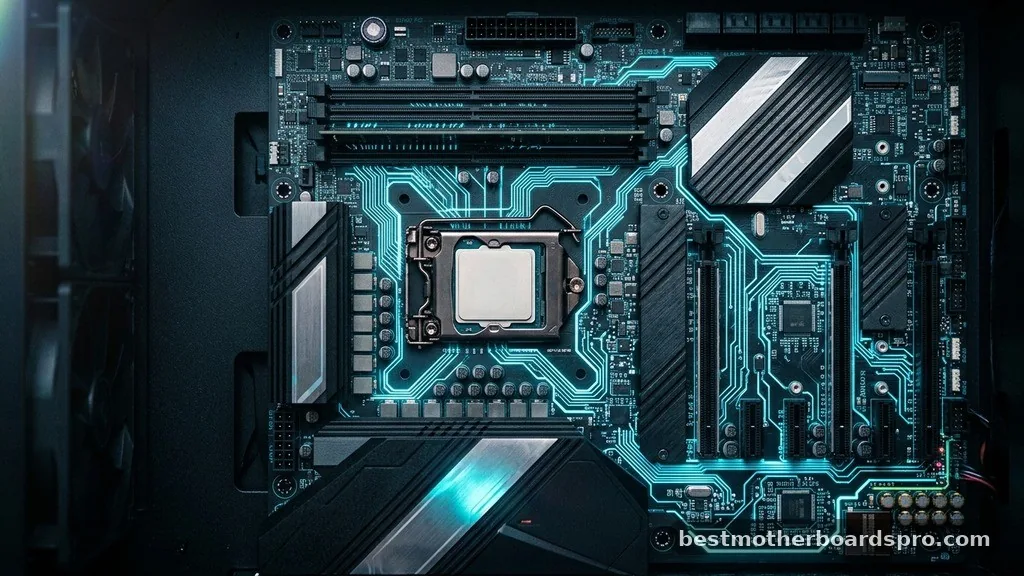
At its core, the motherboard serves as the main printed circuit board, or PCB, that links all the vital components of a computer. Think of it as the city infrastructure; it provides the roads, power lines, and data cables that allow traffic—in this case, binary signals—to travel between the CPU, memory, and storage drives. Without this connectivity, your high-performance parts would be nothing more than expensive paperweights.
The board facilitates communication between the processor and other hardware. When you type on your keyboard, click your mouse, or launch a program, the signals travel through the traces embedded in the board to reach the CPU. The processor then sends instructions back through the same pathways to your display or storage, ensuring your system runs in harmony.
Key Components and Their Functions
A motherboard is packed with specialized sockets, slots, and controllers. Each section has a distinct role in maintaining system stability and performance. You will find that these components work in a constant cycle of input, processing, and output.
- CPU Socket: This is the dedicated home for your processor, providing the direct pins or pads for high-speed data transfer.
- DIMM Slots: These are the physical ports where you insert your RAM modules to provide the computer with temporary, high-speed storage.
- PCIe Slots: These versatile slots host expansion cards like graphics cards, sound cards, or high-speed network adapters.
- Chipset: The chipset acts as the traffic cop, managing the flow of data between the processor, memory, and other connected devices.
- VRMs (Voltage Regulator Modules): These circuits convert the power from your power supply into the precise, stable voltages required by your CPU and other parts.
Understanding Form Factors
Not every board is the same size, and the physical dimensions are referred to as the form factor. The most common standard for desktop systems is the ATX form factor, which offers plenty of space for expansion slots and multiple memory channels. However, there are smaller variations for compact builds.
| Form Factor | Primary Use Case | Expansion Potential |
|---|---|---|
| ATX | Standard Desktop PCs | High |
| Micro-ATX | Compact Office/Home PCs | Moderate |
| Mini-ITX | Small Form Factor (SFF) | Limited |
Choosing the right size is essential because it dictates which case you can use and how many upgrades you can perform later on. If you plan to add multiple graphics cards or extra storage drives, a larger board is almost always the better choice.
Power Distribution and Management
One of the most critical roles a motherboard plays is the distribution of electricity. Your power supply unit (PSU) sends raw energy into the 24-pin and 8-pin connectors on the board. The board then steps this power down or up to ensure that delicate components receive exactly the voltage they need to operate safely.
If the board fails to manage this power correctly, your system will experience instability, crashes, or, in extreme cases, hardware damage. High-end boards often feature improved power delivery systems, which are vital for users who want to overclock their processors. By keeping the current clean and consistent, the board protects your investment from electrical spikes.
The Role of the BIOS and UEFI
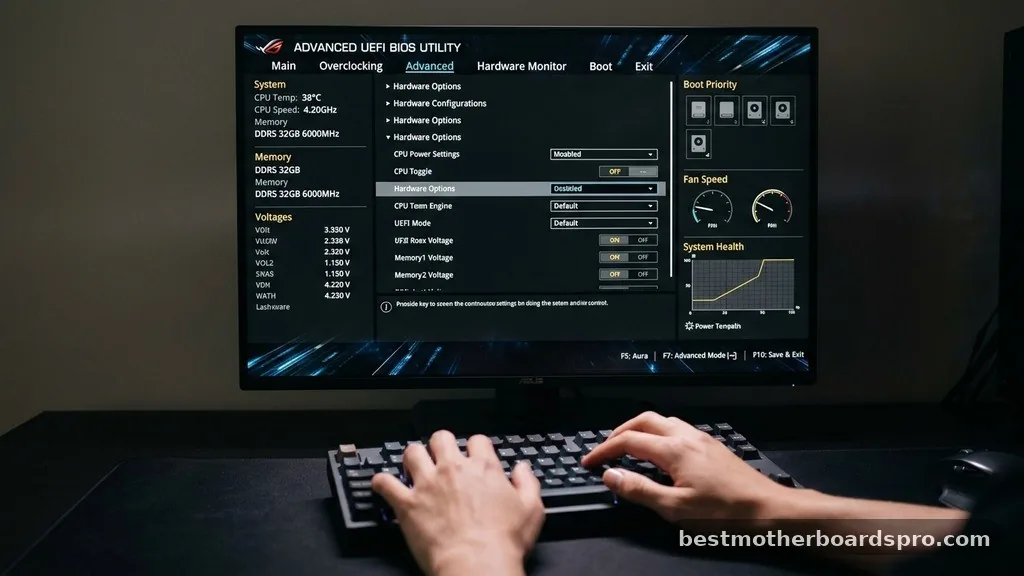
The motherboard doesn’t just manage hardware; it also contains the firmware that breathes life into your computer. This firmware, known as the BIOS or the more modern UEFI, is the first thing that runs when you turn on the power. It checks all your hardware to ensure everything is functioning correctly before handing control over to your operating system.
The BIOS/UEFI interface allows you to configure your system at a deep level. You can adjust memory speeds, change boot priorities, or monitor temperatures directly from this environment. It acts as the bridge between the physical silicon of your components and the software interface of your operating system.
Addressing Topical Gaps in Hardware Knowledge
Many users wonder if the motherboard is the “brain” of the computer. The answer is nuanced: while the CPU is the brain that performs the actual calculations, the motherboard is the body that allows that brain to function. Without the board, the CPU has no way to receive instructions from the keyboard or send results to the monitor.
Another common gap involves the longevity of these boards. Unlike a CPU, which rarely fails unless physically damaged or overheated, a motherboard is prone to wear and tear due to the capacitors and solder joints.
Over time, heat cycles can cause these components to degrade. If your computer starts experiencing random reboots or fails to recognize connected devices, the motherboard might be reaching the end of its functional life.
Performance Impact and Gaming
For gamers, does the motherboard actually affect performance? While it won’t give you higher frame rates in the same way a better graphics card will, it does play a role in overall system efficiency. A quality board ensures that your GPU and CPU can communicate without bottlenecks.
Furthermore, features like high-speed M.2 slots for NVMe SSDs allow for faster load times in modern games. If your board supports faster RAM speeds, you might see a boost in minimum frame rates during intense gaming sessions. It is less about raw speed and more about providing a stable, high-bandwidth environment for your other components to thrive.
Signs of a Failing Motherboard
Recognizing when your system is struggling is a key skill for any computer user. Because the board connects everything, its failure often presents as seemingly unrelated issues.
* Random System Crashes: If your PC freezes or restarts without warning, and you have ruled out software, the board’s power regulation might be failing.
* Unrecognized Hardware: If your USB ports stop working or your hard drive intermittently disappears from the system, the chipset or physical ports could be damaged.
* POST Failures: If you turn on your PC and get no display, yet your fans spin, the board is likely failing to initialize the CPU or memory.
* Burning Smell: A physical burn mark or the smell of ozone is a sign of a catastrophic failure in the power delivery circuitry.
Maintenance and Longevity
Taking care of your motherboard is largely about managing heat and physical stress. Dust buildup can act as an insulator, trapping heat against the chipset and VRMs. Using compressed air to clean out your case every few months can significantly extend the life of your hardware.
Avoid putting excessive pressure on the board when installing components. When you plug in heavy graphics cards or thick power cables, support the board from behind to prevent it from flexing. Even slight micro-cracks in the PCB can lead to permanent failure over time.
FAQ
Is it worth replacing a motherboard on a computer?
Replacing a motherboard is only worth it if the rest of your hardware remains relevant. Because modern CPUs often require specific sockets, a new board usually means a new processor and possibly new RAM, making it a major overhaul rather than a simple repair.
Can a computer run without a motherboard?
No, a computer cannot function without a motherboard. It is the physical foundation that links the CPU, memory, and storage. Without this central board, there is no way for electricity to reach the components or for data to travel between them to execute tasks.
What happens if a motherboard goes bad?
When a motherboard fails, the computer will typically stop booting entirely or become extremely unstable. You might encounter “Blue Screen of Death” errors, hardware components failing to be detected, or a complete lack of response when you press the power button, signaling a total system communication breakdown.
What is the average lifespan of a motherboard?
A well-maintained motherboard can last anywhere from 5 to 10 years. While the electronic components are durable, factors like high ambient heat, poor power supply quality, and physical stress can cause capacitors to fail or solder joints to crack, significantly shortening the board’s functional life.
Final Thoughts
The motherboard acts as the essential foundation of every computer, ensuring that disparate parts work together as a cohesive unit. By managing power, facilitating data transfer, and providing the infrastructure for your CPU and memory, it effectively defines the stability and potential of your machine. Whether you are building a new system or troubleshooting an old one, recognizing the role this board plays is vital.
If you find yourself needing an upgrade, pay close attention to the features that match your needs, such as expansion slots and power delivery, rather than just the price. Keeping your system clean and ensuring proper airflow will help maintain the health of your components for years to come. If you have any questions about choosing a board for your next build, feel free to reach out and share your specific hardware goals.



