


Knowing exactly how to check CPU compatibility with motherboard hardware is the most critical step before you commit to a PC upgrade. If you buy a processor that doesn’t physically fit or electrically communicate with your mainboard, you’re looking at a frustrating return process or a very expensive paperweight. Many builders assume that if a chip fits into the socket, it will work, but that is rarely the case.
Between varying chipset requirements and BIOS version limitations, there is a lot of hidden complexity that can catch you off guard. By learning to verify these connections beforehand, you ensure your new components work together immediately upon first boot.
Understanding the Socket and Chipset Connection
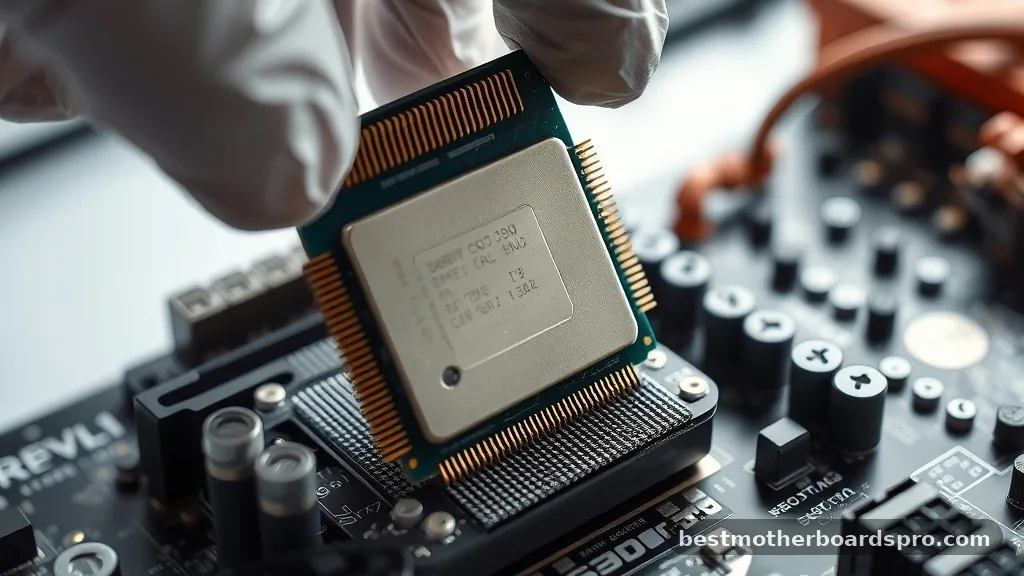
The most fundamental rule of PC building is that the CPU socket must match exactly between the processor and the motherboard. Think of the socket as the physical interface where the chip sits. If you are using an Intel processor, it requires an Intel-specific socket, such as LGA 1700.
AMD processors generally use AM4 or AM5 sockets. However, the socket is only half the battle.
Even if the physical shape matches, the motherboard chipset must support the specific generation of the processor you intend to install. A motherboard might have the right socket for a newer chip but lack the internal logic to talk to it.
This is where many users run into trouble. You must check the manufacturer’s official support page for your specific motherboard model to see the full list of compatible processors.
Why BIOS Versions Matter
A common trap for builders is assuming that a motherboard is ready for any CPU that fits its socket. In reality, motherboards often require a BIOS update to recognize newer processor releases. If your board was manufactured before a specific CPU series hit the shelves, the system simply won’t post.
Before you finalize your purchase, look at the “CPU Support List” on your motherboard’s product page. This list will explicitly state which BIOS version is required for every CPU model.
If you are buying a motherboard that has been sitting on a shelf for a year, it likely has an older BIOS. You may need to perform a BIOS flash before the board can recognize your new processor, which is a process that sometimes requires an older, supported CPU to be installed first.
Tools and Resources for Verification
You don’t have to guess or rely on hearsay when checking for compatibility. Several resources exist to make this task straightforward. Manufacturer websites are the gold standard, but community-driven tools can also save you a significant amount of time.
- Manufacturer CPU Support Pages: Always start here. Visit the official site for your motherboard model and navigate to the Support or Compatibility section.
- PC Building Simulators: Websites like PCPartPicker allow you to build a virtual system. They will automatically flag potential incompatibilities between your chosen CPU and motherboard.
- Chipset Documentation: Review the technical manual for your board’s chipset (e.g., B650, Z790, X670) to see which CPU generations are natively supported.
- Motherboard BIOS Updates: Check the “Download” or “Driver” section of your board’s page to see if a newer BIOS version adds support for newer hardware.
Comparing Platform Requirements
When you are looking at different manufacturers, the terminology changes, but the logic remains the same. The following table provides a high-level view of how these platforms generally align, though you should always verify the specific board revision.
| Platform/Brand | Common Socket | Typical Chipset Series |
|---|---|---|
| Intel (Modern) | LGA 1700 | 600 / 700 Series |
| AMD (Modern) | AM5 | 600 / 800 Series |
| AMD (Legacy) | AM4 | 300 / 400 / 500 Series |
| Intel (Legacy) | LGA 1200 | 400 / 500 Series |
Addressing Topical Gaps: Beyond the CPU
While you are verifying that your processor works with your board, don’t forget the other components that rely on these standards. Many users focus so hard on the CPU that they ignore how the SSD or RAM might be impacted by their choices. For instance, some motherboards disable certain M.2 slots if you use specific CPU or chipset configurations.
Always check the manual regarding “lane sharing.” If you install a high-speed NVMe drive in a specific slot, the motherboard might reroute data lanes away from the PCIe slots or SATA ports. Furthermore, verify the memory controller limits of your CPU against the motherboard’s maximum RAM speed.
While the board might support a certain speed, the CPU’s integrated memory controller is the ultimate bottleneck. Ensuring your system is balanced prevents you from paying for hardware that you cannot fully utilize due to hidden architectural limitations.
Common Troubleshooting Pitfalls
Even when you think you have done everything right, issues can arise. If you have verified the socket and the BIOS, the next step is to examine the physical installation. Bent pins on an Intel motherboard or a slightly misaligned AMD Ryzen chip can prevent a successful boot.
If your system turns on but shows no signal, check your debug LEDs. Most modern motherboards include a set of small lights labeled CPU, DRAM, VGA, and BOOT. If the CPU light stays lit, the board is failing to initialize the processor.
This is usually a sign that your BIOS is outdated or the CPU is not fully seated. If you hear a series of beeps, consult your motherboard manual to decode the error code, as these are specific to the manufacturer and help identify the exact point of failure.
FAQ
Are all CPUs compatible with any motherboard?
No, CPUs are not universally compatible. They must match the motherboard’s physical socket type and the electrical requirements of the chipset. Even if the processor fits physically, the motherboard’s BIOS must include microcode support for that specific CPU model to function correctly during the power-on self-test.
How can I find a list of compatible motherboards and processors?
The most reliable method is to visit the motherboard manufacturer’s official website. Search for your specific board model, then locate the “Support” or “Compatibility” tab. There, you will find a “CPU Support List” that details every compatible processor and the required BIOS version for each one.
How can I tell what CPU I can upgrade to?
First, identify your current motherboard model using system information tools. Then, check the manufacturer’s website for the CPU support list specific to that board. Ensure the new CPU you want to buy is on that list and confirm if you need to update your BIOS before installing it.
Do motherboard and CPU have to match?
Yes, they must match in terms of socket architecture and chipset generation. An Intel CPU will not work in an AMD motherboard, and even within the same brand, a new CPU might not work on an older motherboard without a specific BIOS update to handle the new hardware’s requirements.
Conclusion
Taking the time to verify your hardware before you start building is the best way to avoid technical headaches. By checking your motherboard’s official support list, ensuring your BIOS is up to date, and understanding how your choice of CPU affects other components like your SSD and RAM, you set yourself up for a smooth installation. While the technical jargon surrounding sockets and chipsets can feel overwhelming at first, the actual process of checking compatibility is straightforward once you know where to look.
Always prioritize the manufacturer’s documentation over third-party advice to ensure complete accuracy. If you run into trouble during the build, take a breath, check your debug LEDs, and consult your manual. Happy building, and enjoy the performance of your perfectly matched system.



