

Finding your motherboard model on a Windows 10 computer is a task you might need to perform when upgrading hardware, updating drivers, or troubleshooting system stability. Many users assume they need to open their PC case or install third-party software to get this information, but Windows 10 provides several built-in tools that make the process straightforward.
Whether you are looking to confirm compatibility for a new CPU or simply need to identify your hardware manufacturer, learning how to check motherboard Windows 10 settings saves time and avoids unnecessary physical labor. This article covers the most effective ways to identify your hardware components without breaking a sweat or risking damage to your internal parts.
Using System Information for Quick Identification
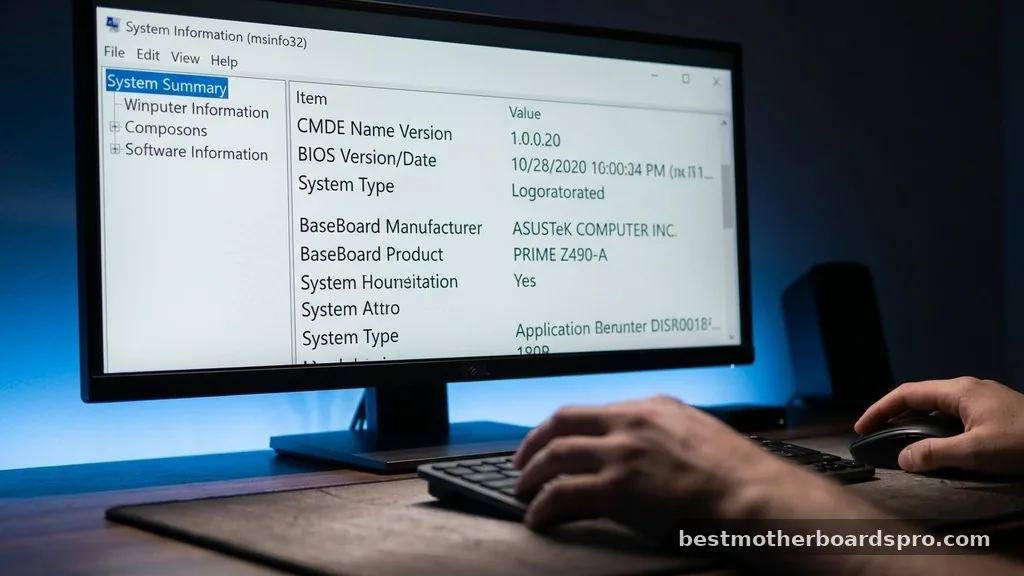
The System Information utility is often the fastest way to see your hardware details. It is a built-in Windows tool that aggregates data about your computer’s components, including the baseboard.
To access this, press the Windows key on your keyboard, type “msinfo32,” and hit Enter. A window will appear containing a wealth of technical data. Look for the “BaseBoard Manufacturer,” “BaseBoard Product,” and “BaseBoard Version” entries in the right-hand panel.
These fields clearly display the motherboard model and the company that produced it. This method is highly reliable because it pulls data directly from the BIOS/UEFI firmware, ensuring that the details you see are accurate to your current system configuration.
Leveraging the Command Prompt
If you prefer using the command line, the Windows Command Prompt offers a direct approach to finding your motherboard information. This method is particularly useful for advanced users who want to extract data quickly without navigating through graphical menus.
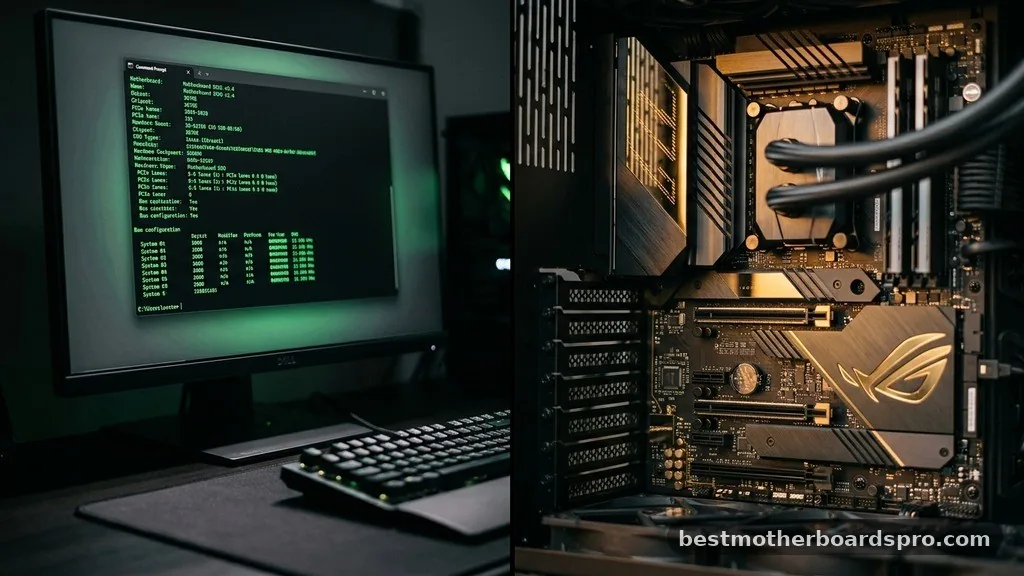
Open the Command Prompt by typing “cmd” into the search bar and pressing Enter. Once the black window appears, type the following command and press Enter:
wmic baseboard get product,Manufacturer,version,serialnumber
This command instructs the Windows Management Instrumentation Command-line (WMIC) tool to query the system for specific motherboard attributes. You will see the manufacturer, product name (model), version, and serial number displayed immediately beneath the command. Using this approach is efficient and provides a clean, text-based output that you can easily copy or save for later reference.
Checking via PowerShell
PowerShell is a more powerful iteration of the Command Prompt and is an excellent alternative for those who like to script or manage their system settings programmatically. It functions very similarly to the Command Prompt but offers a more modern interface.
Launch PowerShell by right-clicking the Start button and selecting “Windows PowerShell” from the menu. Similar to the previous method, you can input a command to retrieve the motherboard model. Type the following command and hit Enter:
Get-CimInstance Win32_BaseBoard | Format-Table -Property Manufacturer, Product, SerialNumber
The output will be formatted into a table, making it very easy to read. This is a robust way to check motherboard Windows 10 data because it retrieves information directly from the operating system’s abstraction layer, ensuring you get the correct model name and manufacturer without any guesswork.
Comparing Identification Methods
Different users have different preferences when it comes to checking hardware specs. The following table compares the most common built-in tools based on ease of use and the depth of information provided.
| Method | Ease of Use | Technical Depth |
|---|---|---|
| System Information (msinfo32) | Very Easy | Moderate |
| Command Prompt (WMIC) | Moderate | High |
| PowerShell | Moderate | High |
| BIOS/UEFI Menu | Difficult | Very High |
Accessing Information Through BIOS or UEFI
Sometimes, software-based methods might fail if your Windows 10 installation is corrupted or if you are working on a machine that hasn’t fully booted into the OS. In these cases, you can enter the BIOS or UEFI menu directly.
To do this, restart your computer and repeatedly press the designated key for your motherboard (usually F2, F12, Del, or Esc) during the startup process. Once inside the BIOS, the motherboard model is typically listed on the main landing page or under a tab labeled “System Information” or “Main.”
This is the most accurate way to verify your hardware because you are interacting with the motherboard’s own firmware. It is also the best way to see the current BIOS version, which is critical if you are planning a firmware update.
Physical Inspection of the Motherboard
If your computer will not turn on, or if you simply prefer a manual approach, looking at the hardware itself is the ultimate way to find your motherboard model. This requires opening the side panel of your computer case.
Once the case is open, look for the model name printed directly onto the printed circuit board (PCB). Manufacturers usually stencil the model number near the CPU socket, the RAM slots, or between the PCIe expansion slots.
If the model is not immediately visible, check for a sticker on the board that lists the model number and serial number. This is a foolproof method, as it does not rely on software drivers or operating system functionality to report the correct information.
* Ensure the computer is completely powered off and unplugged.
* Discharge static electricity by touching a metal part of the case.
* Use a flashlight to illuminate the motherboard surface.
* Look for large, bold text printed in white or gold.
* Check the area around the PCIe slots if the CPU area is covered by a large cooler.
Addressing Potential Gaps in Reporting
You might occasionally find that software tools return “To be filled by O.E.M.” or “Not Available” instead of a specific motherboard model. This often happens with pre-built computers from companies like Dell, HP, or Lenovo, where the manufacturer uses custom-branded boards that don’t report standard consumer model names.
In these instances, you should use the computer’s serial number or service tag to look up the exact specifications on the manufacturer’s official support website. Most PC manufacturers provide a support portal where you can enter your system’s unique identifier to see a full list of components, including the motherboard specifications, without needing to decipher internal codes. This is the most reliable way to handle proprietary hardware that doesn’t play nicely with standard Windows diagnostic tools.
FAQ
How do I know if my motherboard is failing?
Common signs include frequent random crashes, the computer failing to boot, USB ports or audio jacks suddenly stopping, or a burning smell coming from the case. If your PC frequently freezes or encounters Blue Screen of Death errors, it may be time to test your hardware components for issues.
Can I check my motherboard model without opening the PC?
Yes, you can easily use built-in Windows tools like System Information or the Command Prompt. These methods query the BIOS firmware directly to report the manufacturer and product name, making it unnecessary to open your computer case or use any third-party software for simple identification tasks.
What if the Command Prompt shows no information?
If the WMIC command returns empty fields, it is likely that your motherboard manufacturer did not program the product name into the BIOS. In this case, you should check the manufacturer’s support website using your PC’s serial number or use a tool like CPU-Z to gather more detailed data.
Does the motherboard model matter for Windows 10 updates?
While Windows 10 handles most driver updates automatically, knowing your motherboard model is essential if you need to manually install specific chipset, audio, or network drivers. It is also crucial if you plan to upgrade your CPU or add more RAM, as compatibility depends entirely on the motherboard’s socket.
Final Thoughts
Identifying your motherboard is a fundamental skill for any Windows 10 user who wants to maintain or upgrade their machine. Whether you choose the ease of the System Information utility, the precision of the Command Prompt, or the reliability of a physical inspection, you now have the tools to confirm your hardware specifications with confidence. By regularly checking your system details, you ensure that you are always prepared for future maintenance tasks or hardware additions.
Should you encounter any unusual reporting errors, remember that your manufacturer’s support site remains the best resource for confirming exact model details. Take a moment to verify your system specs today, and you will be well-equipped to handle any technical challenges that come your way in the future.



