


Many PC enthusiasts find themselves asking if they need to reinstall Windows after replacing the motherboard during a hardware upgrade. It is a common concern because the operating system is deeply tied to the underlying chipset and hardware configuration of your machine. While modern versions of the operating system are significantly more flexible than those from a decade ago, you might still face activation issues or driver conflicts.
Understanding whether you need to reinstall Windows after replacing a motherboard involves looking at how the kernel interacts with your specific hardware. This article breaks down the technical realities of these upgrades to help you decide on the best path forward for your system stability.
The Reality of Hardware Migrations

When you swap out your mainboard, the operating system detects a massive shift in the hardware environment. In the past, this almost always resulted in a “blue screen of death” or a non-bootable state because the drivers for the old chipset were incompatible with the new one.
Today, the core kernel is much better at identifying new hardware on the fly. You might find that your system boots up just fine, but that doesn’t mean it is running optimally.
Registry entries, system files, and background services often carry over remnants of the old board’s specific features. If you are moving from an Intel platform to an AMD platform, or even between different generations of chipsets, these leftover files can cause phantom errors. While you technically might not be forced to wipe your drive, a clean slate is often the preferred route for power users who want maximum performance and system reliability.
Windows Activation and Licensing Concerns
One of the biggest worries for users is whether they will have to purchase a new copy of the software after an upgrade. Microsoft links your digital license to your hardware ID, which is primarily generated from the motherboard’s serial number. If you change this core component, the system may flag your installation as unauthorized.
However, if you have a retail version of the software linked to your Microsoft account, you can usually reactivate it easily. You simply need to use the Activation Troubleshooter within the settings menu. If you are using an OEM (Original Equipment Manufacturer) license that came pre-installed on a pre-built machine, that license is technically tied to the original hardware and may not transfer to a new board.
| License Type | Transferability | Activation Method |
|---|---|---|
| Retail | Yes | Link to Microsoft Account |
| OEM | No | Hardware Locked |
| Volume/Enterprise | Varies | Organization Managed |
When a Clean Install is Actually Necessary
While the OS might boot, there are specific scenarios where you should absolutely perform a fresh installation. If you are noticing frequent crashes, strange background processes, or hardware that simply won’t function, your old configuration is likely the culprit.
- Switching from an Intel chipset to an AMD chipset, or vice-versa.
- Upgrading from a very old version of the OS to a newer one simultaneously.
- Experiencing unexplained system freezes or driver conflicts post-upgrade.
- Moving from a legacy BIOS to a modern UEFI configuration.
- Ensuring the absolute cleanest performance for gaming or workstation tasks.
Preparing Your Drive for the Swap
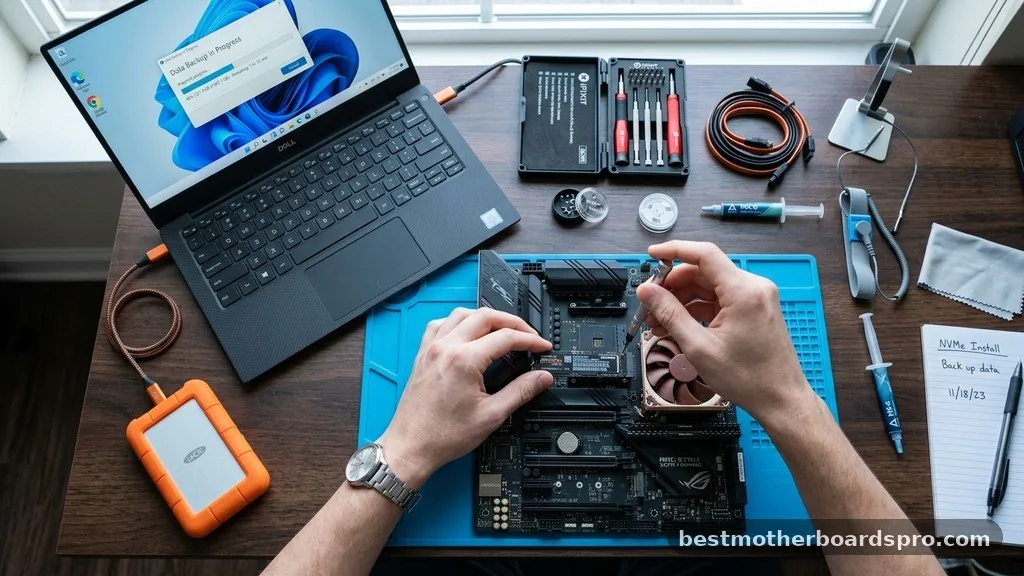
If you decide to keep your current installation, you must take steps to minimize the risk of failure. Before you even touch the screwdriver, back up your personal files to an external drive or cloud storage. You should also uninstall specific chipset drivers and GPU drivers, as these are the most likely to cause conflicts when the system tries to boot with new hardware.
Check your current storage mode in the BIOS. If you are using RAID or AHCI, ensure the new motherboard is set to the same configuration before the first boot attempt. If the modes do not match, the system will not be able to read the boot drive, and you will be forced to reinstall anyway.
Addressing Common Performance Issues
Even if you successfully boot, you might notice that your system feels sluggish. This happens because the OS is still trying to load services that were meant for the old board. You might see “ghost” devices in your Device Manager, or find that certain power management features do not work correctly.
To fix these, you should download the latest chipset drivers directly from the manufacturer’s website. Do not rely on the generic drivers that the OS installs automatically, as they often lack specific optimizations for your new hardware. Updating the BIOS on the new motherboard is also a critical step, as it often includes compatibility fixes for newer CPUs and memory modules that were released after the board was manufactured.
Topical Gaps: Managing Drivers and Conflicts
A major gap in most advice is how to deal with the residual driver bloat that persists even after a successful boot. Many users assume that because the computer turns on, everything is fine. They ignore the fact that old registry keys can cause memory leaks or intermittent instability that only shows up during heavy loads.
To clear these out, use a tool like Display Driver Uninstaller (DDU) for your graphics card, and manually audit your installed programs for anything labeled with the previous motherboard’s brand or utility software. Removing these old utilities is essential, as they often try to poll hardware sensors that no longer exist, leading to system hangs.
FAQ
Do I have to buy Windows again if I get a new motherboard?
Usually, no. If you have a retail license, you can reactivate it by logging into your Microsoft account. However, if you are using an OEM version that came with a pre-built computer, that license is tied to the original hardware and is not legally transferable to a new board.
What is the biggest risk of not reinstalling Windows?
The primary risk is system instability. While the OS can often adapt to new hardware, residual drivers and registry conflicts from your previous motherboard can lead to mysterious crashes, performance degradation, and hardware components that fail to communicate correctly with the operating system, even if the computer boots up.
Should I back up my data before replacing the motherboard?
Absolutely. You should always back up your data regardless of whether you plan to reinstall. Replacing a motherboard is a major hardware change that can occasionally lead to file corruption or boot issues that might require a complete wipe of the drive to resolve, resulting in total data loss.
Can I just swap the drive and expect it to work?
Technically, yes, modern systems are quite capable of booting with a drive from a different motherboard. However, it is rarely the optimal experience. You will likely encounter driver conflicts, licensing issues, and potential performance bottlenecks that are best resolved by performing a fresh, clean installation of the operating system.
Conclusion
Deciding whether you need to reinstall Windows after replacing a motherboard often comes down to your personal tolerance for troubleshooting. While the modern kernel allows for a degree of flexibility that makes “plug-and-play” hardware upgrades possible, it is rarely the path to a perfect, high-performance system. A clean install remains the gold standard for ensuring that your computer runs without hidden conflicts or registry bloat.
If you choose to keep your existing installation, be prepared to spend time auditing drivers and managing activation status. For most users, the time spent backing up data and performing a fresh install is a small price to pay for the peace of mind that comes with a stable, optimized PC. If you have any specific concerns about your hardware configuration, feel free to reach out or check the manufacturer forums for your specific board.



