

When your computer starts acting sluggish or specific hardware components like audio or USB ports stop responding, the culprit is often outdated or missing system software. Learning how to download motherboard drivers correctly ensures your hardware communicates properly with your operating system, keeping your PC stable and performant.
Whether you are building a new rig or troubleshooting an existing machine, grabbing the right files directly from the manufacturer is the safest path to success. This process might seem technical, but it really boils down to identifying your hardware and navigating the right support portal to get the latest updates.
Identifying Your Hardware Model
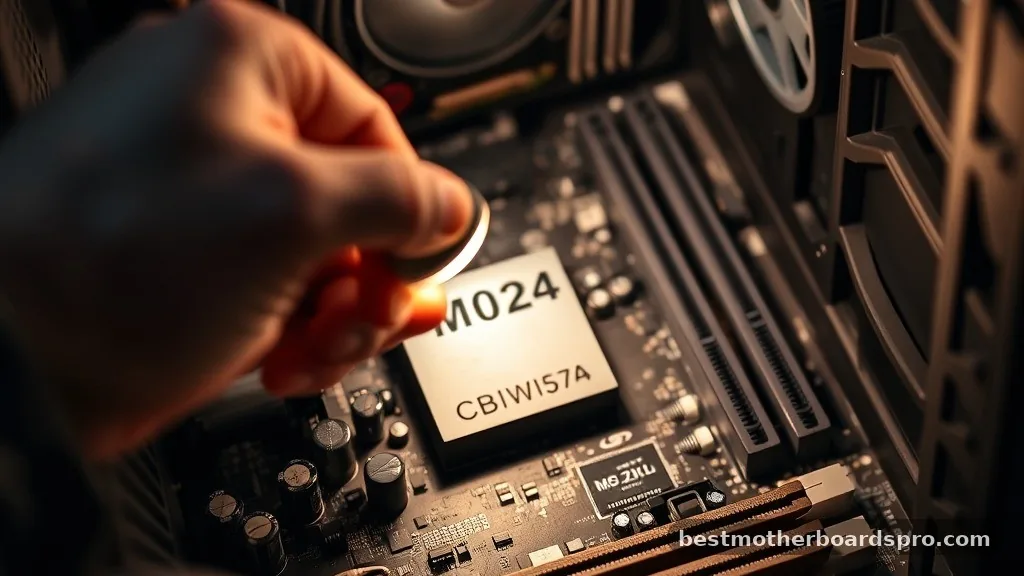
Before you can download anything, you need to know exactly which board is inside your case. Many users assume their system info will just appear, but you often need to look at the physical board or use software tools. If you still have the box or the manual, that is the easiest way to find the model name.
If you don’t have the original packaging, you can use built-in Windows tools to find the details. Press the Windows key, type “System Information,” and look for the “BaseBoard Product” line.
This tells you the manufacturer and the specific model number. Write this down exactly as it appears, as even a single character difference can lead you to the wrong support page.
Locating the Official Support Page
Once you have your model number, head straight to the manufacturer’s official website. Avoid third-party driver aggregators, as these sites often bundle bloatware or outdated files that can compromise your system. Searching for your specific model followed by “support” or “drivers” will usually land you on the correct page.
Most major manufacturers like ASUS, MSI, Gigabyte, and ASRock maintain dedicated portals for every product they sell. When you reach the site, make sure you are in the “Support” or “Download” section. You will likely need to select your specific operating system—such as Windows 10 or 11—to ensure the software is compatible with your current setup.
Steps to Download and Install Drivers

After you select your operating system on the support page, you will see a list of available downloads. These are typically categorized by the component they control, such as chipset, audio, LAN, and SATA.
- Chipset Drivers: These are the most important, as they allow the CPU to communicate with other hardware components.
- Audio Drivers: Essential if you are experiencing crackling sound or if your headset isn’t detected.
- LAN/Wi-Fi Drivers: You will definitely need these if your internet connection isn’t working after a fresh Windows install.
- SATA/RAID Drivers: Necessary for managing storage drives and ensuring fast data transfer speeds.
Once you click the download button for a specific driver, save the file to a folder you can easily find. Most files come as compressed ZIP folders, so you will need to extract them before running the setup executable. Double-click the installer, follow the on-screen prompts, and restart your computer if the installer asks you to.
Comparing Driver Sources
It is common to wonder if you should use the manufacturer’s site or let Windows Update handle everything. The following table highlights the differences between these approaches for your system health.
| Source | Pros | Cons |
|---|---|---|
| Manufacturer Site | Always latest version, includes specialized utilities | Requires manual effort and research |
| Windows Update | Automatic and convenient | Often installs generic, non-optimized versions |
| Third-Party Tools | Fast scanning | High risk of malware or bloatware |
Why Manual Installation Matters for Gaming
If you are a gamer, you probably know that hardware performance is everything. When you rely on generic drivers from Windows Update, you might be leaving performance on the table. Manufacturers often release updates that improve stability for high-end components or provide better compatibility with newer games.
For those who build their own systems, manual installation is a rite of passage. It ensures that every single feature of your motherboard—like custom RGB lighting controls, overclocking software, or specialized audio profiles—is fully functional. Taking the extra time to download these files from the source keeps your gaming experience smooth and minimizes the risk of sudden crashes during intense sessions.
Addressing Common Topical Gaps
Many users struggle when they have no internet access because the network drivers aren’t installed yet. This is a classic “chicken and egg” problem. If you find yourself in this situation, you need to use a second computer to download the LAN or Wi-Fi drivers from the manufacturer’s site onto a USB flash drive.
Once you have the files on the drive, plug it into your new build and install the network driver first. This will get you online so you can finish the rest of the updates.
Another gap involves BIOS updates. While these are technically firmware, they are often listed on the same page as motherboard drivers. Be very careful here: a failed BIOS update can render your board unusable.
Only update the BIOS if you are experiencing a specific issue that the update is documented to fix, or if you are installing a new CPU that requires a newer version to boot. Always follow the manufacturer’s instructions to the letter when touching the BIOS.
FAQ
Do I really need to download drivers for my motherboard?
Yes, your motherboard requires specific software to communicate with components like the CPU, RAM, and storage. While Windows might provide basic functionality, official drivers from the manufacturer optimize performance, fix compatibility bugs, and ensure all onboard features like audio and high-speed networking work exactly as intended.
What happens if I install the wrong motherboard drivers?
Installing the wrong drivers usually results in the device simply not working, or the installer will throw an error message stating the hardware is not supported. In rare cases, it can cause system instability or blue screens, but you can usually fix this by uninstalling the driver in Device Manager.
Should I use driver update software to save time?
It is generally better to avoid third-party “driver updater” programs. These tools often charge for features that are free, and many are known to install unnecessary bloatware or even malware. Stick to the official manufacturer support page to ensure the software is safe, free, and specifically designed for your hardware.
How often should I check for new motherboard drivers?
You don’t need to check daily. Once your system is running stable, checking every few months is plenty. You should only prioritize an immediate check if you are noticing hardware glitches, if you have just performed a fresh operating system install, or if you are preparing to install a new component.
Final Thoughts
Mastering the process of finding and installing your system software is a core skill for any computer user. By prioritizing official manufacturer portals, you keep your system secure and ensure that your hardware functions at its peak potential. Remember that while Windows Update is convenient for general maintenance, the manual approach is the most reliable way to handle critical updates for a custom build.
If you ever find yourself stuck, refer back to your motherboard’s manual or the manufacturer’s support page for specific instructions related to your model. Keeping your system up to date is the best way to prevent headaches down the road. If you found this guide helpful, don’t hesitate to share it with other enthusiasts who are navigating the sometimes confusing world of PC maintenance.



