


Knowing the identity of your computer’s main circuit board is essential when you’re planning upgrades, troubleshooting hardware conflicts, or updating drivers. Whether you’re hunting for a compatible RAM stick or ensuring your processor fits the socket, learning how to find out my motherboard model is a straightforward process that doesn’t always require opening your PC case. By leveraging built-in tools within your operating system or checking the physical hardware directly, you can quickly identify the exact specifications you need to move forward with your technical projects.
Using Windows System Information
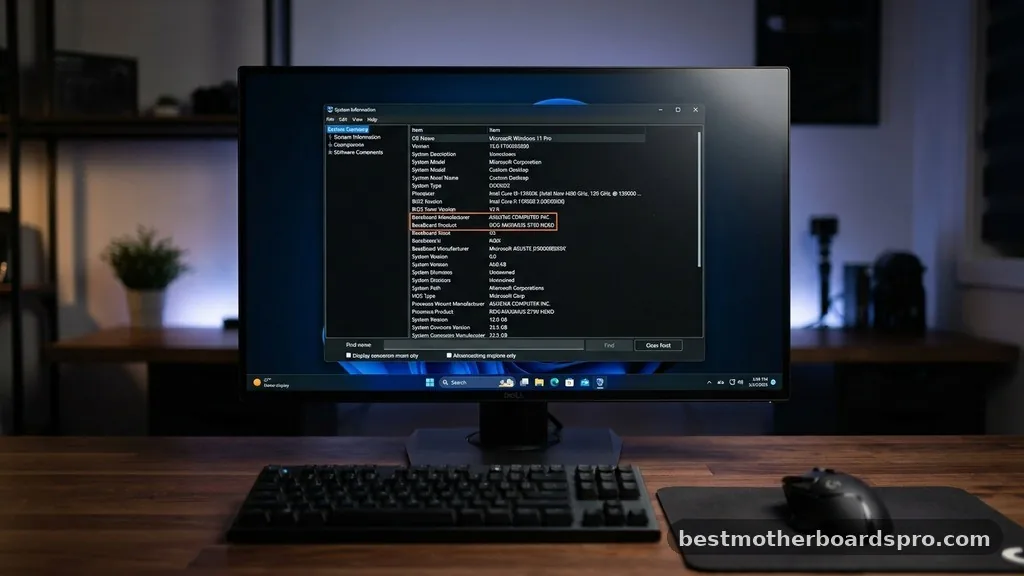
The most accessible way to identify your hardware is through the built-in Windows System Information tool. This utility aggregates data about your system components, including the manufacturer and the specific board model.
To access this, press the Windows key on your keyboard and type “msinfo32” into the search bar. Once the System Information window opens, ensure you have “System Summary” selected in the left-hand pane.
Look for the rows labeled “BaseBoard Manufacturer” and “BaseBoard Product.” These fields provide the exact name and model of the component installed in your rig.
If you find that these fields are blank or just display “Not Available,” it typically means your system’s drivers are not fully updated or the manufacturer didn’t populate the BIOS identification strings correctly. In such cases, you may need to rely on command-line tools or physical inspection to gather the necessary details.
Leveraging Command Prompt for Quick Data
For users who prefer a faster, text-based interface, the Command Prompt is an incredibly efficient way to retrieve hardware data. This method bypasses the graphical interface entirely and pulls information directly from the system management BIOS.
Open the Command Prompt by typing “cmd” in the Windows search bar and pressing Enter. Once the terminal window is active, type the following command and press Enter:
wmic baseboard get product,Manufacturer,version,serialnumber
The system will return a list showing the manufacturer, the specific product model, and the serial number. If you are specifically looking to verify the board’s identity for a driver update, this list is usually the most accurate source of truth. It is a clean, no-nonsense way to retrieve the exact data without navigating through deep menus.
Accessing UEFI and BIOS Settings
If your operating system isn’t booting or you want to verify hardware details before installing a fresh OS, the UEFI or BIOS menu is your best friend. This interface runs independently of Windows, making it a reliable way to check your hardware status.
To enter this mode, you typically need to restart your computer and repeatedly press a specific key—usually Delete, F2, F10, or F12—as soon as the power light turns on. Once you are inside the menu, look for a tab labeled “System Information,” “Main,” or “About.” The motherboard model is almost always displayed prominently on the landing page of the BIOS settings.
Comparing Identification Methods
Different scenarios call for different diagnostic approaches. Use this table to decide which method is most effective for your current situation.
| Method | Ease of Use | Best For |
|---|---|---|
| System Information | High | Quick checks while inside Windows |
| Command Prompt | Medium | Advanced users and scripting |
| BIOS/UEFI | Low | Pre-OS installation or troubleshooting |
| Physical Inspection | Low | Dead systems or missing drivers |
Physical Inspection of the Board
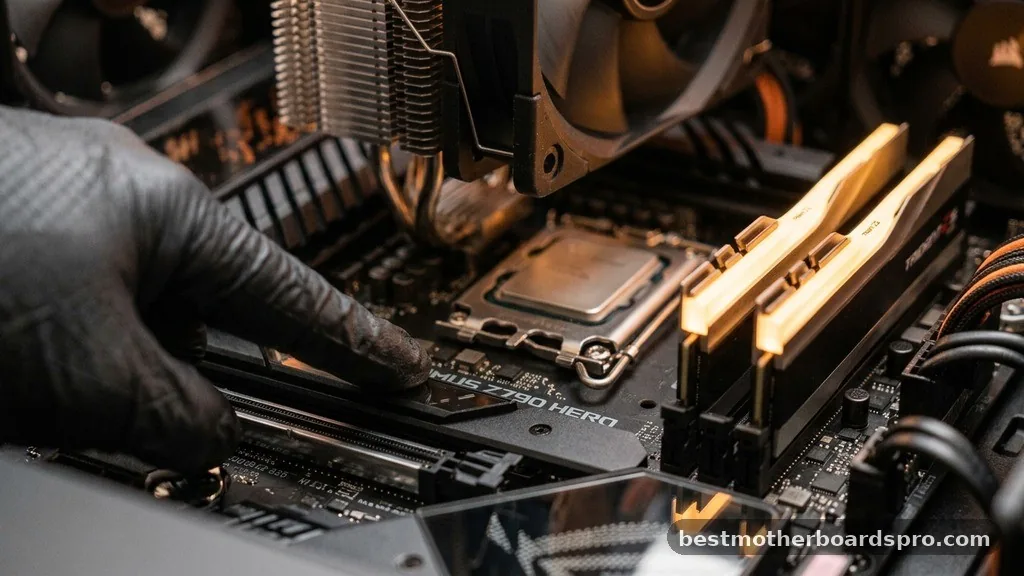
Sometimes, software tools fail to report the correct information, especially with custom-built PCs or proprietary OEM systems. When digital methods fall short, looking at the board directly is the most definitive way to verify your hardware.
Before opening your PC, always ensure it is powered off and unplugged from the wall. If you are using a desktop, remove the side panel to gain a clear view of the interior.
Most manufacturers print the model name and number in large, bold text directly onto the surface of the board. You might need to move a few cables or look beneath the graphics card, but the identifier is rarely hidden.
- Check near the RAM slots for printed text.
- Look around the CPU socket area for a manufacturer logo.
- Inspect the space between the PCIe expansion slots.
- Check the edges of the board near the rear I/O panel.
Third-Party Diagnostic Software
If you need more granular data—such as current voltage, temperature, or specific chipset revisions—third-party software is the industry standard. These tools are designed to read the hardware sensors and registers that Windows System Information often ignores.
Popular utilities like CPU-Z are lightweight and highly effective. Once installed, the “Mainboard” tab provides a comprehensive overview of your hardware, including the BIOS version, the chipset, and the exact model number. This is particularly useful if you are planning to overclock your system and need to confirm that your board supports specific features or high-frequency memory modules.
Common Troubleshooting and Limitations
Sometimes, the data you retrieve might seem confusing or incomplete. For example, you might see “To be filled by O.E.M.” in your system information fields. This typically happens with pre-built computers from large manufacturers like HP, Dell, or Lenovo.
In these cases, the “product” name listed in software might be a generic internal code rather than a retail model number. If you run into this, your best option is to visit the manufacturer’s support site and enter your computer’s service tag or serial number. The manufacturer’s database will always provide the specific documentation for your unique configuration, even if the software reports a generic identifier.
Frequently Asked Questions
Does the BIOS provide accurate information about my motherboard?
Yes, the BIOS or UEFI menu is the most reliable source for hardware identification. Because it interacts directly with the firmware, it bypasses any potential errors caused by Windows drivers or software conflicts. It is the gold standard for verifying hardware when you cannot boot into your OS.
What if my motherboard model isn’t showing up in Windows?
If the model is missing, it is usually because the motherboard drivers were never installed or the BIOS is outdated. Try checking the manufacturer’s website for your specific PC model or use a third-party tool like CPU-Z to see if it can pull the data from the hardware sensors.
Can I find my motherboard model using a Mac?
Apple computers use proprietary hardware, so they do not have a standard “motherboard” in the traditional sense. You can check your logic board details by clicking the Apple icon, selecting “About This Mac,” and viewing the System Report. This will list the model identifier and board ID for your specific device.
Is it necessary to know my motherboard model for updates?
Knowing your board model is critical if you are manually updating your BIOS or installing specific chipset drivers. Using the wrong file can cause system instability or prevent your computer from booting. Always verify your model number twice before flashing firmware or installing major hardware components.
Final Thoughts on Hardware Verification
Pinpointing your computer’s foundation is a simple task that saves significant time and frustration during upgrades. By using the methods outlined here—from the convenience of Windows settings to the precision of a physical inspection—you can confidently identify your components and ensure your system remains well-maintained. Whether you are checking for compatibility before buying new RAM or simply keeping your drivers current, knowing how to find out my motherboard model puts you in control of your machine’s performance.
Take a moment to record this information in a safe place, and you will be ready for any technical challenge that comes your way. If you have trouble locating the specific details for your unique build, feel free to reach out to local hardware support or browse the manufacturer’s documentation for further clarity.
