


Identifying the specific hardware inside your computer is a fundamental skill for any user, whether you are planning a memory upgrade, troubleshooting a driver conflict, or verifying compatibility for a new graphics card. Learning how to find out your motherboard model doesn’t require specialized technical knowledge or expensive software; in fact, the tools you need are already built into your operating system.
From checking the system information utility to inspecting the physical circuit board, there are several reliable ways to extract this data. By mastering these methods, you will gain a clearer understanding of your machine’s capabilities and ensure that any future hardware changes are based on accurate, verified information.
Using System Information on Windows
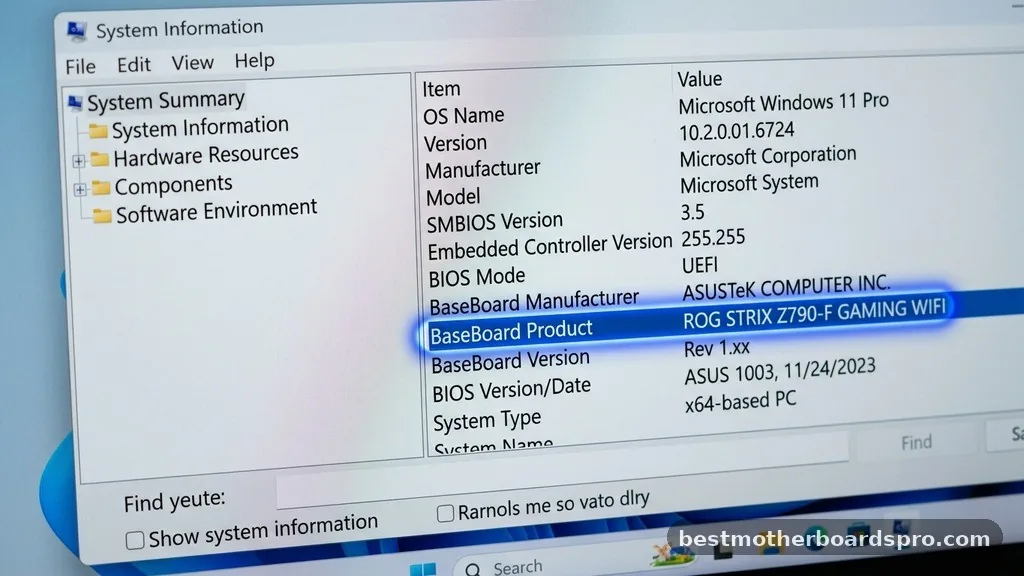
The easiest way to identify your hardware without opening the computer case is by using the built-in Windows System Information tool. This utility aggregates data from your hardware sensors and firmware to provide a comprehensive overview of your system configuration.
To get started, press the Windows key on your keyboard and type “System Information” into the search bar. Once the application opens, look for the “System Summary” category on the left-hand side.
In the right pane, scroll down until you see the entries for “BaseBoard Manufacturer” and “BaseBoard Product.” The “BaseBoard Product” field will display your specific motherboard model, while the manufacturer field identifies the company that built the board.
Checking Hardware Details via Command Prompt
If you prefer a faster, text-based interface, the Command Prompt is an incredibly efficient way to retrieve your hardware details. This method is often favored by power users because it bypasses the graphical interface entirely.
Open the Command Prompt by typing “cmd” into the Windows search bar. Once the black terminal window appears, type the following command and press Enter:
wmic baseboard get product,Manufacturer,version,serialnumber
After you press Enter, the system will instantly output the manufacturer, specific product model, and version of your board. If you ever need to provide your exact hardware specifications to a support technician or a forum, this string of text is the most accurate way to share that information.
Inspecting Your Hardware Physically
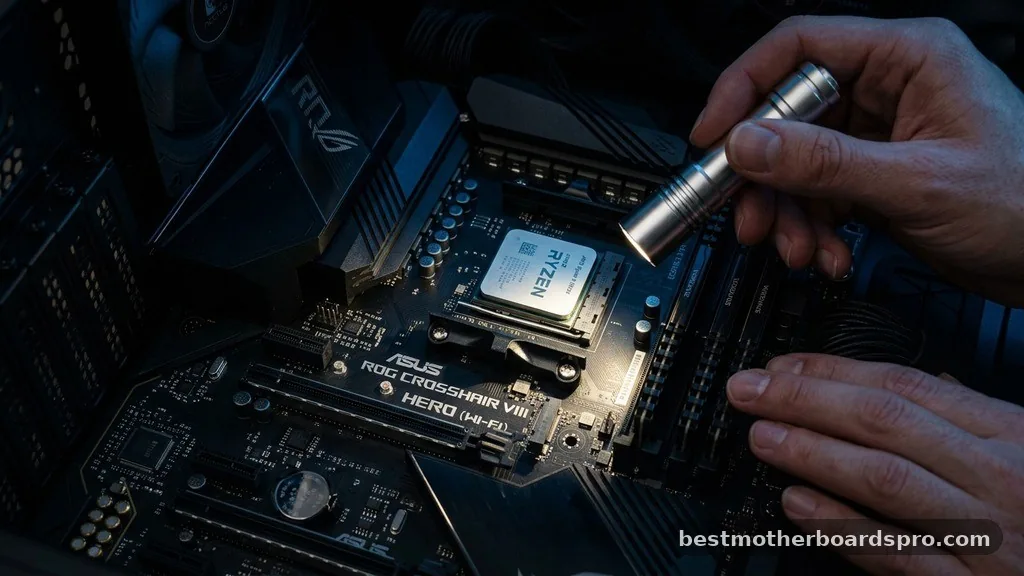
Sometimes software utilities might return generic names, especially if the computer is a pre-built model from a major OEM. In these cases, learning how to find out your motherboard by looking at the physical board itself is the most reliable fallback.
Before you open your PC case, always ensure the machine is powered down and unplugged from the wall. If you are working on a desktop, remove the side panel to gain a clear view of the interior. Most manufacturers print the model name and number directly onto the surface of the circuit board, usually near the CPU socket or the RAM slots.
- Check near the PCIe slots, as manufacturers often print the model name in white lettering on the PCB.
- Look for a sticker on the board that contains a barcode and the serial number.
- Use a flashlight to illuminate the area around the RAM slots, as smaller boards often hide the branding there.
- If the board is covered by a heat sink, you may need to consult the original manual or the manufacturer’s support website using the PC serial number.
Comparing Methods for Motherboard Identification
When you are deciding which approach to take, it helps to understand the pros and cons of each. Software methods are generally faster, while physical inspection is the ultimate source of truth if the operating system cannot detect the component.
| Method | Ease of Use | Reliability | Best For |
|---|---|---|---|
| System Information | High | Medium | Quick checks on Windows |
| Command Prompt | Medium | High | Power users and troubleshooting |
| Physical Inspection | Low | Highest | Custom builds and OEM systems |
Accessing the UEFI BIOS
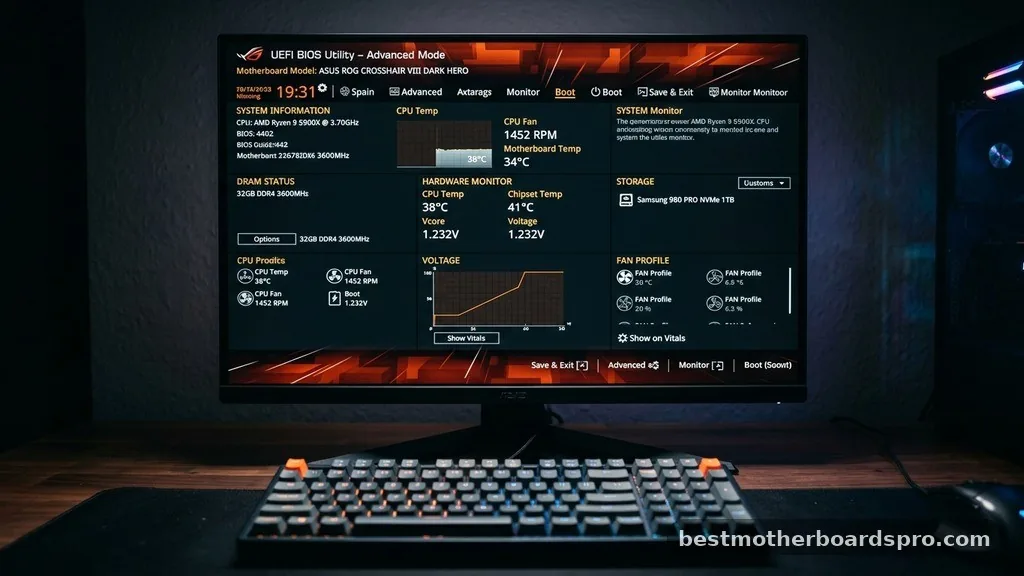
If your computer is not booting into Windows or you simply want to verify your hardware at the firmware level, the UEFI BIOS is the place to go. This interface runs directly on the motherboard and provides a hardware-level view of your system.
To enter the BIOS, restart your computer and repeatedly press the designated key—usually Delete, F2, F10, or F12—as soon as the splash screen appears. Once inside, the motherboard model is typically displayed on the main dashboard or under a “System Information” tab. This is also where you can verify the current BIOS version, which is helpful if you are preparing to update your firmware for better stability or compatibility.
Addressing Common Identification Gaps
One of the most frequent hurdles users encounter is dealing with pre-built systems from companies like Dell, HP, or Lenovo. These manufacturers often use proprietary motherboards that do not carry standard retail branding. If you search for the model name found in Windows and find no results, it is likely because the board was made specifically for that computer chassis.
In these instances, the best strategy is to use the serial number located on the back or bottom of your computer case. Visit the manufacturer’s support portal and enter that serial number; this will pull up the exact specifications of your system, including the board type and its compatibility with various RAM kits or processors. This ensures you are not buying parts that physically won’t fit or electrically won’t function with your specific configuration.
Understanding Board Specifications
Once you have successfully identified your hardware, you might wonder what the information actually tells you. The model name usually indicates the chipset and the socket type. For example, a board name might include a code that tells you if it supports a specific generation of processors or high-speed memory.
Always verify your board’s compatibility before purchasing new components. Upgrading your RAM requires you to know the specific DDR generation supported by your board, as installing the wrong type can cause physical damage or boot failures. Taking the time to verify these details via the manufacturer’s official product page is a smart move that saves time and money.
Frequently Asked Questions
Will the BIOS show me my exact motherboard model?
Yes, the BIOS or UEFI menu almost always displays the motherboard model on the main screen or within the system information tab. This is a highly reliable way to confirm your hardware identity, especially if you are having trouble loading your operating system or need to verify firmware versions.
Can I find my motherboard model without opening the PC?
You can definitely find your motherboard model without opening your computer by using software tools like the Windows System Information utility or the Command Prompt. These methods query the system’s firmware directly, providing accurate details without requiring you to touch any internal hardware components or remove any panels.
Why does my motherboard show as “To Be Filled By O.E.M”?
If your system reports a generic name like “To Be Filled By O.E.M,” it usually means the manufacturer did not properly program the motherboard’s DMI information during production. In this case, you will need to check the physical board for a printed serial number or use the computer’s service tag number.
How do I check my motherboard on a Mac?
Macs do not use standard off-the-shelf motherboards, so you won’t find a model number in the same way you would on a PC. Instead, you can find your specific model information by clicking the Apple menu, selecting “About This Mac,” and reviewing the hardware overview provided by the operating system.
Final Thoughts on Hardware Verification
Knowing how to find out your motherboard is a vital step in maintaining and upgrading your computer. Whether you rely on the simplicity of the System Information tool in Windows or prefer the precision of a physical inspection, you now have the tools necessary to confirm exactly what is powering your rig. Always prioritize official manufacturer documentation when planning upgrades to ensure total compatibility with your specific board version.
By keeping this information handy, you can make informed decisions about your hardware and avoid the frustration of incompatible components. If you ever run into a specific issue or need further help, checking your manufacturer’s support site with your board’s serial number remains the most effective path forward.
