


Knowing how to find your motherboard model is essential when you need to upgrade components, install specific drivers, or troubleshoot hardware compatibility issues. You might assume this information is buried deep inside your computer case, but you can usually retrieve these technical details directly from your operating system without ever touching a screwdriver.
By utilizing built-in software tools or simple command-line prompts, you can quickly identify the exact hardware specifications of your machine. Whether you are prepping for a new graphics card installation or simply curious about your system’s architecture, mastering these identification methods will save you significant time and frustration during future maintenance.
Using System Information for Quick Identification
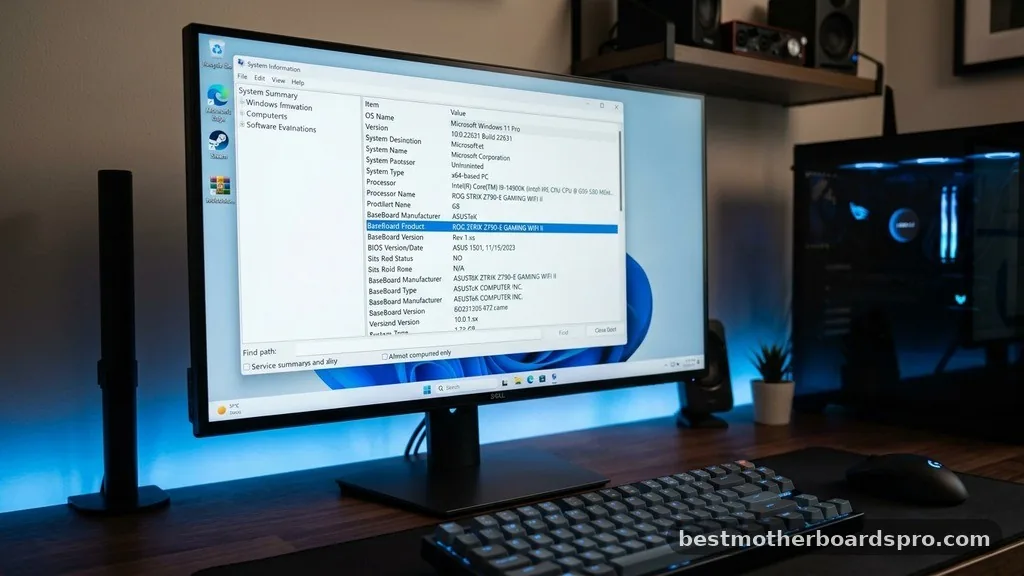
The most straightforward way to see your hardware specs in Windows is through the built-in System Information utility. This tool provides a comprehensive overview of your PC, including the baseboard manufacturer and the specific product name of your board.
To open this, press the Windows key, type “msinfo32” into the search bar, and hit Enter. Once the window pops up, ensure you have “System Summary” selected in the left-hand pane. Look down the list on the right for “BaseBoard Manufacturer,” “BaseBoard Product,” and “BaseBoard Version.”
These fields tell you exactly what is inside your desktop or laptop. If the information appears as “Not Available,” it typically means you are using a pre-built system where the manufacturer has customized the board, which might require checking their support website instead.
Command Prompt Methods for Power Users
If you prefer a faster approach or need to extract data for scripting purposes, the Command Prompt is your best friend. You can pull the exact motherboard model name without navigating through graphical menus.
Open the Command Prompt by typing “cmd” in the Windows search bar. Once the black window appears, copy and paste the following command and press Enter:
wmic baseboard get product,Manufacturer,version,serialnumber
This command instructs your system to retrieve the specific product name, the manufacturer, the version, and the serial number of your baseboard. It is an incredibly efficient method if you need to copy the text to a support ticket or a forum post. The output will be clean, text-based, and highly accurate, removing any guesswork from the process.
Checking via UEFI BIOS
Sometimes, software inside Windows might fail to report the correct data, or you might be working on a machine that refuses to boot into the operating system. In these cases, the UEFI BIOS is the final authority on your hardware.
Restart your computer and repeatedly press the designated key to enter the BIOS or UEFI setup menu. This is usually the Delete key, F2, F10, or F12, depending on your motherboard manufacturer. Once you are inside the BIOS, look for a “System Information” or “Main” tab.
The motherboard model name is almost always displayed prominently on the landing page of the BIOS interface. This is the most reliable way to identify your board because it reads the information directly from the hardware’s firmware chip.
Physical Inspection of the Hardware
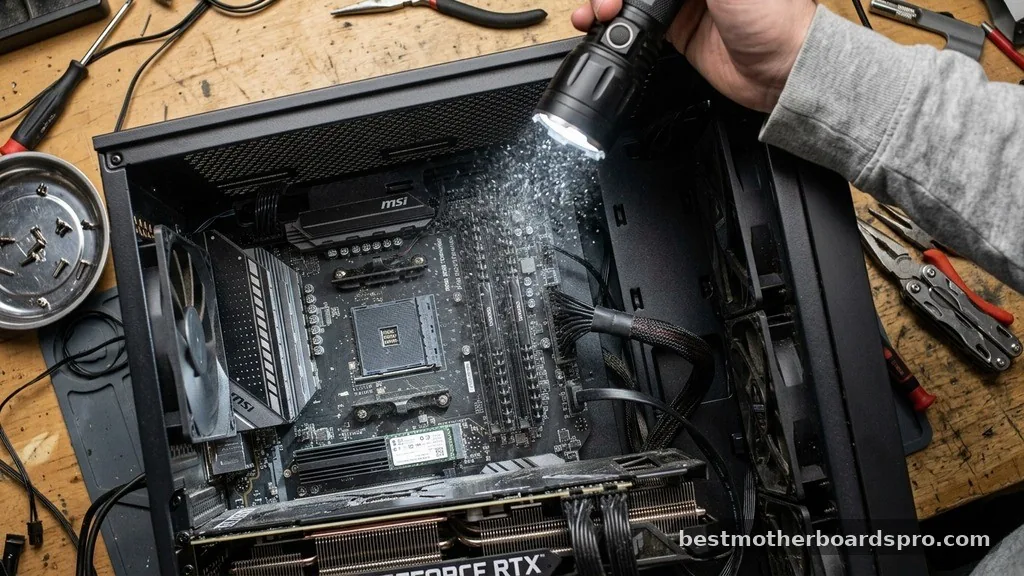
When software methods fail or the computer simply won’t turn on, you may need to open the case to find the model name printed directly on the board. This is often the case with older systems or custom-built PCs where the manufacturer’s identification string is missing from the BIOS.
Before opening your computer, ensure you power it down completely and unplug the power cable. Use a flashlight to inspect the surface of the motherboard.
Manufacturers like ASUS, MSI, Gigabyte, and ASRock usually print the model name in large, bold letters near the CPU socket, the RAM slots, or between the PCIe expansion slots. If you see a sticker, check that as well, as it often contains the serial number and the exact revision of the board.
Comparing Identification Methods
Different situations call for different approaches. The table below compares the pros and cons of each method to help you decide which one works best for your current setup.
| Method | Ease of Use | Requires Reboot | Best For |
|---|---|---|---|
| System Information | Very High | No | General users checking specs |
| Command Prompt | High | No | Quick data retrieval |
| UEFI BIOS | Medium | Yes | Troubleshooting boot issues |
| Physical Inspection | Low | Yes | Non-functional hardware |
Addressing Common Identification Gaps
A common issue users face is when the system returns a generic name like “To be filled by O.E.M.” instead of a specific model. This usually happens with pre-built systems from companies like Dell, HP, or Lenovo. In these instances, the motherboard is proprietary, meaning it was designed specifically for that brand’s chassis.
If you encounter this, searching for the model of your desktop or laptop on the manufacturer’s support portal is more effective than searching for the motherboard itself. You can also use third-party tools like CPU-Z, which often can extract more detailed information from the SMBus than the default Windows tools. If you are still struggling to identify your hardware, consider these steps:
- Download and install CPU-Z to get a deep dive into your hardware components.
- Check the original purchase invoice or order history from the retailer.
- Use your system’s serial number on the manufacturer’s website to pull up the original build configuration.
- Look for a sticker on the back of the case that lists the specific model of the pre-built tower.
Frequently Asked Questions
Does the motherboard model name matter for Windows drivers?
Yes, knowing your motherboard model is crucial for installing the correct chipset, audio, and LAN drivers. While Windows Update often handles basic drivers, getting the official version from the manufacturer ensures your system runs at peak performance and avoids stability issues caused by generic, outdated software.
Can I find my motherboard model without opening the PC case?
Absolutely, you can find the model using the System Information tool or the Command Prompt in Windows. These software methods query the baseboard directly through the operating system, allowing you to identify your hardware components without ever needing to touch the physical hardware or open the computer’s side panel.
What if the BIOS doesn’t show the motherboard model?
If the BIOS displays a generic string, your board is likely a proprietary unit manufactured for a pre-built system. In this case, you should search for your computer’s model number on the manufacturer’s website. They provide drivers and specs based on the system model rather than the individual motherboard name.
Is the motherboard serial number the same as the model name?
No, the serial number is a unique identifier for your specific unit, used for warranty tracking. The model name refers to the product line, such as an ASUS ROG Strix or a Gigabyte Aorus. You typically need the model name for drivers and the serial number for official support.
Next Steps for Your System
Now that you have successfully identified your motherboard model, you can proceed with your upgrades or repairs with confidence. Whether you are updating your BIOS firmware to support a new CPU or hunting for the latest audio drivers, having the correct hardware name prevents the common mistake of installing incompatible software. If you find that your board is several years old, checking for manufacturer driver updates is a great way to maintain system stability.
Always download files directly from official manufacturer websites to ensure you are getting safe, genuine software. Finding the motherboard model is a simple task that empowers you to manage your computer’s health effectively, so keep this information handy for the next time you decide to enhance your system.



