

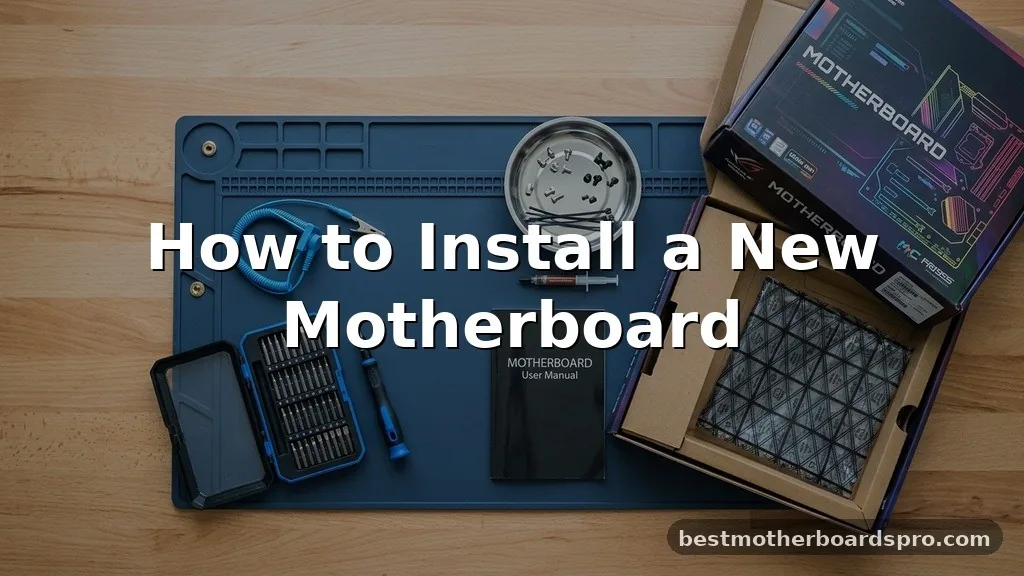
Swapping out your computer’s brain is a significant upgrade that breathes fresh life into an aging rig or provides the foundation for a high-performance build. While the process of installing a new motherboard might seem intimidating at first, it is essentially a game of patience, precision, and organization.
Whether you are moving to a modern chipset to support faster RAM or simply replacing a faulty component, understanding the physical layout of your chassis is half the battle. By preparing your workspace and handling the delicate electronic parts with care, you can successfully integrate your hardware into your system and get back to your projects without unnecessary downtime.
Preparing Your Workspace and Tools
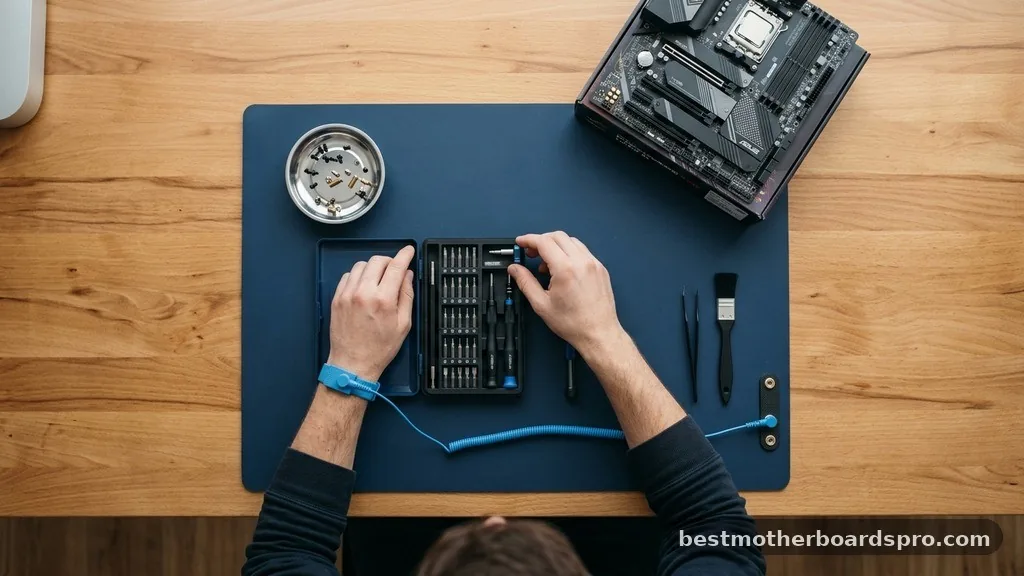
Before you touch any hardware, you need a clean, static-free environment. A large wooden table works best, as it provides plenty of room to lay out your components.
You will need a magnetic Phillips-head screwdriver to manage the tiny screws that secure the board to the case. Avoid working on carpeted surfaces to prevent electrostatic discharge, which can fry sensitive components in a split second.
Gather your manual for both your case and your mainboard. These documents are your best friends during the process, as they provide specific diagrams for header pinouts and standoff locations. Keep a small bowl or magnetic tray nearby to hold your screws so they don’t roll off the table and vanish into the abyss.
Software Considerations Before You Start
One common question involves the operating system. Many users worry about whether they need to wipe their drives when upgrading.
If you are using Windows 10 or 11, the OS is surprisingly good at handling hardware changes. However, you should always back up your critical files to an external drive or cloud storage before beginning the physical swap.
Once the hardware is installed, Windows might detect the new chipset and automatically download the necessary drivers. To ensure peak performance, visit the manufacturer’s website to download the latest chipset, audio, and LAN drivers. You may need to reactivate your Windows license if it is tied to your hardware ID, so have your Microsoft account credentials ready just in case.
Removing the Old Motherboard
Start by powering down your PC and flipping the switch on the back of the power supply to the off position. Unplug the power cable and all peripherals, including your monitor, keyboard, and mouse. Open the side panel of your case to expose the internal components.
Disconnect every cable currently attached to the board. This includes the 24-pin ATX power cable, the 8-pin CPU power cable, and all front panel connectors.
Remove your GPU and any other expansion cards first, as they will block your access to the motherboard screws. Unscrew the board from its standoffs carefully, ensuring you don’t drop any screws behind the backplate of the case.
Preparing the Case for the New Board
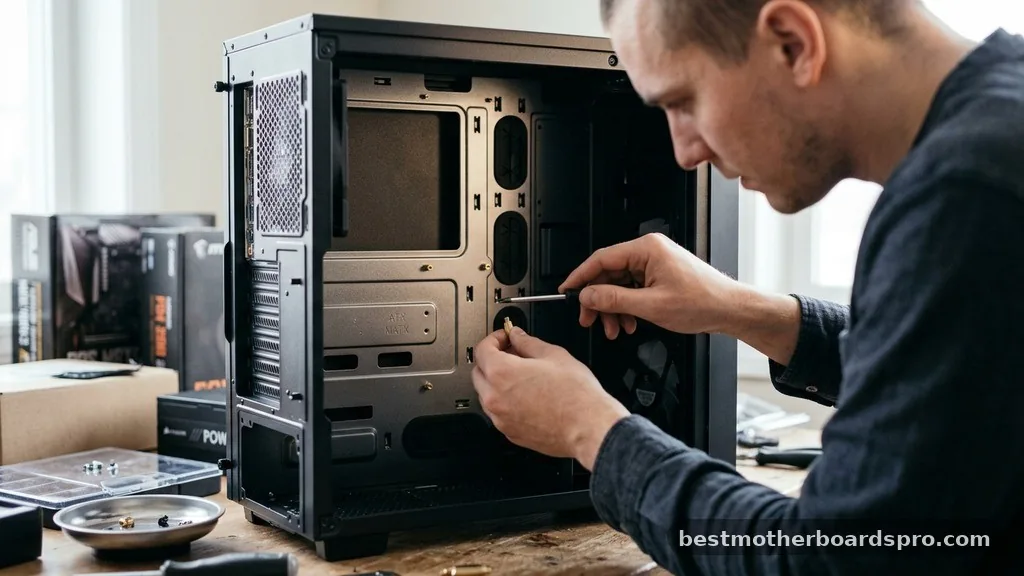
Your case likely uses small metal or plastic standoffs that elevate the board so it doesn’t touch the metal chassis. Different board sizes, such as ATX, Micro-ATX, or Mini-ITX, require different standoff configurations. Check the mounting holes on your new unit and compare them to the layout inside your case.
| Motherboard Form Factor | Primary Width | Primary Height |
|---|---|---|
| ATX | 305 mm | 244 mm |
| Micro-ATX | 244 mm | 244 mm |
| Mini-ITX | 170 mm | 170 mm |
If you have extra standoffs in the wrong spots, remove them immediately. Leaving an extra standoff in the wrong place can cause a short circuit when you power up the system, which can permanently damage your new hardware.
Installing the CPU and RAM
It is significantly easier to install your CPU and RAM while the motherboard is still on your desk rather than inside the cramped confines of your case. Open the CPU socket lever, align the notches on your processor with the socket, and gently drop it into place. Do not force it; it should fall in with zero resistance.
Once the CPU is secured, install your RAM sticks into the appropriate slots. Most boards require you to use specific slots for dual-channel memory, so consult your manual.
Push the sticks down until you hear a satisfying click. If you are using a large air cooler, install it now, but be careful not to put too much pressure on the board while it is unsupported.
Mounting the Board and Connecting Cables
Carefully lower the motherboard into the case, aligning the rear ports with the I/O shield. If your board has a pre-installed I/O shield, this is a breeze.
If not, snap the rectangular metal plate into the back of the case before you put the board in. Secure the board using the screws provided with your case, tightening them until they are snug but not overtightened.
Now comes the wiring phase. Connect the power cables first:
- The 24-pin ATX connector provides main power to the board.
- The 8-pin or 4-pin CPU power connector near the top of the board.
- Front panel connectors for your power button, reset switch, and LED lights.
- USB 3.0 or Type-C headers for your case’s front ports.
- SATA cables if you are using traditional hard drives or SSDs.
Troubleshooting the First Boot
After you have double-checked all connections, plug in your power cable and turn on the monitor. Press the power button and keep an eye on the screen.
If the system fails to post, don’t panic. Listen for beep codes or look for debug LEDs on the board, which are designed to point you toward the source of the issue.
Common mistakes include forgetting to plug in the CPU power cable or failing to seat the RAM fully. If the fans spin but there is no display, try reseating your RAM sticks one by one. If you still see nothing, clear the CMOS by removing the small coin-shaped battery on the board for thirty seconds, then replacing it to reset the BIOS settings to their default state.
FAQ Section
Can I use my old hard drive with a new motherboard?
Yes, you can absolutely use your old drive. Windows is generally capable of booting from an old drive on new hardware by pulling necessary drivers automatically. However, it is highly recommended to perform a clean installation of your operating system to avoid conflicts with old, leftover driver files.
Is it difficult to install a new motherboard?
Installing a motherboard is a moderate task that requires attention to detail. While the process is not overly complex, it does require handling delicate components. If you take your time, follow the manual, and ensure your standoffs are correctly placed, most users can complete the job safely.
Do I need to update my BIOS after installation?
You usually do not need to update your BIOS immediately unless you are using a CPU that the board does not support out of the box. Check the manufacturer’s website to see if your specific processor requires a firmware update to function correctly before you begin the process.
What should I do if the PC won’t turn on?
Check the power supply switch on the back of the unit first. Verify that the 24-pin and CPU power cables are fully seated. Ensure that the front panel power switch pins are connected to the correct headers on the motherboard, as these are often mislabeled or swapped during installation.
Final Thoughts
Upgrading your system by learning how to install a new motherboard is a rite of passage for any PC enthusiast. By focusing on organization during the disassembly and taking care to seat your components firmly, you ensure a stable foundation for your machine. Remember that every builder encounters a hiccup now and then, so stay patient if the first boot doesn’t go exactly as planned.
Once you see the BIOS screen appear, you’ll know your hard work paid off. Take a moment to verify your settings, update your drivers, and enjoy the improved performance of your upgraded rig. If you run into any specific issues, the manufacturer’s documentation is always the best resource for your particular model.



