


Figuring out exactly what RAM is compatible with my motherboard is often the most frustrating part of building or upgrading a PC. You might have found a great deal on high-speed memory, only to realize later that your system won’t even boot because of a mismatch. Modern computers rely on specific standards, and ignoring these technical requirements usually leads to performance issues or total system failure.
By understanding the physical and electrical constraints of your hardware, you can avoid costly mistakes and ensure your machine runs smoothly. This guide breaks down the essential steps to identify the right memory modules for your specific setup, helping you make an informed purchase without the guesswork.
Understanding Memory Standards and Generations
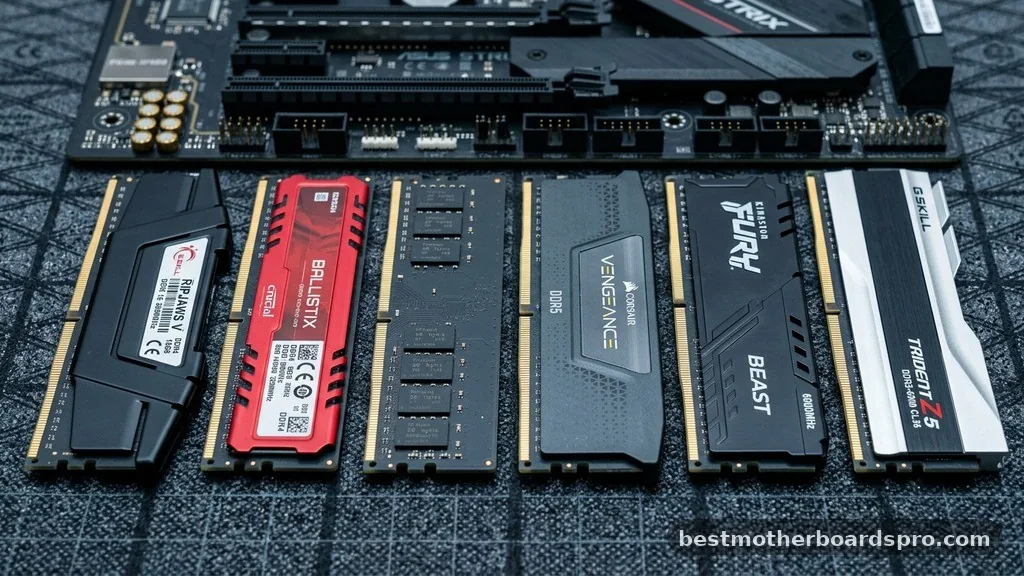
The most fundamental rule when checking if RAM is compatible with my motherboard is identifying the correct generation of memory. You cannot simply plug any stick into any slot. Memory modules are physically keyed to prevent improper installation, and the electrical signaling varies wildly between generations.
DDR (Double Data Rate) technology has evolved through several generations, and they are not backward or forward compatible. If your motherboard is designed for DDR4, it will not accept DDR3 or the newer DDR5 modules. The notches on the bottom of the memory stick are placed at different locations for each generation to ensure you physically cannot insert the wrong type into your motherboard.
The Role of Form Factor
Beyond the generation, you must consider the form factor. Desktop motherboards typically use DIMM (Dual In-line Memory Module) sticks, which are longer and feature more pins. Laptops and some small form-factor systems use SO-DIMM (Small Outline Dual In-line Memory Module) sticks, which are roughly half the length.
Trying to force a desktop stick into a laptop slot or vice versa will result in physical damage to your hardware. Always check your motherboard manual or look at the existing sticks currently installed in your computer to confirm the correct physical size.
Locating Your Motherboard Specifications
To find out what RAM is compatible with my motherboard, you need to know the specific make and model of your hardware. If you built your PC, you likely have the box or the manual stored away. If you bought a pre-built system, finding this information requires a bit of digital investigation.
You can use built-in software tools to pull this data directly from your system. On Windows, typing “System Information” into the search bar will reveal your baseboard manufacturer and product name.
Once you have this exact string, a quick search on the manufacturer’s website will lead you to the support page for that board. Every reputable manufacturer provides a Qualified Vendor List (QVL), which is a document detailing every specific stick of RAM they have tested and confirmed to work with that particular board.
| Feature | DDR4 | DDR5 |
|---|---|---|
| Typical Speed Range | 2133 – 3600+ MHz | 4800 – 8000+ MHz |
| Operating Voltage | 1.2V | 1.1V |
| Pin Count | 288 Pins | 288 Pins (Different key) |
Using Online Compatibility Tools
If you want a faster answer regarding what RAM is compatible with my motherboard, online compatibility checkers are highly effective. Major memory manufacturers like Corsair, Crucial, and Kingston maintain extensive databases that allow you to input your computer’s model. These tools cross-reference your system specs with their own product catalogs to show you exactly which kits are guaranteed to work.
These tools are often more convenient than reading through technical manuals because they filter out incompatible options automatically. By simply entering your motherboard or PC model, you receive a list of compatible options that are guaranteed to fit your slots and meet the electrical requirements of your chipset. It is a reliable way to ensure you don’t buy memory that exceeds the capacity or speed limits of your processor and motherboard combination.
Understanding Frequency and Latency
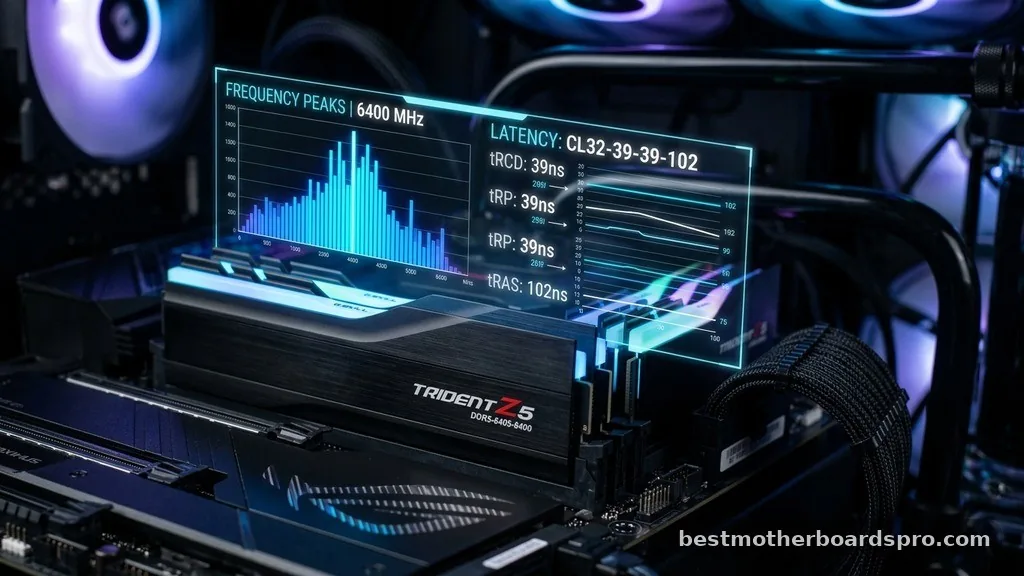
Even if a stick of RAM fits physically, you still need to consider its speed, known as frequency, and its latency. Your motherboard and your CPU work together to determine the maximum speed at which your memory can run. If you purchase memory rated for a higher frequency than your motherboard supports, the system will usually downclock the RAM to a speed that the board can handle.
- Check the maximum memory speed supported by your CPU’s memory controller.
- Ensure the RAM voltage matches the motherboard’s requirements for stability.
- Verify that the total capacity of your RAM sticks does not exceed the motherboard’s maximum limit.
- Look for XMP or EXPO profiles in your BIOS to enable the advertised speeds of your memory kit.
While running faster RAM than your system supports won’t necessarily break anything, you are essentially paying for performance you cannot access. Conversely, running RAM that is too slow can become a bottleneck for your gaming or professional workloads. The goal is to find the “sweet spot” where the memory speed matches the capabilities of your motherboard and processor.
Addressing Capacity and Channel Configuration
Knowing what RAM is compatible with my motherboard also involves understanding how many sticks you should use. Most modern motherboards use dual-channel architecture, which means they perform significantly better when you use two sticks of RAM instead of one. If you have four slots on your motherboard, they are usually color-coded or labeled to indicate which pairs should be used first.
Filling these slots correctly is vital for performance. If you install only one stick in a dual-channel motherboard, you are effectively cutting your memory bandwidth in half.
Always check your motherboard’s manual for the recommended slot configuration. Usually, you will want to populate the second and fourth slots from the CPU to ensure the system operates in the correct multi-channel mode.
Common Pitfalls in Memory Selection
One of the most common mistakes users make is assuming that all RAM with the same capacity is identical. You might see two 16GB kits, but one might have a different voltage requirement or a different CAS latency.
CAS latency, often represented as “CL,” determines how many clock cycles it takes for the RAM to access data. Lower latency is generally better, but it must be balanced with the frequency of the RAM.
Another trap is ignoring the physical clearance of your CPU cooler. High-performance gaming RAM often features tall heat spreaders that can interfere with large air coolers.
Before buying, check the dimensions of your memory sticks and compare them to the clearance space available around your CPU socket. If you have an oversized cooler, you might need to look for “low-profile” memory modules.
FAQ Section
How do I check if RAM is compatible with my motherboard?
The most reliable method is to visit the motherboard manufacturer’s website and search for your specific model. Look for the “Support” or “Memory QVL” section. This document lists every specific stick of RAM they have tested and verified to work with your board’s BIOS and chipset.
Is my current RAM compatible with my motherboard if I buy more?
It depends on the exact specifications. For the best stability, you should match the make, model, and speed of your existing memory. Mixing different brands or speeds often leads to system crashes or the motherboard defaulting to the lowest common denominator speed among all installed sticks.
How do I find which RAM is compatible with my PC without opening it?
You can use system information software like CPU-Z or Windows System Information to identify your motherboard model. Once you have that, use an online memory manufacturer’s compatibility checker. You simply input your motherboard model, and the tool will generate a list of compatible RAM kits for your system.
Should I put my RAM in A1 and B1 or A2 and B2?
For most dual-channel motherboards, you should use slots A2 and B2 (the second and fourth slots from the CPU). This configuration provides better signal integrity for the memory controller. Always verify this by checking the small labels printed directly on your motherboard near the RAM slots.
Conclusion
Identifying what RAM is compatible with my motherboard is a manageable task once you understand the core requirements of your hardware. By checking your motherboard’s specific generation, verifying the QVL, and paying attention to physical clearance, you can confidently upgrade your system. Whether you are aiming for better gaming performance or more efficient multitasking, choosing the right memory is a critical step in maintaining a healthy computer.
Always prioritize compatibility over raw speed, as a stable system is far more valuable than a fast one that crashes under load. If you are ever in doubt, rely on the official documentation from your motherboard manufacturer to guide your purchase. You now have the knowledge to select the perfect memory for your machine and get back to using your computer with confidence.



