


Identifying the hardware inside your computer is a fundamental skill for any user looking to upgrade their components or troubleshoot technical issues. If you are trying to figure out how to see what type of motherboard I have, you will find that several built-in tools can provide the exact model number and manufacturer without you ever needing to open the computer case. Whether you are running the latest version of Windows or need to dig into the system settings, these methods offer quick and reliable ways to retrieve your specific hardware information.
Using System Information for Quick Identification
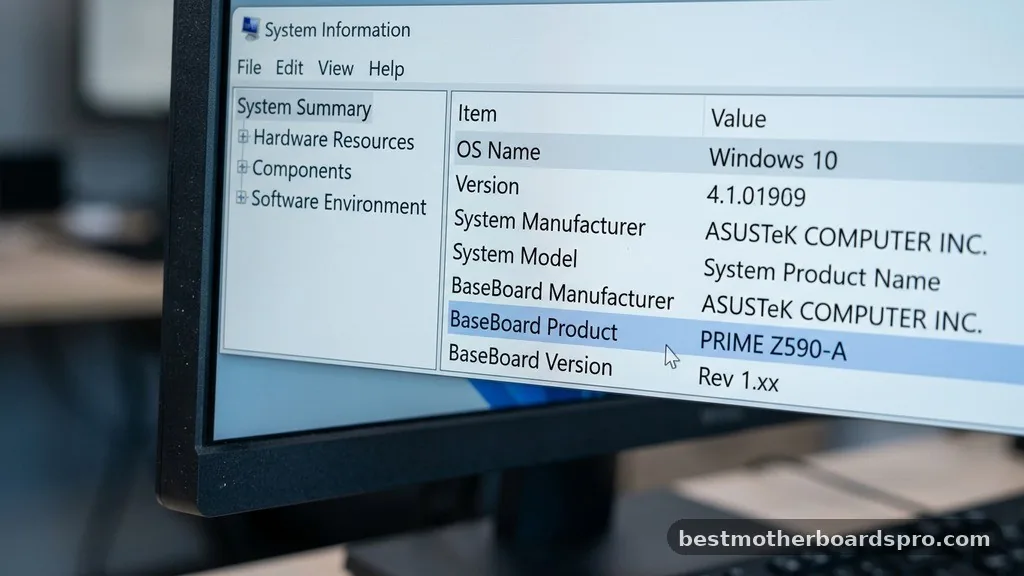
The easiest way to check your hardware details on a Windows machine is through the System Information tool. This utility is pre-installed on every PC and provides a comprehensive overview of your computer’s health and specifications.
To get started, press the Windows key on your keyboard and type “System Information” into the search bar. Once the application opens, look for the “BaseBoard Manufacturer” and “BaseBoard Product” fields in the System Summary list.
The “BaseBoard Product” entry is your motherboard model, while the manufacturer field tells you which company produced the board. This is usually the fastest method because it does not require downloading any third-party software or restarting your machine.
Checking Hardware Details via Command Prompt
If you prefer a more direct approach or if the graphical interface is unresponsive, you can use the Command Prompt to find your board details. This method is efficient for power users who want a quick text-based output of their system specs.
Open the Command Prompt by typing “cmd” into the Windows search menu and hitting enter. Once the black window appears, type the following command and press enter:
wmic baseboard get product,Manufacturer,version,serialnumber
The system will instantly display the manufacturer, product name, and serial number of your motherboard. This command is highly effective because it pulls data directly from the board’s firmware, ensuring that the information you see is accurate and up to date.
Navigating the BIOS or UEFI Interface
When you need to verify your hardware before the operating system even loads, entering the BIOS or UEFI is the best path. This environment is independent of Windows and provides the most authoritative information about your system’s architecture.
To enter this menu, restart your computer and repeatedly press the designated key, which is usually F2, F12, Delete, or Esc, depending on your system’s manufacturer. Once inside, you will typically find a “System Information” or “Main” tab that lists the exact motherboard model. This is an excellent way to see what type of motherboard I have if the computer is failing to boot into the desktop environment or if you are performing a fresh installation of an operating system.
| Method | Ease of Use | Best For |
|---|---|---|
| System Information | Very High | Casual users and quick checks |
| Command Prompt | High | Advanced users and scripting |
| BIOS/UEFI | Moderate | Troubleshooting and pre-boot checks |
| Physical Inspection | Low | Hardware upgrades and damaged boards |
Locating Motherboard Details Through Physical Inspection

Sometimes software utilities might fail to report the correct information, especially if drivers are missing or the board is very obscure. In such cases, you can physically inspect the board to find the model number printed directly onto the PCB.
- Power down your computer completely and unplug the power cable from the wall.
- Open the side panel of your computer case by removing the mounting screws.
- Look for the printed model name, which is usually found near the CPU socket or between the PCIe expansion slots.
- If the board is covered by dust, gently wipe it away with a dry microfiber cloth to read the text clearly.
- Ensure you do not touch the electrical components or pins to prevent static discharge damage.
Addressing Common Identification Gaps
Many users struggle when their motherboard is a proprietary unit, such as those found in pre-built systems from companies like Dell, HP, or Lenovo. In these instances, the “BaseBoard Product” field in Windows might only display a generic serial number rather than a common consumer model name.
When this happens, you should visit the manufacturer’s support site and enter your computer’s serial number or service tag. These sites maintain a database of every component installed in your specific machine.
By entering your service tag, you can pull up the original shipping manifest, which will explicitly list the motherboard type, socket compatibility, and chipset specifications. This is often more reliable than relying on third-party diagnostic software, which can sometimes misidentify proprietary hardware.
Why Knowing Your Motherboard Matters
Understanding your motherboard is critical for future upgrades, such as installing more RAM, upgrading your CPU, or adding a new graphics card. Each motherboard has specific limitations regarding its socket type, chipset, and memory speed support.
For example, if you want to upgrade your processor, you must ensure the new chip is compatible with your board’s socket. Failing to check this could lead to purchasing a CPU that physically cannot fit or is not supported by the current BIOS version. By taking the time to see what type of motherboard I have, you protect your investment and ensure that any new components you buy will function as intended.
Frequently Asked Questions
Can I find my motherboard model without opening the case?
Yes, you can easily find your motherboard model without opening the case by using Windows built-in tools. Methods like the System Information utility or the Command Prompt provide the exact model name and manufacturer by querying the system firmware directly, making physical inspection usually unnecessary for most users.
Does the BIOS tell me what motherboard I have?
The BIOS or UEFI interface is one of the most reliable places to find your motherboard information. When you enter the BIOS during startup, look for the System Information or Main menu tab, where the manufacturer and exact model number are typically displayed in plain text.
Is it possible to use any CPU with any motherboard?
No, you cannot use any CPU with any motherboard because they must share a compatible socket type and chipset. Always check your motherboard’s support list on the manufacturer’s website before buying a new processor to ensure the specific CPU model is supported by your current board.
Why does my motherboard show as “To be filled by O.E.M.”?
If you see “To be filled by O.E.M.” in your system information, it often means the computer was built by a large manufacturer like HP or Dell. These companies sometimes use custom BIOS firmware that does not report the specific retail model name to standard Windows utilities.
Final Thoughts on Hardware Discovery
Mastering the process of identifying your internal components turns a complex technical task into a simple routine. Whether you rely on the System Information tool in Windows, run a quick Command Prompt line, or choose to inspect the hardware directly inside your case, you now have the tools necessary to confirm your system specifications with confidence.
Knowing how to see what type of motherboard I have is the first step in maintaining and extending the lifespan of your PC. With this information in hand, you can confidently search for driver updates, verify component compatibility, and plan your next hardware upgrade. If you have any further questions about your specific build or run into issues while checking your hardware, feel free to reach out for more detailed support on your specific system configuration.



