


Identifying the specific hardware inside your computer is often necessary when you need to upgrade your RAM, replace a failing component, or simply update your drivers. When you find yourself wondering how to tell what kind of motherboard i have, you might feel tempted to open the case immediately, but there are several digital methods that save you the trouble of reaching for a screwdriver.
Whether you are running Windows 11, an older version, or even a specialized setup, the system keeps track of your main board‘s identity. By utilizing built-in software tools, you can extract precise details about your hardware configuration without ever needing to touch the physical components.
Using System Information for Quick Identification
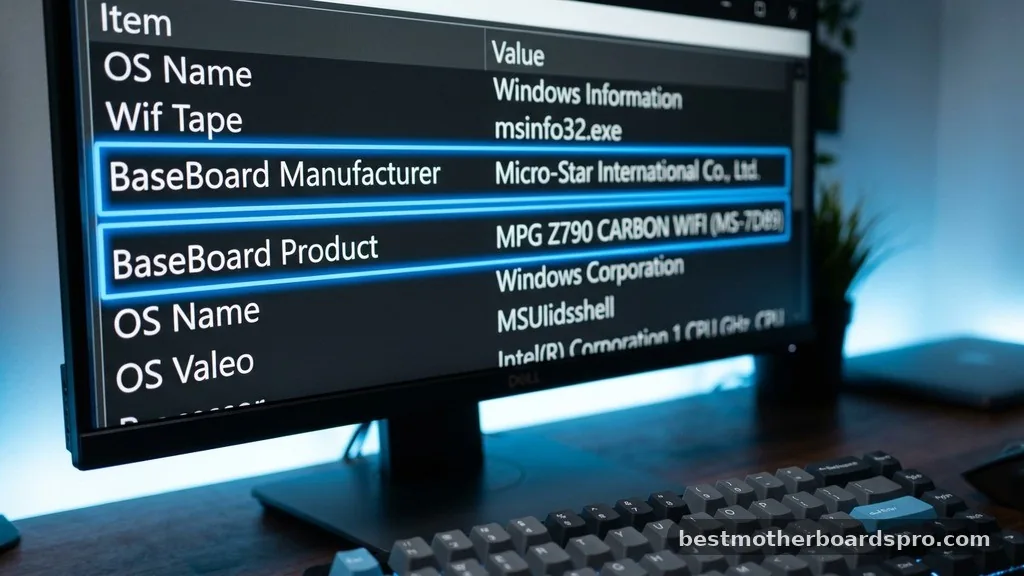
The simplest way to check your motherboard model is through the built-in System Information tool. This utility provides a comprehensive overview of your hardware profile, including the manufacturer and the exact product name of your board. You do not need to download third-party software for this process, as it is native to the operating system.
To access this, press the Windows key and type “msinfo32” into the search bar, then hit enter. Once the window opens, ensure you are on the “System Summary” tab. Look for the rows labeled “BaseBoard Manufacturer,” “BaseBoard Product,” and “BaseBoard Version.”
These fields will reveal exactly who built your board and what specific model it is. If these fields show “Base Board Product: Not Available,” it often indicates a pre-built system from a major manufacturer like Dell or HP, which sometimes masks the specific retail model name in favor of a proprietary part number.
Leveraging the Command Prompt for Detailed Specs
If you prefer a more direct approach or if the GUI-based System Information feels too slow, the Command Prompt is an incredibly powerful tool. It allows you to query the WMI (Windows Management Instrumentation) database directly to pull the specific hardware strings associated with your machine.
Open the Command Prompt by typing “cmd” in your search bar and pressing enter. Once the black terminal window appears, type the following command and hit enter:
wmic baseboard get product,Manufacturer,version,serialnumber
The output will display the manufacturer, the product name, and the serial number of your motherboard. This method is particularly useful when you need to copy and paste the information directly into a search engine to find the official support page for your hardware. It strips away all the extra noise and gives you the raw data you need to identify your board.
Checking the UEFI or BIOS Interface
When you cannot boot into the operating system or you want to verify your hardware before installing Windows, the BIOS or UEFI interface is your best resource. This environment runs independently of your storage drives, providing an unfiltered look at your system’s core identity.
To access this, restart your computer and repeatedly press the designated key—usually Delete, F2, F10, or F12—as the logo screen appears. Once inside, look for a “System Information” or “Main” tab.
Most modern boards will clearly display the model name on the home screen. This is also a perfect time to check if your firmware version is up to date, as many manufacturers bundle motherboard updates with BIOS patches.
Physical Inspection of the Motherboard
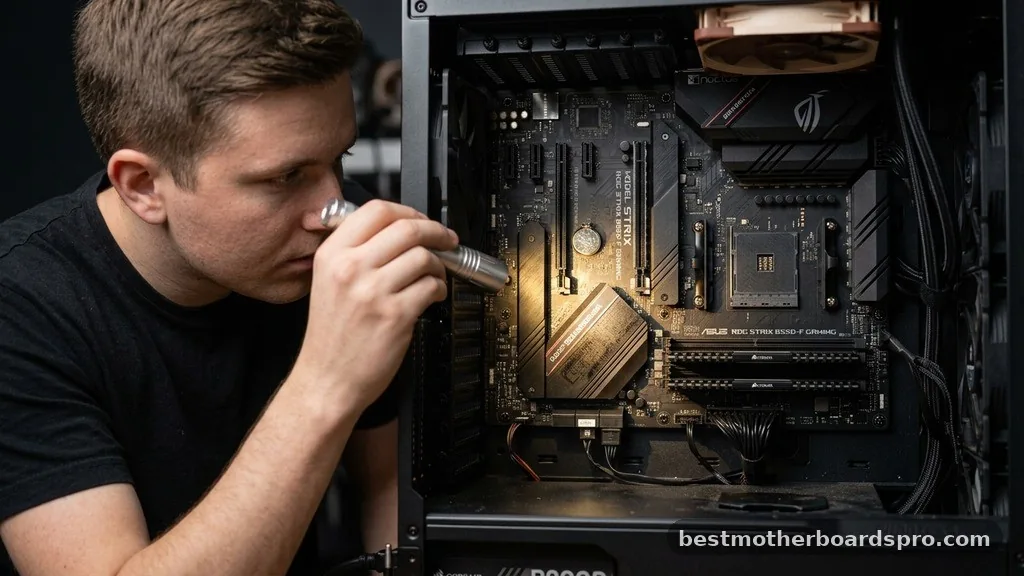
Sometimes, software might report a generic name, or you might be dealing with a machine that won’t power on at all. In these cases, you have to look at the board itself. This requires you to safely power down your machine, unplug it, and remove the side panel of your case.
Once you have a clear view of the interior, scan the surface of the circuit board. Manufacturers almost always print the model name in bold, white lettering on the board itself. You will typically find this near the CPU socket, between the PCIe slots, or along the edge of the RAM slots.
If you find a long string of numbers but aren’t sure which is the model, try searching the entire string on Google. It will almost always lead you to the manufacturer’s product page or a technical database.
Comparison of Identification Methods
Choosing the right method depends on your current situation and how much detail you require. The following table compares the effectiveness of these different approaches based on accessibility and depth of information.
| Method | Ease of Use | Best For |
|---|---|---|
| System Information | High | Quick checks inside Windows |
| Command Prompt | Medium | Copying specific model strings |
| BIOS/UEFI | Medium | Pre-boot troubleshooting |
| Physical Inspection | Low | Hardware that won’t turn on |
Common Challenges When Identifying Hardware
Identifying your motherboard isn’t always straightforward, especially with pre-built computers. When you purchase a desktop from companies like Dell, HP, or Lenovo, they often use proprietary motherboards that are designed specifically for their chassis. Because these boards aren’t sold in retail stores, they might not have a public support page or a standard model name that you would find on a board from ASUS or MSI.
If your search returns a proprietary part number instead of a retail name, your best bet is to search for the specific model of your desktop computer rather than the motherboard name. Most manufacturers host a “Support” or “Drivers” section on their website where you enter your computer’s serial number or service tag. This will provide you with all the specific information regarding your board, including compatible upgrades and official manufacturer documentation.
Why You Might Need This Information
You might be asking why knowing your motherboard details is so crucial. Here are the primary reasons you would need to identify your board:
- Driver Updates: Ensuring your chipset, audio, and network drivers are current for optimal performance.
- RAM Compatibility: Checking the maximum capacity and speed of memory your board supports.
- CPU Upgrades: Verifying the socket type and chipset support for a newer processor.
- BIOS Flashing: Obtaining the correct firmware files to fix stability issues or add support for newer hardware.
- PCIe Lane Layout: Understanding how many expansion cards you can add without bottlenecking your system.
Frequently Asked Questions
Does the BIOS provide accurate information about my motherboard?
Yes, the BIOS or UEFI is the most reliable source for hardware identification. Because it interacts directly with the hardware at the firmware level, it displays the exact manufacturer and model name encoded into the board’s non-volatile memory, independent of any software drivers installed in your operating system.
Can I find my motherboard model without opening my PC?
Absolutely. You can use the Windows System Information tool by typing “msinfo32” in the search bar or use the Command Prompt with the “wmic baseboard get product” command. These methods provide accurate model information quickly without requiring you to open the computer case or touch any hardware.
What if my motherboard model isn’t listed in System Information?
If the information is missing, you are likely using a pre-built computer from a company like Dell or HP. These manufacturers often use proprietary boards. In this case, search for your computer’s specific model number on the manufacturer’s support website to find the board’s technical specifications.
Is it necessary to find the serial number?
You generally only need the serial number if you are contacting technical support for a warranty claim or registering your product with the manufacturer. For everyday tasks like updating drivers or checking RAM compatibility, the product model name is the only information you actually need to have.
Final Thoughts
Learning how to tell what kind of motherboard i have is a fundamental skill for anyone interested in maintaining or upgrading their computer. By using the software methods like System Information or the Command Prompt, you can gather the necessary data in seconds without any physical labor. Even in cases where you are dealing with proprietary hardware or a system that won’t boot, the physical inspection or BIOS methods provide a reliable fallback.
Once you have your model name, you can comfortably navigate manufacturer websites, download the correct drivers, and ensure your hardware remains compatible with any future upgrades. Taking a moment to identify your board today will save you significant time and frustration during your next maintenance cycle. If you hit a dead end, checking the manufacturer’s service portal with your computer’s serial number is always the most effective path forward.



