

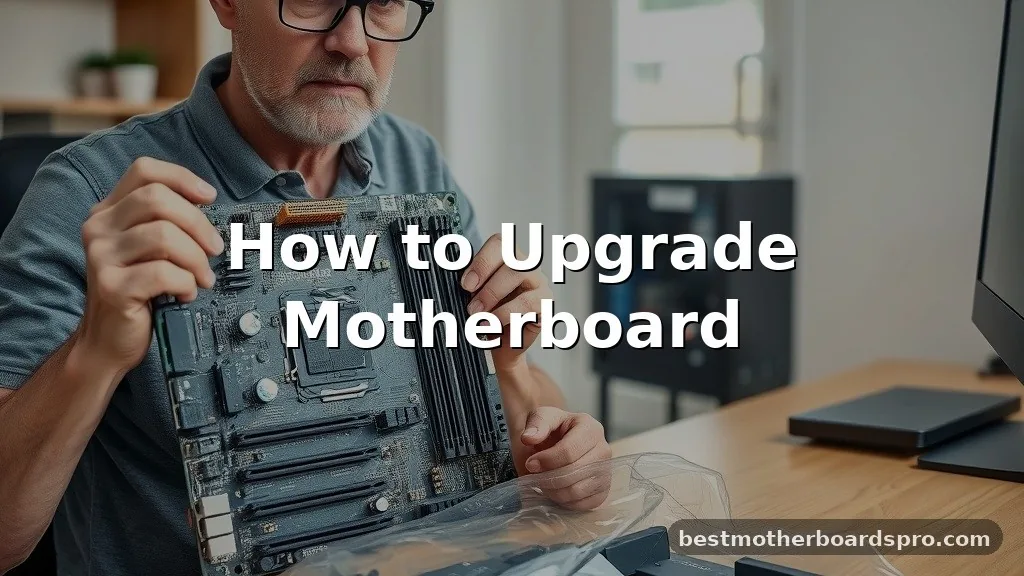
Deciding to swap out your main circuit board is a major step in PC maintenance. When you start upgrading motherboard hardware, you’re essentially performing a heart transplant on your machine. It’s a process that demands patience, a bit of technical know-how, and a steady hand.
Whether you’re chasing better performance for gaming or simply need more ports for your peripherals, this task is often the most labor-intensive part of building or modifying a computer. By planning carefully and understanding how your components interact, you can avoid common pitfalls and ensure your system boots up smoothly after the work is done.
Assessing the Need for a New Motherboard
Before you commit to pulling your PC apart, you should confirm that your current system actually requires a change. Many users assume their machine is slow because of the mainboard, but often, the bottleneck lies elsewhere. If you are struggling with outdated ports, a lack of M.2 slots for fast storage, or a desire to switch to a newer CPU generation, then you have a valid reason to proceed.
Signs You Should Upgrade

- Your current CPU is incompatible with the latest processors, forcing a platform shift.
- You have run out of expansion slots for additional RAM or high-speed storage.
- The board has physical damage or faulty integrated components like audio or networking.
- You are building a smaller or larger form factor system and your current board doesn’t fit.
- You require newer technologies like PCIe 5.0 or faster USB connectivity standards.
If your primary goal is just better gaming performance, check your GPU and RAM first. Replacing the motherboard is rarely a performance boost on its own; it is the foundation that allows other, more impactful components to function at their peak.
Matching Components and Compatibility
The most critical part of the process is ensuring your new parts play nice with each other. If you buy a new motherboard, you must ensure your CPU socket matches perfectly.
For instance, putting an Intel processor into an AMD-compatible board is physically impossible. You also need to verify that your RAM generation—DDR4 versus DDR5—is supported by the new board, as these are not interchangeable.
| Component | Compatibility Check | Common Pitfalls |
|---|---|---|
| CPU | Socket Type (e.g., LGA 1700, AM5) | Ignoring BIOS version requirements |
| RAM | DDR4 vs DDR5 Slots | Buying speed unsupported by the board |
| Case | Form Factor (ATX, Micro-ATX, ITX) | Standoffs not aligning with ports |
| Power Supply | 24-pin and CPU 8-pin connectors | Insufficient wattage for new hardware |
Always verify the dimensions of your case. An ATX board will not fit in a small ITX enclosure, and trying to force it will lead to short circuits or broken parts. Check the manufacturer’s website for the specific board model to see a compatibility list for your existing hardware.
Preparing Your System for the Switch
Before you touch a single screwdriver, you need to prepare your software environment. If you are moving to a completely different chipset, Windows may struggle to adapt to the new hardware drivers. While modern versions of Windows are surprisingly good at handling hardware changes, it is best practice to back up all your critical files to an external drive or cloud storage.
Software and Data Safety
Create a full system image or manually copy your documents, photos, and game saves. If you have an OEM license for Windows tied to your old motherboard, you might need to contact Microsoft support to reactivate your license after the switch, as the OS identifies the motherboard as the core of the PC identity.
Uninstall old chipset drivers if possible, though this is often difficult when the hardware is still installed. Ensure you have your Windows installation media—like a bootable USB drive—ready. You might need to perform a clean install if the system encounters blue screens or constant driver conflicts during the first boot.
The Physical Installation Process
Now comes the actual labor. Power down your machine, flip the switch on your power supply, and unplug the wall cable.
Hold the power button for a few seconds to drain any residual electricity from the capacitors. Once the computer is dead, open the side panel and begin documenting where each cable is plugged in.
Step-by-Step Hardware Swap
- Disconnect all internal cables, including the 24-pin ATX power, CPU power, and front panel headers.
- Remove the graphics card and any other expansion cards that might be in the way.
- Unscrew the old motherboard from the case standoffs; keep these screws organized in a tray.
- Gently lift the old board out, being careful not to scrape against other parts.
- Install the I/O shield into the back of your case if it isn’t pre-installed on the new board.
- Place the new board into the case, aligning it with the standoffs.
- Secure the board using the screws you removed earlier, tightening them until they are snug but not overtightened.
After you have the board secured, begin reinstalling your CPU, RAM, and storage drives. It is often easier to install the CPU and RAM before putting the board into the case, especially if you have a large aftermarket cooler. Don’t forget to connect the front panel connectors; these are notoriously fiddly, so keep your manual handy to ensure the power switch and LED pins go in the right spots.
Troubleshooting Common Post-Install Issues
It is common for a computer to fail to boot on the first try. Don’t panic if you hit the power button and nothing happens. First, check your power connections.
Did you remember the 8-pin CPU power cable near the top of the board? Is the 24-pin cable fully seated?
If the fans spin but you get no display, check your RAM. Try seating a single stick in the slot recommended by the motherboard manual. Sometimes, a board needs to perform “memory training” on the first boot, which can take a minute or two of staring at a black screen.
If you have diagnostic LEDs on your board, look for which light stays on. These lights usually indicate a failure with the CPU, DRAM, VGA, or Boot device, giving you a clear path to fix the problem.
FAQ
Can I upgrade my motherboard without reinstalling Windows?
Yes, it is often possible to swap a motherboard without a full wipe, as Windows 10 and 11 handle driver changes well. However, you may encounter system instability or activation issues. A clean install is always recommended to ensure the system runs at peak efficiency and remains stable long-term.
How do I tell if I need to upgrade my motherboard?
You generally need a new board if your current one lacks the physical slots for new hardware, such as an M.2 NVMe drive or a faster GPU interface. Additionally, if your current CPU is outdated and you want to upgrade to a newer, incompatible generation, a board swap is mandatory.
Is it difficult to swap motherboards?
The process is moderately difficult and requires careful handling of delicate components. You need to be comfortable with cable management and following a manual. While it is not physically taxing, the risk of static damage or bent pins makes it a task that requires patience and steady, careful movements.
Will my files be lost when upgrading my motherboard?
Your files are stored on your hard drive or SSD, not the motherboard itself, so they will not be lost. However, software issues or the need for a fresh Windows installation could make accessing those files harder. Always back up your data to an external source before starting.
Conclusion
Upgrading motherboard components is a rite of passage for any PC enthusiast. While the process requires attention to detail—especially when dealing with delicate pins and complex cable layouts—the reward is a system that meets your current performance needs. By carefully checking compatibility, preparing your software environment, and taking your time during the physical installation, you can successfully breathe new life into your computer.
Remember that the motherboard is the backbone of your system; treating it with care will ensure your PC remains reliable for years to come. Once you have everything back together and your drivers are updated, you will have a machine that feels brand new. If you run into any hurdles, check your motherboard manual or reach out to community forums, as many others have likely solved the same issues you might be facing.



