

Many PC enthusiasts find themselves asking if they really need to reinstall Windows with a new motherboard after they decide to upgrade their hardware. It is a common source of anxiety because the motherboard acts as the backbone of your entire system, connecting every component from your CPU to your storage drives.
While the idea of a clean slate sounds appealing for performance, the actual technical necessity often depends on your specific hardware configuration and the version of the operating system you are running. Understanding whether you need to reinstall Windows with a new motherboard will save you hours of tedious file transfers and software reinstallation, allowing you to get back to gaming or working much faster.
The Reality of Hardware Migrations
Modern operating systems like Windows 10 and Windows 11 are significantly more flexible than their predecessors. In the past, swapping a core component like a motherboard meant an almost guaranteed “Blue Screen of Death” because the kernel could not load the necessary drivers for the new chipset. Today, Windows features an advanced Plug and Play architecture that attempts to detect and configure hardware changes automatically during the first boot.
When you boot up with a new motherboard, the system performs a hardware abstraction layer check. It scans the connected components and attempts to pull the correct drivers from its internal repository.
If the transition is smooth, you might find yourself on your desktop with your files intact. However, this is not always the case, and sometimes the system will struggle to bridge the gap between old and new hardware, leading to instability or performance bottlenecks.
Why a Clean Installation Is Often Preferred
Even if your system manages to boot without a hitch, there are compelling reasons to consider a fresh start. Over time, your registry accumulates “ghost” drivers and background services from legacy hardware that you no longer use. These leftovers can lead to unpredictable behavior, such as sudden crashes, sluggish boot times, or conflicts with new software.
When you perform a clean install, you ensure that every driver is perfectly matched to your current setup. This eliminates the risk of conflicting instructions being sent to your CPU or GPU.
While it requires backing up your data and reinstalling your applications, the long-term stability gains are often worth the effort. Think of it as clearing out a cluttered room; it is much easier to organize things when you start from a completely empty space rather than trying to rearrange a pile of old items.
Determining Your Licensing Status
One of the biggest concerns users have when swapping parts is whether they will have to buy a new Windows license. The answer depends heavily on how you acquired your initial copy of the operating system. If you purchased a retail key, your license is typically tied to your Microsoft account, making the transfer to a new board relatively straightforward.
OEM keys, which often come pre-installed on systems from manufacturers like Dell or HP, are generally locked to the original motherboard. If you are using an OEM version, you might find that Windows refuses to activate after the swap. In these instances, you may need to contact Microsoft support or purchase a new license.
| License Type | Transferability | Activation Method |
|---|---|---|
| Retail Key | High | Linked to Microsoft Account |
| OEM Key | Low | Bound to Original Hardware |
| Digital License | Moderate | Hardware ID/Account Sync |
Steps to Prepare for a Motherboard Swap
If you decide to proceed without a full wipe, you should take specific precautions to minimize the risk of data loss. Preparation is the difference between a minor inconvenience and a catastrophic failure.
- Back up all your personal files to an external drive or cloud storage service.
- Deactivate any software that uses hardware-locked licensing, such as Adobe Creative Cloud or specific games.
- Ensure your Windows account is linked to your email address to facilitate digital license reactivation.
- Download the latest chipset, LAN, and audio drivers for your new motherboard onto a USB flash drive.
- Remove old graphics card drivers using a utility like DDU if you are also changing your GPU.
Handling Chipset and Driver Conflicts
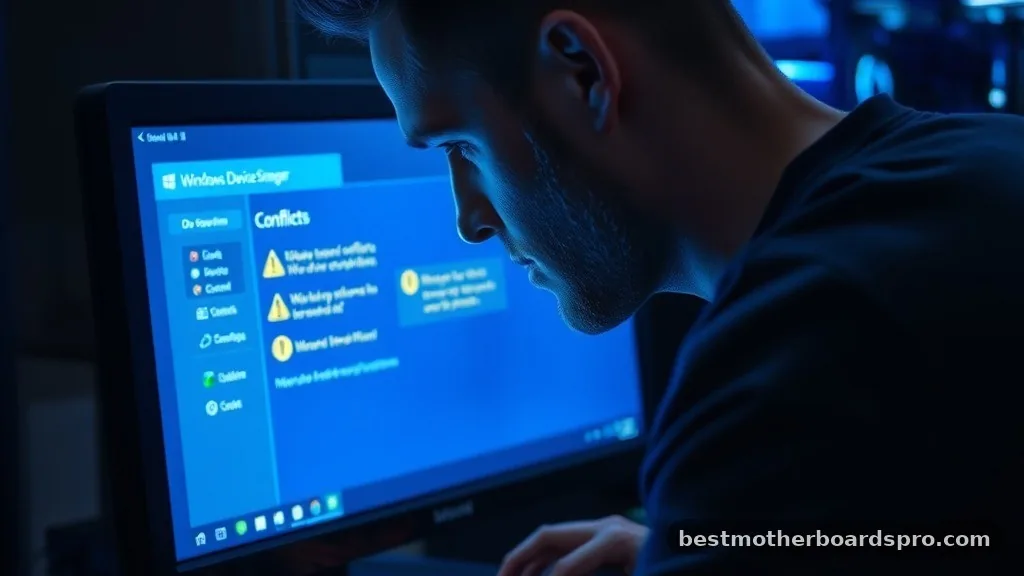
When you move to a new platform, such as switching from an Intel-based motherboard to an AMD-based one, the underlying architecture changes significantly. The system must load entirely different controller drivers for the SATA, NVMe, and USB ports. While Windows 11 is excellent at handling these transitions, it is not infallible.
If you choose to keep your existing installation, you must be prepared to manually clean up the device manager. You will likely see several “unknown devices” or yellow exclamation marks indicating missing drivers.
It is important to address these immediately, as they can cause performance issues even if the computer seems to be running fine. If you notice persistent stuttering or random reboots, the “ghost” drivers from your old motherboard are likely the culprit, and a clean install should be your next move.
When a Reinstall Is Mandatory
There are specific scenarios where you should skip the troubleshooting and go straight to a fresh install. If you are moving from a system that used a legacy BIOS to a modern UEFI setup, you will likely encounter boot partition errors. These are often difficult to fix without specialized partition management software, and starting fresh is usually faster.
Furthermore, if you are upgrading your storage drive to a faster NVMe SSD at the same time as your motherboard, you should absolutely perform a clean install. Cloning an old, fragmented OS onto a high-speed drive negates many of the performance benefits you just paid for. A fresh installation ensures your drive is partitioned correctly and that all modern storage features, like TRIM and fast-booting, are enabled from the first second.
Managing Your Software and Personal Data
The most tedious part of any system migration is moving your personal data. Before you swap your motherboard, take stock of what you actually need.
Many users keep “digital junk” that they haven’t touched in years. A motherboard swap is the perfect excuse to perform a digital spring cleaning.
If you have a large collection of games, many launchers like Steam or Epic Games allow you to move your library folder to a new drive. Simply point the launcher to the new folder after your fresh install, and it will discover the files without needing a massive redownload.
For documents and photos, cloud syncing services are your best friend. By ensuring everything is in the cloud before you pull the plug, you remove the stress of losing precious files during the hardware transition.
Technical Considerations for Modern Hardware
When upgrading, you might also be looking at a new motherboard cpu combination. These components work in tandem to define your system’s performance ceiling.
If you are keeping your old Windows install, ensure that your BIOS settings are configured correctly for your new processor. Features like XMP/DOCP for RAM and PBO for CPU boosting must be enabled in the BIOS, or your new hardware will be severely underperforming.
If you’re wondering about the GPU, that is generally the easiest part of the process. Graphics cards are mostly independent of the motherboard. As long as your power supply is sufficient and you have the correct physical clearance in your case, you can generally move a GPU between systems without needing to touch your Windows installation at all.
FAQ
Do I need to buy Windows again if I replace the motherboard?
Not necessarily. If you own a retail license, you can move it to a new motherboard by signing in to your linked Microsoft account. However, if you are using an OEM license that came with a pre-built computer, it is technically non-transferable and may require a new purchase.
Can I change my motherboard without reinstalling Windows 11?
Yes, you can often swap your motherboard without a reinstall because Windows 11 is highly capable of detecting new hardware and installing the necessary drivers automatically. While this is convenient, it can sometimes leave behind conflicting files that might affect system stability or long-term performance.
What is the most important step before swapping a motherboard?
Backing up your data is the most critical step. Even if you plan to keep your current Windows installation, hardware swaps can occasionally lead to boot failures or disk corruption. Always ensure your documents, photos, and critical files are saved to an external drive or cloud storage first.
Should I perform a clean install even if the system boots?
While not strictly mandatory, a clean install is recommended. It removes old driver residues and registry errors that can cause performance issues. If you notice any weird bugs, crashes, or sluggishness after the swap, a fresh installation is the most reliable way to resolve these underlying software conflicts.
Final Thoughts on Your Hardware Upgrade
Deciding whether you need to reinstall Windows with a new motherboard involves balancing convenience against the benefits of a fresh start. While modern operating systems are remarkably resilient and can often handle the transition without a complete wipe, a clean installation remains the gold standard for peak performance and stability. If you decide to keep your current setup, prioritize backing up your data and preparing the necessary drivers in advance to ensure a smooth transition.
Whether you choose to perform a fresh install or try to migrate your existing files, the most important thing is to take your time. Hardware changes are a great opportunity to optimize your system and ensure your machine is running exactly how you want it. If you have questions about your specific components or encounter unexpected errors, don’t hesitate to reach out to community forums or tech support to share your experiences and get advice from others who have navigated similar upgrades.



