


Seeing a glowing light on your computer‘s main circuit board can be nerve-wracking, especially when you are trying to figure out what does vga mean on motherboard. This indicator is part of the system‘s diagnostic process, alerting you to a potential hurdle in the video output chain. When you power on your machine, the system performs a series of checks known as POST, or Power-On Self-Test.
If the hardware responsible for generating visuals fails to initialize, the motherboard triggers this specific warning. Understanding this alert helps you distinguish between a simple loose connection and a more complex hardware failure, allowing you to narrow down the source of your display issues effectively.
Understanding the VGA Debug LED
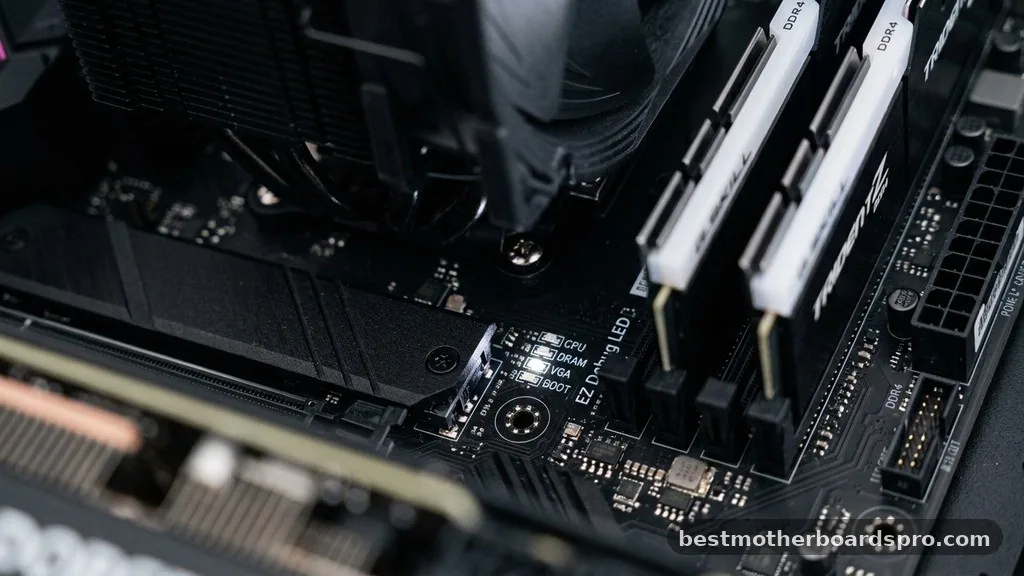
The VGA indicator on your motherboard is not merely a label; it serves as a critical diagnostic tool. In the context of modern PC hardware, VGA stands for Video Graphics Array, a legacy term that has evolved to represent the entire graphics subsystem. When this light remains illuminated after you press the power button, it indicates that the motherboard has detected a problem during the initialization phase of your graphics card.
This light is part of a set of debug LEDs found on many mid-to-high-end motherboards. These lights typically cycle through CPU, DRAM, VGA, and BOOT checks.
If the sequence stops at the VGA light, your computer is essentially telling you that it cannot communicate with your display adapter. This prevents the system from proceeding to the BIOS or loading your operating system, which is why your monitor remains dark.
Common Reasons for a VGA Light
Several factors can trigger this diagnostic warning. Because the motherboard is checking for a functional signal from your graphics hardware, any disruption in that path will cause the light to stay on.
- Loose or improperly seated graphics card in the PCIe slot.
- Insufficient power supply delivery to the GPU.
- Faulty or disconnected power cables (PCIe power connectors).
- Corrupted or outdated BIOS firmware settings.
- A monitor cable that is plugged into the motherboard instead of the GPU.
- Internal hardware failure of the graphics card itself.
Troubleshooting Steps When the VGA Light Stays On
If you are staring at a static light and wondering what does vga mean on motherboard in terms of immediate action, start with the basics. Many users find that the solution is far simpler than replacing expensive hardware.
Check Your Physical Connections
Start by ensuring your graphics card is firmly seated in the PCIe slot. Sometimes, the weight of a heavy card can cause it to sag slightly, leading to poor contact with the pins. Remove the card, inspect the gold contacts for debris, and push it back into the slot until you hear or feel a click. Ensure the locking tab is fully engaged.
Verify Power Cables
Your graphics card needs dedicated power directly from the power supply unit. Check that your PCIe cables are fully inserted into the card. If you are using a modular power supply, check both ends of the cable—the side plugged into the card and the side plugged into the power supply unit itself.
Isolate the Display Source
A common mistake involves plugging the monitor cable into the motherboard’s I/O panel instead of the dedicated graphics card. If your processor does not have integrated graphics, the motherboard ports will not output a signal, and the system may flag a VGA error. Always ensure your HDMI or DisplayPort cable is connected directly to the GPU ports.
Comparing Common Motherboard Debug Indicators
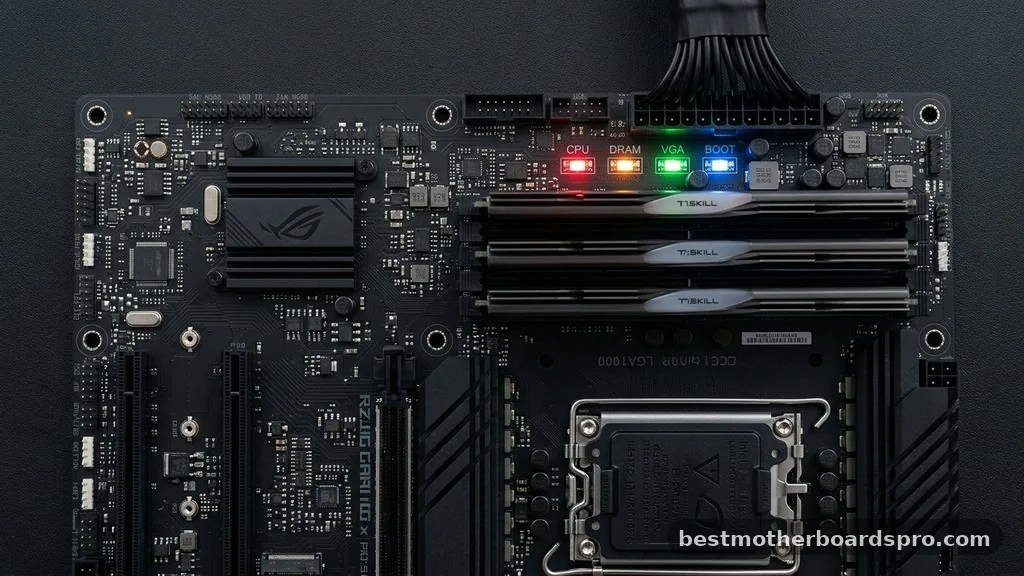
To better understand how the VGA signal fits into the broader diagnostic landscape, it helps to compare it with other standard motherboard warning lights.
| LED Indicator | Component Checked | Typical Cause of Failure |
|---|---|---|
| CPU | Processor | Improper seating or bent pins. |
| DRAM | System Memory | Loose RAM sticks or incompatible modules. |
| VGA | Graphics Card | Seating issues or power delivery failure. |
| BOOT | Storage Drive | Corrupted OS or missing boot partition. |
Addressing BIOS and Firmware Conflicts
Sometimes the hardware is perfectly fine, but the software environment is causing a conflict. If you have recently installed new parts, your motherboard might be trying to initialize a device that the current BIOS version does not support.
Clearing the CMOS is a highly effective way to reset the motherboard to its factory default state. You can do this by removing the small coin-shaped battery from the board for about thirty seconds and then replacing it. This action forces the BIOS to re-detect all installed hardware, which often resolves the VGA light issue if it was caused by a configuration glitch.
Additionally, if you are using an older motherboard with a newer graphics card, you might need a BIOS update. You can usually find these updates on the manufacturer’s website.
However, performing an update can be tricky if you cannot see your screen. Some modern boards allow you to flash the BIOS using a USB stick and a dedicated button on the back panel, even without a CPU or graphics card installed.
Why Does the Light Turn On Sometimes?
It can be frustrating when the VGA light appears intermittently. If the light pops up only occasionally, you might be dealing with a loose cable or a power supply that is struggling to keep up with the power draw of your system.
High-end graphics cards can have significant power spikes during intense gaming sessions. If your power supply unit is aging or lacks the necessary wattage, it may fail to provide consistent power to the GPU, causing the system to lose contact momentarily.
This triggers the VGA light as a safety mechanism. If you notice this happening during heavy loads, consider testing your system with a different power supply to rule out wattage limitations.
Addressing the “VGA Light On But PC Boots” Scenario
Occasionally, you might see the VGA light remain lit even though your computer successfully reaches the Windows login screen. This is typically a communication bug between the motherboard and the graphics card firmware.
While it is annoying to see a light constantly glowing inside your case, it does not necessarily mean your hardware is failing. Many users resolve this by updating the VBIOS (Video BIOS) of their graphics card.
Consult the manufacturer’s support page for your specific card model to see if a firmware patch is available. If everything runs smoothly otherwise, it is usually just a cosmetic issue rather than a functional one.
Frequently Asked Questions
Why is my motherboard VGA light on even though my monitor works?
This usually indicates a minor communication mismatch between the motherboard and the GPU. While the system is outputting a signal, the motherboard hasn’t received the expected handshake signal during POST. Try updating your motherboard’s BIOS or the graphics card’s firmware to resolve this lingering status light.
Is the VGA light the same as a GPU failure?
Not necessarily. While it can point to a faulty card, it more frequently highlights a connection issue, such as a loose PCIe cable or the card not being seated correctly. Always exhaust your troubleshooting steps for power and seating before concluding that the graphics card itself is dead.
Does the VGA light mean I need a new power supply?
It might. If your GPU requires more power than your PSU can reliably deliver, the system may flag a VGA error during high-demand tasks. If you have recently upgraded your graphics card and the VGA light appears under load, your power supply wattage is likely insufficient for your hardware.
What should I do if the VGA light stays on after a BIOS update?
If the light persists after a firmware update, try clearing the CMOS to reset the motherboard’s hardware detection table. If that fails, double-check that your monitor cable is connected to the GPU ports and ensure the card is seated securely in the primary PCIe slot on the board.
Final Thoughts
When you understand what does vga mean on motherboard hardware, you gain the ability to troubleshoot your PC with confidence instead of panic. Most of these issues stem from simple physical connections or minor software settings that can be resolved in minutes. By methodically checking your seating, power cables, and BIOS configurations, you can usually clear the indicator and get back to using your computer.
If you have tried all these steps and the light remains, it may be time to consult the manufacturer’s warranty or consider a professional diagnostic. Taking the time to perform these checks yourself saves time and helps you better understand how your system components interact with one another.



