

When you find yourself staring at a blank screen after plugging a display into your motherboard‘s HDMI port, it usually means the system is defaulting to a dedicated graphics card. Many users assume that because the port is physically present, it should work automatically, but that isn’t always the case. Learning how to enable motherboard HDMI often involves a quick trip into your BIOS settings to toggle the integrated graphics controller.
By adjusting these specific parameters, you can finally get that extra monitor running or troubleshoot a display issue without needing expensive hardware upgrades. This guide provides the technical steps to resolve these common connectivity hurdles effectively.
Understanding Integrated Graphics and Motherboard Ports

The HDMI port on your motherboard is wired to the CPU’s integrated graphics processor rather than a discrete graphics card. When you install a dedicated GPU, the motherboard BIOS typically disables this onboard functionality by default to save system resources and prevent conflicts. If you are wondering why your cable doesn’t produce a signal, the system is likely ignoring the motherboard port entirely.
Most modern processors, such as those from Intel or certain AMD Ryzen series, include an integrated graphics core. However, not every CPU has this feature. If your processor lacks an integrated graphics engine, enabling the port in the BIOS will not result in a working display because there is no hardware to drive the signal.
Preparing for BIOS Configuration
Before you attempt to change any settings, you need to ensure your physical setup is correct. Shut down your computer completely and verify that your HDMI cable is seated firmly in the motherboard port. It is common for users to accidentally plug the cable into a dead port on a dedicated card or the wrong slot entirely.
Once you have confirmed the physical connection, you will need to restart the computer and prepare to enter the firmware interface. Have your keyboard ready, as you will need to perform a specific action during the boot sequence to access the BIOS menu.
Accessing the BIOS to Enable the HDMI Port
To enter the BIOS, power on your system and repeatedly press the designated key on your keyboard. For most manufacturers, this is the Delete key, though some systems use F2, F10, or F12. You usually have only a few seconds to perform this action before the operating system begins to load.
Once you are inside the BIOS, look for an “Advanced” or “Chipset” tab. The terminology varies significantly between manufacturers like ASUS, Gigabyte, and MSI. You are searching for a setting labeled “Integrated Graphics,” “IGPU Multi-Monitor,” or “Onboard VGA.”
| Manufacturer | Common BIOS Key | Typical Menu Path |
|---|---|---|
| ASUS | Delete or F2 | Advanced > System Agent Configuration |
| Gigabyte | Delete | Settings > IO Ports > Integrated Graphics |
| MSI | Delete | Settings > Advanced > Integrated Graphics |
Configuring Integrated Graphics Settings
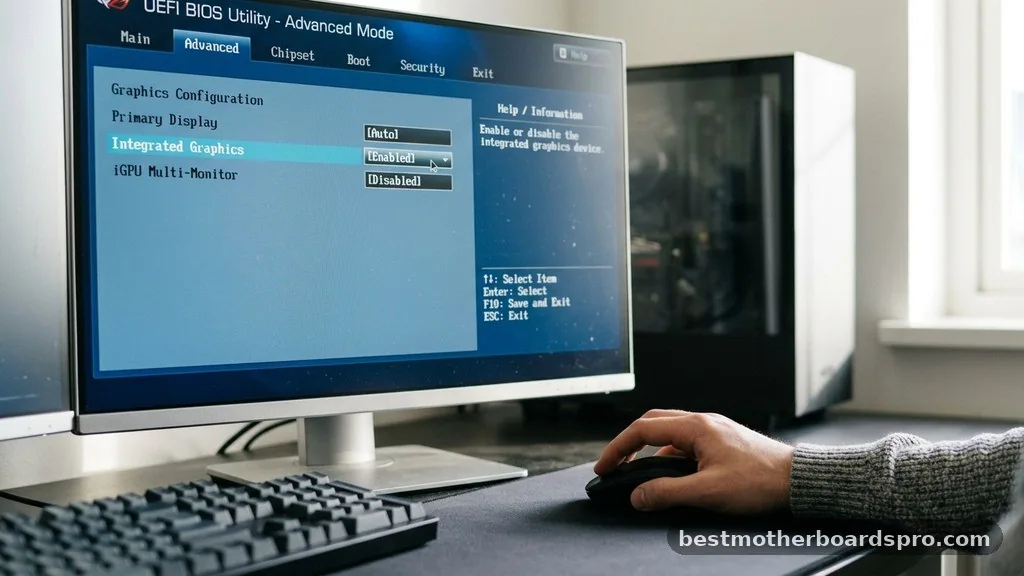
After you locate the graphics configuration menu, you will see options that allow you to manage how the system handles displays. To enable the motherboard HDMI, you must change the status of the integrated graphics from “Disabled” or “Auto” to “Enabled” or “Always On.”
If you are using a dedicated graphics card alongside the integrated one, look for an option called “IGPU Multi-Monitor.” Setting this to “Enabled” allows both your dedicated GPU and the motherboard HDMI port to function simultaneously. This is the ideal configuration if you want to use a second monitor that doesn’t require high-end graphical processing.
- Ensure your CPU supports integrated graphics before changing settings.
- Save and exit the BIOS by pressing F10 to apply your changes.
- Verify that your monitor is set to the correct input source, such as HDMI 1 or HDMI 2.
- Check Windows Device Manager to see if the integrated graphics adapter is recognized.
Addressing Common Display Issues in Windows
If you have successfully enabled the setting in the BIOS but the monitor remains dark, the issue might be related to your Windows drivers. Sometimes, the operating system fails to automatically install the necessary software for the integrated graphics controller.
Head to the manufacturer’s website for your specific motherboard or CPU. Download the latest graphics drivers for your integrated chipset and install them manually.
Restarting your computer after this installation often forces the system to detect the second monitor. You can then right-click on your desktop, select “Display Settings,” and click “Detect” to configure your multiple displays.
Troubleshooting When HDMI Still Fails
If you still can’t get a signal, consider the possibility of a hardware conflict or a faulty cable. Swap your HDMI cable with one you know is working to rule out a simple connection failure. If that doesn’t work, try connecting the monitor directly to the motherboard without any other monitors attached to the dedicated GPU.
If the monitor works in this isolated state, the issue is likely a priority conflict between your GPU and the motherboard. Some motherboards automatically prioritize the dedicated card and disable the integrated port as a fail-safe. In these cases, you might need to check if a newer BIOS update is available from the manufacturer, as these updates often resolve compatibility issues with modern displays.
FAQ
Why isn’t my motherboard HDMI port working even after I enabled it?
If the port is enabled in the BIOS but remains inactive, ensure your CPU actually contains integrated graphics. Many high-performance processors lack this feature, meaning the motherboard port cannot transmit a signal regardless of the software settings. Also, verify that your display drivers are fully updated in Windows.
Can I use my motherboard HDMI and a graphics card at the same time?
Yes, you can often use both simultaneously by enabling the IGPU Multi-Monitor setting within your BIOS. This allows the system to utilize the dedicated graphics card for primary tasks while the integrated graphics chip handles secondary displays, which is perfect for productivity setups requiring multiple monitors.
What should I do if I can’t find the integrated graphics setting in my BIOS?
If the setting is missing, it is likely because your motherboard firmware is hiding it due to the absence of a compatible CPU. Alternatively, ensure you are in “Advanced Mode” rather than “Easy Mode.” Some manufacturers hide advanced configuration options until you manually switch the interface view in the BIOS.
Does enabling motherboard HDMI affect my gaming performance?
Enabling integrated graphics generally has a negligible impact on your primary gaming performance. Since your dedicated graphics card handles the heavy rendering for your main display, the integrated chip simply manages the desktop environment for secondary screens, consuming very little of your system’s overall processing power or memory.
Final Thoughts on Motherboard Display Connectivity
Getting your motherboard HDMI port working is usually a straightforward process of toggling a single setting in your BIOS. By following the steps outlined, you can effectively manage your display setup and take advantage of the ports already present on your hardware. Remember that consistent driver updates and correct BIOS configurations are the most reliable ways to maintain a stable connection.
If you run into persistent trouble, checking the specific documentation for your motherboard model will often reveal nuances unique to your hardware. With these adjustments in place, your system should be ready to support the additional displays you need for your workflow. Feel free to revisit these steps if you upgrade your hardware or reset your system configurations in the future.



