


Figuring out where an SSD goes on a motherboard can feel like a high-stakes puzzle, especially when you’re staring at a printed circuit board full of mysterious ports and slots. Whether you’re building a new machine or looking to boost your system‘s performance, knowing exactly which connection to use is essential. Modern PCs offer a few different ways to connect storage, and selecting the right one depends heavily on the specific drive you’ve purchased.
By identifying the correct physical interface, you’ll ensure your hardware is recognized immediately and runs at its peak speed. Let’s break down exactly how to locate these ports and get your storage up and running without any unnecessary stress.
Identifying Your SSD Type
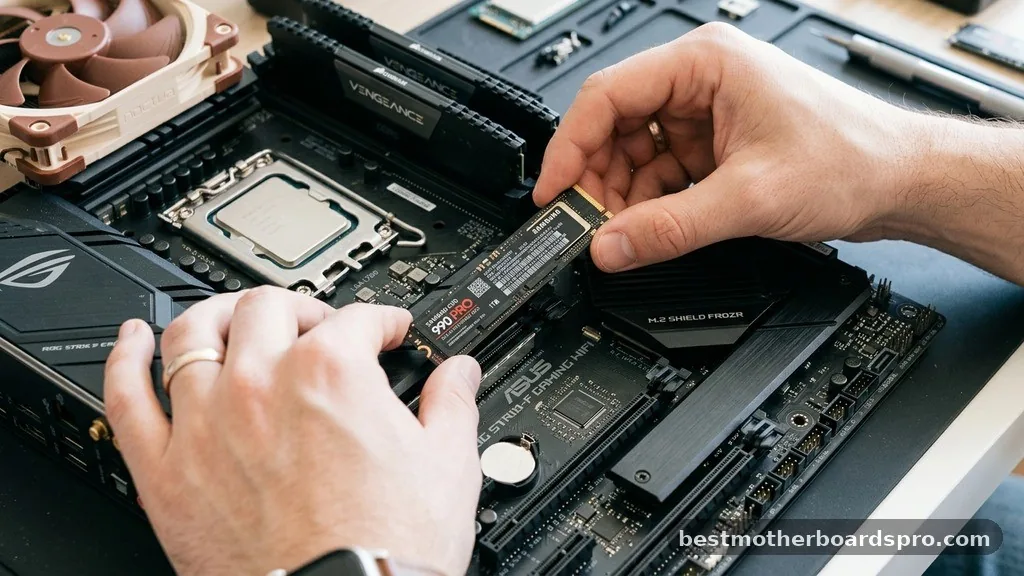
Before you start hunting for a slot, you need to identify the physical form factor of your drive. Not all solid-state drives are the same, and their physical differences dictate exactly where they fit on your motherboard. The two most common types you will encounter today are M.2 NVMe drives and traditional SATA SSDs.
M.2 drives look like small sticks of gum. They are slim, compact, and designed to plug directly into a dedicated slot on the motherboard surface. SATA SSDs, on the other hand, are rectangular boxes about the size of a deck of cards.
These older, bulkier drives require cables to connect to the board and a separate power lead from your power supply unit. Knowing which version you hold in your hand is the first step toward a successful installation.
Locating the M.2 Slot for NVMe Drives
If your drive is the stick-like M.2 variety, you are looking for a flat, horizontal slot usually located near the CPU socket or tucked between PCIe expansion slots. These slots are distinct because they feature a small standoff hole at the end, designed to hold the drive in place with a single tiny screw.
When installing, you insert the drive at a slight angle—usually about 30 degrees—into the keyed slot. Once seated, you gently push it down so that it sits parallel to the motherboard.
You then secure the drive using the screw provided with your motherboard. Some newer boards include heatsinks that cover these slots; if yours has one, you’ll need to unscrew the heatsink first, remove the plastic film from the thermal pad, and then secure the drive underneath it.
Connecting a SATA SSD
If you have a 2.5-inch SATA drive, it does not plug directly into the motherboard. Instead, you need to find the SATA ports located along the edge of the board. These are usually grouped together and look like small, L-shaped plastic connectors.
You will need two cables for this type of drive:
- A SATA data cable, which connects the drive to the motherboard.
- A SATA power cable, which runs from your power supply unit to the drive.
Plug one end of the data cable into the motherboard’s SATA port and the other end into the back of your SSD. Then, connect the power cable from your power supply to the remaining port on the drive. It’s a straightforward process, but it does leave you with more wires to manage inside your case compared to the cleaner M.2 setup.
Comparison of Storage Interface Types
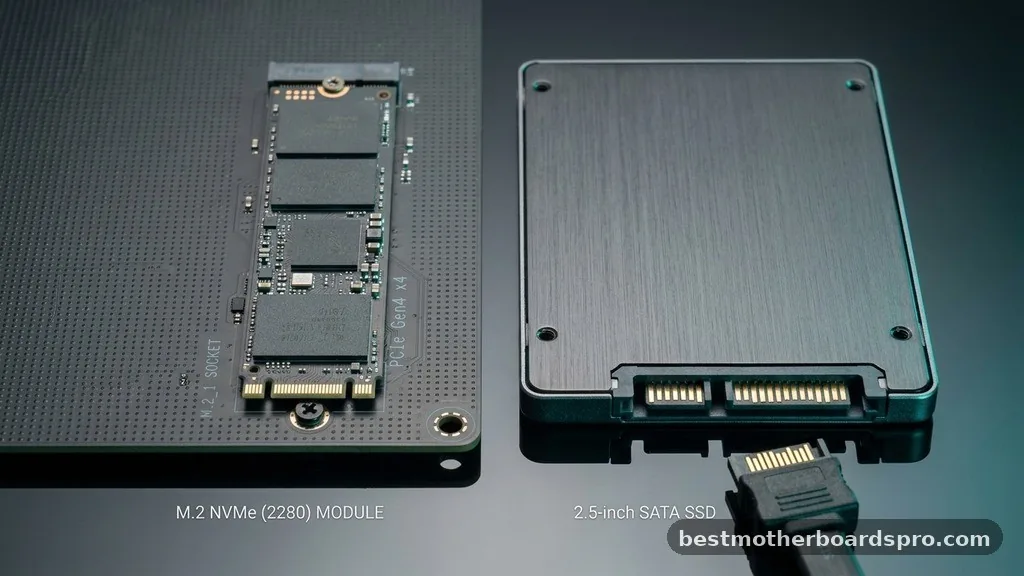
Understanding the technical differences helps you make informed decisions when upgrading your system. The following table highlights the key distinctions between the primary storage standards found on modern motherboards.
| Feature | M.2 NVMe SSD | 2.5-inch SATA SSD |
|---|---|---|
| Connection Method | Direct motherboard slot | Cables (Data + Power) |
| Installation Ease | High (No cables) | Moderate (Requires cable routing) |
| Performance | Extremely high speed | Standard speed |
| Space Requirements | Minimal | Requires drive bay/mounting |
Common Installation Pitfalls
Even with the right knowledge, it is easy to make small mistakes during the installation process. One common issue is failing to use the motherboard standoff.
If you try to screw an M.2 drive directly into the board without that small metal riser, the drive will sit at an angle and might not make a solid connection. Always check your motherboard box for the spare parts kit if you cannot find the screw pre-installed.
Another frequent oversight involves the BIOS. Sometimes, after you have physically placed the drive, the system won’t immediately recognize it as a boot device.
You may need to enter your BIOS settings—usually by pressing Del or F2 during startup—to ensure the storage controller is set to AHCI or NVMe mode. If the drive doesn’t appear in the boot priority list, check that your cables are fully seated or that the M.2 drive is pushed firmly into its connector.
Addressing Topical Gaps
Many users struggle with the physical limitations of their hardware, specifically regarding how many drives a single board can support. Most consumer motherboards provide at least one M.2 slot and four to six SATA ports. However, some boards share bandwidth between these ports.
If you install an M.2 drive in a specific slot, the motherboard might automatically disable one or two of your SATA ports. This is a common design trade-off to save space. Always check your motherboard manual if you find that a SATA drive stops working after you add an M.2 stick.
Additionally, heat management is a growing concern. High-speed NVMe drives can get quite hot under heavy workloads.
If your motherboard does not come with a built-in heatsink, consider buying an aftermarket M.2 heatsink. These simple aluminum covers clip onto the drive and significantly improve thermal performance, preventing the drive from slowing down during long file transfers.
Frequently Asked Questions
Do all motherboards have an M.2 slot for an SSD?
Most modern motherboards manufactured within the last five to seven years include at least one M.2 slot. However, older boards or very entry-level budget models might only support traditional 2.5-inch SATA drives. Always verify your motherboard specifications or check the board visually for the M.2 mounting hole.
Why is my new SSD not showing up in Windows?
If the physical connection is secure, the drive likely needs to be initialized. Right-click the Start button, select Disk Management, and look for a drive labeled as Unallocated. You will need to create a new simple volume to format the drive so Windows can recognize and use it.
Can I use multiple SSDs on one motherboard?
Yes, you can use multiple drives as long as your motherboard has enough physical slots and ports. You can mix and match M.2 NVMe drives and SATA SSDs to maximize your storage capacity, provided your power supply has enough available SATA power connectors for the extra drives.
Does the specific SATA port I use matter for performance?
For most users, the difference is negligible. However, some motherboards distinguish between ports controlled by the chipset and those controlled by third-party controllers. It is generally best practice to plug your primary boot drive into the lowest-numbered SATA port, typically labeled SATA 0 or SATA 1.
Closing Thoughts
Successfully identifying where an SSD goes on a motherboard is a fundamental skill for any PC enthusiast. Whether you are opting for the sleek, cable-free convenience of an M.2 NVMe drive or the reliable, high-capacity nature of a SATA SSD, the process boils down to recognizing the interface and securing the hardware properly. Take your time, consult your motherboard manual if you encounter any ambiguity, and ensure all connections are firm.
Once you’ve finished the physical installation and configured your settings in the BIOS, you’ll be ready to enjoy the faster boot times and improved system responsiveness that come with a well-installed storage upgrade. If you run into any trouble, double-check your cable seating or M.2 screw placement, and your system will be up to speed in no time.



