

Getting your system up and running starts with the foundation of your computer, which is why learning how to install a motherboard properly is a skill every builder should master. This central component acts as the nervous system for your hardware, linking the processor, memory, and storage into a single, functional machine.
While the process might seem intimidating at first, it mainly requires a steady hand, a bit of patience, and the right sequence of actions. By following a logical workflow, you can avoid common pitfalls, protect your delicate pins, and ensure every connection is secure before you push the power button for the first time.
Preparing Your Workspace for Component Assembly
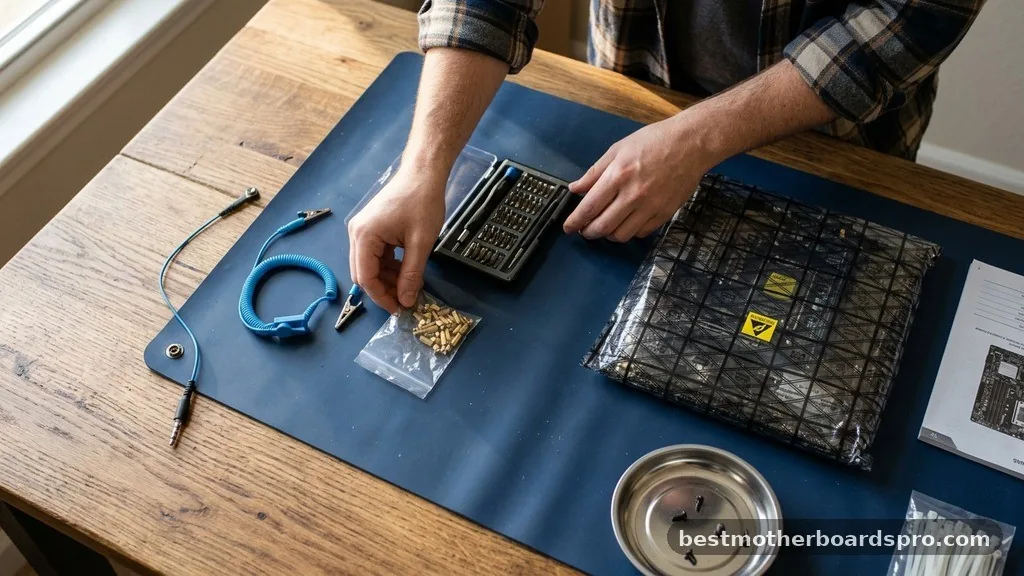
Before you touch any hardware, creating a safe environment is essential. Static electricity is the silent enemy of sensitive electronics, so you should work on a non-conductive surface like a wooden table rather than a carpeted floor. Touching a metal object regularly or wearing an anti-static wrist strap helps dissipate any built-up charge.
Gather your tools early. You will need a standard Phillips-head screwdriver, preferably one with a magnetic tip, to handle the small screws that secure the board.
Keep your motherboard manual within reach throughout the entire process. It contains specific information regarding pin layouts, RAM slot priority, and unique features of your specific board.
Understanding Standoffs and Case Compatibility
One of the most critical steps in the installation process involves the standoffs. These small metal or plastic spacers act as a bridge between the back of the motherboard and the metal wall of your computer case. Without them, your board would touch the metal chassis directly, leading to a short circuit that could permanently damage your components.
Most modern cases come with pre-installed standoffs, but you must verify that their layout matches your specific motherboard form factor. If your case uses an ATX board but has Micro-ATX standoffs installed, you must move or remove them before proceeding. Always check the alignment by holding the board gently over the case to see if the mounting holes line up with the standoffs beneath.
Installing the CPU and RAM Outside the Case
Experienced builders often prefer installing the CPU, cooler, and RAM before lowering the motherboard into the chassis. This approach provides much more room to work and prevents you from having to reach into cramped corners later on.
When you handle the CPU, avoid touching the gold contacts on the bottom. Open the retention arm, align the golden triangle on the corner of the processor with the corresponding mark on the socket, and drop it in gently.
Once the CPU is seated, apply a pea-sized amount of thermal paste if your cooler doesn’t have it pre-applied, then secure the cooling unit. Installing the RAM is equally straightforward; open the clips on the slots, align the notch on the memory stick with the bridge in the slot, and press down firmly until you hear a definitive click.
| Component | Installation Priority | Ease of Access |
|---|---|---|
| CPU | High (First) | Easy (Outside Case) |
| RAM | Medium (Second) | Easy (Outside Case) |
| Power Cables | Low (Last) | Difficult (Inside Case) |
| Front Panel Connectors | Low (Last) | Very Difficult (Inside Case) |
Securing the Motherboard into the Chassis

Now that your core components are attached, it is time to move the board into the case. If your board does not feature a pre-installed I/O shield, snap the metallic plate into the rectangular opening at the back of the case first. This is a common step that many people forget, and it is notoriously frustrating to fix once the board is screwed in.
Lower the board into the case at an angle, guiding the rear ports into the I/O shield opening. Once the board rests flat against the standoffs, use the screws provided with your case to secure it. Tighten them just enough to hold the board firmly in place, but avoid over-tightening, as this can crack the PCB or damage the mounting holes.
Managing Internal Cabling and Connections
With the board anchored, you need to connect the various cables that bring your system to life. Start with the main power cables, which include the large 24-pin connector and the 8-pin CPU power cable located near the top of the board. These are essential for providing consistent voltage to your system.
Next, address the front panel connectors. These tiny cables control your power button, reset switch, and LED indicators.
Because these headers are often clustered in a small corner of the board, refer to your manual to ensure you are plugging them into the correct pins. If you struggle to see the labels on the board, a small flashlight or your phone’s camera can be very helpful for reading the fine print.
- 24-pin ATX power cable for general system power.
- 8-pin EPS cable for dedicated CPU power.
- USB 3.0 headers for front-facing case ports.
- HD Audio cable for your headphone and microphone jacks.
- SATA cables for legacy hard drives or optical drives.
Addressing Common Installation Hurdles
Even with careful planning, unexpected issues can arise. One frequent question involves the “missing” screw hole or a standoff that doesn’t align.
If you encounter this, double-check your motherboard’s form factor against the case specifications. Another common issue is failing to plug in the CPU cooler fan to the “CPU_FAN” header, which will cause your system to trigger a BIOS error immediately upon startup.
If your computer fails to post—meaning it won’t display anything on the monitor—check your RAM sticks first. They are often not pushed in fully, even if they feel secure.
Removing them and reseating them with a bit more force usually solves the problem. Always make sure your monitor is connected directly to the graphics card rather than the motherboard if you have a dedicated GPU, as the onboard ports are often disabled in that configuration.
Final Checks and First Power-On
Before you seal up the side panel, do a quick visual sweep. Check that no stray cables are touching the blades of your cooling fans. Ensure that all components are fully seated and that you haven’t left any loose screws rattling around the bottom of the case, as these can cause a short circuit.
Once everything looks clear, connect your power supply to the wall outlet and flip the switch on the back of the power supply unit. Press the power button on your case and watch for signs of life.
Your fans should spin, and lights should turn on. If your motherboard has debug LEDs, watch for them to cycle through their sequence; this is a helpful indicator that the board is performing its power-on self-test.
Conclusion
Successfully completing the installation of a motherboard is a major milestone in any custom PC build. You have now established the backbone of your computer, ensuring that all vital parts can communicate effectively. If you followed the steps outlined, you likely have a stable, functioning machine ready for an operating system and your favorite software.
Remember that the manual provided by the manufacturer is always your best resource if you run into specific quirks or proprietary connectors. Should you decide to upgrade in the future, the experience you gained while installing a motherboard will make the next transition much smoother. Don’t hesitate to reach out to community forums or support channels if you encounter a unique configuration issue, as there is always a wealth of knowledge available for every specific product.
Frequently Asked Questions
Can I install a new motherboard without reinstalling Windows?
Technically, yes, but it is rarely recommended. Modern Windows versions are better at handling hardware changes, but leftover drivers from your old board can cause stability issues or performance drops. A fresh installation is the only way to ensure your system runs at peak efficiency and remains error-free.
Are motherboards hard to install for a beginner?
Installing a motherboard is not inherently difficult, but it requires patience and a gentle touch. The biggest challenges involve managing tiny cables and ensuring the board is properly aligned with the standoffs. If you work slowly and follow your manual, most beginners can manage the process without any major issues.
What screws should I use when mounting the board?
You must use the specific screws provided with your computer case. These screws are designed to thread perfectly into the standoffs. Avoid using random screws found in your junk drawer, as they may have the wrong thread pitch and could strip the threads of the standoff, making it impossible to secure the board.
What should I do if the computer won’t turn on after installation?
Start by verifying that the power supply switch is set to the “I” position. Check that the front panel power switch cable is connected to the correct pins on the motherboard. If the fans still don’t spin, ensure the 24-pin and 8-pin power cables are fully snapped into their respective sockets.



