

Determining how much RAM can my motherboard handle is one of the most common hurdles when upgrading a computer. Before you purchase additional memory modules, you must verify the physical and technical limits of your specific hardware. Many users assume that extra slots automatically mean higher capacity, but the motherboard’s chipset and CPU architecture often dictate the true ceiling for your system.
By identifying your exact hardware specifications, you can avoid common pitfalls like purchasing incompatible memory speeds or exceeding the total gigabyte limit supported by your board. Understanding these constraints ensures your next performance boost is both effective and stable.
Identifying Your Motherboard Specifications
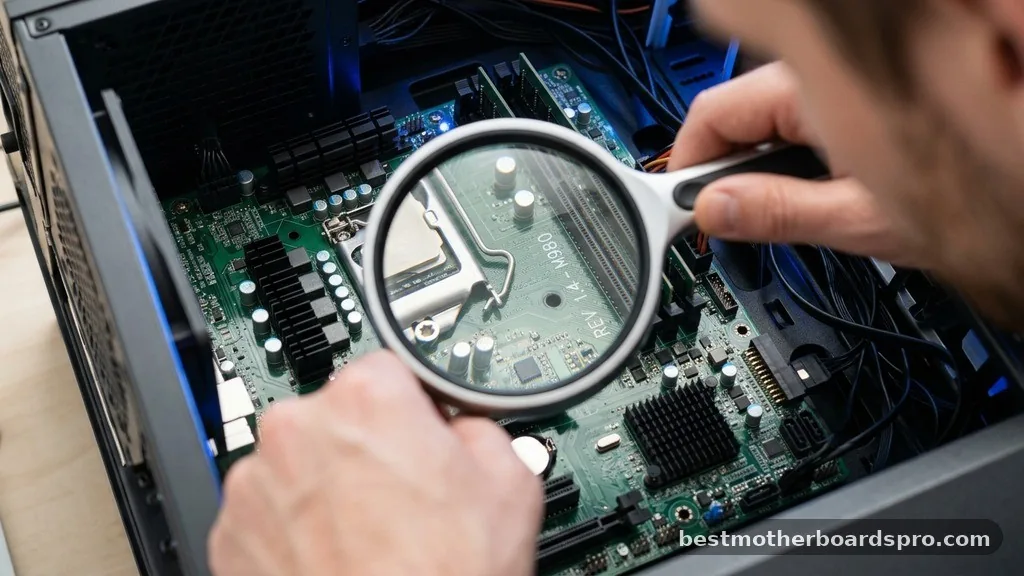
To find out how much RAM your system supports, you first need to identify the exact make and model of your motherboard. Modern computers often rely on pre-built configurations, which can sometimes obscure the specific board version used by the manufacturer. If you are building or upgrading a custom rig, you likely have the documentation on hand, but for most people, software tools are the fastest way to gather this information.
You can use the Windows System Information tool to get a quick overview of your hardware. Simply type “msinfo32” into your start menu search bar, and the system summary will display your baseboard manufacturer and product name.
Once you have this string, you can cross-reference it with the official support page provided by the manufacturer. This information is critical because even within the same product line, different revisions of a motherboard may have different memory limits.
Using Compatibility Tools and Manufacturer Databases
If you want to skip the manual research, many memory manufacturers provide a compatibility tool on their websites. These tools are designed to help users find exactly which memory kits are guaranteed to work with their specific build. By entering your computer’s make and model, the tool filters out incompatible modules, saving you from the headache of returning hardware that refuses to boot.
These databases are incredibly useful because they account for nuances like memory voltage, timings, and the total number of sticks required to reach the maximum capacity. While these tools are excellent, you should always verify the results against the official motherboard manual. Sometimes, a manufacturer will release a BIOS update that increases the maximum supported memory capacity long after the board was first manufactured.
- Check the official motherboard support page for the latest BIOS update notes.
- Use a reputable memory manufacturer’s online scanner for a quick compatibility check.
- Verify the maximum capacity per slot versus the total capacity of the board.
- Ensure the memory speed matches the XMP or EXPO profiles supported by your CPU.
Understanding Memory Channels and Slot Limitations
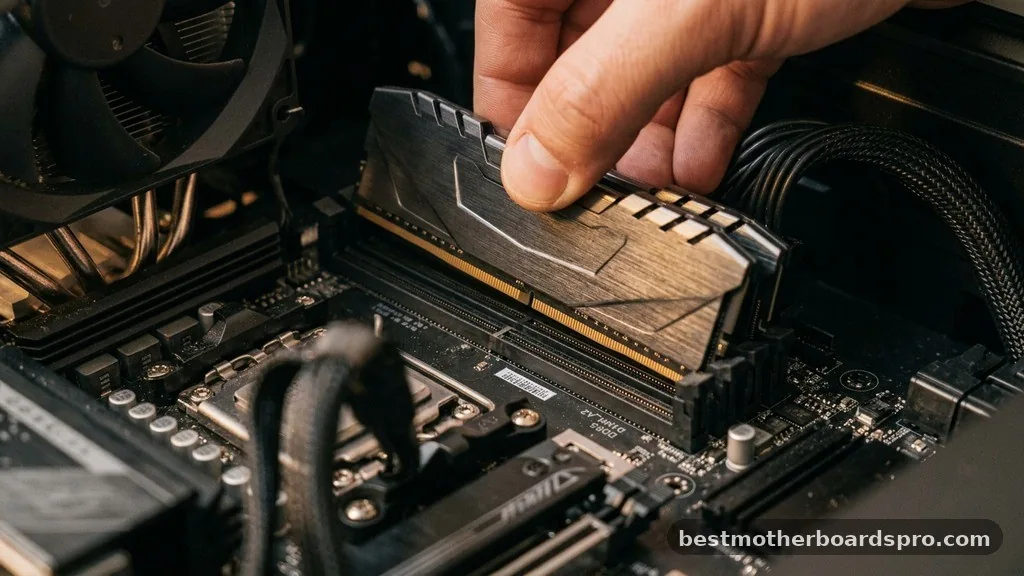
Your motherboard is designed with a specific number of memory slots, usually two or four. A common mistake is assuming that if you have four slots, you can simply fill all of them with the largest sticks available. However, each slot has a specific capacity limit, and the motherboard chipset has a total limit for the entire system.
For example, a board might support 16GB sticks in two slots for a total of 32GB, but if you try to use four 16GB sticks, the system might fail to post because it cannot manage the addressing for that much memory. Always check the “Memory Support” or “Specifications” tab on the product page. You will often see a table that outlines the maximum density allowed per slot.
| Component | Typical Limit (Desktop) | Typical Limit (Laptop) |
|---|---|---|
| Standard Slots | 2 to 4 | 1 to 2 |
| Max Capacity (Mid-range) | 64GB | 32GB |
| Max Capacity (High-end) | 128GB+ | 64GB |
Addressing Common Compatibility Pitfalls
The most frequent issue users face when upgrading is the difference between physical fit and electronic compatibility. Even if a stick of RAM fits into the slot, it might not be compatible with your processor or the motherboard’s memory controller.
This is particularly true when moving between different generations of DDR memory. DDR4 and DDR5 modules are physically keyed differently, meaning you cannot force a newer module into an older slot.
Another factor is memory frequency. If your motherboard supports a maximum speed of 3200MHz, installing 4000MHz RAM will not damage your system, but the memory will be down-clocked to run at the slower speed.
In some cases, the system might refuse to boot entirely if the BIOS cannot automatically negotiate the speed difference. Always check the QVL (Qualified Vendor List) provided by the manufacturer if you are aiming for high-performance memory.
Filling the Gaps: Why Some Boards Have Lower Limits
You might wonder why two motherboards with the same socket type have vastly different RAM capacities. The answer lies in the CPU’s integrated memory controller and the motherboard’s trace layout.
High-end motherboards use more complex PCB designs to maintain signal integrity at higher speeds and densities. Budget boards often cut costs by using fewer layers, which limits the electrical stability required for high-capacity memory configurations.
Furthermore, the chipset plays a massive role. An entry-level chipset might be artificially limited by the manufacturer to differentiate it from premium enthusiast boards.
This is why a top-tier CPU might technically be able to handle 128GB of RAM, but the entry-level motherboard paired with it might cap out at 64GB. Always check the specific chipset documentation if you are planning a professional workstation build that requires massive amounts of memory for virtualization or video editing.
FAQ
What is the maximum RAM capacity of my motherboard?
The maximum capacity is determined by the motherboard’s chipset and the design of its memory controller. You can find this by searching for your motherboard’s exact model number on the manufacturer’s website or by checking your user manual’s specifications section under the memory support category.
Is 64 GB of RAM overkill for gaming?
For most modern gaming titles, 64 GB is significantly more than what is required. Most games perform optimally with 16 GB to 32 GB of RAM. You would only benefit from 64 GB if you perform heavy multitasking, video editing, or run multiple virtual machines alongside your games.
How do I tell if RAM is compatible with my motherboard?
To ensure compatibility, check your motherboard’s Qualified Vendor List (QVL) on the official website. This list contains specific memory kits tested by the manufacturer to work reliably. Additionally, ensure the memory generation, such as DDR4 or DDR5, matches the slot type on your board.
Can I mix different brands or speeds of RAM?
While you can physically mix different sticks, it is not recommended for system stability. If you mix speeds, the system will default to the frequency of the slowest module. Mixing brands can lead to timing conflicts, causing system crashes or failure to boot into your operating system.
Conclusion
Verifying how much RAM can my motherboard handle is a fundamental step in any hardware upgrade. By taking the time to consult your motherboard’s official specifications, checking the QVL, and using compatibility tools, you protect your system from stability issues and wasted investment. Whether you are aiming to improve performance for professional creative work or simply want to ensure your gaming rig runs smoothly, knowing your hardware limits is essential.
Always remember that more memory is only beneficial if your applications can actually utilize it. If you find your system is reaching its capacity, start with a balanced upgrade that keeps your channel configuration in mind.
If you need further help, checking your BIOS version is a great next step, as updates often improve memory stability and support. Happy upgrading!



