

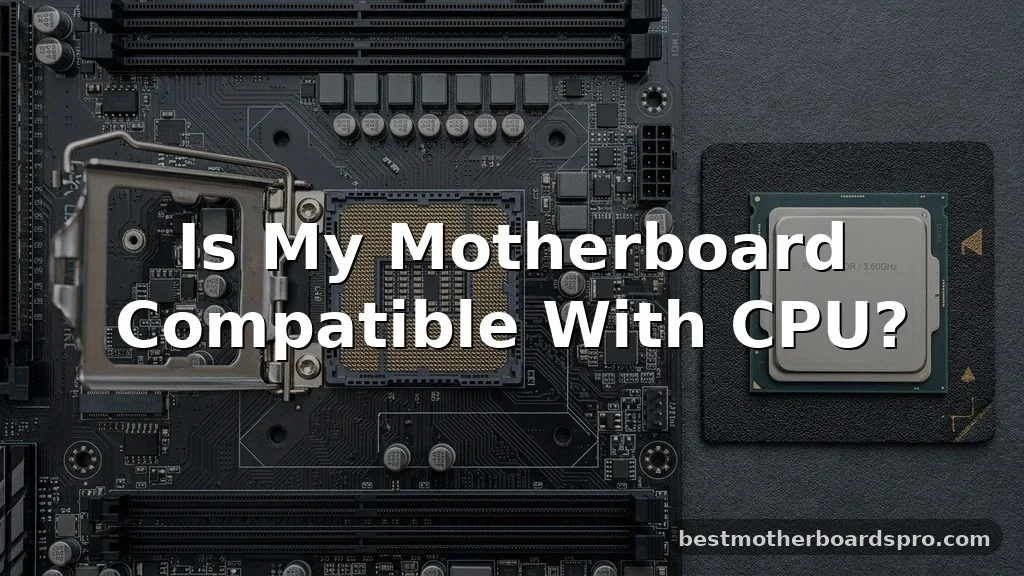
Figuring out whether your current hardware will house a new processor is the most critical hurdle in any PC build or upgrade. Before you start unscrewing your case, you need to confirm that your existing board supports the specific chip you have in mind.
If you are wondering if your motherboard is compatible with a CPU you just bought or plan to purchase, you are in the right place to learn how to verify your hardware specs. Matching these components requires more than just physical fit; it demands a deep look into the digital architecture that connects your system’s brain to its central nervous system.
Understanding the Socket Type
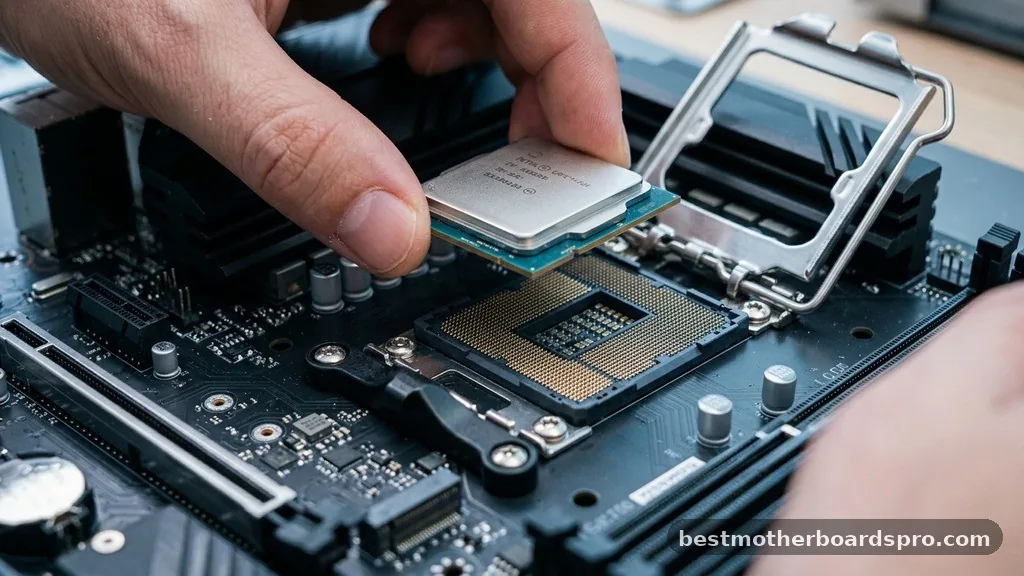
The most fundamental requirement for hardware synergy is the socket type. A processor must physically fit into the slot on your motherboard, and the pins must align perfectly with the contact points. If the socket does not match, you cannot install the processor, no matter how much force you apply—which you should never do.
Intel and AMD utilize different physical designs for their chips. For instance, Intel typically uses LGA (Land Grid Array) sockets where the pins are on the motherboard, while AMD has historically used PGA (Pin Grid Array) sockets, though their modern lines have shifted toward LGA-style designs for platforms like AM5.
* Intel LGA Sockets: These are identified by numbers like LGA 1700 or LGA 1200, which generally indicate the number of pins.
* AMD AM4: A long-standing platform that supports a wide range of Ryzen processors.
* AMD AM5: The newer standard utilizing a different pin layout, making it incompatible with older AM4 chips.
Checking the Chipset and Processor Support
Even if a processor fits physically, the chipset must be able to communicate with it effectively. The chipset acts as the traffic controller for your motherboard, dictating how the CPU interacts with memory, storage, and graphics cards. You can often find a CPU support list directly on the motherboard manufacturer support page for your specific model.
| Component | Role in Compatibility |
|---|---|
| Socket | Determines physical mounting and pin alignment. |
| Chipset | Manages data flow and feature set support. |
| BIOS/UEFI | Provides the firmware instructions for the CPU to boot. |
| VRM | Regulates power delivery for high-performance chips. |
You should always verify that your specific motherboard revision is listed as compatible with the exact Intel Core or AMD Ryzen model you intend to use. Sometimes, different board revisions have different power delivery capabilities, even if they share the same model name.
The Role of BIOS Updates
A common trap for builders is assuming a board is ready to go out of the box. Many motherboards require a BIOS update to recognize newer generations of processors. If your board supports a specific socket but was manufactured before a new CPU was released, the system might fail to post or even turn on.
Check the manufacturer’s website for your board’s “CPU Support” or “Compatibility” section. If you see your processor listed with a specific BIOS version next to it, you must ensure your current board is running at least that version.
If it isn’t, you might need to perform a flash update, which sometimes requires an older, supported CPU to be installed first. Some modern boards allow for a “BIOS Flashback” feature, which lets you update the firmware using only a USB drive and a power supply.
Addressing Power Delivery and VRM
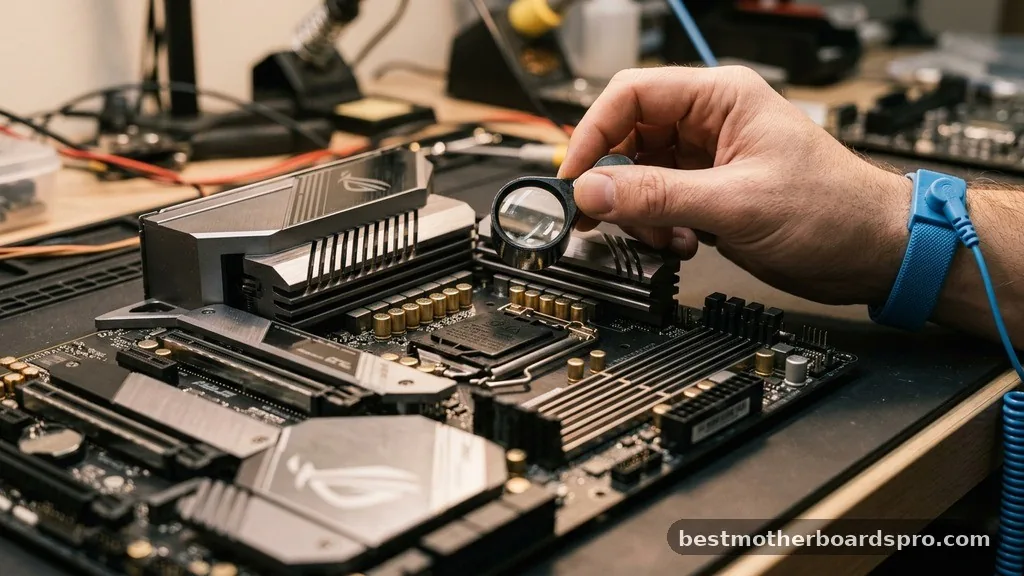
While physical fit and BIOS compatibility are the primary concerns, the VRM (Voltage Regulator Module) quality is equally important for system stability. A high-end processor with a high TDP (Thermal Design Power) requires clean, consistent power. If you pair a flagship CPU with a budget motherboard, the VRMs might overheat under load, causing the system to throttle performance to prevent damage.
When checking if your motherboard is compatible with a CPU, look at the power phase design of the board. A basic board might handle a low-wattage chip perfectly, but it could struggle to sustain the power demands of a high-core-count processor. Always cross-reference your CPU’s TDP with the recommended motherboard specifications to ensure the power delivery system is up to the task.
RAM Generation and PCIe Lanes
System architecture is not just about the processor; it involves the memory and expansion slots as well. You must ensure your motherboard form factor supports the RAM generation your CPU requires. Mixing up DDR4 and DDR5 is a common error, as these memory slots are physically keyed differently to prevent accidental installation.
Furthermore, consider the PCIe lanes provided by your chipset. If you are running multiple high-speed NVMe drives or a top-tier graphics card, a budget chipset might limit the total bandwidth available to these components.
Using a tool like PCPartPicker can help you visualize these bottlenecks before you commit to a purchase. It automatically flags if your chosen RAM or storage solution is incompatible with your selected motherboard and processor combination.
Common Pitfalls and How to Avoid Them
The most frequent mistake involves buying a new-generation CPU for a motherboard that physically matches the socket but lacks the chipset logic to run it. Always check the official QVL (Qualified Vendor List) provided by the manufacturer. This document is your ultimate authority for verifying parts.
- Ignore marketing buzzwords; verify the specific socket number.
- Don’t assume a board supports a CPU just because it’s the same brand.
- Check the power phase count if you are overclocking.
- Ensure your physical case supports the motherboard form factor (ATX, Micro-ATX, Mini-ITX).
- Always verify the BIOS version before attempting the first boot.
If you find that your current board is not compatible, you have two choices: return the CPU for one that matches your current board, or upgrade the motherboard to match the processor. The latter is usually the better path if you are looking for a significant performance jump.
FAQ
How can I check if my motherboard is compatible with my CPU?
The most reliable method is visiting the manufacturer’s website and searching for your specific motherboard model. Locate the support or compatibility section to find the CPU support list. This document explicitly states every processor model that has been tested and verified to work with your board.
Does my CPU have to match my motherboard exactly?
Yes, the CPU must match the motherboard’s socket type and chipset. While you don’t need the same brand for every component, the processor and motherboard must be designed for the same platform. A mismatch in socket type will prevent the CPU from even seating into the motherboard slot.
Can every CPU fit into any motherboard?
No, CPUs are not universal. Each processor is designed for a specific socket and chipset generation. Attempting to install a CPU into an incompatible socket will result in bent pins or permanent damage to the motherboard, as the electrical pinouts and physical dimensions vary wildly between generations.
What should I do if my CPU is not on the support list?
If your CPU is not on the official support list, do not attempt to install it. It likely means the motherboard’s chipset or power delivery system cannot support that specific chip. You should either look for a compatible processor or upgrade your motherboard to a model that supports your CPU.
Final Thoughts
Ensuring your components work together is the foundation of a stable and high-performing computer. By verifying the socket type, checking the official support lists, and confirming your BIOS is up to date, you eliminate the guesswork that often leads to hardware failure. Whether you are building from scratch or replacing an aging chip, taking the time to confirm if your motherboard is compatible with a CPU will save you hours of troubleshooting and potential damage to your investment.
Remember that compatibility is a moving target, especially with firmware updates and new hardware releases. Always consult the latest documentation from your component manufacturers.
If you run into specific error codes or boot issues, re-check your BIOS version first, as that is the culprit in the vast majority of cases. Happy building, and don’t hesitate to reach out to community forums or manufacturer support if you encounter a unique configuration challenge.



