


Identifying your computer’s hardware is a task every PC enthusiast eventually faces, whether you are planning a RAM upgrade, troubleshooting a driver conflict, or simply curious about your system’s specs. If you need to check what motherboard I have, you don’t necessarily need to open your computer case or hunt for a tiny serial number printed on a board.
Modern operating systems and built-in tools provide several straightforward ways to extract this information digitally. By learning these methods, you can quickly identify the exact board powering your machine and make informed decisions about future hardware compatibility without the risk of physically dismantling your desktop or laptop.
Using Windows System Information
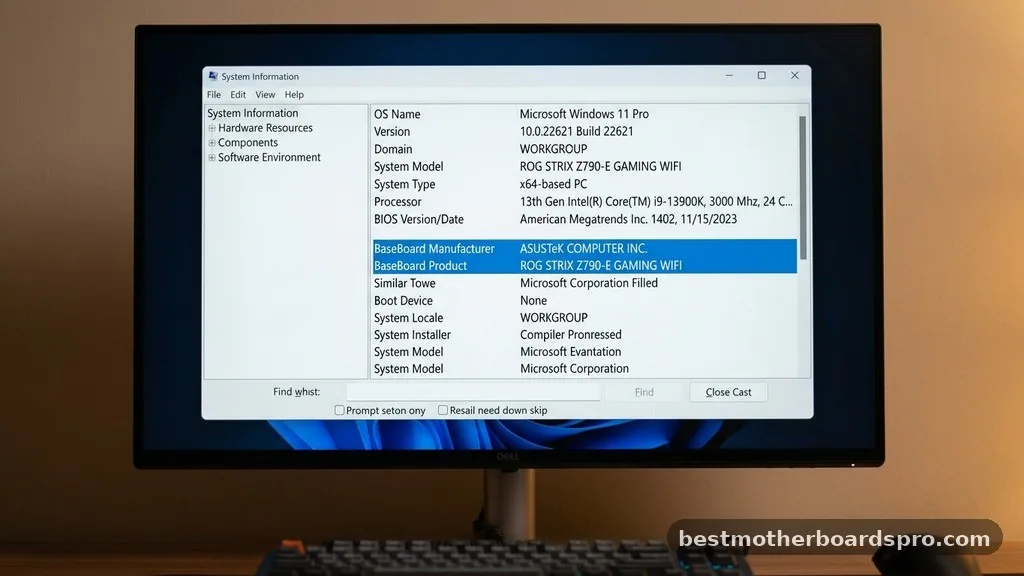
The most direct way to identify your hardware on a Windows machine is through the System Information utility. This tool is built into every version of Windows and provides a comprehensive overview of your core components, including the baseboard manufacturer and product name.
To get started, press the Windows key on your keyboard and type “System Information” into the search bar. Once the application appears in the results, click it to open the window. In the main “System Summary” view, look for the following entries:
- BaseBoard Manufacturer: This tells you the company that built the board, such as ASUS, MSI, Gigabyte, or ASRock.
- BaseBoard Product: This is the specific model name you need for driver updates or compatibility checks.
- BaseBoard Version: Useful if you are looking for specific revision numbers.
If you find that the fields show “Not Available,” it is often because you are using a virtual machine or the manufacturer did not properly program the BIOS strings during assembly. For most retail and custom-built PCs, however, this method is the fastest way to find the data you require.
Command Prompt Methods for Power Users
If you prefer using the command line or need to perform this task remotely, the Windows Command Prompt (CMD) is an incredibly efficient tool. It bypasses the graphical interface and pulls data directly from the system management BIOS (SMBIOS) tables.
Open the Command Prompt by typing “cmd” into your search menu. Once the terminal window is open, type the following command and press Enter:
wmic baseboard get product,Manufacturer,version,serialnumber
The system will instantly display the manufacturer, product name, version, and serial number of your motherboard. This is particularly useful if you are trying to verify your hardware identity without clicking through several menus. If you want to see just the product name, you can simplify the command to:
wmic baseboard get product
This command is excellent for scripting or if you are managing multiple machines and need a quick way to catalog the hardware installed in each unit.
Accessing Hardware Details via UEFI BIOS
Sometimes, your operating system might not report the details correctly, or you might be troubleshooting a system that fails to boot into Windows. In these instances, the UEFI BIOS is your most reliable source of truth. Because the BIOS sits at the lowest level of software, it always has direct access to the motherboard’s hardware identification strings.
To access this, restart your computer and repeatedly press the designated key for your system—usually Delete, F2, F10, or F12—as soon as the splash screen appears. Once inside the BIOS interface, look for a “Main,” “System Information,” or “About” tab.
The motherboard model is almost always listed prominently on this screen. While you are there, you can also check the current BIOS version, which is helpful to know if you are planning to update your firmware to support a newer CPU generation.
Comparing Methods for Identifying Hardware
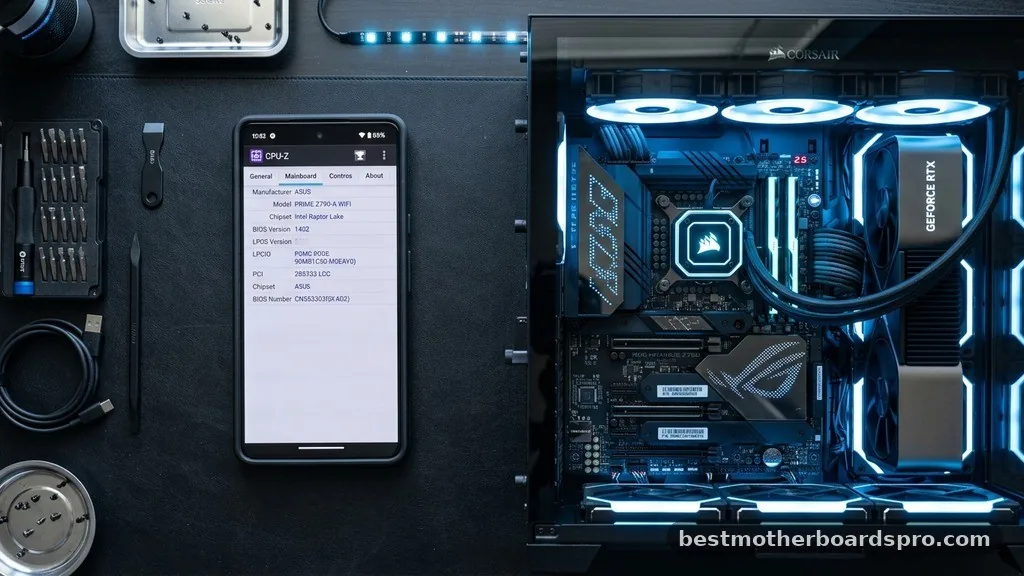
Choosing the right tool depends on your current situation, such as whether you are logged into Windows or stuck in the BIOS. The following table compares the different approaches to help you decide which is best for your needs.
| Method | Ease of Use | Best For | Requires Windows? |
|---|---|---|---|
| System Information | High | General users | Yes |
| Command Prompt | Medium | Power users/Scripts | Yes |
| UEFI BIOS | Low | Pre-boot troubleshooting | No |
| Physical Inspection | Very Low | Dead systems | No |
Checking Hardware on macOS
Apple computers handle hardware identification differently than Windows PCs. Because Apple controls both the hardware and the software, you won’t find a standard “motherboard” in the same way you would with a custom PC. Instead, you have a logic board.
If you are using a Mac, you can find your model information by clicking the Apple menu in the top-left corner and selecting “About This Mac.” This will show you the specific model name and year of your machine. If you need deeper details, such as the serial number or specific hardware identifiers, you can use the System Report tool:
- Open the Apple menu and hold the Option key.
- Select “System Information” from the menu.
- Navigate to the “Hardware” section in the sidebar.
- Look for “Model Identifier” or “Boot ROM Version” to get specific board details.
Third-Party Software Solutions
If the built-in tools feel too limited or you want a more user-friendly interface that displays everything at a glance, third-party software is a great alternative. Programs like CPU-Z or HWInfo are industry standards for enthusiasts who frequently need to check what motherboard I have.
CPU-Z, in particular, is a lightweight utility that provides a dedicated “Mainboard” tab. It clearly displays the manufacturer, model, chipset, and even the current BIOS version. Because these tools read directly from the hardware sensors, they are often more accurate than generic Windows reports, especially if you have a custom-built machine with a specialized BIOS.
Common Troubleshooting and Topical Gaps
Many users struggle when their computer returns a generic name like “To Be Filled by O.E.M.” in the system information fields. This typically happens with pre-built desktop computers from companies that use proprietary boards. In these cases, software tools may fail to return a specific model number.
If you encounter this, the best approach is to check the serial number on the physical case of your computer. You can then go to the manufacturer’s support website, enter that serial number, and view the original build specifications. This is the most reliable way to identify proprietary components that don’t follow standard naming conventions.
Additionally, some users ask if they can check their motherboard without turning the computer on. Aside from physically opening the case and looking for the model number printed on the PCB, this is difficult. If you are unable to power the unit, checking the original invoice, the box the computer came in, or the manufacturer’s support page using the system’s serial number are your only viable options.
FAQ
Will the BIOS tell me what motherboard I have?
Yes, the BIOS is the most accurate way to identify your hardware. By entering the BIOS menu during startup, you can see the exact model and manufacturer listed under the system information tab, which is useful if your operating system is failing to report the data correctly.
Can I find my motherboard details using the serial number?
If you have a pre-built computer, you can enter the serial number into the manufacturer’s support portal to see the original hardware specifications. This is often the best way to identify proprietary boards that do not display standard model numbers in Windows system utilities.
Does Windows 11 report motherboard information differently?
Windows 11 uses the same underlying tools as Windows 10, such as System Information and Command Prompt. While the interface design has changed to match the new operating system aesthetic, the way you access and retrieve motherboard data remains functionally identical to previous versions of Windows.
Why does my system say “BaseBoard Product: Not Available”?
This usually occurs if the motherboard manufacturer did not properly configure the SMBIOS strings during production or if you are running the system inside a virtual machine. In these cases, you will need to check the physical board inside your case for a printed model number.
Conclusion
Identifying the foundation of your computer is a vital skill that saves time during upgrades and troubleshooting. Whether you utilize the quick System Information utility in Windows, the precision of the Command Prompt, or the reliability of the UEFI BIOS, you now have the tools required to check what motherboard I have whenever the need arises. Remember that for custom builds, software tools are usually sufficient, while pre-built systems might require a check of the manufacturer’s support site using your serial number.
By mastering these digital methods, you avoid the hassle of opening your case and ensure your system remains in top shape. If you have any further questions about your specific hardware configuration, feel free to reach out and explore your system settings further.
