


Determining exactly what type of motherboard do I have is a common hurdle for anyone looking to upgrade their RAM, swap a processor, or troubleshoot hardware conflicts. Whether you are building a custom gaming rig or simply trying to maximize the lifespan of an older office desktop, the motherboard acts as the nervous system of your machine. Knowing the precise model allows you to download the correct drivers, verify compatibility for new components, and understand the limitations of your specific build.
Fortunately, you don’t need to be a computer engineer to uncover this information. You can easily identify your hardware using built-in software tools or a quick physical inspection.
Using Windows System Information
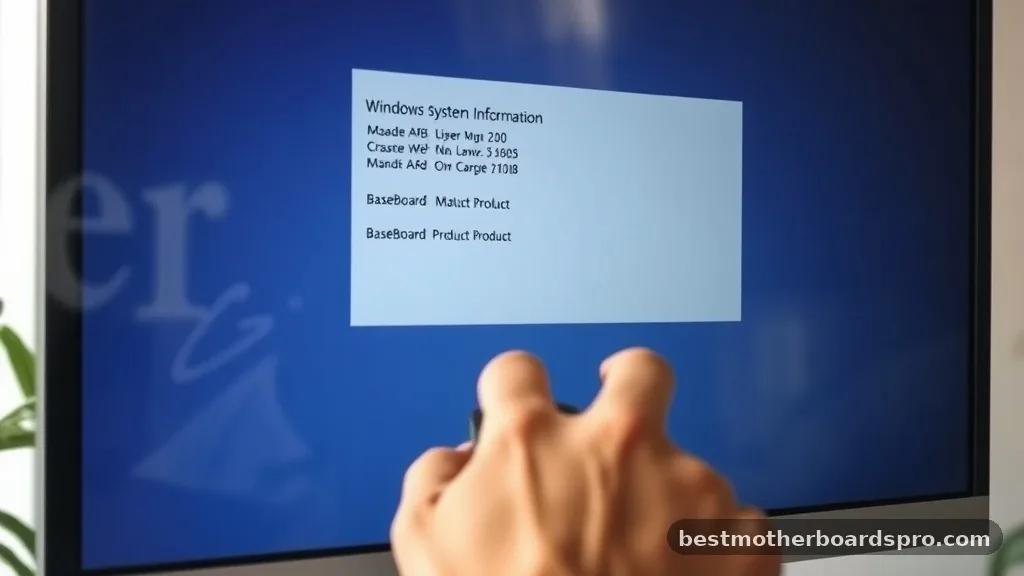
If your computer is running and stable, the fastest way to get your motherboard details is through the built-in Windows tools. You do not need to download third-party software to see the manufacturer and model name of your board.
Open the search bar on your taskbar and type “System Information.” Once the app launches, look for the “System Summary” section in the left-hand pane. In the main window, scroll down until you see the entries for “BaseBoard Manufacturer,” “BaseBoard Product,” and “BaseBoard Version.”
These fields will explicitly state your motherboard model. If the product name appears vague—sometimes labeled as “To be filled by O.E.M.” on pre-built systems—you may need to use the Command Prompt method described below.
Checking via Command Prompt
For users who prefer a text-based approach or need to extract data quickly, the Command Prompt is an incredibly efficient tool. This method bypasses the graphical interface and pulls the data directly from your hardware’s firmware.
Click the Start menu, type “cmd,” and open the Command Prompt. Once the window appears, copy and paste the following line exactly:
wmic baseboard get product,Manufacturer,version,serialnumber
Press Enter. The system will return the manufacturer and the specific model name of your motherboard. This command is particularly useful because it often reveals the serial number, which is helpful if you are contacting the manufacturer for support or checking warranty status on their official site.
Accessing BIOS or UEFI Settings
If your operating system is failing to load or you are in the middle of a troubleshooting session, you can find your motherboard details directly from the BIOS or UEFI interface. This is the most reliable way to identify your hardware because the information is pulled directly from the board’s own chip.
Restart your computer and repeatedly press the designated key to enter the setup menu. This is usually F2, F12, Del, or Esc, depending on your specific manufacturer. Once inside, look for a “System Information” or “Main” tab.
Your motherboard model will be listed clearly alongside your CPU and RAM capacity. Note that this interface varies significantly between brands like ASUS, MSI, Gigabyte, and ASRock, but the model information is almost always visible on the landing screen.
Physical Inspection of the Motherboard
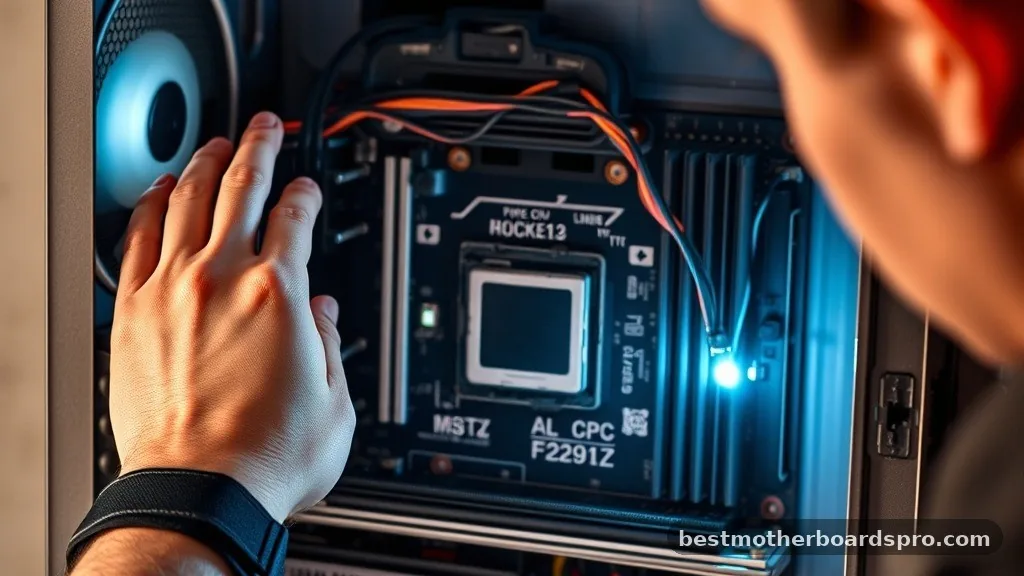
Sometimes, software might report a generic brand name, especially if you are working with a pre-built computer from a company like Dell, HP, or Lenovo. In these cases, the best way to verify what type of motherboard do I have is to open the computer case and look at the PCB itself.
Before you touch any internal components, ensure the computer is powered off and unplugged. Ground yourself by touching a metal part of the chassis to discharge static electricity.
Once you have a clear view of the motherboard, look for the model name printed directly onto the board’s surface. It is typically printed in large, white lettering near the CPU socket or between the PCIe slots.
| Identification Method | Ease of Use | Best For |
|---|---|---|
| System Information | Very High | Quick checks on Windows |
| Command Prompt | Medium | Extracting specific serial numbers |
| BIOS/UEFI | Medium | Troubleshooting boot issues |
| Physical Inspection | Low | Verifying pre-built/OEM boards |
Why Model Identification Matters
Knowing your specific motherboard model is critical for long-term maintenance. Every component you buy for your computer—from the RAM modules to the graphics card—must be compatible with the slots and bus speeds supported by your motherboard. If you fail to verify your board’s specifications, you risk buying hardware that simply will not fit or, worse, will not function at its full capacity.
- BIOS Updates: You need the exact model to download stable firmware patches from the manufacturer.
- RAM Upgrades: Different boards support different speeds, capacities, and types of memory (DDR4 vs. DDR5).
- CPU Compatibility: Your socket type dictates which processors are compatible with your machine.
- Driver Support: Proper chipset drivers are essential for system stability and performance.
Addressing Common Identification Gaps
Many users struggle when they discover their motherboard is an OEM (Original Equipment Manufacturer) board. If you bought a pre-built machine from a major retailer, the motherboard might be a proprietary design. These boards often lack the documentation found on retail motherboards.
If you find yourself in this situation, do not search for the model name on Google in hopes of finding a manual. Instead, use the serial number or the specific model of your desktop to look up the support page on the manufacturer’s official site.
For example, if you have an HP desktop, go to the HP support site and enter your system’s serial number. This will lead you to the specific documentation for your motherboard, including its pinouts, expansion limits, and supported components.
FAQ
Will BIOS always show my motherboard model?
Most BIOS or UEFI screens will display the motherboard model, but some pre-built OEM systems may only list a generic system model number. If your BIOS does not show the specific board model, you may need to check the manufacturer’s support portal using your computer’s serial number instead.
Can I check my motherboard model on a Mac?
Mac users can find their hardware details by clicking the Apple menu and selecting “About This Mac.” While this identifies the machine model and year, Apple uses proprietary logic boards rather than standard consumer motherboards, meaning you cannot easily upgrade them like a traditional Windows PC.
Is the motherboard model the same as the serial number?
No, the model name identifies the type and manufacturer of the board, such as “B550 Aorus Elite,” while the serial number is a unique string of characters assigned to your specific unit. You need the model name for compatibility, but the serial number is required for warranty claims.
Does Windows 11 change how I find my motherboard?
No, the process for identifying your hardware remains identical in Windows 11. The System Information app and the Command Prompt methods work exactly the same way they did in Windows 10, as these tools are core features of the Windows operating system architecture.
Conclusion
Identifying the hardware inside your system is an essential skill for any computer user. By using the System Information app, the Command Prompt, or a quick look inside your chassis, you can easily determine exactly what type of motherboard do I have. This knowledge empowers you to make informed decisions about upgrades, repairs, and firmware updates.
When you take the time to verify your components, you ensure that your system remains stable, compatible, and performing at its best. If you ever run into trouble, remember that the manufacturer’s official support site is your best resource for documentation. Take a moment to record your motherboard model in a safe place, and you will save yourself significant time during your next upgrade project.
