


Getting your cooling system set up correctly is the difference between a whisper-quiet workstation and a jet engine on your desk. When figuring out how to connect fans to motherboard ports, the process often feels intimidating because of the variety of pin counts and headers involved.
Fortunately, modern boards are designed to handle most standard cooling configurations with ease, provided you know which slots to target and how to manage the power requirements. By understanding the relationship between your hardware and the software settings in your BIOS, you can ensure your system stays cool under any workload without unnecessary noise.
Identifying Motherboard Fan Headers
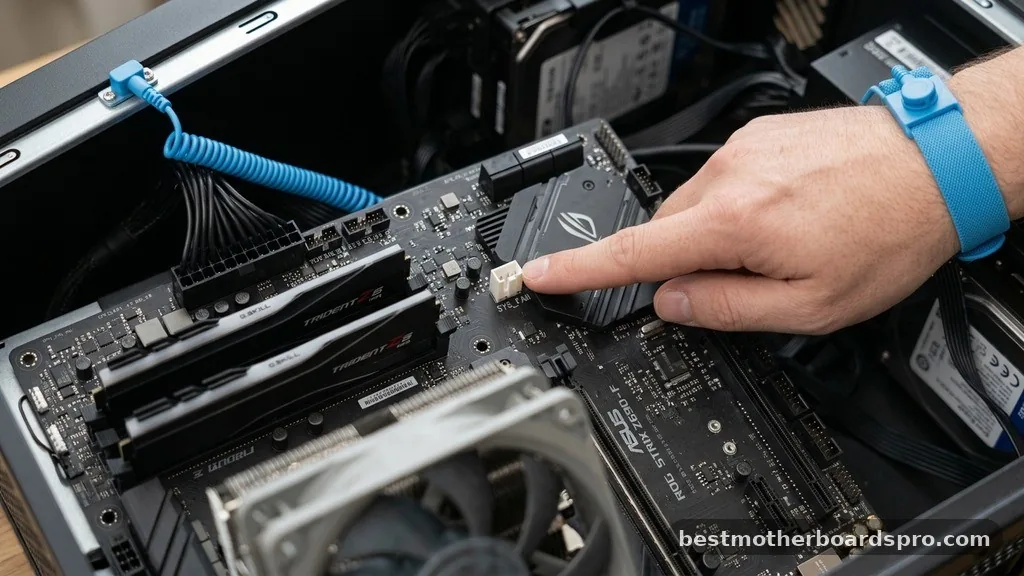
Your motherboard features specific pins designed to provide both power and control to your cooling hardware. Most boards label these headers clearly, usually located near the CPU socket or along the bottom edge of the board.
The primary header you will encounter is the CPU_FAN, which is dedicated to your processor cooler. It is essential to use this port for your main cooler because the motherboard monitors it constantly to prevent thermal shutdown.
Other headers, typically labeled as SYS_FAN or CHA_FAN, are intended for your case fans. These headers are generally interchangeable, though they might have different current limits.
Before plugging anything in, inspect the header to see if it has three or four pins. A pin PWM header (four pins) allows for precise speed control through pulse width modulation, while a pin DC fan connector (three pins) regulates speed by adjusting the voltage sent to the motor.
Understanding 3-Pin vs 4-Pin Connections
Compatibility is rarely an issue when mixing fan types, but understanding the differences helps you optimize performance. A 4-pin fan uses the fourth pin to communicate with the motherboard, allowing for granular speed adjustments. If you plug a 3-pin fan into a 4-pin header, the motherboard usually detects the mismatch and automatically switches to DC voltage control.
| Feature | 3-Pin Fan | 4-Pin PWM Fan |
|---|---|---|
| Control Method | Voltage Adjustment | Pulse Width Modulation |
| Speed Precision | Moderate | High |
| Compatibility | Works on 4-pin headers | Works on 3-pin headers |
While the physical connection fits perfectly, you lose the digital speed control signal when using a 4-pin fan on a 3-pin header. In most cases, the fan will simply run at full speed unless your motherboard BIOS is particularly advanced and supports voltage regulation for 3-pin slots.
Managing Multiple Fans with Splitters and Hubs
Most motherboards do not have enough headers to support a full custom loop or a high-airflow case configuration. When you run out of ports, you have two primary options: a fan splitter cable or a powered fan hub.
A splitter is a simple Y-shaped cable that takes one header and turns it into two or three. This is great for small builds, but you must be careful not to exceed the amperage limit of the motherboard header, which is typically 1 Amp.
For more complex builds, a powered hub is the superior choice. These devices connect to a SATA power connector or a molex adapter to draw electricity directly from the power supply, relieving the stress on your motherboard.
The hub then uses a single cable to send the RPM signal from one fan back to the motherboard, while the hub manages the power delivery for all connected units. This setup makes cable management much cleaner and safer for your components.
Configuring Fans in the BIOS
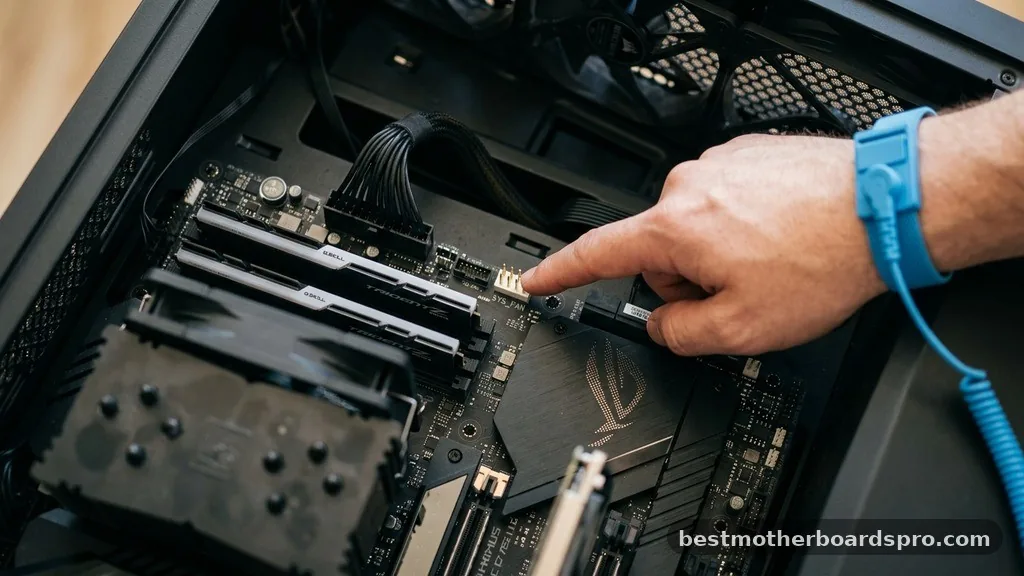
Once everything is physically plugged in, the hardware needs instructions on how to behave. Enter your BIOS or UEFI by pressing the appropriate key during boot—usually Delete or F2.
Look for a section labeled “Hardware Monitor” or “Smart Fan.” This is where you set your BIOS fan curve.
A fan curve maps temperature to fan speed. You can tell your system to keep fans at a low, quiet RPM while you are browsing the web, and ramp them up to maximum speed only when the CPU or GPU gets hot during gaming or rendering.
Setting these curves prevents the “revving” sound where fans constantly change speed. Many modern motherboards also include fan controller software that runs inside Windows, allowing you to tweak these curves without rebooting.
Addressing Lighting and RGB Headers
Modern aesthetics often involve RGB lighting, which complicates the connection process slightly. You must distinguish between an ARGB header (usually 5V, 3-pin) and a standard V 4-pin RGB header (12V).
Plugging a 5V device into a 12V header will permanently damage the LEDs. Always check your motherboard manual to verify the voltage of your headers.
- Check the voltage rating (5V vs 12V) before connecting any lighting cables.
- Ensure the arrow on the connector aligns with the 5V or 12V pin on the board.
- Use a dedicated lighting controller if your motherboard lacks enough headers.
- Consider the total power draw of your LED strips to avoid overloading the header.
Common Troubleshooting Steps
If your fans are not spinning, the first step is to verify the physical connection. It is surprisingly common for a connector to be slightly misaligned or for a pin to be bent.
Ensure the fan blades are not obstructed by loose cables. If the fans spin but are loud, check your BIOS settings to ensure they are set to PWM mode if they are 4-pin fans.
Another issue involves fans not reporting their speed. This usually happens when using a splitter.
Because the motherboard can only read one RPM signal at a time, splitters are designed with one connector that has all four pins, while the others only have three. Ensure the fan with the full 4-pin connector is plugged into the primary slot so the motherboard can track its speed.
Optimizing Airflow Orientation
Beyond the electrical connection, the physical placement of your fans significantly impacts cooling efficiency. Most case fans have a small arrow on the side of the frame indicating both the direction of the blade rotation and the direction of the airflow orientation. A standard rule of thumb is to have intake fans at the front and bottom of the case, and exhaust fans at the back and top.
Maintaining positive air pressure—where more air is pushed in than pulled out—helps keep dust out of your system by forcing air through filtered intakes. If you have the fans oriented incorrectly, your system will recirculate hot air, causing your components to throttle even if the fans are spinning at maximum speed.
Frequently Asked Questions
Can I plug a 3-pin fan into a 4-pin motherboard header?
Yes, you can safely plug a 3-pin fan into a 4-pin header. The connector is keyed to fit into the header, leaving one pin exposed. The motherboard will typically detect the 3-pin fan and switch to voltage-based control, though you may need to adjust this setting in the BIOS.
Do I need to connect all case fans to the motherboard?
While you do not strictly have to, it is highly recommended. Connecting fans to the motherboard allows for automatic speed control based on system temperature. If you connect them directly to the power supply using adapters, they will usually run at full speed constantly, which creates unnecessary noise.
How do I know if I have exceeded the power limit of a header?
Most motherboard fan headers are rated for 1 Amp. Check the sticker on your fans to see their current draw. If the sum of the amps for all fans on a single header exceeds 1 Amp, you risk damaging the motherboard traces. Use a powered hub instead.
What is the difference between PWM and DC fan control?
PWM (Pulse Width Modulation) uses a dedicated fourth wire to send a digital signal to the fan, allowing for precise speed control. DC control regulates the voltage supplied to the fan motor. PWM is generally quieter and more efficient at low speeds compared to traditional DC voltage adjustment.
Connecting your cooling hardware correctly ensures your components remain within safe operating temperatures while maintaining a quiet environment. By identifying the correct headers, choosing between splitters or powered hubs, and fine-tuning your settings in the BIOS, you gain total control over your system’s thermals. When you successfully connect fans to motherboard ports, you are not just plugging in cables; you are optimizing the longevity and performance of your entire PC.
Take your time with the cable routing to ensure a clean build, and don’t hesitate to revisit your fan curves if you want a quieter experience. If you run into issues, double-check your manual, as motherboard layouts vary significantly between manufacturers. Happy building, and enjoy your cool, efficient system.



