


If you have ever found yourself staring at a new case full of intake fans only to realize your motherboard is short on headers, you are certainly not alone. Connecting multiple fans to a motherboard effectively is a common hurdle for PC builders who want to maximize cooling performance without frying their hardware.
Whether you are aiming for a silent workstation or a high-airflow gaming rig, understanding the limitations of your board’s headers is the first step toward success. By learning how to distribute power safely, you can keep your components cool while ensuring your system stays stable and quiet under heavy loads.
Understanding Motherboard Header Limitations
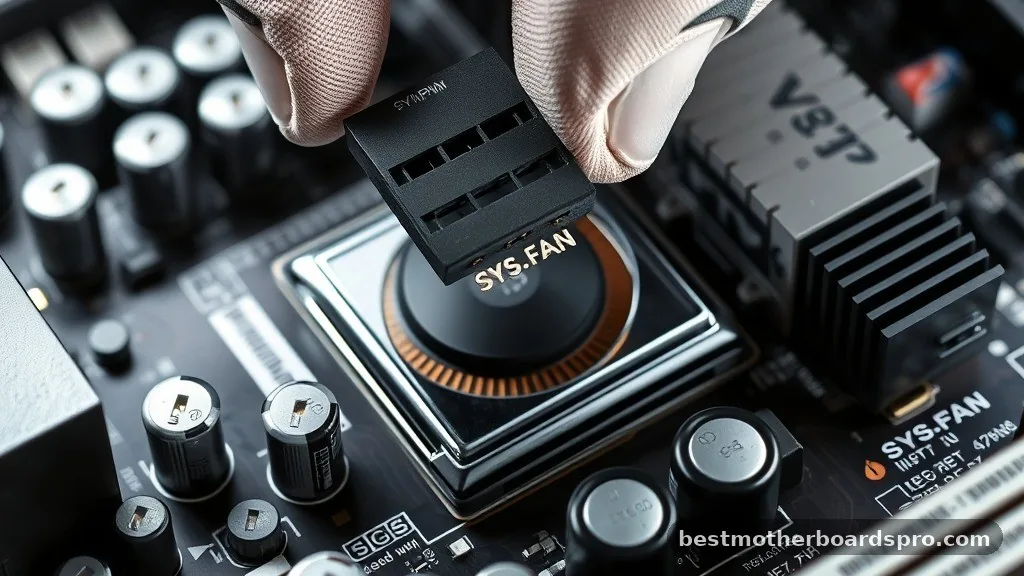
Every fan header on your motherboard has a specific current capacity, usually rated at 1 Amp (1A). This limit is the maximum amount of electricity the header can safely deliver to connected devices.
If you exceed this total draw, you risk damaging the fan controller on your motherboard. Before plugging in a handful of fans, check your motherboard manual to confirm the amperage limit for each system fan header and the dedicated CPU fan header.
Most standard 12V PC fans draw between 0.1A and 0.3A. While this allows for some flexibility, it is dangerous to assume you can simply stack as many fans as you want on a single port.
If you are planning to use a splitter, you must calculate the total current draw of all fans attached to that specific header. If the combined total exceeds 1A, you should look for alternative power sources to avoid potential electrical failure or permanent damage to your motherboard’s circuitry.
Using Fan Splitters for Simple Setups
A fan splitter is a simple Y-shaped cable that allows you to connect two or more fans to a single motherboard fan header. This is the most straightforward method for connecting multiple fans to a motherboard when you only need to add one or two extra units. Because the signal for speed control comes from the header, all fans connected to a single splitter will typically run at the same speed based on the BIOS fan control settings.
It is important to note that when using a 4-pin PWM splitter, usually only one connector on the splitter will have all four pins present. The other connectors are often missing the tachometer (RPM sensing) pin.
This is intentional; if multiple fans sent RPM signals to the same header, the motherboard would receive conflicting data, leading to erratic fan speed reporting. The motherboard only needs to “see” the speed of one fan to regulate the entire group effectively.
Choosing Between Fan Hubs and Splitters
When your build requires more than just a couple of extra fans, a powered fan hub becomes a much safer and cleaner solution. Unlike a simple splitter, a powered hub connects directly to your power supply unit via a SATA power connector or sometimes a Molex adapter. This setup draws the necessary electrical current directly from the power supply rather than stressing the motherboard headers.
A powered hub serves as a distribution center for your fans, while a single cable runs from the hub to your motherboard. This configuration allows you to control all connected fans using the BIOS fan control or software, but the heavy lifting of power delivery is handled by the PSU. This approach is highly recommended for users installing six or more fans in a single system, as it ensures consistent voltage and better thermal management across the entire chassis.
| Feature | Fan Splitter | Powered Fan Hub |
|---|---|---|
| Power Source | Motherboard Header | PSU (SATA/Molex) |
| Safety Limit | Strict (1A limit) | High (PSU capacity) |
| Cable Management | Messy with many fans | Neat and centralized |
| Best For | 1-2 extra fans | 3+ extra fans |
Managing Airflow and Thermal Performance
Achieving optimal airflow is about more than just quantity; it is about creating a balanced pressure environment inside your case. When connecting multiple fans, try to group them by function.
For example, keep all front intake fans on one header and all rear or top exhaust fans on another. This allows you to set different fan curves in the BIOS based on the specific thermal needs of your components.
- Group intake fans together to create positive pressure and reduce dust buildup.
- Place your CPU cooler fans on the dedicated CPU header for safety.
- Use PWM-controlled fans whenever possible for finer speed adjustments.
- Regularly check your fan curves in the BIOS to ensure they ramp up under load.
- Ensure your cable management doesn’t obstruct the airflow path you’ve created.
If you are using a mix of 3-pin and 4-pin fans, remember that 3-pin fans use DC voltage control, while 4-pin fans use PWM signals. Modern motherboards are often smart enough to detect the difference, but you may need to enter the BIOS to manually toggle the control mode for each specific header. Mixing fan types on a single splitter can lead to unpredictable behavior, so it is best to keep similar fans together on the same circuit.
Addressing Power and Connection Risks
One of the biggest mistakes builders make is ignoring the amperage limit of the motherboard headers. If you are daisy chaining fans—connecting one fan to another and then to the header—you are essentially creating a long, power-hungry chain. This can lead to voltage drops, where fans run slower than intended, or worse, heat buildup in the thin wires of the splitter cables.
Always prioritize safety by keeping the total amperage of your fans well below the motherboard’s rated threshold. If you aren’t sure how much power your fans consume, look for the sticker on the back of the fan hub or the center of the fan blade. It will list the voltage and amperage (e.g., 12V 0.20A).
If you have five fans at 0.20A each, you are right at the 1A limit, leaving zero headroom for start-up spikes. In this scenario, a powered hub is not just a convenience; it is a necessity.
BIOS Fan Control and Software Optimization
Once everything is physically connected, the work shifts to the software side. Most modern BIOS interfaces provide a visual representation of your fan curves, allowing you to map fan speed to specific temperature sensors, such as the CPU or the motherboard chipset. This is where you can truly refine your cooling performance.
If you find that your fans are too loud at idle, use the “Silent” or “Custom” profile in your BIOS to drop the minimum speed. Conversely, if your system gets too hot during gaming sessions, you can create a steeper curve that forces the fans to ramp up earlier. For users who prefer software control, many motherboard manufacturers provide proprietary Windows apps that allow you to adjust these settings on the fly without rebooting, making it much easier to fine-tune your cooling while stress-testing your system.
Frequently Asked Questions
Is it safe to daisy chain more than three fans on a single header?
Daisy chaining more than three fans is generally risky because it often pushes the total current draw past the 1A limit of most motherboard headers. Even if the fans start up fine, high current draw can cause the motherboard’s power delivery components to overheat, potentially leading to long-term hardware failure.
Can I mix 3-pin and 4-pin fans on the same fan splitter?
Mixing 3-pin and 4-pin fans on the same splitter is not recommended. Because they use different methods to regulate speed—DC voltage versus PWM—the motherboard will struggle to send the correct signal to both types simultaneously, often resulting in fans that either run at full speed or do not spin at all.
What happens if I exceed the amperage limit of a fan header?
Exceeding the amperage limit can cause the fan controller on your motherboard to overheat. In the best-case scenario, the header may simply stop working, or your PC might shut down to protect itself. In the worst-case scenario, the excess current can permanently fry the traces on your motherboard.
Do I need a powered hub if I only have four fans in my PC?
If your motherboard has enough headers to accommodate each fan individually, you do not need a hub. If you are forced to use a splitter to connect those four fans, you should absolutely use a powered hub to ensure the power draw is offloaded from the motherboard’s sensitive circuitry.
Final Thoughts on Fan Management
Connecting multiple fans to your motherboard is a manageable task once you respect the electrical boundaries of your hardware. By prioritizing powered hubs for large configurations and using splitters only for light loads, you can keep your system cool and your motherboard safe. Always verify your header amperage limits, group your fans logically, and spend time calibrating your curves in the BIOS.
These small steps ensure that your cooling solution is reliable and effective. If you encounter strange behavior, double-check your connections and ensure that your BIOS settings match the fan types you have installed. With a bit of patience, you will achieve the perfect balance of airflow and silence for your custom PC build.



