


Upgrading your computer’s storage is one of the most effective ways to boost system performance, and learning how to install an SSD on your motherboard is a skill that saves both time and money. Whether you are transitioning from a slow mechanical hard drive or simply adding more space for your growing library of games and media, the process is straightforward once you understand the hardware involved.
Modern systems typically use either M.2 NVMe drives or 2.5-inch SATA units, each requiring a slightly different approach during the physical setup. By following these steps carefully, you can successfully expand your storage capacity while ensuring your system remains stable and responsive for years to come.
Identifying Your SSD Type and Motherboard Compatibility

Before you start, you need to confirm which type of drive your system supports. Most modern builds prioritize M.2 slots, which sit directly on the motherboard, while older or budget-focused setups often rely on SATA connections. Check your motherboard manual or the manufacturer’s website to see how many slots are available and what interface speeds they support.
The Difference Between M.2 and SATA Drives
M.2 drives are small, rectangular sticks that plug directly into the board, while 2.5-inch SATA drives look like miniaturized hard drives. M.2 units are generally faster and cleaner because they don’t require external wires. SATA drives, conversely, are excellent for bulk storage and are often easier to manage if your motherboard lacks spare M.2 ports.
| Feature | M.2 NVMe SSD | 2.5-inch SATA SSD |
|---|---|---|
| Connection | M.2 Slot on Motherboard | SATA Data + SATA Power Cable |
| Speed | Extremely High (PCIe) | Standard (SATA III) |
| Physical Size | Stick (2280 standard) | Small Box |
| Cables Required | None | Two (Data and Power) |
Preparing Your Workstation and Safety
Static electricity is the silent enemy of computer hardware. Before handling any components, ensure your computer is powered down and completely disconnected from the wall outlet. Press the power button a few times while it’s unplugged to drain any residual current trapped in the capacitors.
Working on a non-conductive surface, such as a wooden table, is much safer than working on carpet. If you have an anti-static wrist strap, use it to ground yourself to the chassis. If not, simply touch a metal part of the computer case frequently to discharge any static buildup from your body.
How to Install an M.2 SSD
Installing an M.2 drive is usually the cleanest process. Locate the M.2 slot, which is typically found near the CPU socket or under a metal heat spreader. You will likely see a small, pre-installed standoff and a tiny screw holding it in place or sitting loose in the box.
- Remove the heatsink if your motherboard has one covering the slot.
- Locate the M.2 standoff; if it isn’t in the right place for your drive size, use pliers to move it to the correct hole.
- Insert the drive into the slot at a 30-degree angle; it should slide in until the pins are hidden.
- Gently press the drive down toward the motherboard so it sits flat against the standoff.
- Secure the drive using the small screw, ensuring it is snug but not overtightened.
Be careful with the screw, as it is very small and easy to lose. If your motherboard includes a thermal pad on the heatsink, peel off the protective plastic film before reattaching the metal cover to ensure proper heat dissipation.
Connecting a 2.5-inch SATA SSD
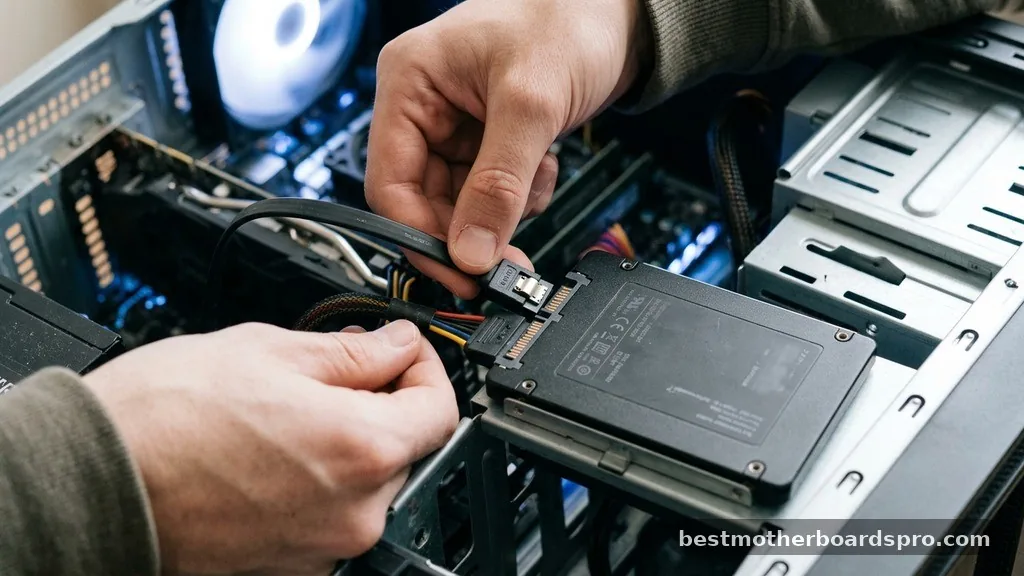
If you are using a 2.5-inch drive, the process involves more cables but is visually easy to follow. You need a SATA data cable, which usually comes with your motherboard, and a SATA power connector coming from your power supply unit.
Mounting and Cabling
Most cases have dedicated drive bays or mounting brackets behind the motherboard tray for 2.5-inch drives. Secure the drive in place with the provided screws. Once mounted, plug the SATA data cable into the drive and the corresponding port on your motherboard.
Finally, connect the SATA power cable from your power supply. It only goes in one way, so don’t force it if it feels resistant.
Addressing Potential Installation Issues
Even when you follow the steps perfectly, you might encounter minor hiccups. If the drive is not detected in the BIOS, check the physical connections first. Sometimes an M.2 drive will disable specific SATA ports on the motherboard, so if you have other drives connected, check your manual to ensure there isn’t a conflict.
Another common issue involves the BIOS settings. Occasionally, you may need to enable the M.2 slot or switch the controller mode from RAID to AHCI for the drive to appear properly in Windows. Always ensure your BIOS firmware is updated to the latest version, as manufacturers frequently release patches that improve compatibility with newer storage hardware.
Configuring the Drive in Your Operating System
Once the physical installation is complete, your computer will not automatically show the new drive in File Explorer. You must initialize it within the operating system.
In Windows, right-click the Start button and select Disk Management. A pop-up should appear asking you to initialize the new disk; select GPT (GUID Partition Table) for modern systems.
After initialization, the drive will show as unallocated space. Right-click that black bar and choose New Simple Volume.
Follow the prompts to format the drive, assign it a letter, and give it a name. Once finished, your new storage is ready to store your data and applications.
Frequently Asked Questions
Do I need to install drivers for my new SSD?
Generally, no. Modern operating systems include generic drivers that allow your drive to function immediately. While some high-performance NVMe drives offer proprietary software for firmware updates or status monitoring, they are not strictly required for the hardware to be recognized and used by your system.
Why is my new SSD not showing up in my computer?
If the drive isn’t visible, it usually needs to be initialized. Open the Disk Management utility in Windows to see if the drive appears there as unallocated space. If it doesn’t appear in Disk Management or BIOS, re-check your physical connections to ensure the drive is fully seated.
Can I install an SSD while the computer is turned on?
Absolutely not. You must always power down your system and unplug the power cable before opening the case. Inserting or removing hardware while the motherboard is receiving power can cause short circuits, permanent damage to your components, or even electrical shock to the user.
What if I don’t have a screw for my M.2 drive?
If you lost the screw, check your motherboard box, as they are often included in a small plastic bag. If it is genuinely missing, you can purchase an M.2 mounting kit online. Do not attempt to use a standard case screw, as it will not fit the delicate threads on the standoff.
Key Takeaways for Your Storage Upgrade
Successfully adding an SSD to your system is a rewarding process that provides a noticeable speed increase for your operating system and applications. By identifying the correct slot, handling the hardware with care, and ensuring the drive is properly initialized within your OS, you can expand your storage capacity with confidence. Remember to double-check your motherboard manual if you encounter any compatibility questions, as specific slots often have unique requirements or limitations.
Once you have completed the installation, you’ll enjoy faster boot times and snappier file transfers. If you run into any trouble during the process, take a step back, verify your connections, and consult the documentation provided by your component manufacturers to get everything running smoothly.



