

Determining if your motherboard is compatible with your GPU is a fundamental skill for anyone building or upgrading a PC. You might feel a bit anxious about spending money on a high-end graphics card only to find it won’t fit or function, but the reality is that hardware standards make this process quite predictable.
Most modern systems rely on universal interfaces, meaning you rarely have to worry about proprietary locks between your motherboard and your graphics card. By focusing on a few key technical specifications, you can confidently verify that your components will work together, saving you from unnecessary stress or wasted hardware investments during your next build.
Understanding the PCI Express Interface
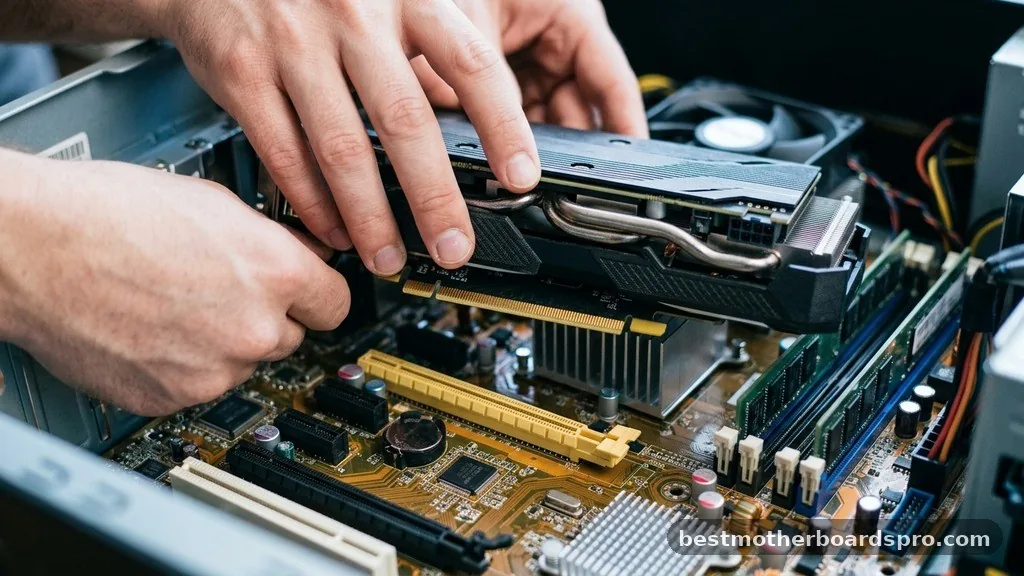
The most important factor when asking if your motherboard is compatible with a GPU is the interface standard. Almost every modern graphics card uses the PCI Express (PCIe) slot on your motherboard to communicate with the rest of your system. Because PCIe is backward and forward compatible, you can technically plug a newer card into an older slot, or vice versa, without worrying about the system failing to recognize the device.
While the physical slot remains consistent, the generation of PCIe matters for total bandwidth. A PCIe 4.0 card will work perfectly fine in a PCIe 3.0 slot, but the card might operate at slightly reduced speeds depending on the workload. For most users, this performance drop is negligible, but it is worth noting if you are aiming for extreme professional rendering or competitive high-refresh-rate gaming.
Evaluating Physical Dimensions and Case Clearance
Physical space is frequently overlooked, yet it is a common reason for compatibility failure. Even if your motherboard has the correct PCIe slot, the graphics card itself might be too long or too thick for your specific chassis. Modern GPUs have grown significantly in size, often requiring three or more expansion slots on the back of your case.
Before buying, check the length of the GPU in millimeters and compare it to the maximum clearance listed in your computer case specifications. If you have a small form factor (SFF) build, you must be extra careful about the card’s thickness. Some cards are so thick that they might block access to other motherboard headers or sit too close to the bottom of the case, restricting airflow and causing thermal throttling.
Power Supply and Connector Requirements
Your motherboard provides some power through the PCIe slot, but high-performance GPUs require direct power from the power supply unit (PSU). You need to ensure your PSU has the correct cables, such as 6-pin or 8-pin PCIe power connectors, to support the card. If you are upgrading to a high-end card, your existing power supply might lack the necessary wattage or the specific cables required for the new hardware.
| Component | Primary Compatibility Concern |
|---|---|
| PCIe Slot | Physical fit and generation bandwidth |
| Power Supply | Total wattage and cable availability |
| Computer Case | Length and width clearance |
| CPU | Potential for bottlenecking high-end GPUs |
Addressing Potential Bottlenecks
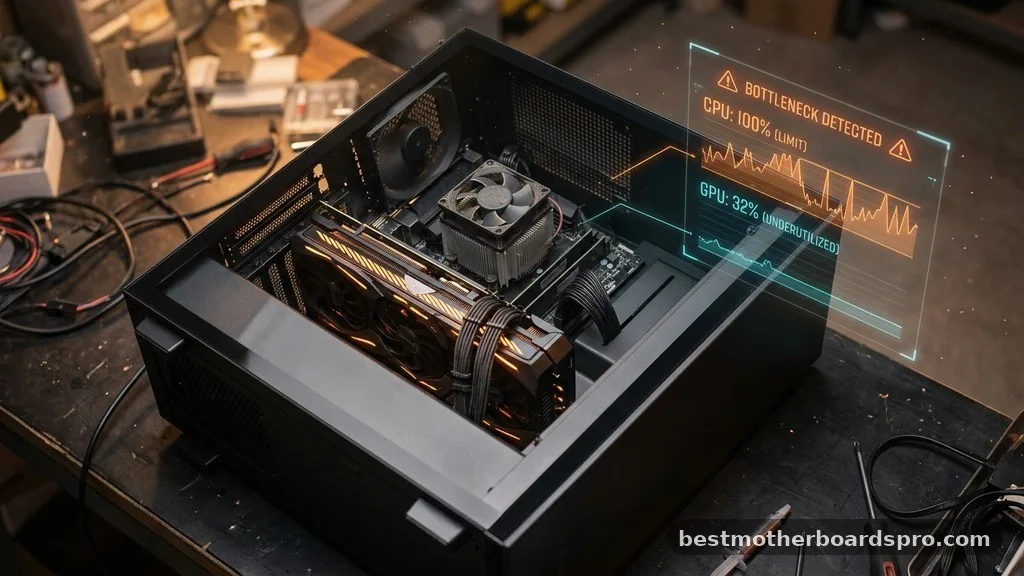
While your motherboard might physically accept a GPU, the rest of your system might struggle to keep up. A bottleneck occurs when your processor (CPU) cannot process data fast enough to keep the graphics card fully utilized. While this doesn’t mean the hardware is “incompatible,” it does mean you won’t see the performance gains you paid for.
If you pair a top-tier, modern graphics card with a CPU that is five or six years old, the CPU will likely limit the output of your GPU. You should research your specific CPU and GPU combination to see if they are a balanced match for your intended resolution and frame rate goals. Balancing these components ensures that your investment provides the best possible value for your computing needs.
Physical and Electrical Limitations
You might wonder if there are hidden electrical conflicts that could damage your components. In reality, the PCIe standard is designed to be safe.
If you insert a card into a slot, the system will negotiate the speed and power delivery automatically. The main risks are purely mechanical, such as accidentally bending pins or failing to seat the card fully in the slot.
- Always ensure the PCIe latch on the motherboard slot clicks into place.
- Verify that you have removed the correct expansion slot covers from the back of your case.
- Double-check that no cables are obstructing the GPU fans once installed.
- Ensure your BIOS is up to date, as some newer GPUs require specific firmware updates for optimal stability.
Topical Gaps: What Often Gets Missed
Many users focus solely on the motherboard and GPU, ignoring the impact of the SSD and RAM on overall system performance. While your storage drive and memory don’t dictate GPU compatibility, they influence how quickly assets are loaded into your graphics card’s VRAM. If your system is slow to load textures or experiences stuttering in games, it might be an issue with your NVMe SSD speed rather than the graphics card itself.
Another overlooked point is the BIOS/UEFI settings. Sometimes, a motherboard might be compatible with a GPU, but the “Above 4G Decoding” or “Resizable BAR” settings need to be enabled in the BIOS to allow the system to use the card’s full memory buffer. If you install a new card and get a black screen or errors, checking these BIOS settings is often the solution.
| Symptom | Likely Cause |
|---|---|
| No signal on monitor | GPU not fully seated or power cables not connected |
| System boots but no display | Monitor plugged into motherboard instead of GPU |
| Low performance in games | CPU bottleneck or outdated drivers |
| Unexpected shutdowns | Insufficient power supply wattage |
FAQ Section
How do I check if my motherboard supports a specific GPU?
You check by verifying that your motherboard has a PCIe x16 slot, which is standard on virtually all boards produced in the last two decades. As long as your case has enough physical room and your power supply provides sufficient wattage, the components will be compatible.
Does the motherboard brand matter for GPU compatibility?
No, the brand of your motherboard does not restrict which GPU you can use. You can pair an NVIDIA or AMD graphics card with any motherboard from manufacturers like ASUS, MSI, or Gigabyte. The interface standards are universal across the entire industry for desktop PCs.
What happens if I use an older PCIe slot with a new GPU?
The GPU will work perfectly fine, but it might operate at the speed of the older PCIe generation. This rarely causes noticeable issues for most users, though high-end cards might see a minor decrease in maximum potential bandwidth during extremely intensive graphical tasks or data-heavy workloads.
Do I need to update my BIOS for a new graphics card?
Usually, you do not need to update your BIOS for a new GPU, but it is good practice. In rare cases involving very new card releases or older motherboards, a BIOS update can resolve stability issues or enable features like Resizable BAR that improve overall graphics performance.
Conclusion
Verifying that your motherboard is compatible with a GPU is a straightforward process that boils down to checking the PCIe slot, ensuring physical clearance, and confirming your power supply can handle the load. Because the industry relies on standardized interfaces, you have a vast range of options when choosing your next upgrade. By taking a few moments to measure your case and verify your PSU wattage, you can confidently integrate a new graphics card into your system.
Don’t let the technical jargon intimidate you; the hardware is designed to be modular and user-friendly. If you encounter any unexpected behavior, always start by checking your power connections and BIOS settings, as these are the most common culprits for setup issues.



