


Safely removing a graphics card from a motherboard is a fundamental skill for anyone looking to upgrade their PC or perform routine maintenance. Whether you are swapping out an aging component for the latest model or troubleshooting a display issue, understanding the physical connection between your GPU and the PCIe slot is essential. Many users feel intimidated by the potential for damage, but with a methodical approach, the process is straightforward and quick.
By following a clear set of steps, you can ensure your system remains unharmed throughout the procedure. This article provides the specific, actionable advice you need to handle your hardware with confidence and precision.
Preparing Your System for Component Removal
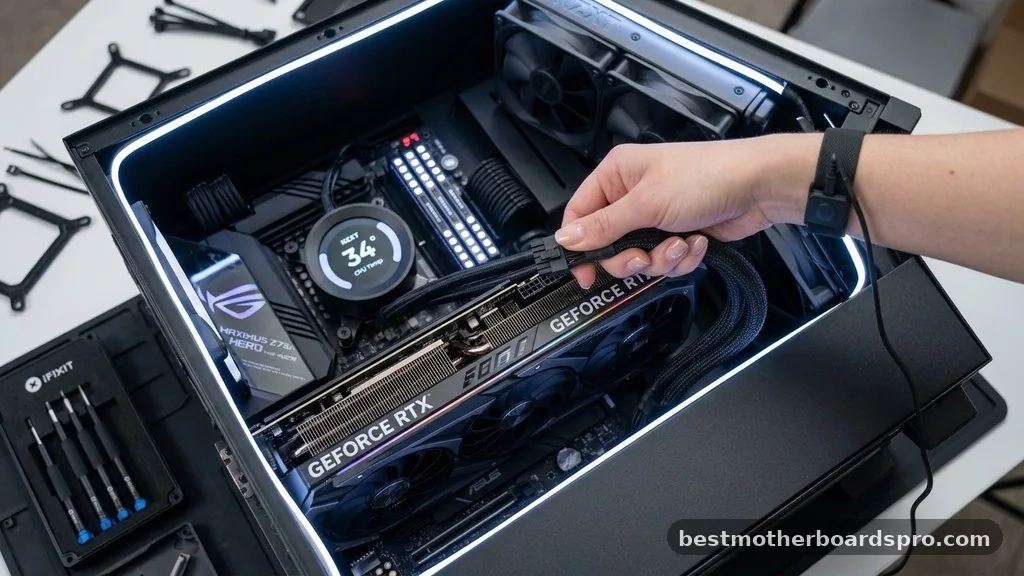
Before you even reach for a screwdriver, you must prioritize the safety of your computer components. Static electricity is the silent enemy of high-end hardware, and power currents can cause permanent damage to your motherboard or the card itself.
Start by shutting down your operating system completely. Do not simply put the machine into sleep mode or hibernate; perform a full shutdown.
Once the power is off, flip the switch on the back of your power supply unit to the “off” position. Unplug the power cable from the wall outlet to ensure there is no residual current flowing through the system.
Next, you should touch a grounded metal object, like the unpainted part of your PC case, to discharge any static electricity from your body. If you have an anti-static wrist strap, now is the time to wear it. Open your case by removing the side panel, which is typically secured by thumb screws or standard Phillips-head screws at the back of the chassis.
Disconnecting Power Cables and Anchors
Most modern graphics cards require dedicated power from the power supply. You cannot pull the card out until these cables are disconnected. Look at the top or side edge of your GPU; you will see one or more PCIe power connectors.
These cables usually have a small plastic latch on the side. Press down firmly on this latch while pulling the connector straight out. If it feels stuck, do not yank it.
Wiggle it gently from side to side while maintaining pressure on the release tab. Once those cables are free, move to the back of your computer case where the metal bracket of the card meets the frame.
You will likely find one or two screws securing the graphics card bracket to the expansion slot covers on the case. Remove these screws and set them aside in a safe place. These screws are the only things holding the card in place horizontally, but they are not the only thing keeping it locked into the motherboard.
Unlocking the PCIe Slot Mechanism

The most critical step in removing a graphics card from a motherboard involves the PCIe retention clip. This small plastic lever is located at the end of the PCIe slot, directly underneath the card. It acts as a locking mechanism to prevent the card from sagging or becoming dislodged during transit.
Locate the clip by looking at the far right side of the PCIe slot where the card is seated. Depending on your motherboard, this might be a push-down tab or a slide-to-the-side latch. Use your finger or a non-conductive plastic tool to press the tab down or pull it away from the slot until you hear or feel a soft click.
Do not force the card out if you haven’t released this clip. Pulling on a locked card can damage the PCIe connector pins on the motherboard, which is a much more expensive repair than simply replacing a GPU. Once the click confirms the lock is disengaged, the card will be ready for extraction.
Extracting the Graphics Card Safely
With the power cables disconnected, the bracket screws removed, and the retention clip released, the card is finally free. Place one hand on the left side of the card near the bracket and the other hand on the right side.
Pull the card straight out of the slot using a gentle, consistent motion. Ensure you pull evenly so the card does not tilt, as tilting can cause the connector pins to snag on the slot. If you feel significant resistance, stop and double-check that the retention clip is fully disengaged.
| Component | Action Required | Risk Level |
|---|---|---|
| Power Cables | Press latch and pull | Low |
| Bracket Screws | Unscrew with screwdriver | Low |
| Retention Clip | Press down or slide | High (Avoid forcing) |
| GPU Extraction | Pull straight out | Medium |
Addressing Common Obstacles
Sometimes, removing a graphics card from a motherboard feels harder than it should be. Tight spaces inside small form-factor cases often make it difficult to reach the retention clip. If you have large CPU coolers or other components in the way, you might need a thin, long object like a wooden chopstick or a plastic spudger to reach the latch.
- Ensure all case screws are fully removed.
- Check if the HDMI or DisplayPort cables are still plugged into the back.
- Verify that the card is not catching on a secondary bracket.
- Use a flashlight to inspect the PCIe slot for hidden debris or obstructions.
If the card still won’t budge, inspect the motherboard layout. Some boards have a small secondary bracket or a support post that might be anchoring the card from beneath. Always take your time; rushing is the primary cause of broken components during maintenance.
FAQ
Is it hard to remove a graphics card?
Removing a graphics card is not inherently difficult, but it requires patience. The biggest challenge is the retention clip on the PCIe slot, which is often hidden under the card’s body. As long as you release this clip first, the card should slide out with minimal effort.
Can I swap out a graphics card without uninstalling drivers?
While you can physically swap a card without uninstalling drivers, it is highly recommended to use software like Display Driver Uninstaller (DDU) if you are switching between brands, such as moving from NVIDIA to AMD. This prevents driver conflicts that could lead to system instability or poor performance.
What if I cannot reach the PCIe retention clip?
If your CPU cooler or other components block your fingers, use a non-conductive tool like a plastic screwdriver or a wooden dowel. Avoid using metal tools, as they can scratch the motherboard or cause a short circuit if you accidentally touch an active component while the system has power.
Does the computer need to be completely unplugged?
Yes, you must disconnect the power cable from the wall. Even when the PC is turned off, the motherboard often remains in a standby state that carries a small amount of electricity. Unplugging the system ensures there is zero risk of electrical damage while you handle the internal hardware.
Conclusion
Successfully removing a graphics card from a motherboard is a manageable task that empowers you to maintain and upgrade your own system. By systematically disconnecting the power, releasing the retention clip, and carefully extracting the unit, you protect your investment from accidental damage. Remember that the physical connection is sensitive, so never force the card if it feels stuck.
Always double-check that the locking mechanism is fully disengaged before attempting to pull. With these steps in mind, you are ready to perform your next hardware upgrade or cleaning session effectively.
If you encounter any unexpected resistance, simply pause and inspect the area again to ensure nothing is overlooked. Enjoy the process of refining your computer setup and seeing the improvements in your system’s performance.



